> ## Documentation Index
> Fetch the complete documentation index at: https://docs.testsprite.com/llms.txt
> Use this file to discover all available pages before exploring further.
# Modify or Update Tests
> Update existing tests to reflect changes in your application using TestSprite's interactive in-place editing capabilities.
## Overview
TestSprite gives you full control over your automated test cases with powerful in-place editing. Whether you're watching tests run live or reviewing results days later, you can fine-tune every step to match your exact requirements.
 ## Interactive Step Editing
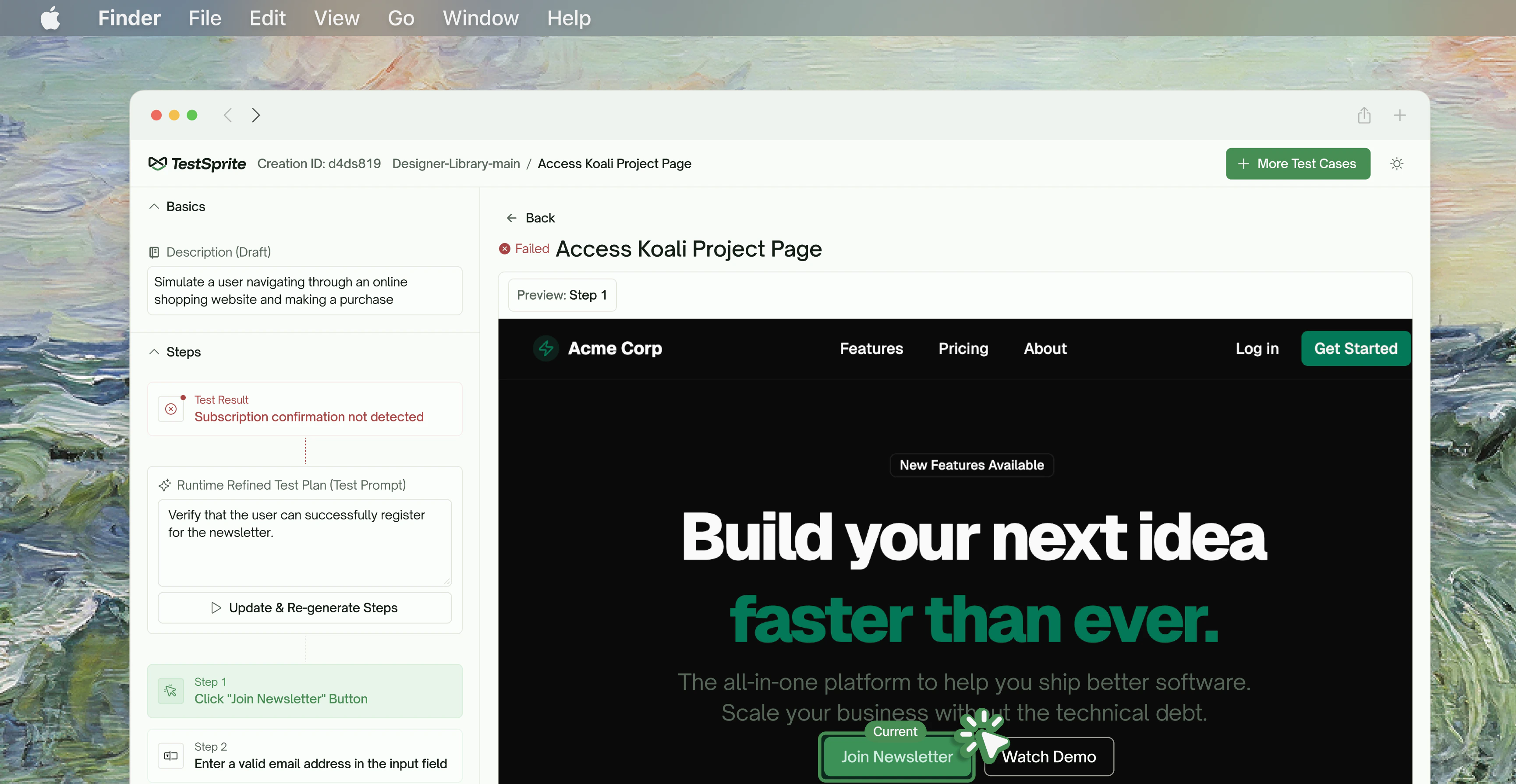
Click on any step to see a **snapshot** of that exact moment in your test, then modify it if needed.
## Interactive Step Editing
Click on any step to see a **snapshot** of that exact moment in your test, then modify it if needed.
 ### Edit Any Interaction
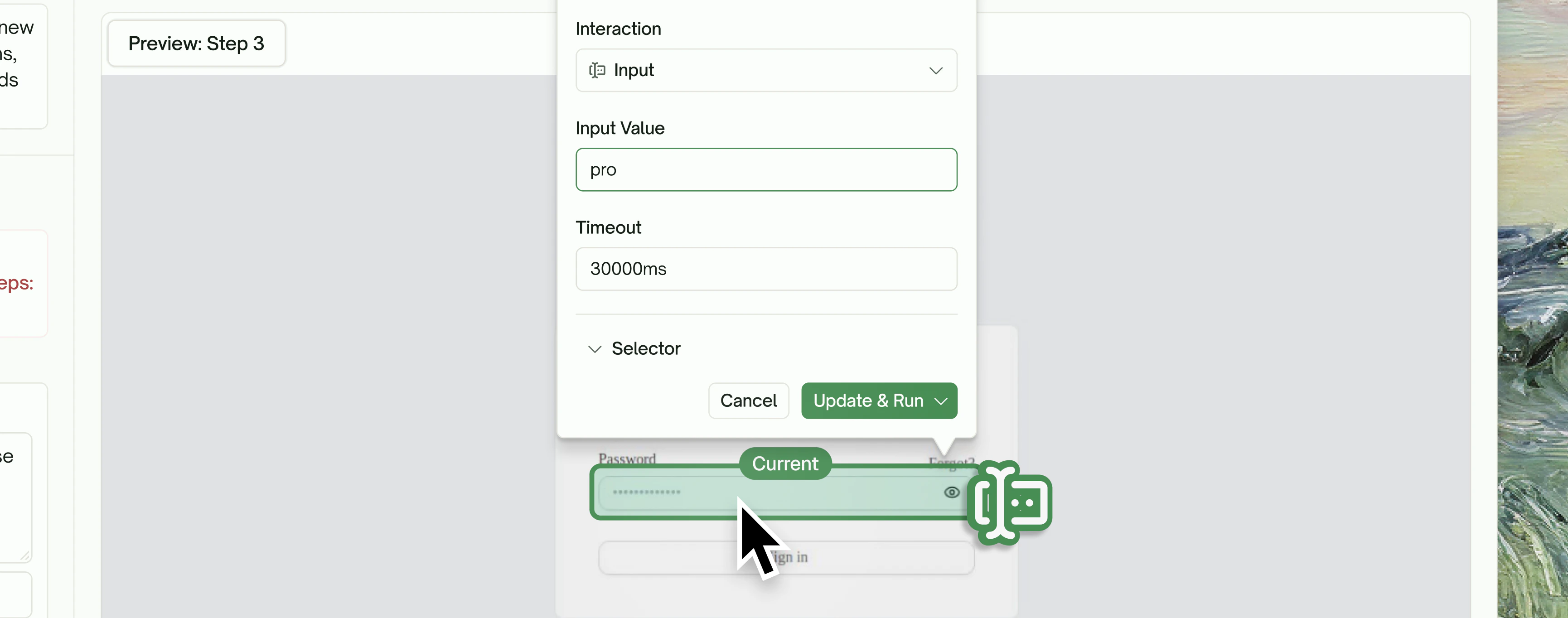
When you select a step, you can:
Switch between Click, Navigate, Input, Scroll, Assert, or modify the Selector.
### Edit Any Interaction
When you select a step, you can:
Switch between Click, Navigate, Input, Scroll, Assert, or modify the Selector.
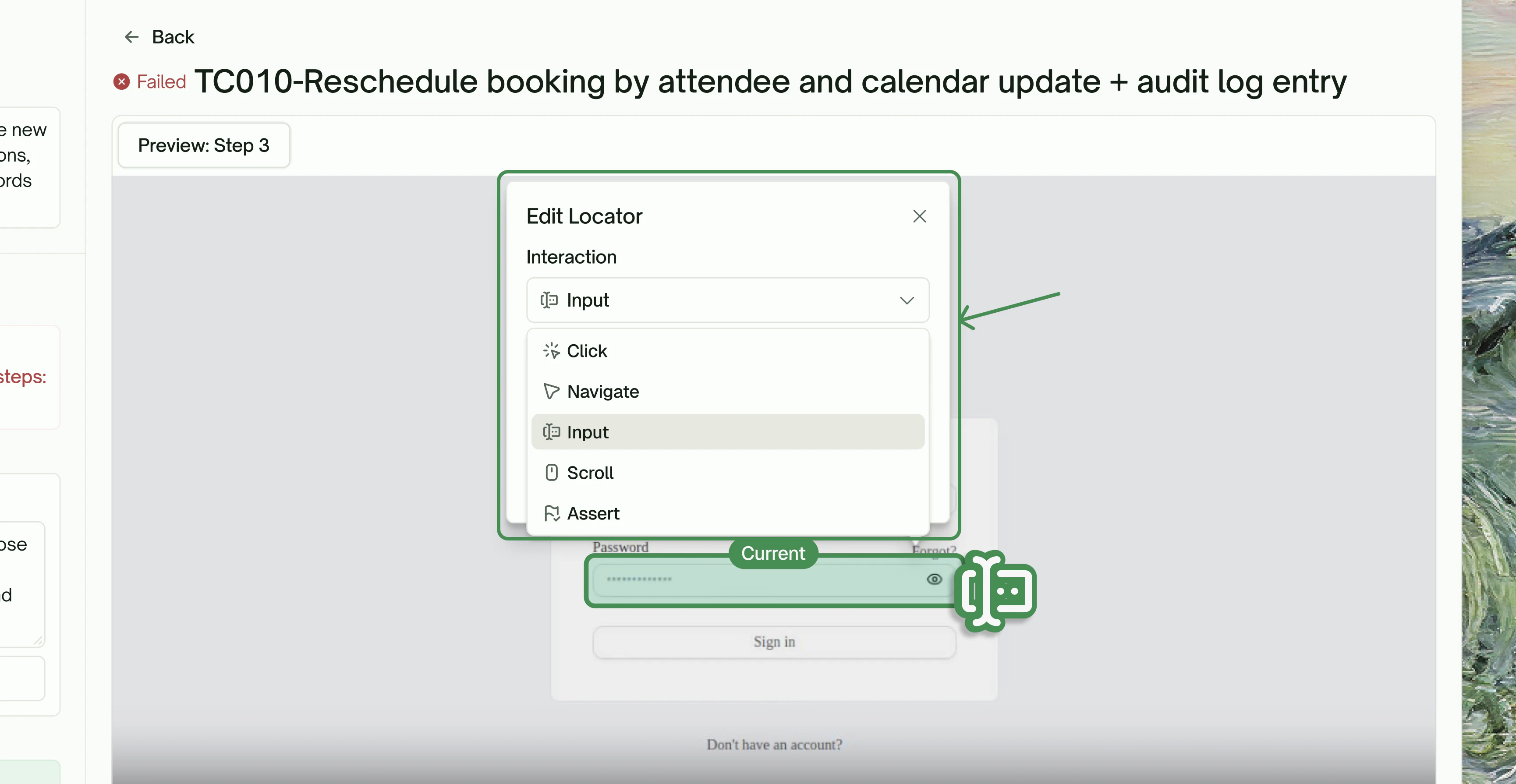 Change what text gets entered into form fields.
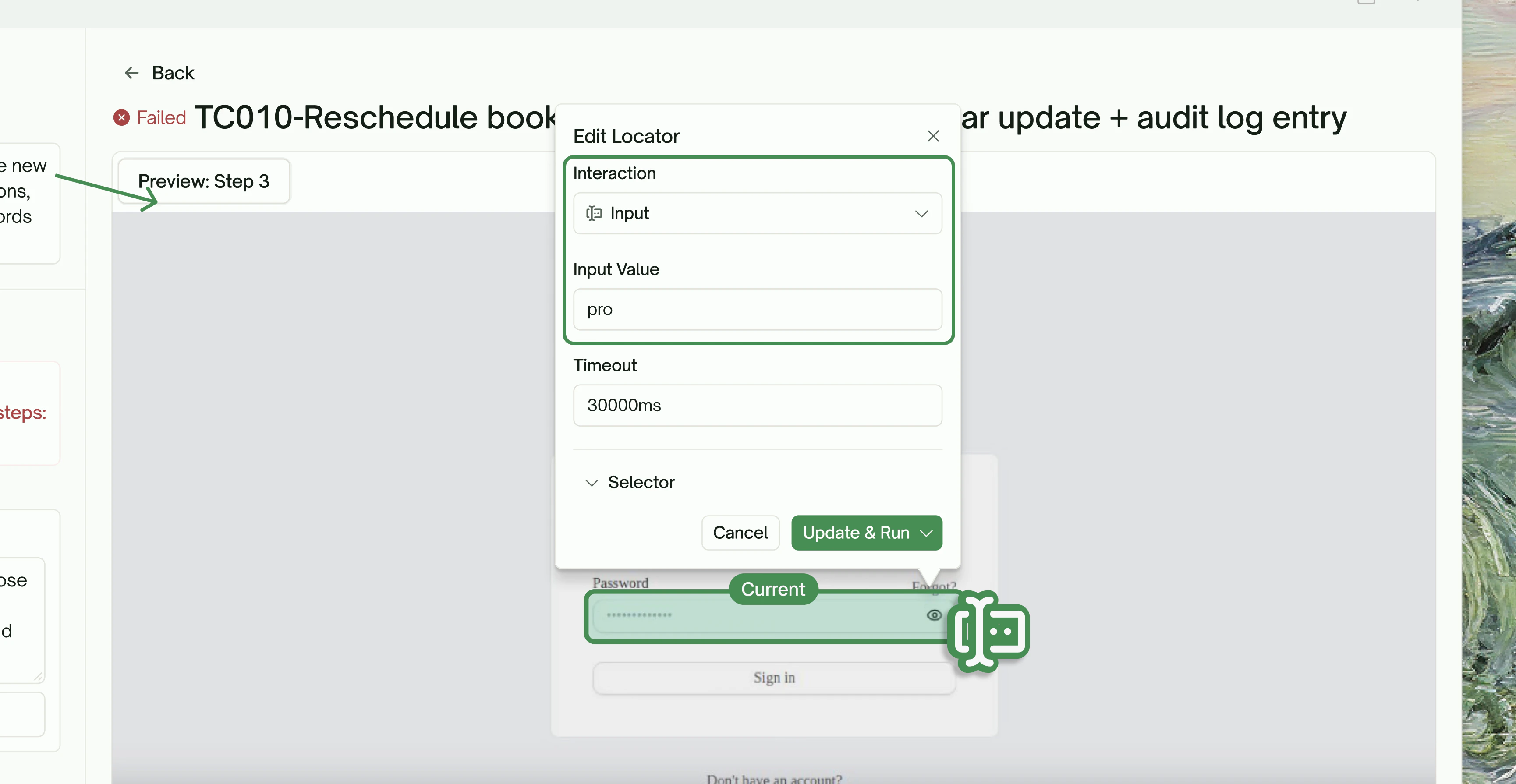 Fine-tune wait times for slow-loading elements.
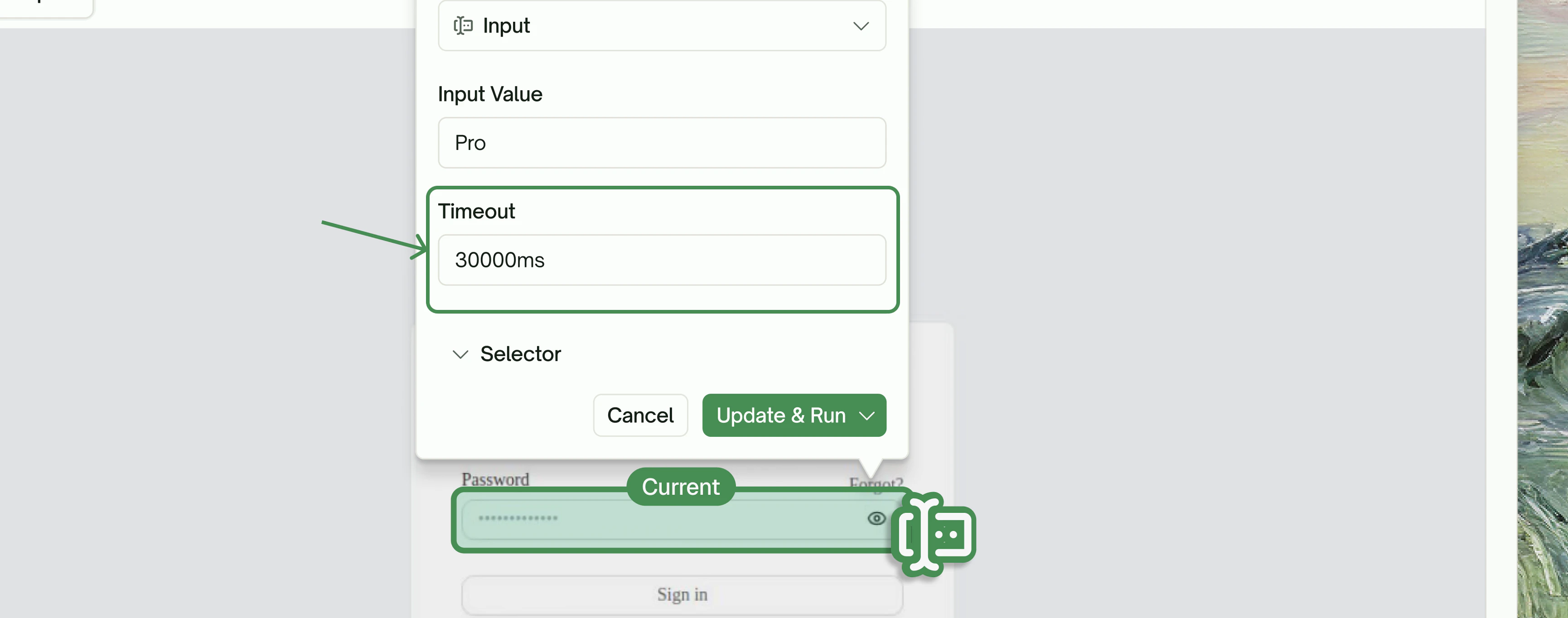 Pick a new element on the page if the current one isn't right.
 ### Visual Element Selection
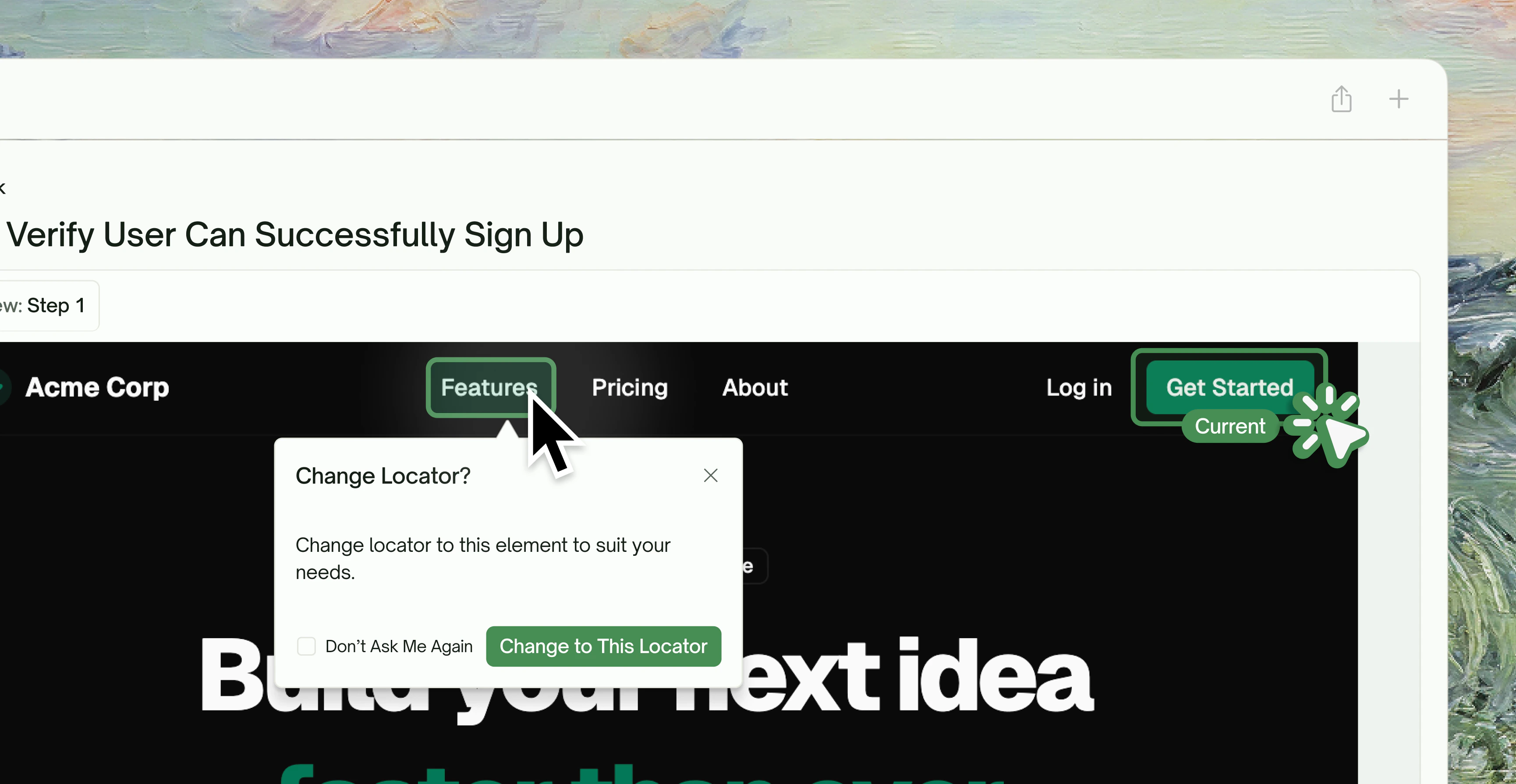
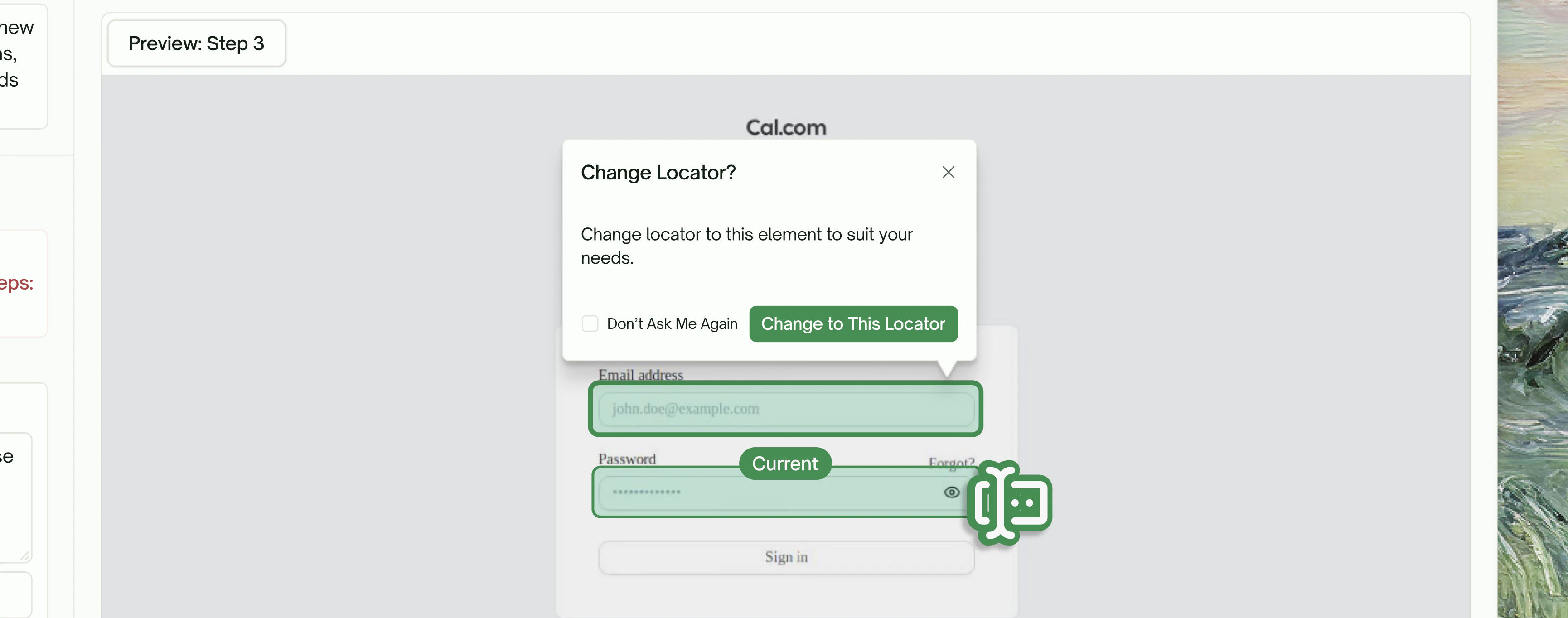
Don't like the current locator? Simply click any element on the page preview, and TestSprite will prompt you: *"Change locator to this element to suit your needs."*
This visual selection means you don't need to manually write CSS selectors or XPath—just point and click.
### Visual Element Selection
Don't like the current locator? Simply click any element on the page preview, and TestSprite will prompt you: *"Change locator to this element to suit your needs."*
This visual selection means you don't need to manually write CSS selectors or XPath—just point and click.
 ### Smart Regeneration Options
TestSprite will automatically regenerate the affected steps while preserving your customizations.
### Smart Regeneration Options
TestSprite will automatically regenerate the affected steps while preserving your customizations.
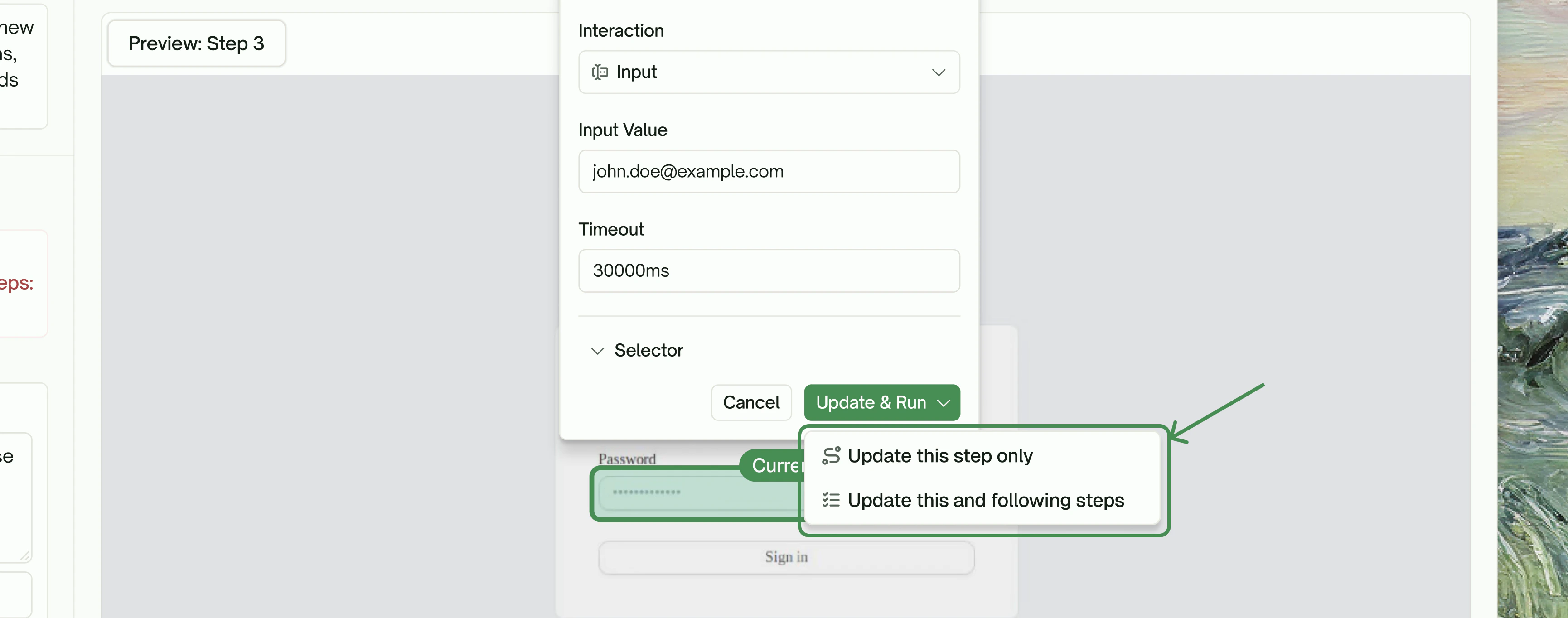 After making your edits, choose how TestSprite should handle the changes:
| Option | When to Use |
| ------------------------------------------ | ---------------------------------------------------------------- |
| Update this step only | Your change is isolated and doesn't affect subsequent steps |
| Update this and following steps | Your change impacts the test flow, and later steps need to adapt |
## Key Benefits
See exactly what your tests are doing with video recordings and step-by-step snapshots.
Visual editing means you can adjust locators, inputs, and actions without touching code.
As your application evolves, easily update test steps to match new UI layouts or workflows.
Pinpoint issues instantly with detailed error messages and execution recordings.
## Quick Reference
| Tool | Purpose |
| --------------------------------------- | -------------------------------------------------- |
| `testsprite_generate_code_and_execute` | Generate and run tests with live progress tracking |
| `testsprite_open_test_result_dashboard` | Reopen dashboard to review/edit past test runs |
## Next Step
Monitor real-time test execution
Test diff-scoped changes
Learn about auto-healing
Explore all available tools
After making your edits, choose how TestSprite should handle the changes:
| Option | When to Use |
| ------------------------------------------ | ---------------------------------------------------------------- |
| Update this step only | Your change is isolated and doesn't affect subsequent steps |
| Update this and following steps | Your change impacts the test flow, and later steps need to adapt |
## Key Benefits
See exactly what your tests are doing with video recordings and step-by-step snapshots.
Visual editing means you can adjust locators, inputs, and actions without touching code.
As your application evolves, easily update test steps to match new UI layouts or workflows.
Pinpoint issues instantly with detailed error messages and execution recordings.
## Quick Reference
| Tool | Purpose |
| --------------------------------------- | -------------------------------------------------- |
| `testsprite_generate_code_and_execute` | Generate and run tests with live progress tracking |
| `testsprite_open_test_result_dashboard` | Reopen dashboard to review/edit past test runs |
## Next Step
Monitor real-time test execution
Test diff-scoped changes
Learn about auto-healing
Explore all available tools