> ## Documentation Index
> Fetch the complete documentation index at: https://docs.testsprite.com/llms.txt
> Use this file to discover all available pages before exploring further.
# Test Progress Dashboard
> Monitor your entire test suite as it runs with live status updates, detailed test insights, and execution recordings.
## Overview
When you trigger `testsprite_generate_code_and_execute`, TestSprite automatically opens a live progress dashboard where you can monitor your entire test suite as it runs.

Watch your test cases execute with live status updates. Each test displays its current state—whether it's still running, has passed, or encountered an issue.
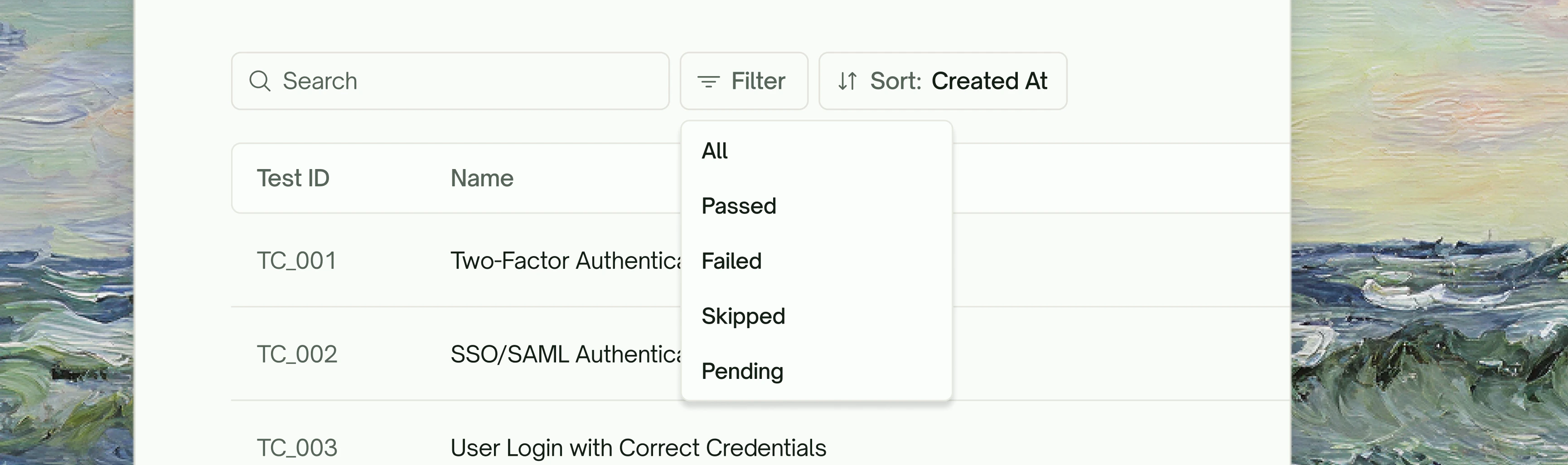
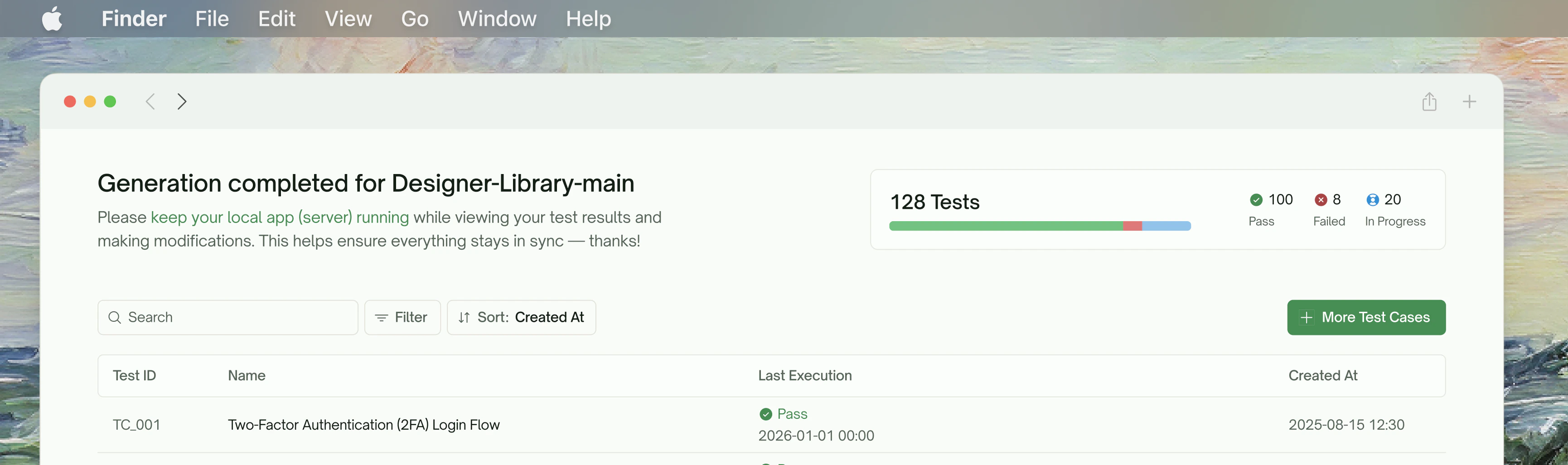 Quickly locate specific tests using the search bar by Test Name or ID. Filter your test suite by Status, Creation Date, or Last Modified Time to focus on what matters most.
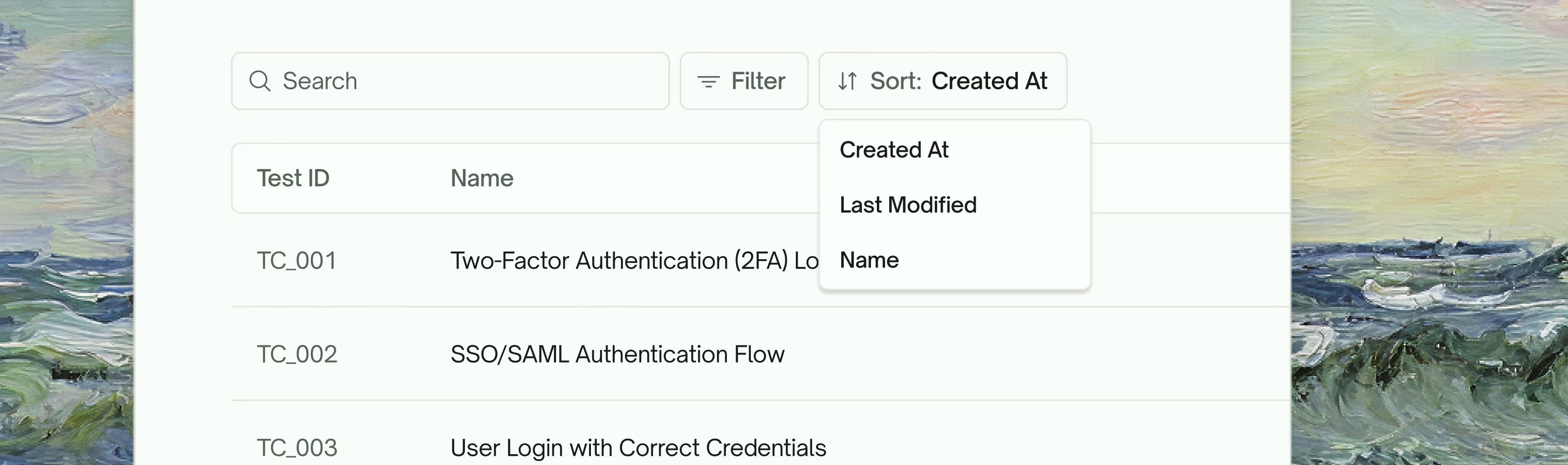
 Organize your test list by Created Date, Last Execution Time, or Alphabetically to streamline your review workflow.
 ## Test Detail View
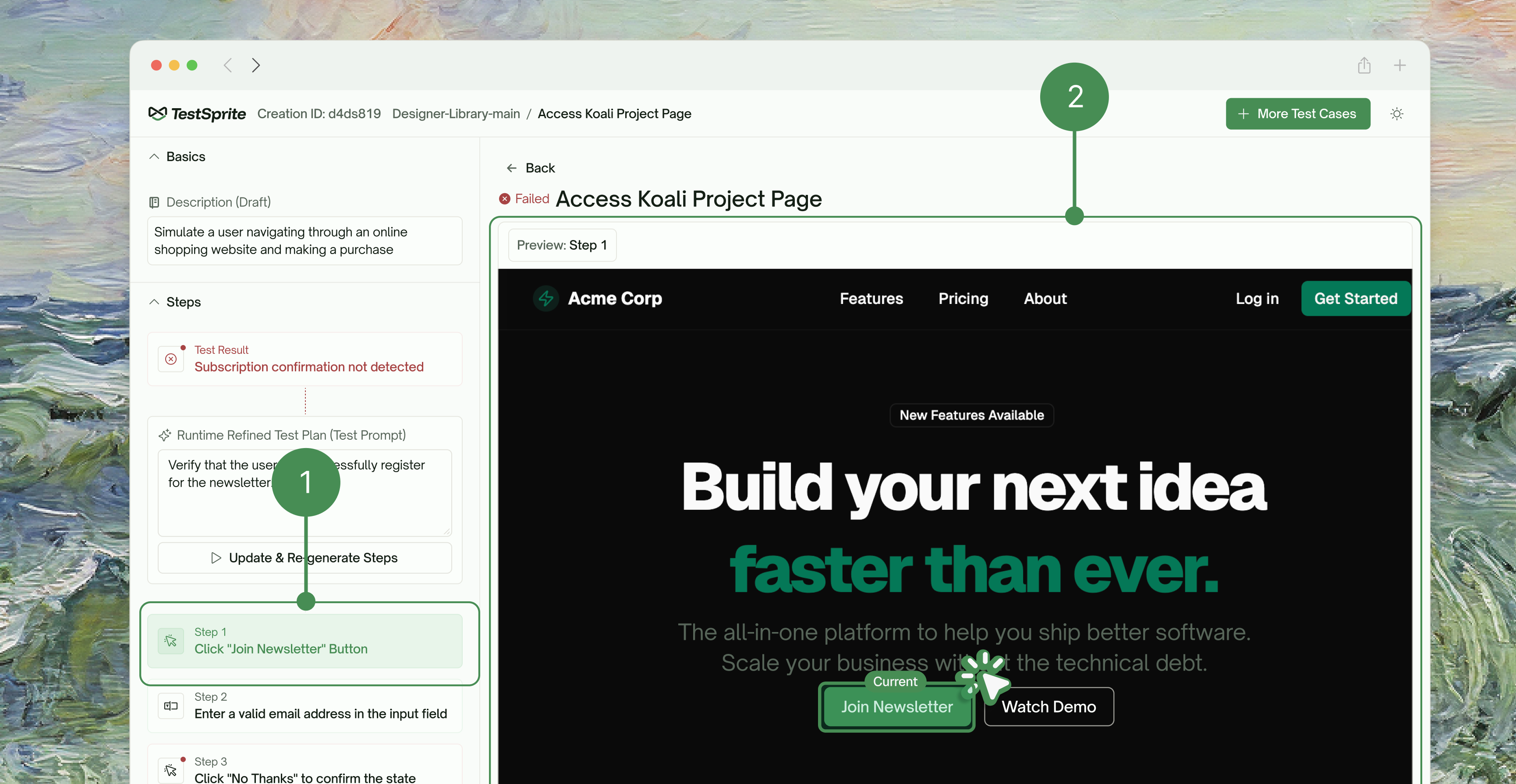
Click on any test case to dive into its detailed execution results.
### Execution Recording
Every test run is recorded, giving you a complete video playback of exactly what happened during execution.
## Test Detail View
Click on any test case to dive into its detailed execution results.
### Execution Recording
Every test run is recorded, giving you a complete video playback of exactly what happened during execution.
 ### Test Results at a Glance
Get a quick summary of each test's outcome, including pass/fail status, error details, and timing information.
### Test Results at a Glance
Get a quick summary of each test's outcome, including pass/fail status, error details, and timing information.
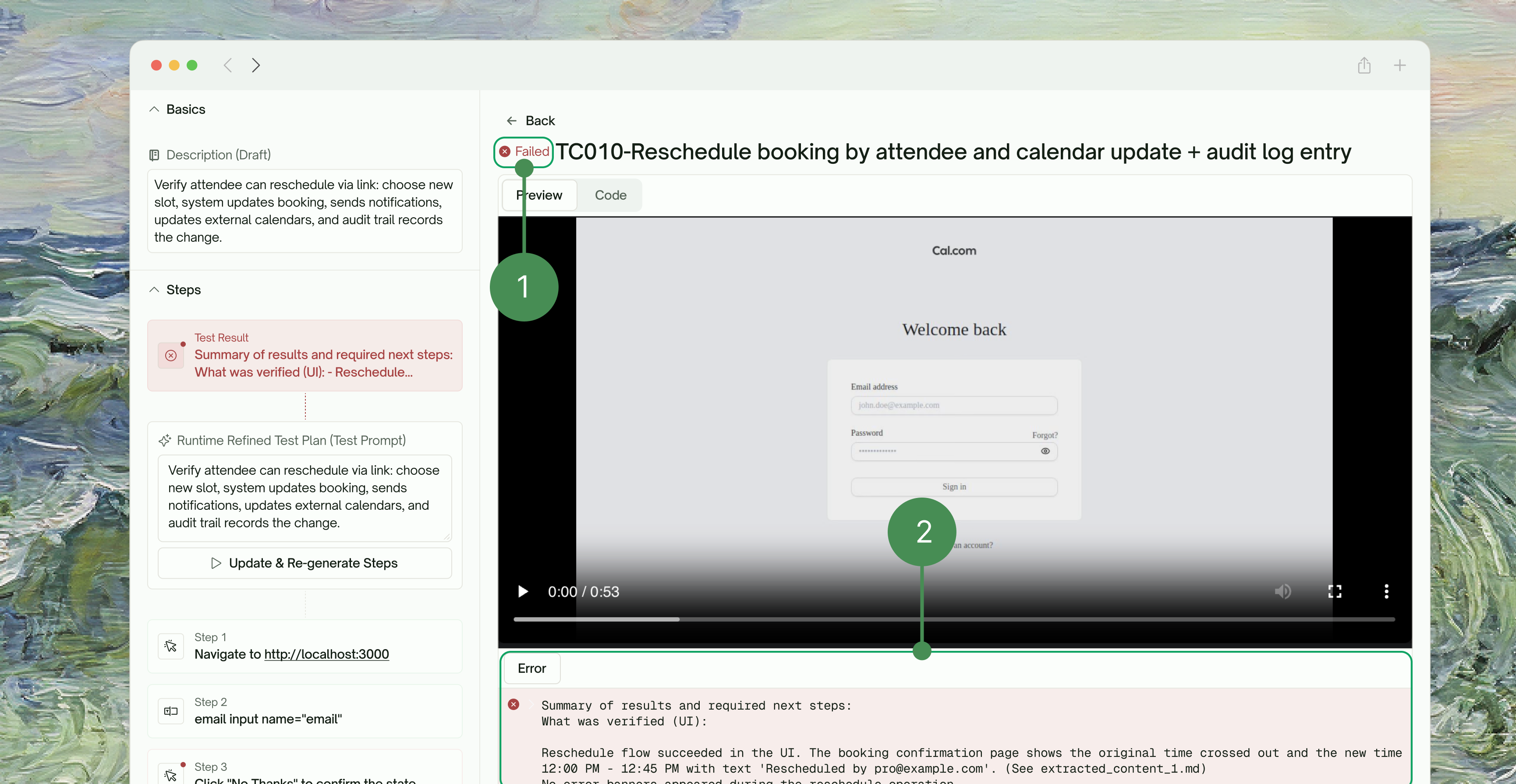 The **Test Result** section shows you:
| Detail | Description |
| --------------------------- | --------------------------------- |
| Pass/Fail Status | Clear visual indicators |
| Error Messages | Detailed messages when tests fail |
### Step-by-Step Breakdown
Drill into each test to see every action it performed, from navigation and input to assertions, so you can pinpoint exactly where things went right or wrong.
The **Test Result** section shows you:
| Detail | Description |
| --------------------------- | --------------------------------- |
| Pass/Fail Status | Clear visual indicators |
| Error Messages | Detailed messages when tests fail |
### Step-by-Step Breakdown
Drill into each test to see every action it performed, from navigation and input to assertions, so you can pinpoint exactly where things went right or wrong.
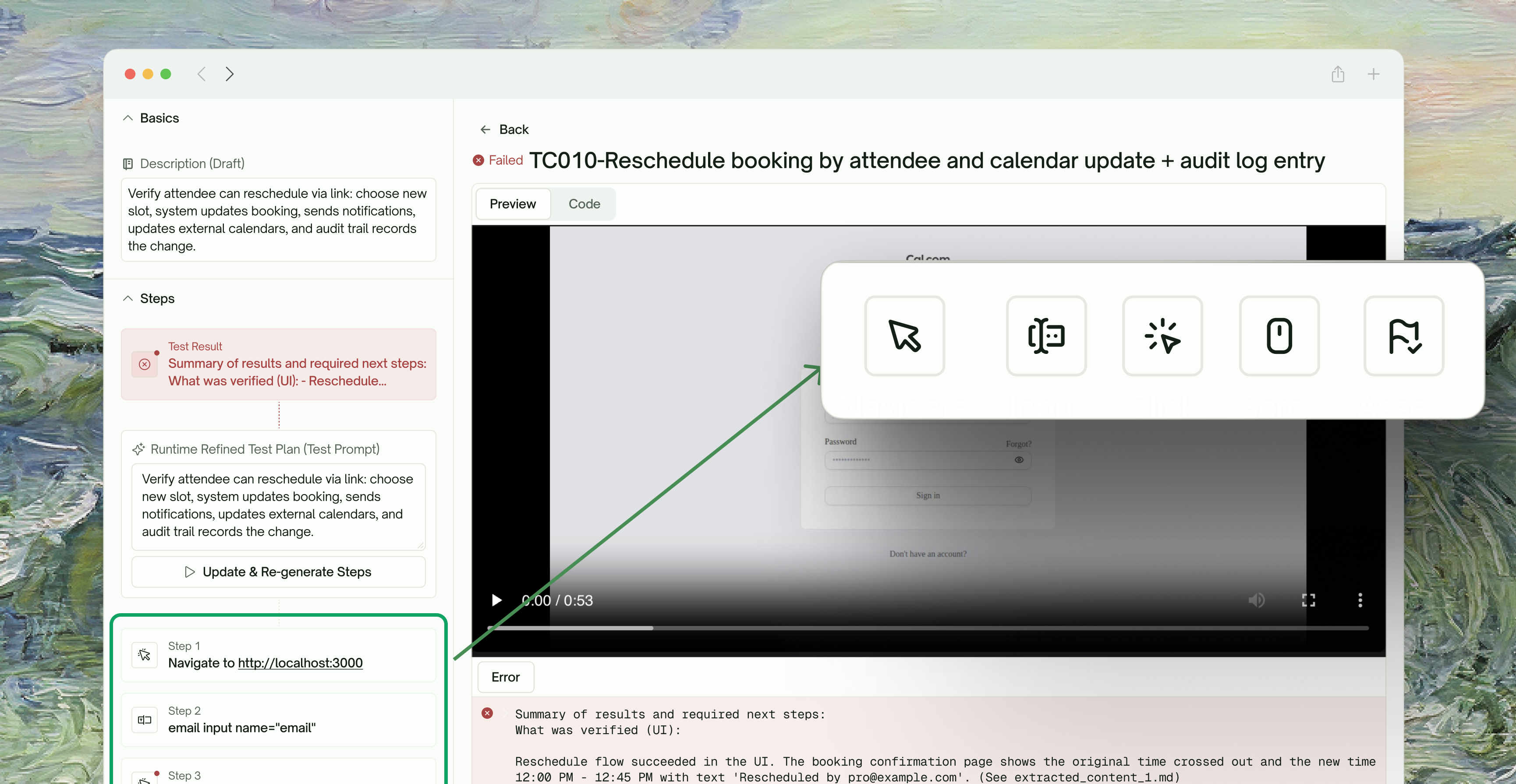 Each test displays its individual steps with the corresponding action type:
| Action | Description |
| ------------------- | ---------------------------- |
| Navigate | URL navigation actions |
| Input | Form field entries |
| Click | Button and link interactions |
| Scroll | Page scrolling actions |
| Assert | Verification checkpoints |
## Review Past Test Runs Anytime
Use the `testsprite_open_test_result_dashboard` tool to reopen the progress dashboard at any time. Simply prompt:
Each test displays its individual steps with the corresponding action type:
| Action | Description |
| ------------------- | ---------------------------- |
| Navigate | URL navigation actions |
| Input | Form field entries |
| Click | Button and link interactions |
| Scroll | Page scrolling actions |
| Assert | Verification checkpoints |
## Review Past Test Runs Anytime
Use the `testsprite_open_test_result_dashboard` tool to reopen the progress dashboard at any time. Simply prompt:
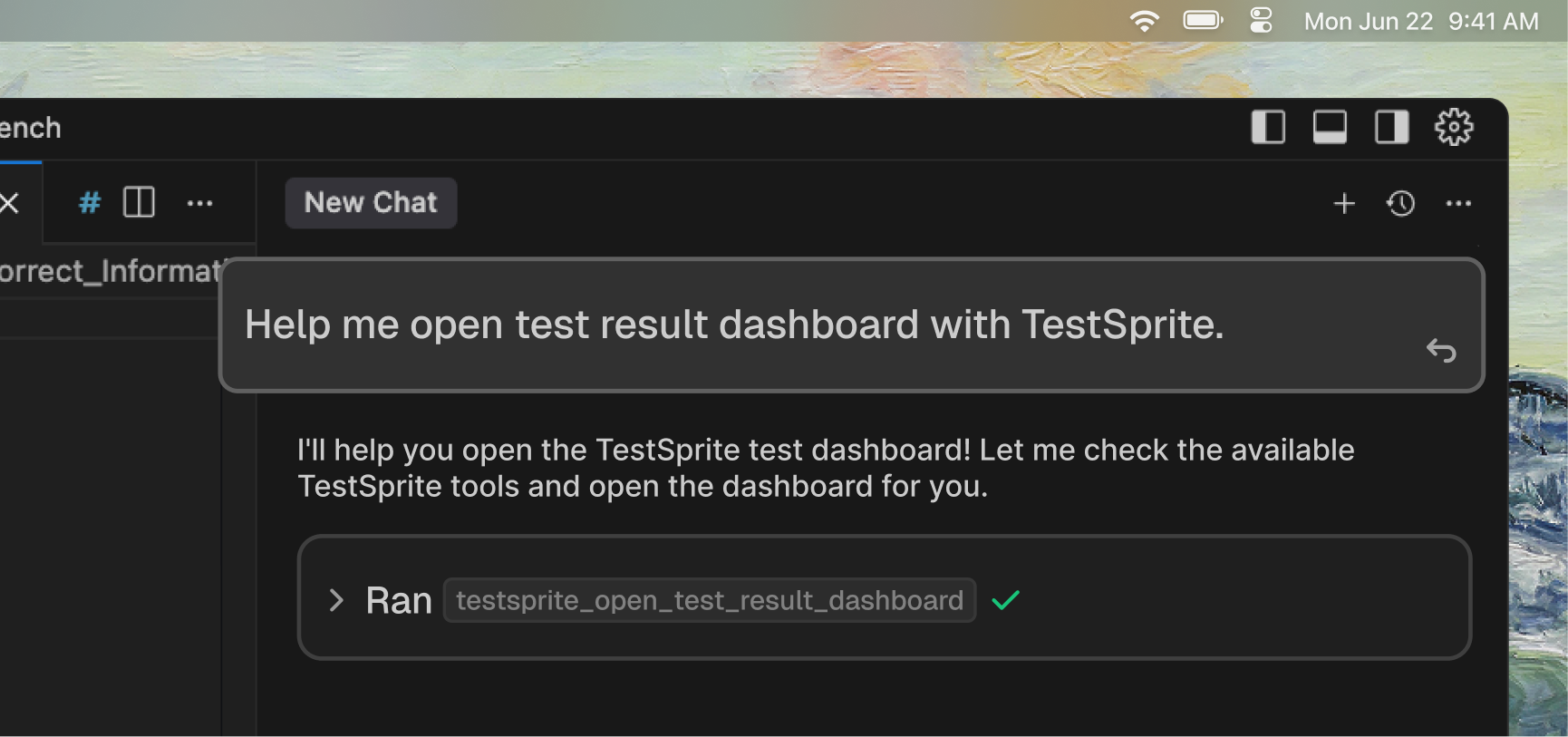 ```text Example Prompt theme={null}
open test result dashboard of testsprite cases
```
This brings back the full dashboard view where you can:
* Browse all your historical test suites
* Review execution recordings from previous runs
* Make modifications to any existing test case
* Re-run updated tests with your changes
```text Example Prompt theme={null}
open test result dashboard of testsprite cases
```
This brings back the full dashboard view where you can:
* Browse all your historical test suites
* Review execution recordings from previous runs
* Make modifications to any existing test case
* Re-run updated tests with your changes