> ## Documentation Index
> Fetch the complete documentation index at: https://docs.testsprite.com/llms.txt
> Use this file to discover all available pages before exploring further.
# GitHub Integration
> Connect your GitHub repositories to TestSprite for automatic testing on every pull request.
 ## How It Works
Once connected, the TestSprite GitHub App:
1. Detects new pull requests on your connected repository
2. Waits for your deployment platform (Vercel, Netlify, etc.) to deploy a preview
3. Automatically runs your TestSprite tests against the preview URL
4. Posts a comment on the PR with a detailed test results summary
## Prerequisites
**TestSprite MCP Server is required first.** The GitHub integration only **runs** tests — it does not generate them. You must use the [TestSprite MCP Server](/mcp/getting-started/introduction) to generate your test suite before setting up this integration.
### Generate Tests with MCP Server
The TestSprite MCP Server is responsible for generating, executing, and refining your test cases locally. Once your tests are committed to your repository, the GitHub App can run them automatically on every PR.
## How It Works
Once connected, the TestSprite GitHub App:
1. Detects new pull requests on your connected repository
2. Waits for your deployment platform (Vercel, Netlify, etc.) to deploy a preview
3. Automatically runs your TestSprite tests against the preview URL
4. Posts a comment on the PR with a detailed test results summary
## Prerequisites
**TestSprite MCP Server is required first.** The GitHub integration only **runs** tests — it does not generate them. You must use the [TestSprite MCP Server](/mcp/getting-started/introduction) to generate your test suite before setting up this integration.
### Generate Tests with MCP Server
The TestSprite MCP Server is responsible for generating, executing, and refining your test cases locally. Once your tests are committed to your repository, the GitHub App can run them automatically on every PR.
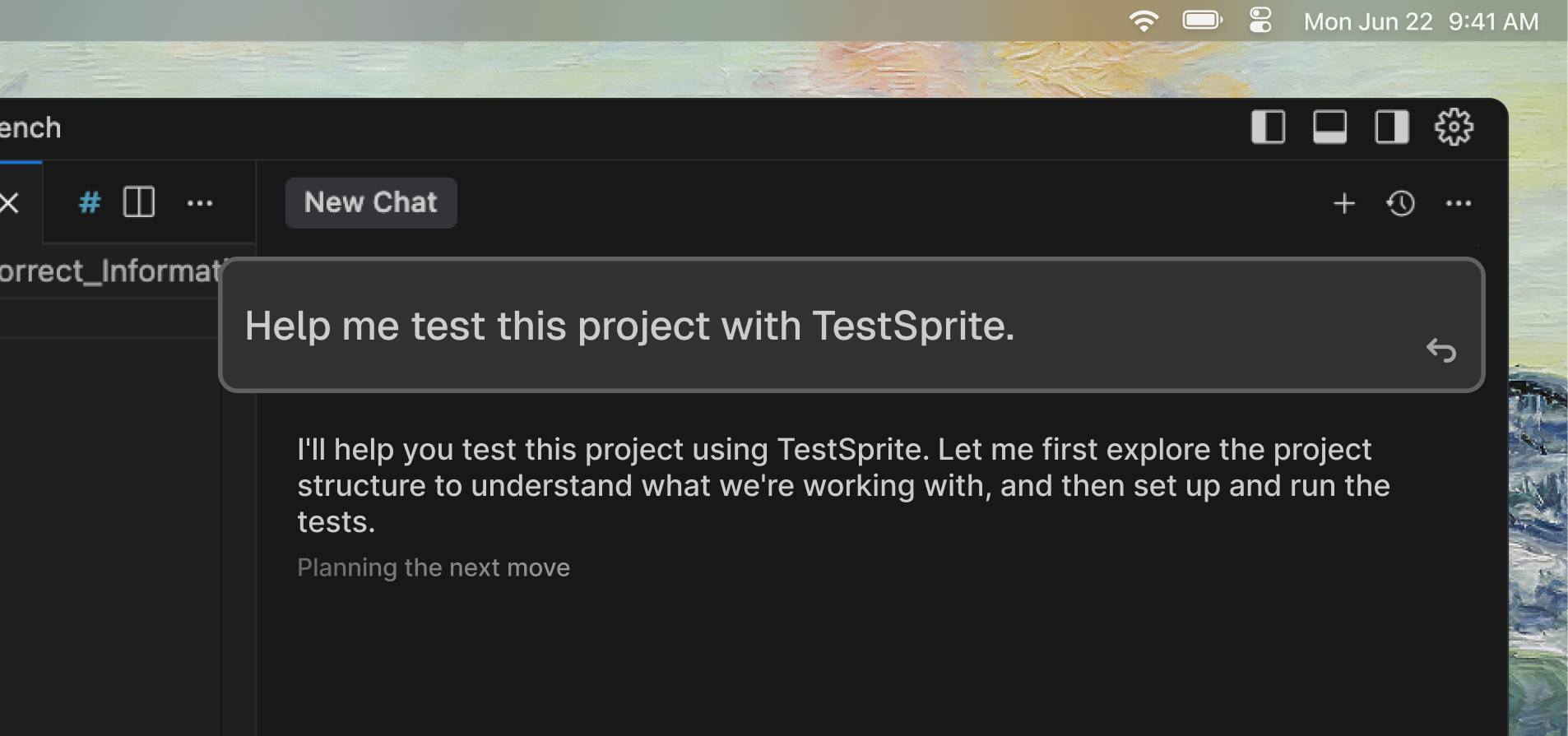 Follow the [MCP Installation Guide](/mcp/getting-started/installation) to set up the TestSprite MCP Server in your IDE.
Use the MCP tools to generate test plans and test code for your project. See [First MCP Test](/mcp/getting-started/first-test) for a step-by-step walkthrough.
Ensure the generated `testsprite_tests/` folder and test files are committed and included in your repository. The GitHub App will use these tests during CI/CD runs.
### Other Requirements
* A **GitHub repository** for your project
* A **deployment platform** connected to your repo (e.g., Vercel, Netlify, Render, Railway, or Fly.io) that auto-deploys on PRs
## Github App vs. Github Action
The GitHub App provides the simplest setup with automatic deployment detection — no workflow files needed.
Best for teams using **Vercel, Netlify, Render**, or other managed platforms.
* **Setup:** Connect in a few clicks via Web Portal
* **Workflow files:** None required
* **Deploys:** Auto-detects platform deployments
* **Config:** Managed in TestSprite Web Portal
Best for teams with **custom CI/CD pipelines** who need full control.
* **Setup:** Requires YAML config and repo secrets
* **Workflow files:** `.github/workflows/ci.yml`
* **Deploys:** Manual deploy step in workflow
* **Config:** Defined in repository workflow files
## Setup GitHub Integration
The TestSprite GitHub App provides a streamlined, no-config integration that automatically detects deployments and runs tests on every pull request. Unlike the GitHub Action approach, the GitHub App requires no workflow YAML files — just connect your repository through the TestSprite Web Portal.
Connect your repository to a deployment platform that supports automatic preview deployments on pull requests. Supported platforms include:
These platforms provide a Connect Repo button that links your GitHub repository and automatically deploys a preview on every PR.
Follow the [MCP Installation Guide](/mcp/getting-started/installation) to set up the TestSprite MCP Server in your IDE.
Use the MCP tools to generate test plans and test code for your project. See [First MCP Test](/mcp/getting-started/first-test) for a step-by-step walkthrough.
Ensure the generated `testsprite_tests/` folder and test files are committed and included in your repository. The GitHub App will use these tests during CI/CD runs.
### Other Requirements
* A **GitHub repository** for your project
* A **deployment platform** connected to your repo (e.g., Vercel, Netlify, Render, Railway, or Fly.io) that auto-deploys on PRs
## Github App vs. Github Action
The GitHub App provides the simplest setup with automatic deployment detection — no workflow files needed.
Best for teams using **Vercel, Netlify, Render**, or other managed platforms.
* **Setup:** Connect in a few clicks via Web Portal
* **Workflow files:** None required
* **Deploys:** Auto-detects platform deployments
* **Config:** Managed in TestSprite Web Portal
Best for teams with **custom CI/CD pipelines** who need full control.
* **Setup:** Requires YAML config and repo secrets
* **Workflow files:** `.github/workflows/ci.yml`
* **Deploys:** Manual deploy step in workflow
* **Config:** Defined in repository workflow files
## Setup GitHub Integration
The TestSprite GitHub App provides a streamlined, no-config integration that automatically detects deployments and runs tests on every pull request. Unlike the GitHub Action approach, the GitHub App requires no workflow YAML files — just connect your repository through the TestSprite Web Portal.
Connect your repository to a deployment platform that supports automatic preview deployments on pull requests. Supported platforms include:
These platforms provide a Connect Repo button that links your GitHub repository and automatically deploys a preview on every PR.
 As long as the deployment platform posts a deployment status on the PR (e.g., the Vercel bot comment), TestSprite can detect it and use the preview URL for testing.
 1. Log in to the [TestSprite Web Portal](https://www.testsprite.com)
2. Navigate to GitHub App in the sidebar under Settings
3. Click Connect With GitHub App
4. Authorize TestSprite to access your GitHub organization
5. Select the repositories you want to connect
Once authorized, you will see your connected organization displayed on the GitHub App settings page.
After connecting your organization, configure the integration for each repository:
1. Select a **Connected Repository** from the dropdown
1. Log in to the [TestSprite Web Portal](https://www.testsprite.com)
2. Navigate to GitHub App in the sidebar under Settings
3. Click Connect With GitHub App
4. Authorize TestSprite to access your GitHub organization
5. Select the repositories you want to connect
Once authorized, you will see your connected organization displayed on the GitHub App settings page.
After connecting your organization, configure the integration for each repository:
1. Select a **Connected Repository** from the dropdown
 2. Configure the **Pull Request Settings**:
 | Setting | Description |
| ---------------------------- | ----------------------------------------------------------- |
| Run on PRs | Automatically run tests when PRs are created or updated |
| Include Draft PRs | Run tests on draft pull requests in addition to regular PRs |
| Blocking PR | Block the PR from merging when tests fail |
3. Click **Save Changes** to apply your configuration
| Setting | Description |
| ---------------------------- | ----------------------------------------------------------- |
| Run on PRs | Automatically run tests when PRs are created or updated |
| Include Draft PRs | Run tests on draft pull requests in addition to regular PRs |
| Blocking PR | Block the PR from merging when tests fail |
3. Click **Save Changes** to apply your configuration
 You can manage your GitHub App connections from the **GitHub App** settings page in the TestSprite Web Portal.
 | Action | Description |
| --------------------------- | ----------------------------------------------------------- |
| Add Connection | Connect additional repositories from your organization |
| Remove | Disconnect a repository from TestSprite |
| Manage in GitHub | Open GitHub to manage app permissions and repository access |
Integrate TestSprite into your CI/CD pipeline by adding a GitHub Actions workflow to your repository. Every time a pull request is created or updated, TestSprite automatically runs your tests against a preview deployment and reports results directly on the PR.
Configure a preview deployment so TestSprite can test against a live URL on each PR. Here are some example setups you can use to deploy your app:
Deploy preview builds to Vercel using the Vercel CLI inside GitHub Actions. You'll need to link your project locally with `vercel link`, then store the generated credentials as GitHub secrets.
**Secrets required:**
| Secret | Description |
| ------------------- | ------------------------------------------------------------------------------- |
| `VERCEL_TOKEN` | Generate from your [Vercel account settings](https://vercel.com/account/tokens) |
| `VERCEL_ORG_ID` | Found in `.vercel/project.json` after running `vercel link` |
| `VERCEL_PROJECT_ID` | Found in `.vercel/project.json` after running `vercel link` |
```yaml Expandable deploy.yml theme={null}
name: Vercel Preview Deployment
env:
VERCEL_ORG_ID: ${{ secrets.VERCEL_ORG_ID }}
VERCEL_PROJECT_ID: ${{ secrets.VERCEL_PROJECT_ID }}
on:
pull_request:
types: [opened, synchronize, reopened]
jobs:
deploy:
runs-on: ubuntu-latest
steps:
- uses: actions/checkout@v4
- name: Install Vercel CLI
run: npm install --global vercel@latest
- name: Pull Vercel Environment Information
run: vercel pull --yes --environment=preview --token=${{ secrets.VERCEL_TOKEN }}
- name: Build Project Artifacts
run: vercel build --token=${{ secrets.VERCEL_TOKEN }}
- name: Deploy to Vercel
id: deploy
run: echo "url=$(vercel deploy --prebuilt --token=${{ secrets.VERCEL_TOKEN }})" >> $GITHUB_OUTPUT
outputs:
url: ${{ steps.deploy.outputs.url }}
```
Official Vercel guide for CI/CD with GitHub Actions
Full Vercel CLI documentation
Trigger a Render deploy from GitHub Actions using the community `render-deploy` action. This calls the Render API to deploy your service and optionally waits for it to finish.
**Secrets required:**
| Secret | Description |
| ------------------- | ---------------------------------------------------------------------------------------------- |
| `RENDER_API_KEY` | Generate from your [Render account settings](https://dashboard.render.com/u/settings#api-keys) |
| `RENDER_SERVICE_ID` | Found on your service's settings page in the Render dashboard |
```yaml Expandable deploy.yml theme={null}
name: Render Preview Deployment
on:
pull_request:
types: [opened, synchronize, reopened]
jobs:
deploy:
runs-on: ubuntu-latest
steps:
- uses: JorgeLNJunior/render-deploy@v1.5.0
id: deploy
with:
service_id: ${{ secrets.RENDER_SERVICE_ID }}
api_key: ${{ secrets.RENDER_API_KEY }}
wait_deploy: true
```
Community GitHub Action for Render deployments
Official Render deploy hooks documentation
Deploy preview environments on Railway for every pull request using the community `railway-preview-deploy` action. Each PR gets its own isolated environment with a unique URL.
**Secrets required:**
| Secret | Description |
| -------------------- | --------------------------------------------------- |
| `RAILWAY_API_TOKEN` | Generate from your Railway account settings |
| `RAILWAY_PROJECT_ID` | Found in Railway dashboard under Settings > General |
```yaml Expandable deploy.yml theme={null}
name: Railway Preview Deployment
on:
pull_request:
types: [opened, synchronize, reopened, closed]
jobs:
deploy:
runs-on: ubuntu-latest
if: ${{ github.event.action != 'closed' }}
steps:
- uses: actions/checkout@v4
- name: Deploy to Railway
id: deploy
uses: ayungavis/railway-preview-deploy@v1.0.2
with:
railway_api_token: ${{ secrets.RAILWAY_API_TOKEN }}
project_id: ${{ secrets.RAILWAY_PROJECT_ID }}
environment_name: 'staging'
preview_environment_name: 'pr-${{ github.event.pull_request.number }}'
branch_name: ${{ github.head_ref }}
outputs:
url: ${{ steps.deploy.outputs.service_domain }}
cleanup:
runs-on: ubuntu-latest
if: ${{ github.event.action == 'closed' }}
steps:
- uses: actions/checkout@v4
- uses: ayungavis/railway-preview-deploy@v1.0.2
with:
railway_api_token: ${{ secrets.RAILWAY_API_TOKEN }}
project_id: ${{ secrets.RAILWAY_PROJECT_ID }}
environment_name: 'staging'
preview_environment_name: 'pr-${{ github.event.pull_request.number }}'
branch_name: ${{ github.head_ref }}
cleanup: 'true'
```
Community GitHub Action for Railway preview environments
Official Railway blog guide for CI/CD with GitHub Actions
Deploy preview builds to Netlify using the community `action-netlify-deploy` action. Each PR gets a unique preview URL that you can use for testing.
**Secrets required:**
| Secret | Description |
| -------------------- | ---------------------------------------------------------------------------------------------------------------- |
| `NETLIFY_AUTH_TOKEN` | Generate from [Netlify personal access tokens](https://app.netlify.com/user/applications#personal-access-tokens) |
| `NETLIFY_SITE_ID` | Found in your Netlify site settings under API ID |
```yaml Expandable deploy.yml theme={null}
name: Netlify Preview Deployment
on:
pull_request:
types: [opened, synchronize, reopened]
jobs:
deploy:
runs-on: ubuntu-latest
steps:
- uses: actions/checkout@v4
- uses: jsmrcaga/action-netlify-deploy@v2.0.0
with:
NETLIFY_AUTH_TOKEN: ${{ secrets.NETLIFY_AUTH_TOKEN }}
NETLIFY_SITE_ID: ${{ secrets.NETLIFY_SITE_ID }}
```
The action outputs `NETLIFY_PREVIEW_URL` as an environment variable for use in subsequent steps.
Community GitHub Action for Netlify deployments
Official Netlify CLI for manual deploy workflows
Deploy to Fly.io using the official `flyctl-actions` action from Superfly. The workflow installs `flyctl` and runs `flyctl deploy` against your `fly.toml` configuration.
**Secrets required:**
| Secret | Description |
| --------------- | ----------------------------------------------------------------- |
| `FLY_API_TOKEN` | Generate by running `fly tokens create deploy -x 999999h` locally |
```yaml Expandable deploy.yml theme={null}
name: Fly.io Preview Deployment
on:
pull_request:
types: [opened, synchronize, reopened]
jobs:
deploy:
runs-on: ubuntu-latest
concurrency: deploy-group
steps:
- uses: actions/checkout@v4
- uses: superfly/flyctl-actions/setup-flyctl@master
- name: Deploy to Fly.io
id: deploy
run: flyctl deploy --remote-only
env:
FLY_API_TOKEN: ${{ secrets.FLY_API_TOKEN }}
```
Make sure your `fly.toml` is committed to the repository for the action to reference during deployment.
Official Fly.io guide for CI/CD with GitHub Actions
Official flyctl GitHub Action
| Action | Description |
| --------------------------- | ----------------------------------------------------------- |
| Add Connection | Connect additional repositories from your organization |
| Remove | Disconnect a repository from TestSprite |
| Manage in GitHub | Open GitHub to manage app permissions and repository access |
Integrate TestSprite into your CI/CD pipeline by adding a GitHub Actions workflow to your repository. Every time a pull request is created or updated, TestSprite automatically runs your tests against a preview deployment and reports results directly on the PR.
Configure a preview deployment so TestSprite can test against a live URL on each PR. Here are some example setups you can use to deploy your app:
Deploy preview builds to Vercel using the Vercel CLI inside GitHub Actions. You'll need to link your project locally with `vercel link`, then store the generated credentials as GitHub secrets.
**Secrets required:**
| Secret | Description |
| ------------------- | ------------------------------------------------------------------------------- |
| `VERCEL_TOKEN` | Generate from your [Vercel account settings](https://vercel.com/account/tokens) |
| `VERCEL_ORG_ID` | Found in `.vercel/project.json` after running `vercel link` |
| `VERCEL_PROJECT_ID` | Found in `.vercel/project.json` after running `vercel link` |
```yaml Expandable deploy.yml theme={null}
name: Vercel Preview Deployment
env:
VERCEL_ORG_ID: ${{ secrets.VERCEL_ORG_ID }}
VERCEL_PROJECT_ID: ${{ secrets.VERCEL_PROJECT_ID }}
on:
pull_request:
types: [opened, synchronize, reopened]
jobs:
deploy:
runs-on: ubuntu-latest
steps:
- uses: actions/checkout@v4
- name: Install Vercel CLI
run: npm install --global vercel@latest
- name: Pull Vercel Environment Information
run: vercel pull --yes --environment=preview --token=${{ secrets.VERCEL_TOKEN }}
- name: Build Project Artifacts
run: vercel build --token=${{ secrets.VERCEL_TOKEN }}
- name: Deploy to Vercel
id: deploy
run: echo "url=$(vercel deploy --prebuilt --token=${{ secrets.VERCEL_TOKEN }})" >> $GITHUB_OUTPUT
outputs:
url: ${{ steps.deploy.outputs.url }}
```
Official Vercel guide for CI/CD with GitHub Actions
Full Vercel CLI documentation
Trigger a Render deploy from GitHub Actions using the community `render-deploy` action. This calls the Render API to deploy your service and optionally waits for it to finish.
**Secrets required:**
| Secret | Description |
| ------------------- | ---------------------------------------------------------------------------------------------- |
| `RENDER_API_KEY` | Generate from your [Render account settings](https://dashboard.render.com/u/settings#api-keys) |
| `RENDER_SERVICE_ID` | Found on your service's settings page in the Render dashboard |
```yaml Expandable deploy.yml theme={null}
name: Render Preview Deployment
on:
pull_request:
types: [opened, synchronize, reopened]
jobs:
deploy:
runs-on: ubuntu-latest
steps:
- uses: JorgeLNJunior/render-deploy@v1.5.0
id: deploy
with:
service_id: ${{ secrets.RENDER_SERVICE_ID }}
api_key: ${{ secrets.RENDER_API_KEY }}
wait_deploy: true
```
Community GitHub Action for Render deployments
Official Render deploy hooks documentation
Deploy preview environments on Railway for every pull request using the community `railway-preview-deploy` action. Each PR gets its own isolated environment with a unique URL.
**Secrets required:**
| Secret | Description |
| -------------------- | --------------------------------------------------- |
| `RAILWAY_API_TOKEN` | Generate from your Railway account settings |
| `RAILWAY_PROJECT_ID` | Found in Railway dashboard under Settings > General |
```yaml Expandable deploy.yml theme={null}
name: Railway Preview Deployment
on:
pull_request:
types: [opened, synchronize, reopened, closed]
jobs:
deploy:
runs-on: ubuntu-latest
if: ${{ github.event.action != 'closed' }}
steps:
- uses: actions/checkout@v4
- name: Deploy to Railway
id: deploy
uses: ayungavis/railway-preview-deploy@v1.0.2
with:
railway_api_token: ${{ secrets.RAILWAY_API_TOKEN }}
project_id: ${{ secrets.RAILWAY_PROJECT_ID }}
environment_name: 'staging'
preview_environment_name: 'pr-${{ github.event.pull_request.number }}'
branch_name: ${{ github.head_ref }}
outputs:
url: ${{ steps.deploy.outputs.service_domain }}
cleanup:
runs-on: ubuntu-latest
if: ${{ github.event.action == 'closed' }}
steps:
- uses: actions/checkout@v4
- uses: ayungavis/railway-preview-deploy@v1.0.2
with:
railway_api_token: ${{ secrets.RAILWAY_API_TOKEN }}
project_id: ${{ secrets.RAILWAY_PROJECT_ID }}
environment_name: 'staging'
preview_environment_name: 'pr-${{ github.event.pull_request.number }}'
branch_name: ${{ github.head_ref }}
cleanup: 'true'
```
Community GitHub Action for Railway preview environments
Official Railway blog guide for CI/CD with GitHub Actions
Deploy preview builds to Netlify using the community `action-netlify-deploy` action. Each PR gets a unique preview URL that you can use for testing.
**Secrets required:**
| Secret | Description |
| -------------------- | ---------------------------------------------------------------------------------------------------------------- |
| `NETLIFY_AUTH_TOKEN` | Generate from [Netlify personal access tokens](https://app.netlify.com/user/applications#personal-access-tokens) |
| `NETLIFY_SITE_ID` | Found in your Netlify site settings under API ID |
```yaml Expandable deploy.yml theme={null}
name: Netlify Preview Deployment
on:
pull_request:
types: [opened, synchronize, reopened]
jobs:
deploy:
runs-on: ubuntu-latest
steps:
- uses: actions/checkout@v4
- uses: jsmrcaga/action-netlify-deploy@v2.0.0
with:
NETLIFY_AUTH_TOKEN: ${{ secrets.NETLIFY_AUTH_TOKEN }}
NETLIFY_SITE_ID: ${{ secrets.NETLIFY_SITE_ID }}
```
The action outputs `NETLIFY_PREVIEW_URL` as an environment variable for use in subsequent steps.
Community GitHub Action for Netlify deployments
Official Netlify CLI for manual deploy workflows
Deploy to Fly.io using the official `flyctl-actions` action from Superfly. The workflow installs `flyctl` and runs `flyctl deploy` against your `fly.toml` configuration.
**Secrets required:**
| Secret | Description |
| --------------- | ----------------------------------------------------------------- |
| `FLY_API_TOKEN` | Generate by running `fly tokens create deploy -x 999999h` locally |
```yaml Expandable deploy.yml theme={null}
name: Fly.io Preview Deployment
on:
pull_request:
types: [opened, synchronize, reopened]
jobs:
deploy:
runs-on: ubuntu-latest
concurrency: deploy-group
steps:
- uses: actions/checkout@v4
- uses: superfly/flyctl-actions/setup-flyctl@master
- name: Deploy to Fly.io
id: deploy
run: flyctl deploy --remote-only
env:
FLY_API_TOKEN: ${{ secrets.FLY_API_TOKEN }}
```
Make sure your `fly.toml` is committed to the repository for the action to reference during deployment.
Official Fly.io guide for CI/CD with GitHub Actions
Official flyctl GitHub Action
 1. Log in to the [TestSprite Web Portal](https://www.testsprite.com/dashboard)
2. Navigate to API Keys in the sidebar
3. Click New API Key and copy the generated key
4. Add it as a repository secret named `TESTSPRITE_API_KEY` in your repo Settings → Secrets and variables → Actions
Create the file `.github/workflows/ci.yml` in your repository with the following configuration:
```yaml Expandable ci.yml theme={null}
name: TestSprite CI
on:
pull_request:
types: [opened, synchronize, reopened]
jobs:
test:
needs: deploy
runs-on: ubuntu-latest
steps:
- name: Checkout
id: checkout
uses: actions/checkout@v4
- name: TestSprite Action
id: testsprite
uses: TestSprite/run-action@v1
with:
testsprite-api-key: ${{ secrets.TESTSPRITE_API_KEY }}
base_url: ${{ needs.deploy.outputs.url }}
blocking: 'true'
```
If you set `blocking: 'true'`, the GitHub Action will fail when tests do not pass, which can block PR merges if you have branch protection rules enabled.
Full `ci.yml` examples that combine deployment and TestSprite testing in a single workflow.
```yaml Vercel theme={null}
name: TestSprite CI
env:
VERCEL_ORG_ID: ${{ secrets.VERCEL_ORG_ID }}
VERCEL_PROJECT_ID: ${{ secrets.VERCEL_PROJECT_ID }}
on:
pull_request:
types: [opened, synchronize, reopened]
jobs:
deploy:
runs-on: ubuntu-latest
outputs:
url: ${{ steps.deploy.outputs.url }}
steps:
- uses: actions/checkout@v4
- name: Install Vercel CLI
run: npm install --global vercel@latest
- name: Pull Vercel Environment Information
run: vercel pull --yes --environment=preview --token=${{ secrets.VERCEL_TOKEN }}
- name: Build Project Artifacts
run: vercel build --token=${{ secrets.VERCEL_TOKEN }}
- name: Deploy to Vercel
id: deploy
run: echo "url=$(vercel deploy --prebuilt --token=${{ secrets.VERCEL_TOKEN }})" >> $GITHUB_OUTPUT
test:
needs: deploy
runs-on: ubuntu-latest
steps:
- uses: actions/checkout@v4
- name: TestSprite Action
uses: TestSprite/run-action@v1
with:
testsprite-api-key: ${{ secrets.TESTSPRITE_API_KEY }}
base_url: ${{ needs.deploy.outputs.url }}
blocking: 'true'
```
```yaml Render theme={null}
name: TestSprite CI
on:
pull_request:
types: [opened, synchronize, reopened]
jobs:
deploy:
runs-on: ubuntu-latest
steps:
- uses: JorgeLNJunior/render-deploy@v1.5.0
id: deploy
with:
service_id: ${{ secrets.RENDER_SERVICE_ID }}
api_key: ${{ secrets.RENDER_API_KEY }}
wait_deploy: true
test:
needs: deploy
runs-on: ubuntu-latest
steps:
- uses: actions/checkout@v4
- name: TestSprite Action
uses: TestSprite/run-action@v1
with:
testsprite-api-key: ${{ secrets.TESTSPRITE_API_KEY }}
base_url: # Your Render service URL
blocking: 'true'
```
```yaml Railway theme={null}
name: TestSprite CI
on:
pull_request:
types: [opened, synchronize, reopened]
jobs:
deploy:
runs-on: ubuntu-latest
outputs:
url: ${{ steps.deploy.outputs.service_domain }}
steps:
- uses: actions/checkout@v4
- name: Deploy to Railway
id: deploy
uses: ayungavis/railway-preview-deploy@v1.0.2
with:
railway_api_token: ${{ secrets.RAILWAY_API_TOKEN }}
project_id: ${{ secrets.RAILWAY_PROJECT_ID }}
environment_name: 'staging'
preview_environment_name: 'pr-${{ github.event.pull_request.number }}'
branch_name: ${{ github.head_ref }}
test:
needs: deploy
runs-on: ubuntu-latest
steps:
- uses: actions/checkout@v4
- name: TestSprite Action
uses: TestSprite/run-action@v1
with:
testsprite-api-key: ${{ secrets.TESTSPRITE_API_KEY }}
base_url: ${{ needs.deploy.outputs.url }}
blocking: 'true'
```
```yaml Netlify theme={null}
name: TestSprite CI
on:
pull_request:
types: [opened, synchronize, reopened]
jobs:
deploy:
runs-on: ubuntu-latest
outputs:
url: ${{ steps.deploy.outputs.NETLIFY_PREVIEW_URL }}
steps:
- uses: actions/checkout@v4
- uses: jsmrcaga/action-netlify-deploy@v2.0.0
id: deploy
with:
NETLIFY_AUTH_TOKEN: ${{ secrets.NETLIFY_AUTH_TOKEN }}
NETLIFY_SITE_ID: ${{ secrets.NETLIFY_SITE_ID }}
test:
needs: deploy
runs-on: ubuntu-latest
steps:
- uses: actions/checkout@v4
- name: TestSprite Action
uses: TestSprite/run-action@v1
with:
testsprite-api-key: ${{ secrets.TESTSPRITE_API_KEY }}
base_url: ${{ needs.deploy.outputs.url }}
blocking: 'true'
```
```yaml Fly.io theme={null}
name: TestSprite CI
on:
pull_request:
types: [opened, synchronize, reopened]
jobs:
deploy:
runs-on: ubuntu-latest
concurrency: deploy-group
steps:
- uses: actions/checkout@v4
- uses: superfly/flyctl-actions/setup-flyctl@master
- name: Deploy to Fly.io
run: flyctl deploy --remote-only
env:
FLY_API_TOKEN: ${{ secrets.FLY_API_TOKEN }}
test:
needs: deploy
runs-on: ubuntu-latest
steps:
- uses: actions/checkout@v4
- name: TestSprite Action
uses: TestSprite/run-action@v1
with:
testsprite-api-key: ${{ secrets.TESTSPRITE_API_KEY }}
base_url: # Your Fly.io app URL
blocking: 'true'
```
## Create a Pull Request
1. Log in to the [TestSprite Web Portal](https://www.testsprite.com/dashboard)
2. Navigate to API Keys in the sidebar
3. Click New API Key and copy the generated key
4. Add it as a repository secret named `TESTSPRITE_API_KEY` in your repo Settings → Secrets and variables → Actions
Create the file `.github/workflows/ci.yml` in your repository with the following configuration:
```yaml Expandable ci.yml theme={null}
name: TestSprite CI
on:
pull_request:
types: [opened, synchronize, reopened]
jobs:
test:
needs: deploy
runs-on: ubuntu-latest
steps:
- name: Checkout
id: checkout
uses: actions/checkout@v4
- name: TestSprite Action
id: testsprite
uses: TestSprite/run-action@v1
with:
testsprite-api-key: ${{ secrets.TESTSPRITE_API_KEY }}
base_url: ${{ needs.deploy.outputs.url }}
blocking: 'true'
```
If you set `blocking: 'true'`, the GitHub Action will fail when tests do not pass, which can block PR merges if you have branch protection rules enabled.
Full `ci.yml` examples that combine deployment and TestSprite testing in a single workflow.
```yaml Vercel theme={null}
name: TestSprite CI
env:
VERCEL_ORG_ID: ${{ secrets.VERCEL_ORG_ID }}
VERCEL_PROJECT_ID: ${{ secrets.VERCEL_PROJECT_ID }}
on:
pull_request:
types: [opened, synchronize, reopened]
jobs:
deploy:
runs-on: ubuntu-latest
outputs:
url: ${{ steps.deploy.outputs.url }}
steps:
- uses: actions/checkout@v4
- name: Install Vercel CLI
run: npm install --global vercel@latest
- name: Pull Vercel Environment Information
run: vercel pull --yes --environment=preview --token=${{ secrets.VERCEL_TOKEN }}
- name: Build Project Artifacts
run: vercel build --token=${{ secrets.VERCEL_TOKEN }}
- name: Deploy to Vercel
id: deploy
run: echo "url=$(vercel deploy --prebuilt --token=${{ secrets.VERCEL_TOKEN }})" >> $GITHUB_OUTPUT
test:
needs: deploy
runs-on: ubuntu-latest
steps:
- uses: actions/checkout@v4
- name: TestSprite Action
uses: TestSprite/run-action@v1
with:
testsprite-api-key: ${{ secrets.TESTSPRITE_API_KEY }}
base_url: ${{ needs.deploy.outputs.url }}
blocking: 'true'
```
```yaml Render theme={null}
name: TestSprite CI
on:
pull_request:
types: [opened, synchronize, reopened]
jobs:
deploy:
runs-on: ubuntu-latest
steps:
- uses: JorgeLNJunior/render-deploy@v1.5.0
id: deploy
with:
service_id: ${{ secrets.RENDER_SERVICE_ID }}
api_key: ${{ secrets.RENDER_API_KEY }}
wait_deploy: true
test:
needs: deploy
runs-on: ubuntu-latest
steps:
- uses: actions/checkout@v4
- name: TestSprite Action
uses: TestSprite/run-action@v1
with:
testsprite-api-key: ${{ secrets.TESTSPRITE_API_KEY }}
base_url: # Your Render service URL
blocking: 'true'
```
```yaml Railway theme={null}
name: TestSprite CI
on:
pull_request:
types: [opened, synchronize, reopened]
jobs:
deploy:
runs-on: ubuntu-latest
outputs:
url: ${{ steps.deploy.outputs.service_domain }}
steps:
- uses: actions/checkout@v4
- name: Deploy to Railway
id: deploy
uses: ayungavis/railway-preview-deploy@v1.0.2
with:
railway_api_token: ${{ secrets.RAILWAY_API_TOKEN }}
project_id: ${{ secrets.RAILWAY_PROJECT_ID }}
environment_name: 'staging'
preview_environment_name: 'pr-${{ github.event.pull_request.number }}'
branch_name: ${{ github.head_ref }}
test:
needs: deploy
runs-on: ubuntu-latest
steps:
- uses: actions/checkout@v4
- name: TestSprite Action
uses: TestSprite/run-action@v1
with:
testsprite-api-key: ${{ secrets.TESTSPRITE_API_KEY }}
base_url: ${{ needs.deploy.outputs.url }}
blocking: 'true'
```
```yaml Netlify theme={null}
name: TestSprite CI
on:
pull_request:
types: [opened, synchronize, reopened]
jobs:
deploy:
runs-on: ubuntu-latest
outputs:
url: ${{ steps.deploy.outputs.NETLIFY_PREVIEW_URL }}
steps:
- uses: actions/checkout@v4
- uses: jsmrcaga/action-netlify-deploy@v2.0.0
id: deploy
with:
NETLIFY_AUTH_TOKEN: ${{ secrets.NETLIFY_AUTH_TOKEN }}
NETLIFY_SITE_ID: ${{ secrets.NETLIFY_SITE_ID }}
test:
needs: deploy
runs-on: ubuntu-latest
steps:
- uses: actions/checkout@v4
- name: TestSprite Action
uses: TestSprite/run-action@v1
with:
testsprite-api-key: ${{ secrets.TESTSPRITE_API_KEY }}
base_url: ${{ needs.deploy.outputs.url }}
blocking: 'true'
```
```yaml Fly.io theme={null}
name: TestSprite CI
on:
pull_request:
types: [opened, synchronize, reopened]
jobs:
deploy:
runs-on: ubuntu-latest
concurrency: deploy-group
steps:
- uses: actions/checkout@v4
- uses: superfly/flyctl-actions/setup-flyctl@master
- name: Deploy to Fly.io
run: flyctl deploy --remote-only
env:
FLY_API_TOKEN: ${{ secrets.FLY_API_TOKEN }}
test:
needs: deploy
runs-on: ubuntu-latest
steps:
- uses: actions/checkout@v4
- name: TestSprite Action
uses: TestSprite/run-action@v1
with:
testsprite-api-key: ${{ secrets.TESTSPRITE_API_KEY }}
base_url: # Your Fly.io app URL
blocking: 'true'
```
## Create a Pull Request
 Create a pull request on your connected repository. The following will happen automatically:
1. Your deployment platform deploys a preview of the PR
2. TestSprite detects the deployment and starts running tests
3. The **TestSprite bot** posts a comment on the PR with test results
The comment includes a summary table with each test case and its pass/fail status, plus a link to the detailed TestSprite results page.
Both methods produce the same test result comments on your pull requests. Choose the approach that best fits your team's workflow.
## Next Steps
Learn how to maintain and update your test suites over time.
Create and manage your TestSprite API keys
Create a pull request on your connected repository. The following will happen automatically:
1. Your deployment platform deploys a preview of the PR
2. TestSprite detects the deployment and starts running tests
3. The **TestSprite bot** posts a comment on the PR with test results
The comment includes a summary table with each test case and its pass/fail status, plus a link to the detailed TestSprite results page.
Both methods produce the same test result comments on your pull requests. Choose the approach that best fits your team's workflow.
## Next Steps
Learn how to maintain and update your test suites over time.
Create and manage your TestSprite API keys