> ## Documentation Index
> Fetch the complete documentation index at: https://docs.testsprite.com/llms.txt
> Use this file to discover all available pages before exploring further.
# Members & Roles
> The four workspace roles and what each can do, how to invite teammates by email or link, and how to change roles or remove members.
## The Four Roles
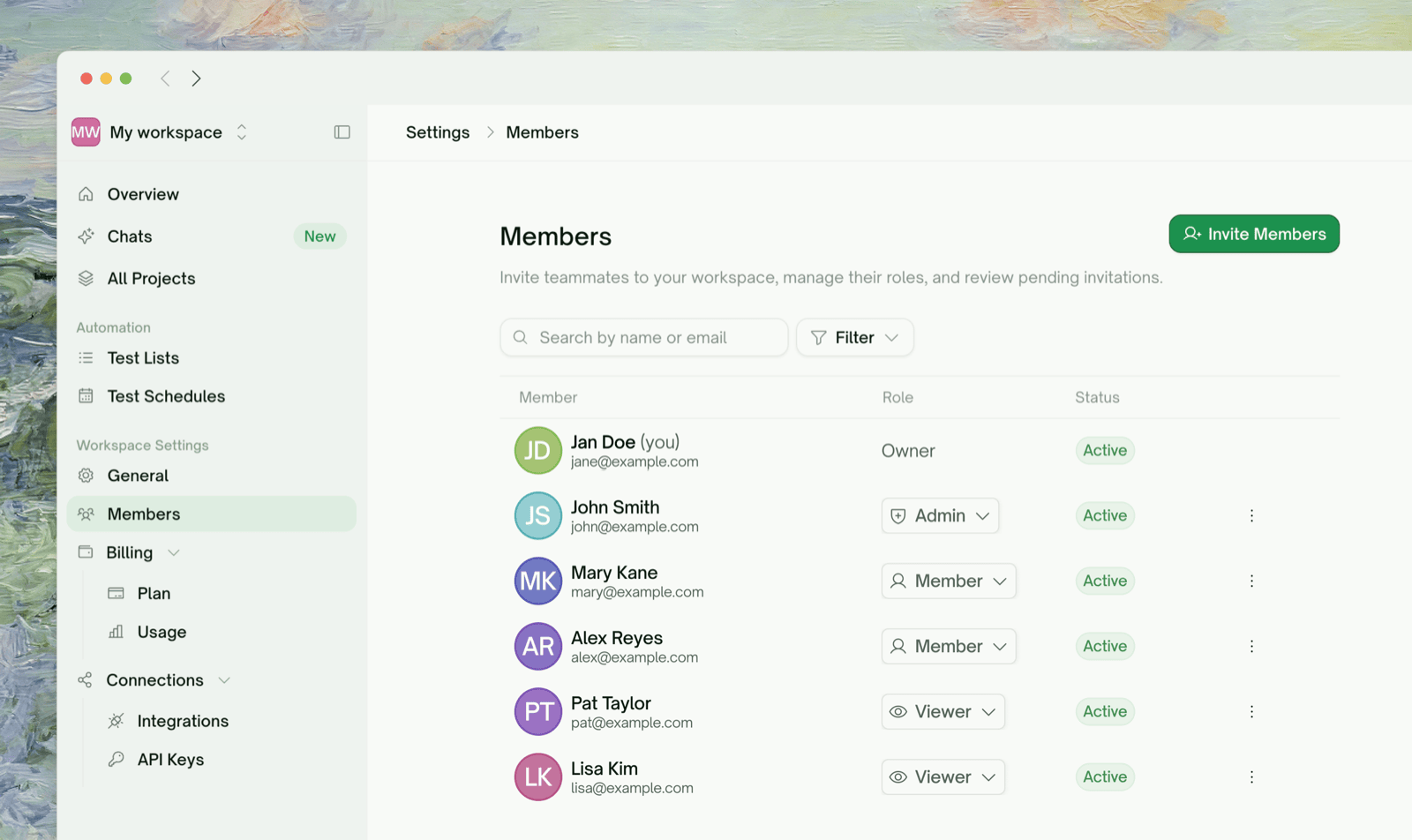 Every member of a workspace has exactly one role. Roles are per-workspace — the same person can be an Admin in one workspace and a Viewer in another.
| Role | In one line | Takes a paid seat? |
| :- | :- | :- |
| **Owner** | The workspace's creator. Everything Admins can do, plus plan changes and deleting the workspace. One per workspace; the Owner can transfer it to another member. | Yes (covered at creation) |
| **Admin** | Manages the team and the day-to-day: invites and removes members, changes roles, connects integrations, buys credits. | Yes |
| **Member** | Does the testing: creates projects, generates and edits tests, runs them. No people or billing management. | Yes |
| **Viewer** | Read-only. Opens every project, report, and recording — changes nothing. Free on every plan. | No — free |
### Permission matrix
| Can they… | Viewer | Member | Admin | Owner |
| :- | :-: | :-: | :-: | :-: |
| Open projects, reports, recordings | ✅ | ✅ | ✅ | ✅ |
| Create / edit / run / delete tests and projects | ❌ | ✅ | ✅ | ✅ |
| Mint and manage API keys | ❌ | ✅ | ✅ | ✅ |
| See workspace credit balance and own usage | ✅ (view) | ✅ | ✅ | ✅ |
| Invite members, cancel invitations | ❌ | ❌ | ✅ | ✅ |
| Change a member's role, remove a member | ❌ | ❌ | ✅ | ✅ |
| Rename the workspace | ❌ | ❌ | ✅ | ✅ |
| Connect / disconnect integrations (GitHub, Slack, Jira…) | ❌ | ❌ | ✅ | ✅ |
| Buy credit top-ups, view invoices and usage breakdowns | ❌ | ❌ | ✅ | ✅ |
| Change the plan, open the Stripe billing portal | ❌ | ❌ | ❌ | ✅ |
| Delete the workspace | ❌ | ❌ | ❌ | ✅ |
| Leave the workspace | ✅ | ✅ | ✅ | ❌ (delete instead) |
**Viewer is read-only by definition.** A Viewer who tries to change anything gets a clear "Viewer is a read-only role" message — the one exception is leaving the workspace, which anyone can do for themselves. Viewer seats are free on every plan, which makes them the right way to loop in a PM, a manager, or a client who needs to see results but shouldn't touch tests.
## Inviting Someone
Invitations live in Workspace Settings → Members, or use the Invite members shortcut in the workspace switcher.
Every member of a workspace has exactly one role. Roles are per-workspace — the same person can be an Admin in one workspace and a Viewer in another.
| Role | In one line | Takes a paid seat? |
| :- | :- | :- |
| **Owner** | The workspace's creator. Everything Admins can do, plus plan changes and deleting the workspace. One per workspace; the Owner can transfer it to another member. | Yes (covered at creation) |
| **Admin** | Manages the team and the day-to-day: invites and removes members, changes roles, connects integrations, buys credits. | Yes |
| **Member** | Does the testing: creates projects, generates and edits tests, runs them. No people or billing management. | Yes |
| **Viewer** | Read-only. Opens every project, report, and recording — changes nothing. Free on every plan. | No — free |
### Permission matrix
| Can they… | Viewer | Member | Admin | Owner |
| :- | :-: | :-: | :-: | :-: |
| Open projects, reports, recordings | ✅ | ✅ | ✅ | ✅ |
| Create / edit / run / delete tests and projects | ❌ | ✅ | ✅ | ✅ |
| Mint and manage API keys | ❌ | ✅ | ✅ | ✅ |
| See workspace credit balance and own usage | ✅ (view) | ✅ | ✅ | ✅ |
| Invite members, cancel invitations | ❌ | ❌ | ✅ | ✅ |
| Change a member's role, remove a member | ❌ | ❌ | ✅ | ✅ |
| Rename the workspace | ❌ | ❌ | ✅ | ✅ |
| Connect / disconnect integrations (GitHub, Slack, Jira…) | ❌ | ❌ | ✅ | ✅ |
| Buy credit top-ups, view invoices and usage breakdowns | ❌ | ❌ | ✅ | ✅ |
| Change the plan, open the Stripe billing portal | ❌ | ❌ | ❌ | ✅ |
| Delete the workspace | ❌ | ❌ | ❌ | ✅ |
| Leave the workspace | ✅ | ✅ | ✅ | ❌ (delete instead) |
**Viewer is read-only by definition.** A Viewer who tries to change anything gets a clear "Viewer is a read-only role" message — the one exception is leaving the workspace, which anyone can do for themselves. Viewer seats are free on every plan, which makes them the right way to loop in a PM, a manager, or a client who needs to see results but shouldn't touch tests.
## Inviting Someone
Invitations live in Workspace Settings → Members, or use the Invite members shortcut in the workspace switcher.
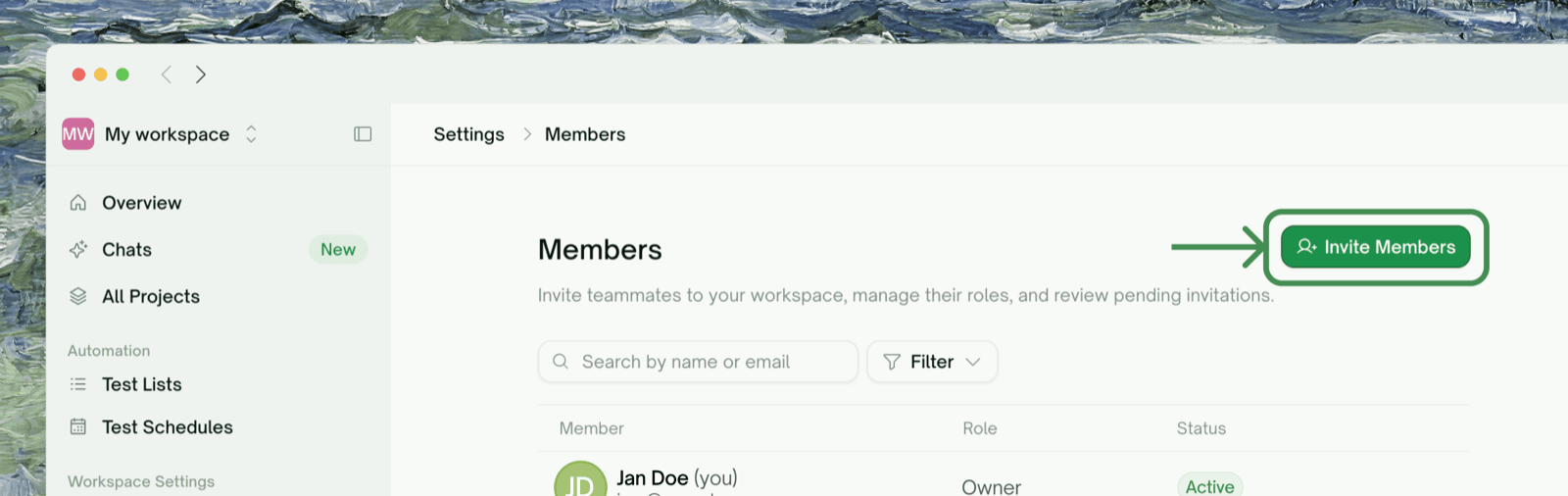 Invitations are sent to one email address at a time. Pick the role next to the email field — **Member** is the sensible default for a teammate who'll work on tests; pick **Viewer** for someone who only needs to see results.
 Admin and Member invitations add a paid seat, which you confirm before the invitation is sent. **Viewer invitations skip this step entirely: viewer seats are free.**
The invitee gets an email with an accept link. You can also copy the same link from the confirmation toast and hand it over directly in Slack or a DM — useful when company email is slow or the message lands in spam.
Either way, the invitation is **bound to the invited email address**: the recipient must sign in with that exact email to accept. Invitations expire after **7 days**; re-inviting the same address replaces the earlier pending invite.
Inviting an existing member at a *higher* role promotes them when they accept. Inviting them at the same or a lower role changes nothing. The dialog warns you before sending if the address already belongs to a member or has a pending invitation.
No. Ownership can't be assigned by invitation or role change. The current Owner can transfer it instead, from the member's row menu in the roster (Transfer ownership).
Personal workspaces support **Viewers only** — read-only guests are free and need no subscription. To collaborate with people who can actually edit and run tests, create a team workspace.
## Changing a Member's Role
Admins and the Owner can change any member's role from the roster in Workspace Settings → Members, except the Owner's, which is fixed.
Admin and Member invitations add a paid seat, which you confirm before the invitation is sent. **Viewer invitations skip this step entirely: viewer seats are free.**
The invitee gets an email with an accept link. You can also copy the same link from the confirmation toast and hand it over directly in Slack or a DM — useful when company email is slow or the message lands in spam.
Either way, the invitation is **bound to the invited email address**: the recipient must sign in with that exact email to accept. Invitations expire after **7 days**; re-inviting the same address replaces the earlier pending invite.
Inviting an existing member at a *higher* role promotes them when they accept. Inviting them at the same or a lower role changes nothing. The dialog warns you before sending if the address already belongs to a member or has a pending invitation.
No. Ownership can't be assigned by invitation or role change. The current Owner can transfer it instead, from the member's row menu in the roster (Transfer ownership).
Personal workspaces support **Viewers only** — read-only guests are free and need no subscription. To collaborate with people who can actually edit and run tests, create a team workspace.
## Changing a Member's Role
Admins and the Owner can change any member's role from the roster in Workspace Settings → Members, except the Owner's, which is fixed.
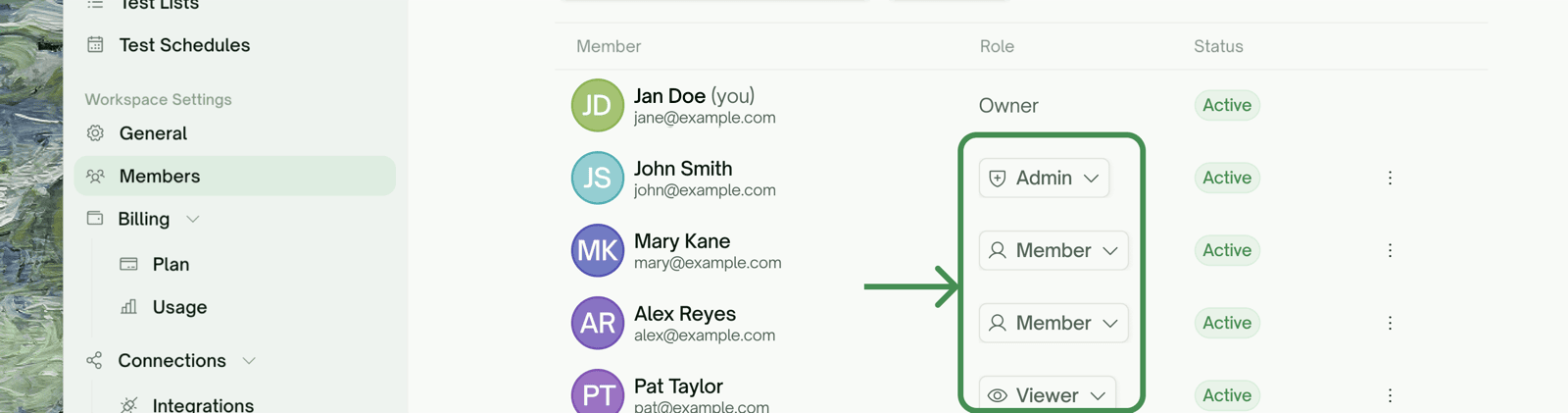 Switching between Admin and Member is immediate and free. Crossing the Viewer boundary moves a seat too:
* **Member/Admin → Viewer** frees their paid seat.
* **Viewer → Member/Admin** needs a paid seat first. If an empty paid seat exists it's used automatically; otherwise you confirm adding one, and the role changes once that's done.
## Removing a Member — and Leaving
Switching between Admin and Member is immediate and free. Crossing the Viewer boundary moves a seat too:
* **Member/Admin → Viewer** frees their paid seat.
* **Viewer → Member/Admin** needs a paid seat first. If an empty paid seat exists it's used automatically; otherwise you confirm adding one, and the role changes once that's done.
## Removing a Member — and Leaving
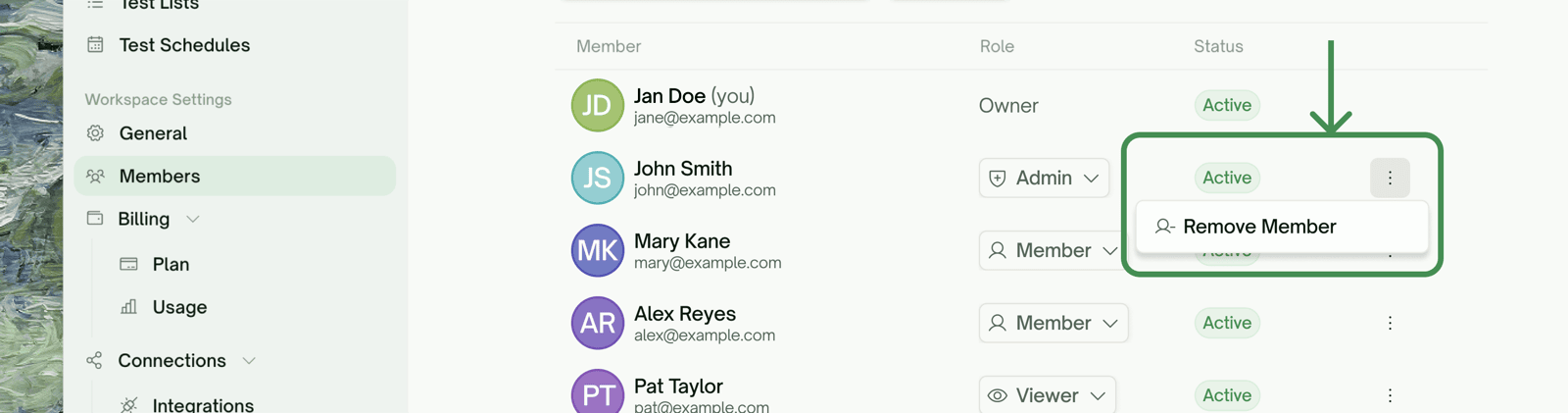 * **Admins and the Owner** can remove anyone except the Owner, from the roster's row menu. Removal takes effect immediately: the person loses access, and any API keys they minted in this workspace stop working.
* **Anyone can remove themselves** — leaving a workspace is always allowed, whatever your role. You're switched back to your personal workspace afterward.
* **The Owner can't leave or be removed.** To step away, the Owner transfers ownership first (becoming an Admin), or deletes the workspace.
## Where to Go Next
Personal vs. team workspaces, switching, and deletion
The fast path for showing one project to someone new
Keys are bound to your membership in a workspace
This documentation is built and hosted on [Mintlify](https://mintlify.com), a developer documentation platform.
* **Admins and the Owner** can remove anyone except the Owner, from the roster's row menu. Removal takes effect immediately: the person loses access, and any API keys they minted in this workspace stop working.
* **Anyone can remove themselves** — leaving a workspace is always allowed, whatever your role. You're switched back to your personal workspace afterward.
* **The Owner can't leave or be removed.** To step away, the Owner transfers ownership first (becoming an Admin), or deletes the workspace.
## Where to Go Next
Personal vs. team workspaces, switching, and deletion
The fast path for showing one project to someone new
Keys are bound to your membership in a workspace
This documentation is built and hosted on [Mintlify](https://mintlify.com), a developer documentation platform.