> ## Documentation Index
> Fetch the complete documentation index at: https://docs.testsprite.com/llms.txt
> Use this file to discover all available pages before exploring further.
# Workspaces
> What a workspace is, when to create a team workspace, how to switch between workspaces, and what happens when you delete one.
## What a Workspace Is
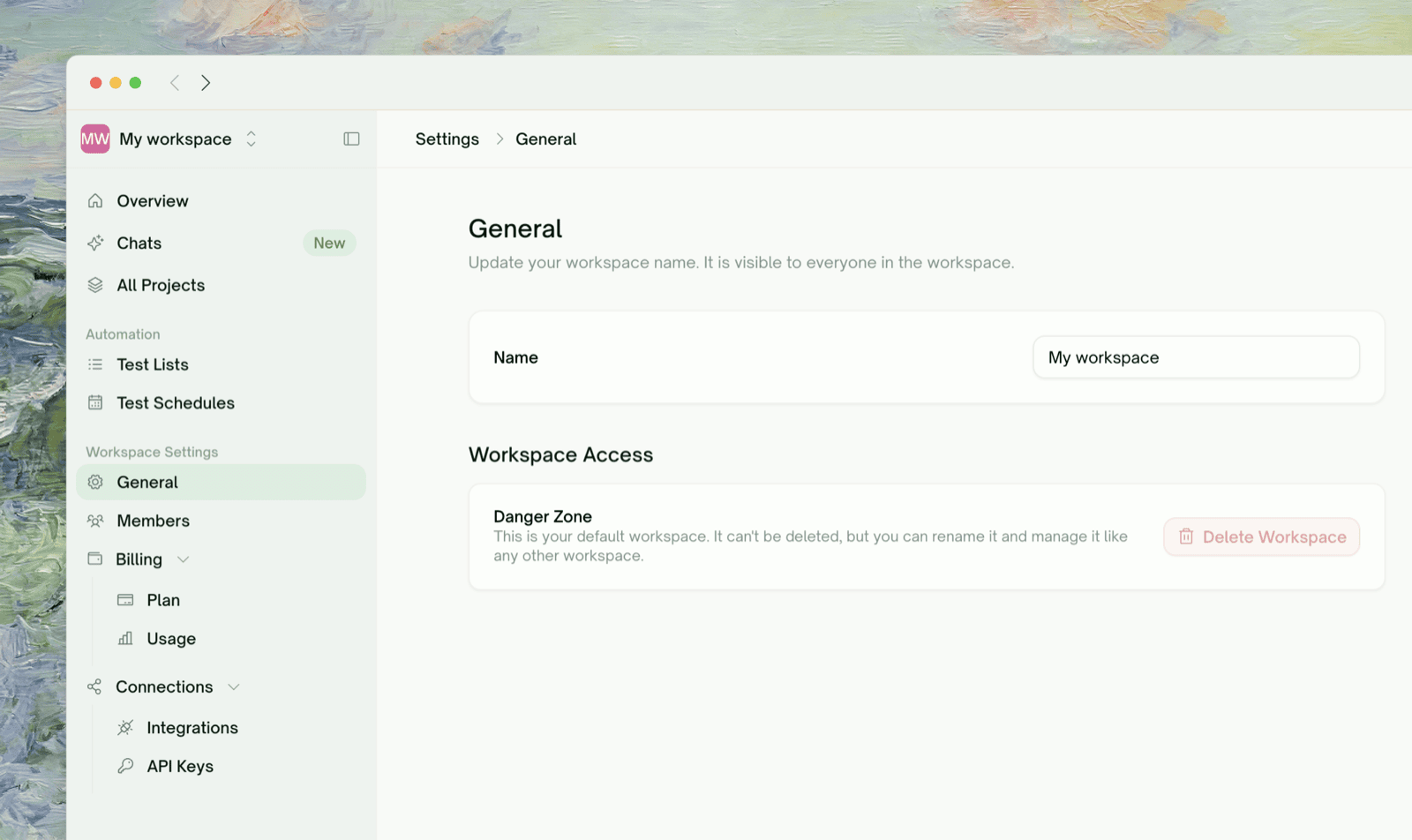 Everything you do in TestSprite — projects, tests, runs, and API keys — belongs to a **workspace**. Every user has a **personal workspace** automatically, and can also belong to one or more **team workspaces**.
Whichever workspace is active determines where new work lands: projects you create, tests you generate, and keys you mint all belong to that workspace, not to you individually. Access works the same way — teammates see a project because they're in its workspace, not because it was shared with them one by one.
Access inside a workspace is workspace-wide: everyone who belongs to a workspace can open its projects and tests. What each person can *do* depends on their role — see [Members & Roles](/web-portal/admin/members-and-roles).
## Personal vs. Team Workspaces
| | Personal workspace | Team workspace |
| :- | :- | :- |
| **How you get it** | Created automatically at signup | You create it (paid plans only) |
| **Membership** | You, plus optional read-only **Viewers** | Full roster: Owner, Admins, Members, Viewers |
| **Who pays** | Your personal balance | The workspace's own subscription and balance |
| **Collaboration** | Read-only — you can invite Viewers, never paid roles | Full — invite Admins, Members, and Viewers |
| **Can it be deleted?** | No | Yes, by the Owner |
When you invite your first Viewer into a personal workspace, TestSprite renames it from "My workspace" to your email address — so invitees can tell whose workspace they're looking at. You can rename a team workspace at any time; personal workspace names are managed for you.
## Creating a Team Workspace
A team workspace is created on a paid plan — you pick the plan as part of creation, and the workspace exists once payment completes.
Click the workspace name at the top of the left sidebar, then choose Create workspace.
Everything you do in TestSprite — projects, tests, runs, and API keys — belongs to a **workspace**. Every user has a **personal workspace** automatically, and can also belong to one or more **team workspaces**.
Whichever workspace is active determines where new work lands: projects you create, tests you generate, and keys you mint all belong to that workspace, not to you individually. Access works the same way — teammates see a project because they're in its workspace, not because it was shared with them one by one.
Access inside a workspace is workspace-wide: everyone who belongs to a workspace can open its projects and tests. What each person can *do* depends on their role — see [Members & Roles](/web-portal/admin/members-and-roles).
## Personal vs. Team Workspaces
| | Personal workspace | Team workspace |
| :- | :- | :- |
| **How you get it** | Created automatically at signup | You create it (paid plans only) |
| **Membership** | You, plus optional read-only **Viewers** | Full roster: Owner, Admins, Members, Viewers |
| **Who pays** | Your personal balance | The workspace's own subscription and balance |
| **Collaboration** | Read-only — you can invite Viewers, never paid roles | Full — invite Admins, Members, and Viewers |
| **Can it be deleted?** | No | Yes, by the Owner |
When you invite your first Viewer into a personal workspace, TestSprite renames it from "My workspace" to your email address — so invitees can tell whose workspace they're looking at. You can rename a team workspace at any time; personal workspace names are managed for you.
## Creating a Team Workspace
A team workspace is created on a paid plan — you pick the plan as part of creation, and the workspace exists once payment completes.
Click the workspace name at the top of the left sidebar, then choose Create workspace.
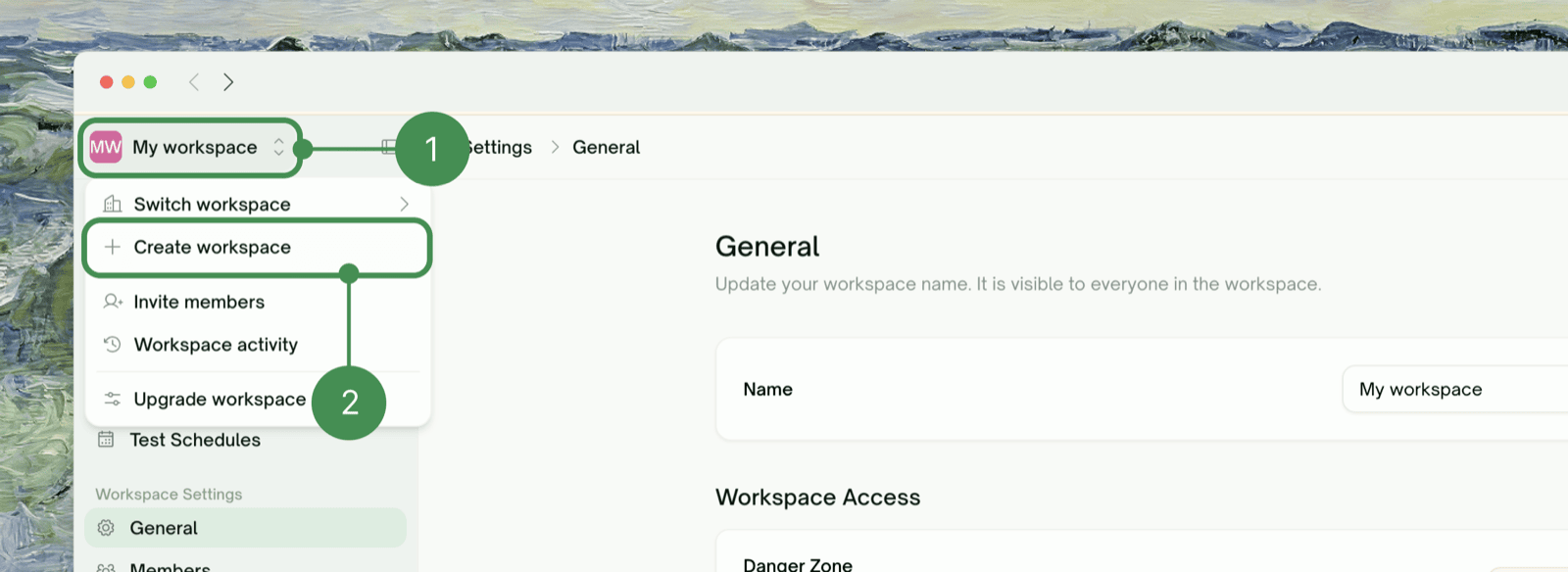 Enter a workspace name. The name appears in the switcher and in invitation emails, and you can change it later.
 Choose a plan and billing interval, then complete checkout on the Stripe-hosted page. The workspace is created as soon as the payment goes through, and you land back in the portal inside it.
You are the workspace's **Owner**, the role that can manage its subscription and, if it comes to that, delete it. You can transfer ownership to another member later, from their row menu in Workspace Settings → Members.
## Switching Workspaces
The workspace switcher lives at the **top of the left sidebar**. Click it and choose Switch workspace to see every workspace you belong to — your personal workspace first, then team workspaces, with a checkmark on the active one.
Choose a plan and billing interval, then complete checkout on the Stripe-hosted page. The workspace is created as soon as the payment goes through, and you land back in the portal inside it.
You are the workspace's **Owner**, the role that can manage its subscription and, if it comes to that, delete it. You can transfer ownership to another member later, from their row menu in Workspace Settings → Members.
## Switching Workspaces
The workspace switcher lives at the **top of the left sidebar**. Click it and choose Switch workspace to see every workspace you belong to — your personal workspace first, then team workspaces, with a checkmark on the active one.
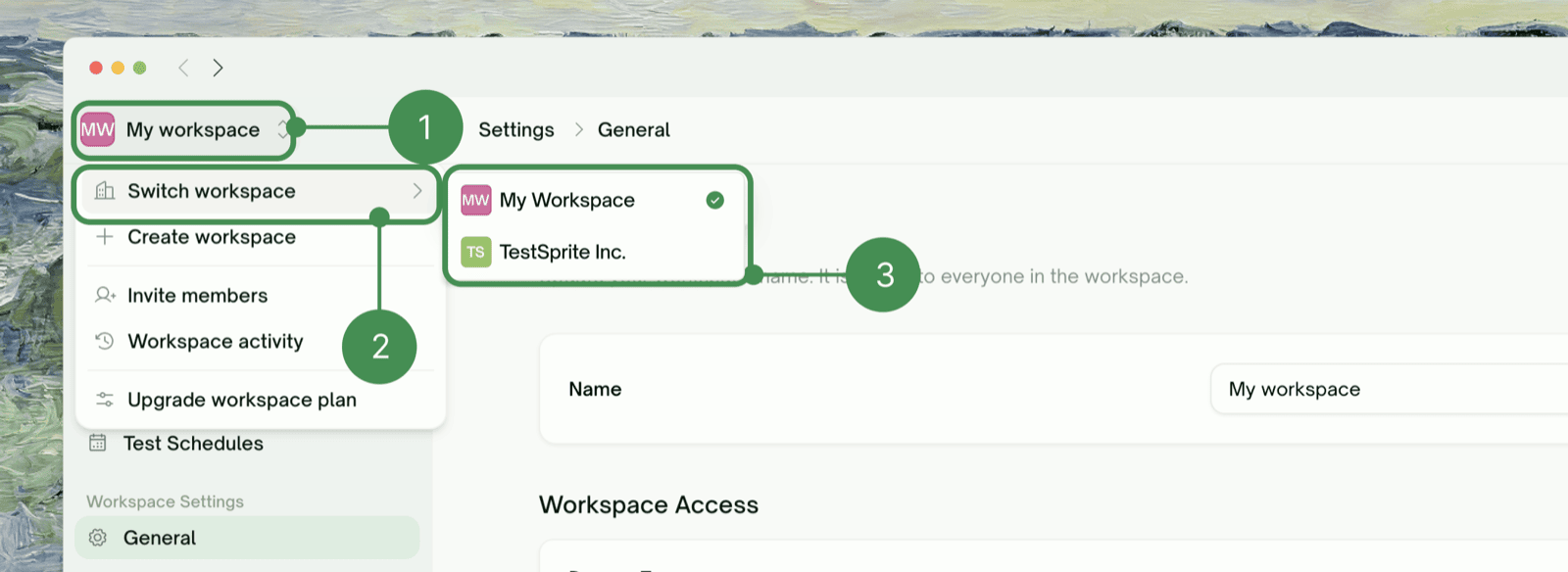 Switching changes three things at once:
* **Where you are** — you land on the selected workspace's dashboard, and the URL updates to that workspace.
* **What you see** — projects, tests, runs, schedules, and settings all come from the new workspace.
* **What you can do** — your role is per-workspace, so someone who is an Admin in one workspace may be a Viewer in another.
Check the switcher before starting new work. A project created in the wrong workspace can't be moved — and its runs draw on that workspace's balance.
## Workspace Settings
Workspace Settings inside a workspace collects everything that is workspace-scoped:
Switching changes three things at once:
* **Where you are** — you land on the selected workspace's dashboard, and the URL updates to that workspace.
* **What you see** — projects, tests, runs, schedules, and settings all come from the new workspace.
* **What you can do** — your role is per-workspace, so someone who is an Admin in one workspace may be a Viewer in another.
Check the switcher before starting new work. A project created in the wrong workspace can't be moved — and its runs draw on that workspace's balance.
## Workspace Settings
Workspace Settings inside a workspace collects everything that is workspace-scoped:
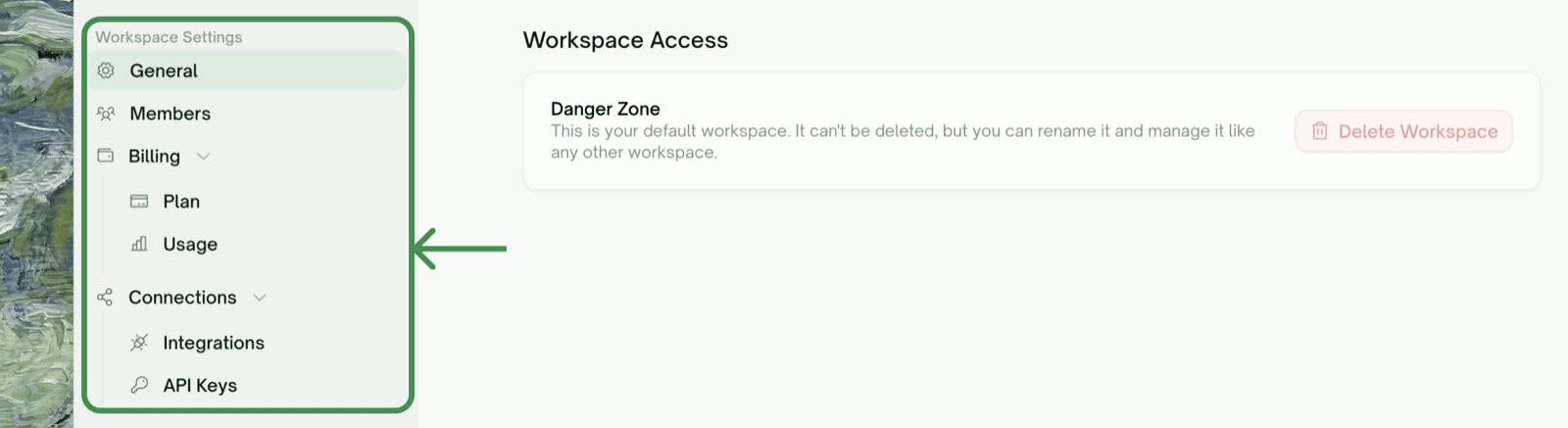 | Section | What's there | Who sees it |
| :- | :- | :- |
| General | Workspace name (rename is autosaved) | Rename: Owner and Admins |
| Members | Roster, invitations, role changes | Everyone; management actions are role-gated |
| Billing / Usage | Plan, invoices, credit top-ups, usage breakdowns | Admins and the Owner; plan changes are Owner-only |
| Integrations | GitHub, Slack, Jira, Linear, Figma connections | Connect/disconnect: Owner and Admins |
| API Keys | Keys minted in this workspace | Your own keys; Admins and the Owner see all |
## Deleting a Workspace
Only the **Owner** can delete a team workspace, and only from Workspace Settings → General. Personal workspaces can't be deleted.
| Section | What's there | Who sees it |
| :- | :- | :- |
| General | Workspace name (rename is autosaved) | Rename: Owner and Admins |
| Members | Roster, invitations, role changes | Everyone; management actions are role-gated |
| Billing / Usage | Plan, invoices, credit top-ups, usage breakdowns | Admins and the Owner; plan changes are Owner-only |
| Integrations | GitHub, Slack, Jira, Linear, Figma connections | Connect/disconnect: Owner and Admins |
| API Keys | Keys minted in this workspace | Your own keys; Admins and the Owner see all |
## Deleting a Workspace
Only the **Owner** can delete a team workspace, and only from Workspace Settings → General. Personal workspaces can't be deleted.
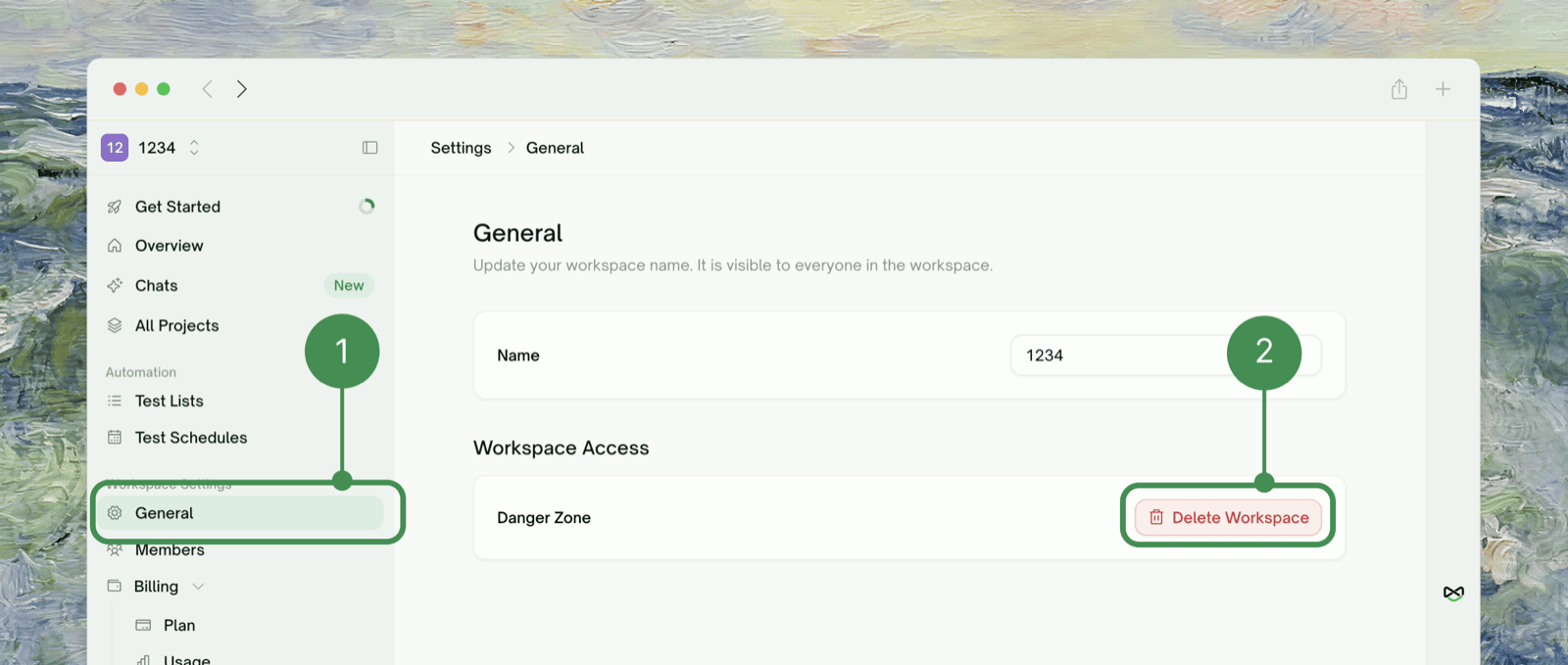 Deletion is permanent and cascades: **all projects, tests, results, schedules, members, and API keys in the workspace are removed and cannot be recovered.** The subscription is canceled as part of the deletion, so nothing keeps billing afterward — past invoices remain available in your billing history.
The portal asks you to type the workspace name to confirm before anything is deleted.
## Where to Go Next
Invite teammates and understand the four roles
Show a project to someone outside the roster
Personal vs. workspace keys, creation, expiry, and revocation
This documentation is built and hosted on [Mintlify](https://mintlify.com), a developer documentation platform.
Deletion is permanent and cascades: **all projects, tests, results, schedules, members, and API keys in the workspace are removed and cannot be recovered.** The subscription is canceled as part of the deletion, so nothing keeps billing afterward — past invoices remain available in your billing history.
The portal asks you to type the workspace name to confirm before anything is deleted.
## Where to Go Next
Invite teammates and understand the four roles
Show a project to someone outside the roster
Personal vs. workspace keys, creation, expiry, and revocation
This documentation is built and hosted on [Mintlify](https://mintlify.com), a developer documentation platform.