> ## Documentation Index
> Fetch the complete documentation index at: https://docs.testsprite.com/llms.txt
> Use this file to discover all available pages before exploring further.
# Overview
> Drive TestSprite in plain language — create projects, add sources, generate and edit test cases, run tests, and dig into results, all from one chat.
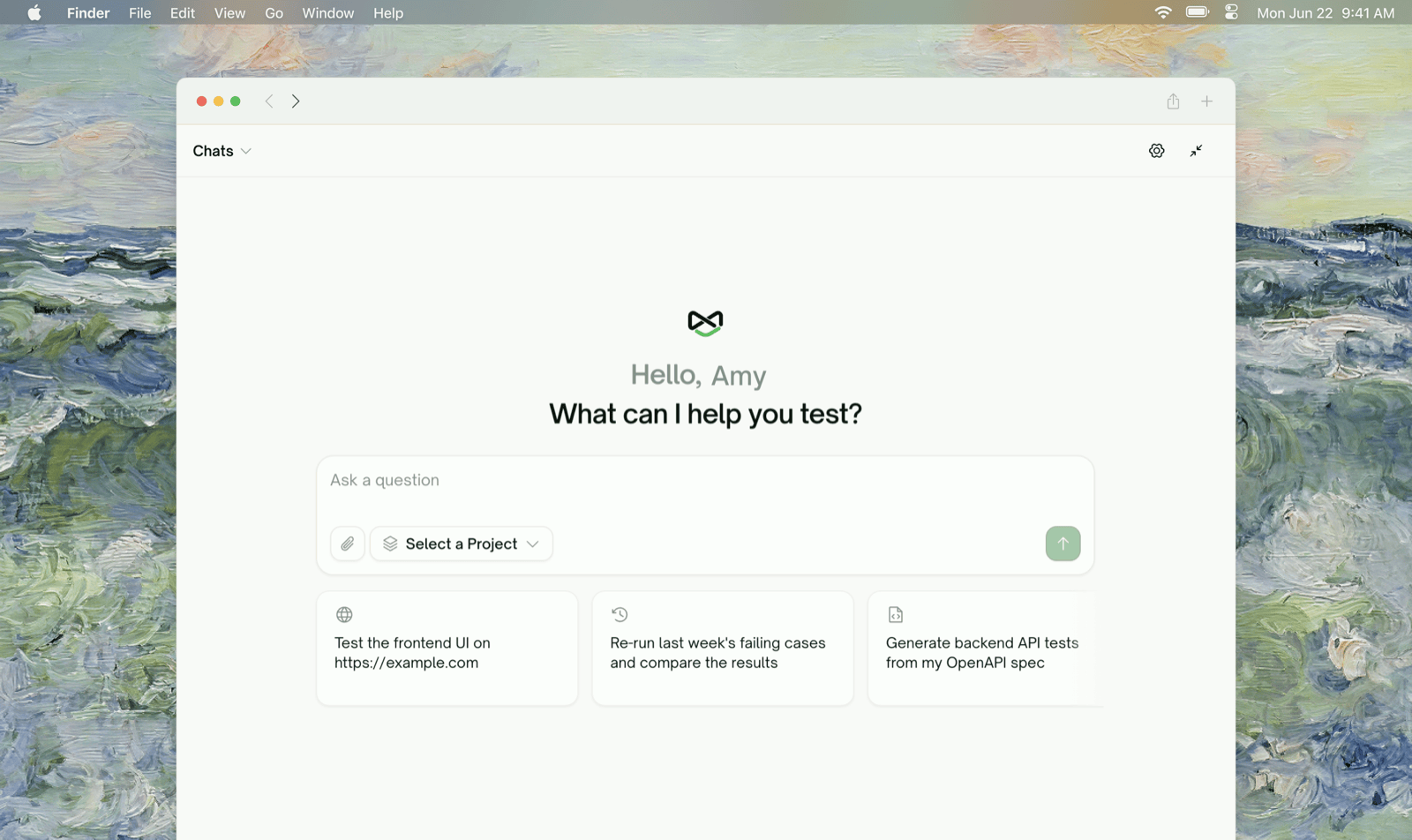 AI Chat is a full copilot for the Web Portal: everything you can do by clicking through the dashboard — create a project, feed it sources, generate use cases, add test cases, trigger runs, read results — you can also do by asking for it in a sentence. It answers questions from your project's live data, and for anything that changes state it proposes the action first and waits for your approval (see [Approving Actions](/web-portal/ai-chat/approving-actions)).
## What it can do
| Area | Examples |
| :- | :- |
| Projects | Create a project from a URL + PRD, switch which project the chat is focused on, delete projects |
| Sources | Upload documents and test files, connect a GitHub repo, add Figma designs or Linear/Jira tickets, re-run app exploration, crawl pages |
| Test cases | Generate use cases, add a batch of test cases for a feature, author specific cases by hand, edit or delete cases, check plan quality |
| Runs | Run a project or test list, revise a test's steps and re-run it |
| Results | "Why did this fail?" — it reads the run, the per-test result, and the actual executed steps before answering |
| Setup | Environments (URLs, variables, sign-in configuration), test lists, monitoring schedules |
Three prompts you can paste right now:
```text theme={null}
Create a frontend project for https://app.example.com — I'll upload the PRD next.
```
```text theme={null}
Add test cases covering checkout and payments.
```
```text theme={null}
Why did TC-012 fail in the last run?
```
## The vocabulary
The chat uses the same terms as the rest of the portal:
* **Sources** — everything you feed a project: documents, code, designs, tickets, crawled pages.
* **Use cases** — the feature map ("Features" and the "Use cases" under each) that coverage is organized around.
* **Test coverage** — the live set of test cases and their current status.
* **Test run** — one execution. A run is frozen history; a test case's status reflects its *latest* run.
## Project focus
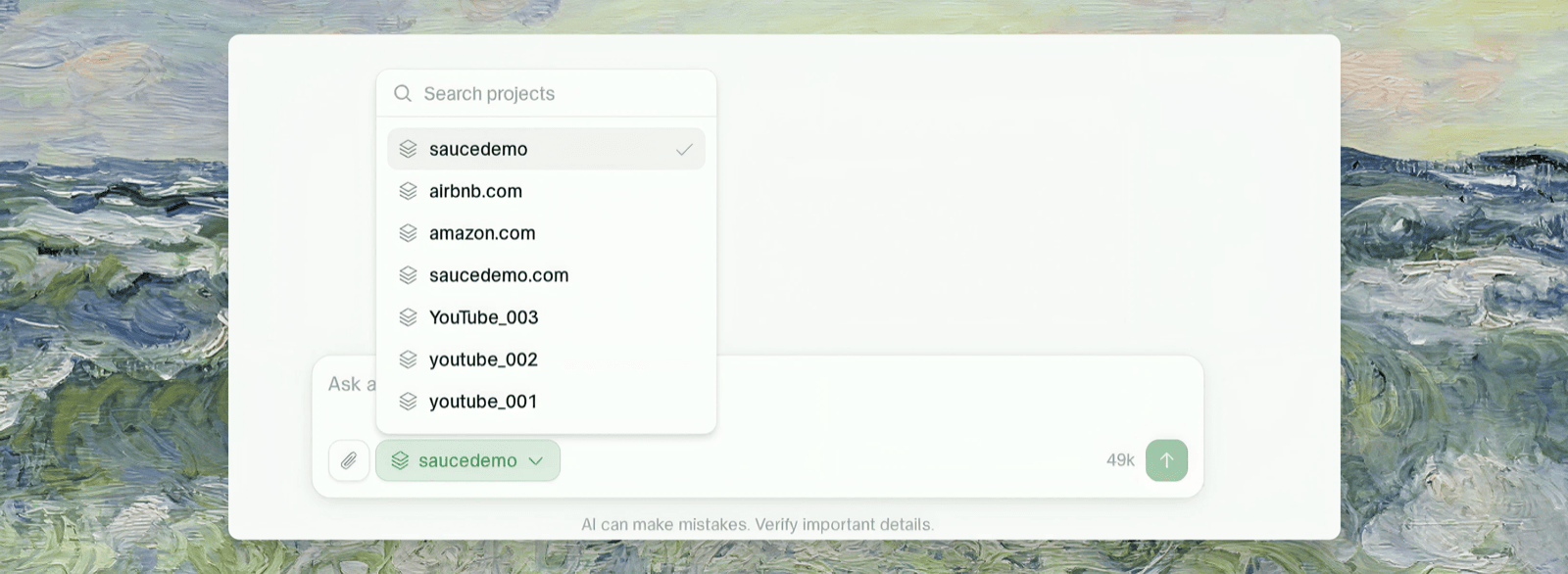
A conversation is focused on **one project at a time**. Open the chat from a project page and that project is the focus automatically; ask it to switch ("let's work on the Amazon project") and it changes — a divider row like *"Switched focus to Amazon."* marks every change, so you can always see which project a message applied to.
The chat re-reads the focused project at every turn, so it stays current even when the change happened outside the conversation: upload a source or delete cases on the platform directly, and the next answer already reflects it.
The project selector in the composer shows the current focus at all times — click it to search and switch:
AI Chat is a full copilot for the Web Portal: everything you can do by clicking through the dashboard — create a project, feed it sources, generate use cases, add test cases, trigger runs, read results — you can also do by asking for it in a sentence. It answers questions from your project's live data, and for anything that changes state it proposes the action first and waits for your approval (see [Approving Actions](/web-portal/ai-chat/approving-actions)).
## What it can do
| Area | Examples |
| :- | :- |
| Projects | Create a project from a URL + PRD, switch which project the chat is focused on, delete projects |
| Sources | Upload documents and test files, connect a GitHub repo, add Figma designs or Linear/Jira tickets, re-run app exploration, crawl pages |
| Test cases | Generate use cases, add a batch of test cases for a feature, author specific cases by hand, edit or delete cases, check plan quality |
| Runs | Run a project or test list, revise a test's steps and re-run it |
| Results | "Why did this fail?" — it reads the run, the per-test result, and the actual executed steps before answering |
| Setup | Environments (URLs, variables, sign-in configuration), test lists, monitoring schedules |
Three prompts you can paste right now:
```text theme={null}
Create a frontend project for https://app.example.com — I'll upload the PRD next.
```
```text theme={null}
Add test cases covering checkout and payments.
```
```text theme={null}
Why did TC-012 fail in the last run?
```
## The vocabulary
The chat uses the same terms as the rest of the portal:
* **Sources** — everything you feed a project: documents, code, designs, tickets, crawled pages.
* **Use cases** — the feature map ("Features" and the "Use cases" under each) that coverage is organized around.
* **Test coverage** — the live set of test cases and their current status.
* **Test run** — one execution. A run is frozen history; a test case's status reflects its *latest* run.
## Project focus
A conversation is focused on **one project at a time**. Open the chat from a project page and that project is the focus automatically; ask it to switch ("let's work on the Amazon project") and it changes — a divider row like *"Switched focus to Amazon."* marks every change, so you can always see which project a message applied to.
The chat re-reads the focused project at every turn, so it stays current even when the change happened outside the conversation: upload a source or delete cases on the platform directly, and the next answer already reflects it.
The project selector in the composer shows the current focus at all times — click it to search and switch:
 ## Conversations
* Every conversation belongs to the workspace it was started in.
* Titles are generated from your first message; rename or delete a conversation from the conversation list.
* You can attach images and files to a message. An attachment is read on the turn you send it — quote the relevant part in a later message if you need to come back to it.
## Where to Go Next
How proposal cards work — approve, reject, or just answer by typing
The concept map the chat's workflow follows
Sources, use cases, coverage, runs — the shared vocabulary
This documentation is built and hosted on [Mintlify](https://mintlify.com), a developer documentation platform.
## Conversations
* Every conversation belongs to the workspace it was started in.
* Titles are generated from your first message; rename or delete a conversation from the conversation list.
* You can attach images and files to a message. An attachment is read on the turn you send it — quote the relevant part in a later message if you need to come back to it.
## Where to Go Next
How proposal cards work — approve, reject, or just answer by typing
The concept map the chat's workflow follows
Sources, use cases, coverage, runs — the shared vocabulary
This documentation is built and hosted on [Mintlify](https://mintlify.com), a developer documentation platform.