> ## Documentation Index
> Fetch the complete documentation index at: https://docs.testsprite.com/llms.txt
> Use this file to discover all available pages before exploring further.
# Slack Notifications
> Post a summary of every completed test run to a Slack channel of your choice.
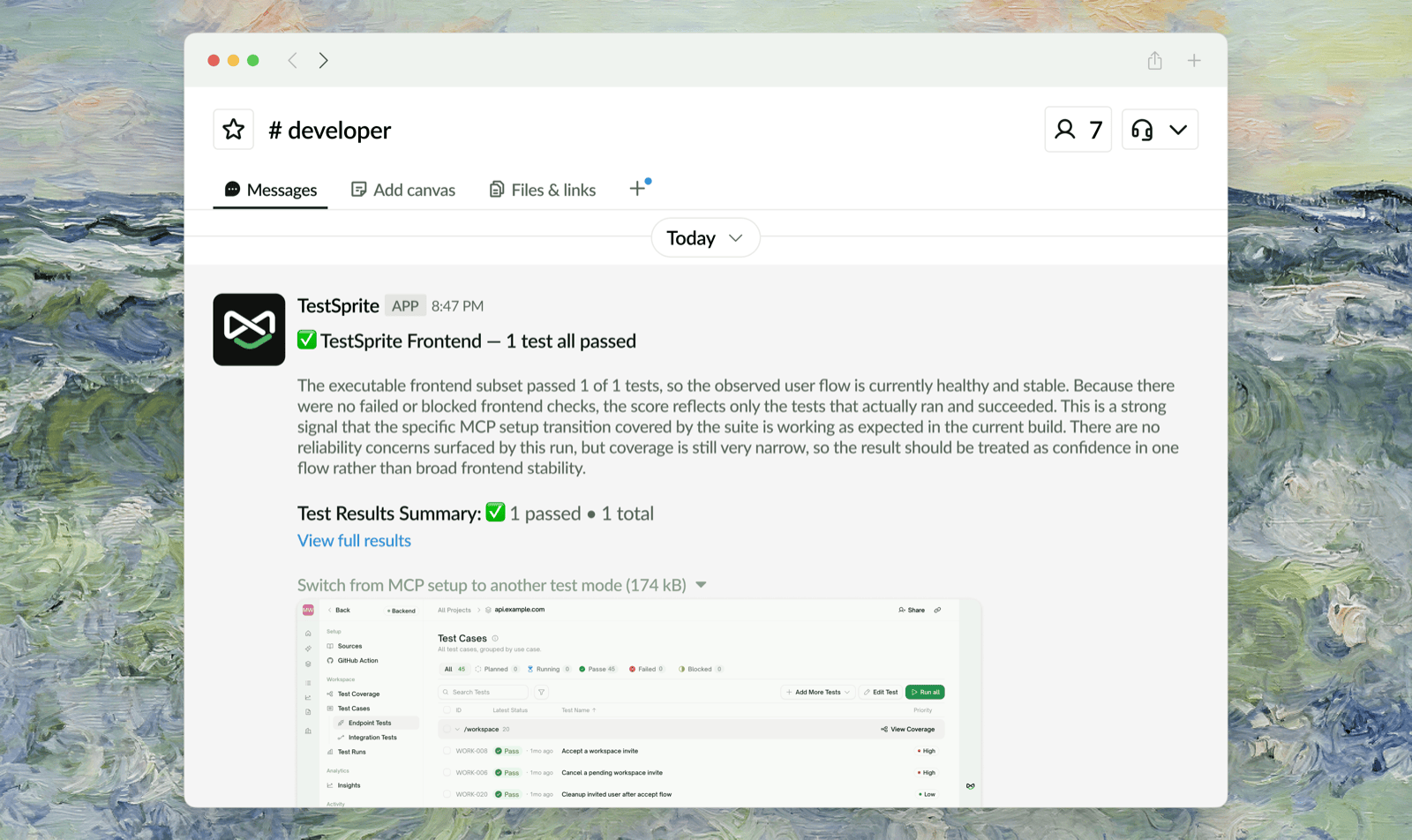 TestSprite can post a summary to your Slack workspace every time a test run completes, so your team sees results the moment they land — without anyone checking the dashboard. It works for every kind of run: manual, scheduled, GitHub-triggered, or started from the CLI.
Setup happens in two places:
1. **Connect Slack once per workspace** — links your TestSprite workspace to a Slack workspace (workspace Owner/Admin only).
2. **Pick a channel per project** — each project chooses its own channel and switches notifications on or off independently.
Slack notifications are available on every plan. Connecting and disconnecting Slack requires the workspace **Owner** or **Admin** role.
## Step 1 — Connect Slack (once per workspace)
TestSprite can post a summary to your Slack workspace every time a test run completes, so your team sees results the moment they land — without anyone checking the dashboard. It works for every kind of run: manual, scheduled, GitHub-triggered, or started from the CLI.
Setup happens in two places:
1. **Connect Slack once per workspace** — links your TestSprite workspace to a Slack workspace (workspace Owner/Admin only).
2. **Pick a channel per project** — each project chooses its own channel and switches notifications on or off independently.
Slack notifications are available on every plan. Connecting and disconnecting Slack requires the workspace **Owner** or **Admin** role.
## Step 1 — Connect Slack (once per workspace)
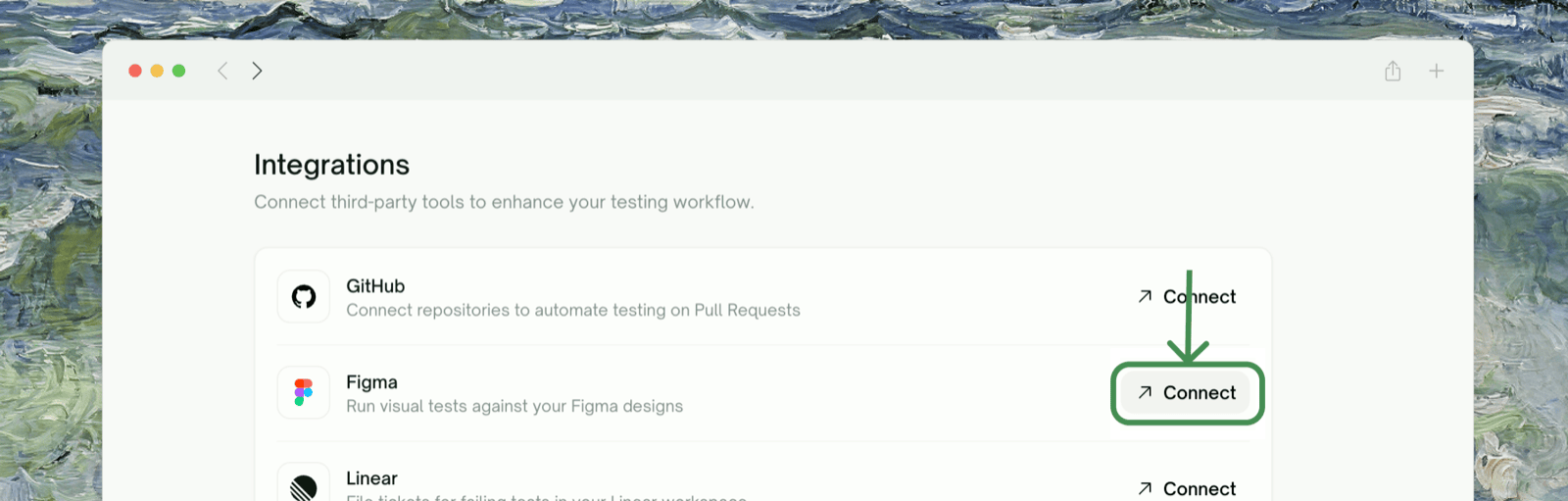 In your workspace settings, go to Workspace Settings → Connections → Integrations and click the **Slack** row, then Connect With Slack.
A Slack authorization window opens. Approve the requested permissions — TestSprite asks only for what it needs to list channels and post messages:
| Permission | Why |
| - | - |
| `channels:read` | List your public channels so you can pick one |
| `groups:read` | List private channels the bot has been invited to |
| `chat:write` | Post run summaries |
| `chat:write.public` | Post to public channels without needing an invite |
Back in TestSprite, the Slack page shows **Connected Workspace** with your Slack team's name. One Slack workspace is linked per TestSprite workspace; every project in it can now pick a channel.
## Step 2 — Choose a Channel for Each Project
In your workspace settings, go to Workspace Settings → Connections → Integrations and click the **Slack** row, then Connect With Slack.
A Slack authorization window opens. Approve the requested permissions — TestSprite asks only for what it needs to list channels and post messages:
| Permission | Why |
| - | - |
| `channels:read` | List your public channels so you can pick one |
| `groups:read` | List private channels the bot has been invited to |
| `chat:write` | Post run summaries |
| `chat:write.public` | Post to public channels without needing an invite |
Back in TestSprite, the Slack page shows **Connected Workspace** with your Slack team's name. One Slack workspace is linked per TestSprite workspace; every project in it can now pick a channel.
## Step 2 — Choose a Channel for Each Project
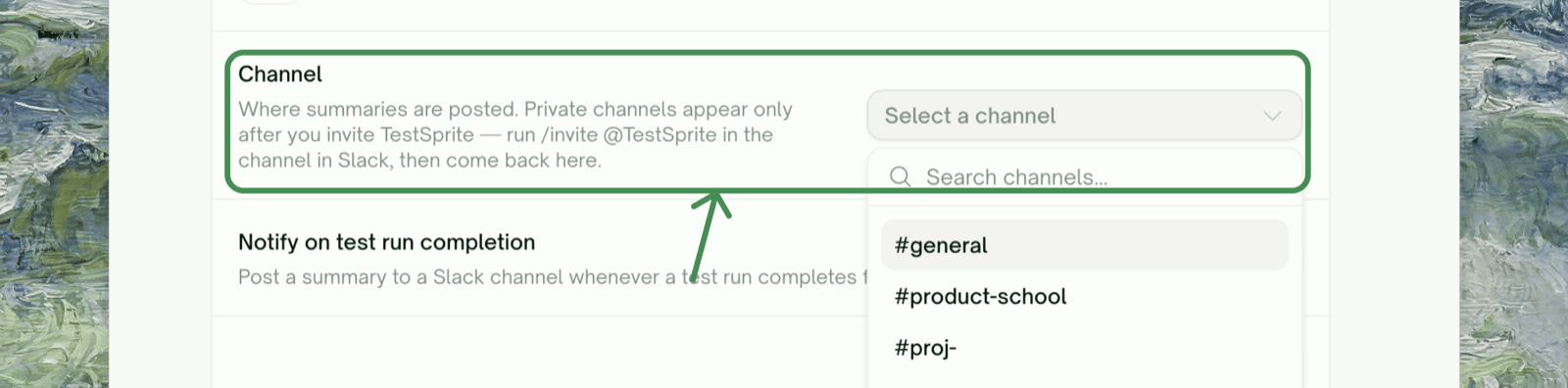 In the project's sidebar, go to Project Settings → Notifications & Ticketing. The Slack card shows the connected workspace.
Under **Channel**, select where summaries should be posted. Public channels appear as `#channel-name`; private channels show a lock icon.
Enable **Notify on test run completion** and click Save changes. From now on, every completed run of this project posts a summary to that channel.
## Public vs. Private Channels
**Private channels require one extra step.** The TestSprite bot cannot see a private channel until it is invited. In Slack, open the private channel and run `/invite @TestSprite` **first** — the channel won't appear in TestSprite's channel list until you do. After inviting, switch back to the TestSprite tab and the list refreshes automatically.
Inviting the bot takes a few seconds. In the private channel, type `/invite` and choose **Invite someone to this channel**:
In the project's sidebar, go to Project Settings → Notifications & Ticketing. The Slack card shows the connected workspace.
Under **Channel**, select where summaries should be posted. Public channels appear as `#channel-name`; private channels show a lock icon.
Enable **Notify on test run completion** and click Save changes. From now on, every completed run of this project posts a summary to that channel.
## Public vs. Private Channels
**Private channels require one extra step.** The TestSprite bot cannot see a private channel until it is invited. In Slack, open the private channel and run `/invite @TestSprite` **first** — the channel won't appear in TestSprite's channel list until you do. After inviting, switch back to the TestSprite tab and the list refreshes automatically.
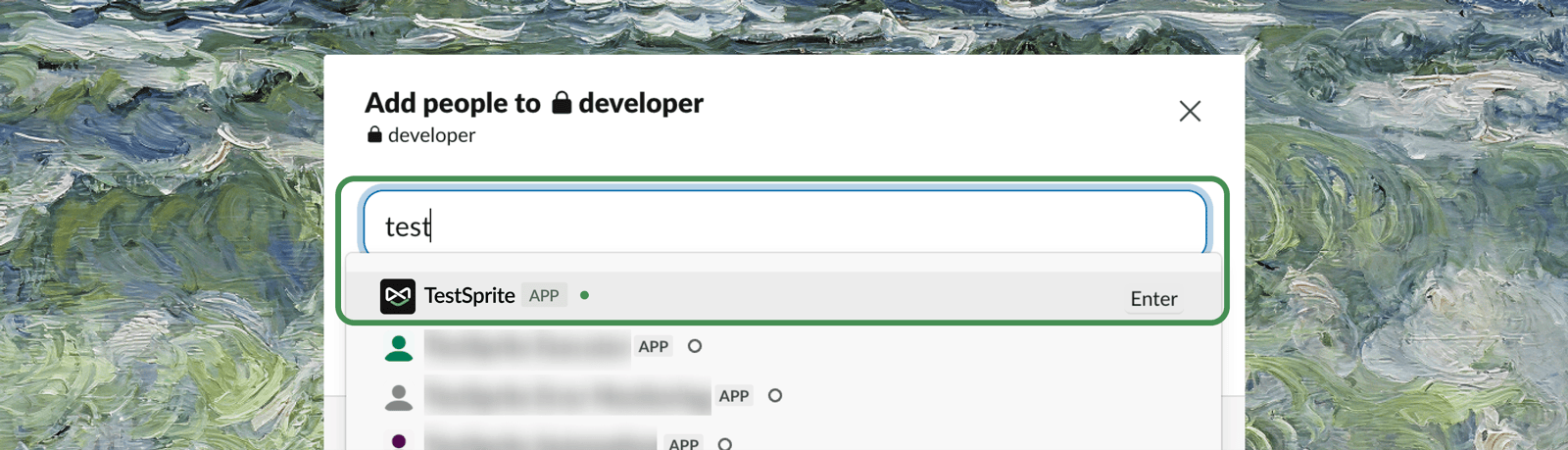
Inviting the bot takes a few seconds. In the private channel, type `/invite` and choose **Invite someone to this channel**:
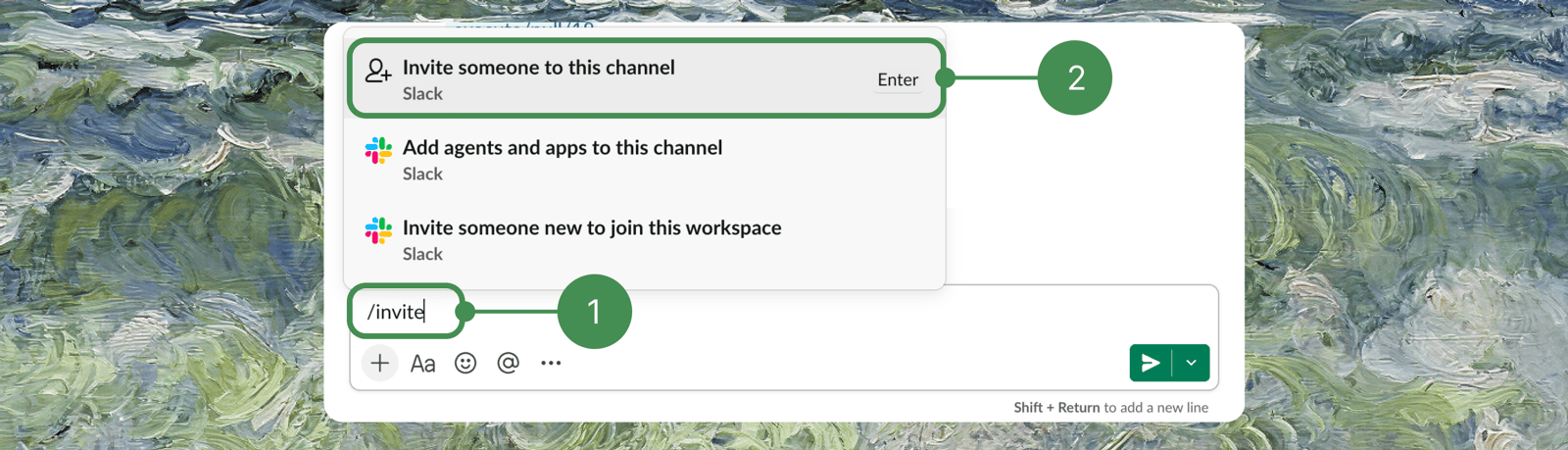 Then search for the TestSprite app and add it:
 | | Public channel | Private channel |
| - | - | - |
| Setup | Select from the list — works immediately, no invite needed | Run `/invite @TestSprite` in the channel first, then select it |
| Appears in channel list | Always | Only after the bot is invited |
| Who sees notifications | Anyone in the channel | Channel members only |
## What You'll Receive
A summary is posted **once per completed test run** — whether the run was started manually, by a schedule, by a GitHub event, or from the CLI. There is currently no "failures only" filter; if the project's toggle is on, every run reports.
### What's in a Notification Card
| Section | Contents |
| - | - |
| Header | Project name and the headline result — ✅ *"all passed"*, or how many of the total failed or were blocked |
| Run summary | An AI-written narrative of what happened in the run |
| Results line | Passed / failed / blocked / total counts, plus a **View full results** link back to the run in TestSprite |
| Failing tests | Up to 10 failed or blocked test titles (then *"…and N more"*) |
| Screenshots | Up to 5 screenshots, failures first |
**Choosing channels well beats filtering.** Since every run posts, route noisy projects (frequent scheduled runs) to a dedicated channel like `#testsprite-monitoring`, and keep release-critical projects in your team channel where a failure gets seen immediately.
## Change Channel, Disable, or Disconnect
* **Change a project's channel or turn its notifications off**: back in the project's Project Settings → Notifications & Ticketing, pick a different channel or flip **Notify on test run completion** off, then Save changes.
* **Disconnect Slack from the whole workspace**: go to Workspace Settings → Connections → Integrations → Slack and click Disconnect (Owner/Admin only). All projects stop posting immediately.
Disconnecting keeps each project's channel choice. If you reconnect the same Slack workspace later, projects resume posting to their previously selected channels.
## Troubleshooting
The bot hasn't been invited yet. In Slack, open the channel and run `/invite @TestSprite`, then return to the TestSprite tab — the list refreshes when the tab regains focus.
Check three things in order: the project's **Notify on test run completion** toggle is still on; the workspace's Slack connection still shows **Connected** under Workspace Settings → Connections → Integrations; and, for a private channel, the `@TestSprite` bot is still a member (a bot removed from the channel fails silently).
Connecting requires the workspace **Owner** or **Admin** role. Members don't see Integrations at all.
## Where to Go Next
Turn failed tests into tickets automatically
Set up scheduled runs that report to Slack
This documentation is built and hosted on [Mintlify](https://mintlify.com), a developer documentation platform.
| | Public channel | Private channel |
| - | - | - |
| Setup | Select from the list — works immediately, no invite needed | Run `/invite @TestSprite` in the channel first, then select it |
| Appears in channel list | Always | Only after the bot is invited |
| Who sees notifications | Anyone in the channel | Channel members only |
## What You'll Receive
A summary is posted **once per completed test run** — whether the run was started manually, by a schedule, by a GitHub event, or from the CLI. There is currently no "failures only" filter; if the project's toggle is on, every run reports.
### What's in a Notification Card
| Section | Contents |
| - | - |
| Header | Project name and the headline result — ✅ *"all passed"*, or how many of the total failed or were blocked |
| Run summary | An AI-written narrative of what happened in the run |
| Results line | Passed / failed / blocked / total counts, plus a **View full results** link back to the run in TestSprite |
| Failing tests | Up to 10 failed or blocked test titles (then *"…and N more"*) |
| Screenshots | Up to 5 screenshots, failures first |
**Choosing channels well beats filtering.** Since every run posts, route noisy projects (frequent scheduled runs) to a dedicated channel like `#testsprite-monitoring`, and keep release-critical projects in your team channel where a failure gets seen immediately.
## Change Channel, Disable, or Disconnect
* **Change a project's channel or turn its notifications off**: back in the project's Project Settings → Notifications & Ticketing, pick a different channel or flip **Notify on test run completion** off, then Save changes.
* **Disconnect Slack from the whole workspace**: go to Workspace Settings → Connections → Integrations → Slack and click Disconnect (Owner/Admin only). All projects stop posting immediately.
Disconnecting keeps each project's channel choice. If you reconnect the same Slack workspace later, projects resume posting to their previously selected channels.
## Troubleshooting
The bot hasn't been invited yet. In Slack, open the channel and run `/invite @TestSprite`, then return to the TestSprite tab — the list refreshes when the tab regains focus.
Check three things in order: the project's **Notify on test run completion** toggle is still on; the workspace's Slack connection still shows **Connected** under Workspace Settings → Connections → Integrations; and, for a private channel, the `@TestSprite` bot is still a member (a bot removed from the channel fails silently).
Connecting requires the workspace **Owner** or **Admin** role. Members don't see Integrations at all.
## Where to Go Next
Turn failed tests into tickets automatically
Set up scheduled runs that report to Slack
This documentation is built and hosted on [Mintlify](https://mintlify.com), a developer documentation platform.