> ## Documentation Index
> Fetch the complete documentation index at: https://docs.testsprite.com/llms.txt
> Use this file to discover all available pages before exploring further.
# Ticketing
> Turn failed tests into Jira or Linear tickets — one at a time or automatically — with dedup so the same failure is never filed twice, and an automatic comment when the test passes again.
When a test fails, the next step is usually a ticket. TestSprite files that ticket for you — into **Jira** or **Linear** — either on demand for a single failure or automatically for every failure in a run. However you file, the same failure is never ticketed twice, and when the test recovers the ticket gets a follow-up comment so nobody chases a bug that's already fixed.
 ## Before You Start
Ticketing files into **Jira** and **Linear**. You can connect one, both, or neither — each is configured independently per project. There is no GitHub Issues or built-in tracker for this feature.
Two things need to be in place:
1. **Connect the tracker at the workspace level.** Go to Workspace Settings → Connections → Integrations and connect Jira and/or Linear via OAuth. This is a one-time, workspace-wide authorization. The per-project ticketing configuration (which team or project to file into) is separate and covered below.
2. **Pick where tickets land, per project.** Jira files into a **project** (as a `Bug`); Linear files into a **team**.
Not every plan includes Jira and Linear ticketing. Compare plans on the [pricing page](https://www.testsprite.com/pricing).
## Create a Ticket for a Single Failure
The fastest path — no project-wide setting to flip. Open any failed (or blocked) test and file a ticket for just that failure.
On a failed test's detail page, click Create Bug Ticket in the top-right. The button is available anywhere a failed run appears: the test case detail page, the execution detail page, and the test-cases list.
## Before You Start
Ticketing files into **Jira** and **Linear**. You can connect one, both, or neither — each is configured independently per project. There is no GitHub Issues or built-in tracker for this feature.
Two things need to be in place:
1. **Connect the tracker at the workspace level.** Go to Workspace Settings → Connections → Integrations and connect Jira and/or Linear via OAuth. This is a one-time, workspace-wide authorization. The per-project ticketing configuration (which team or project to file into) is separate and covered below.
2. **Pick where tickets land, per project.** Jira files into a **project** (as a `Bug`); Linear files into a **team**.
Not every plan includes Jira and Linear ticketing. Compare plans on the [pricing page](https://www.testsprite.com/pricing).
## Create a Ticket for a Single Failure
The fastest path — no project-wide setting to flip. Open any failed (or blocked) test and file a ticket for just that failure.
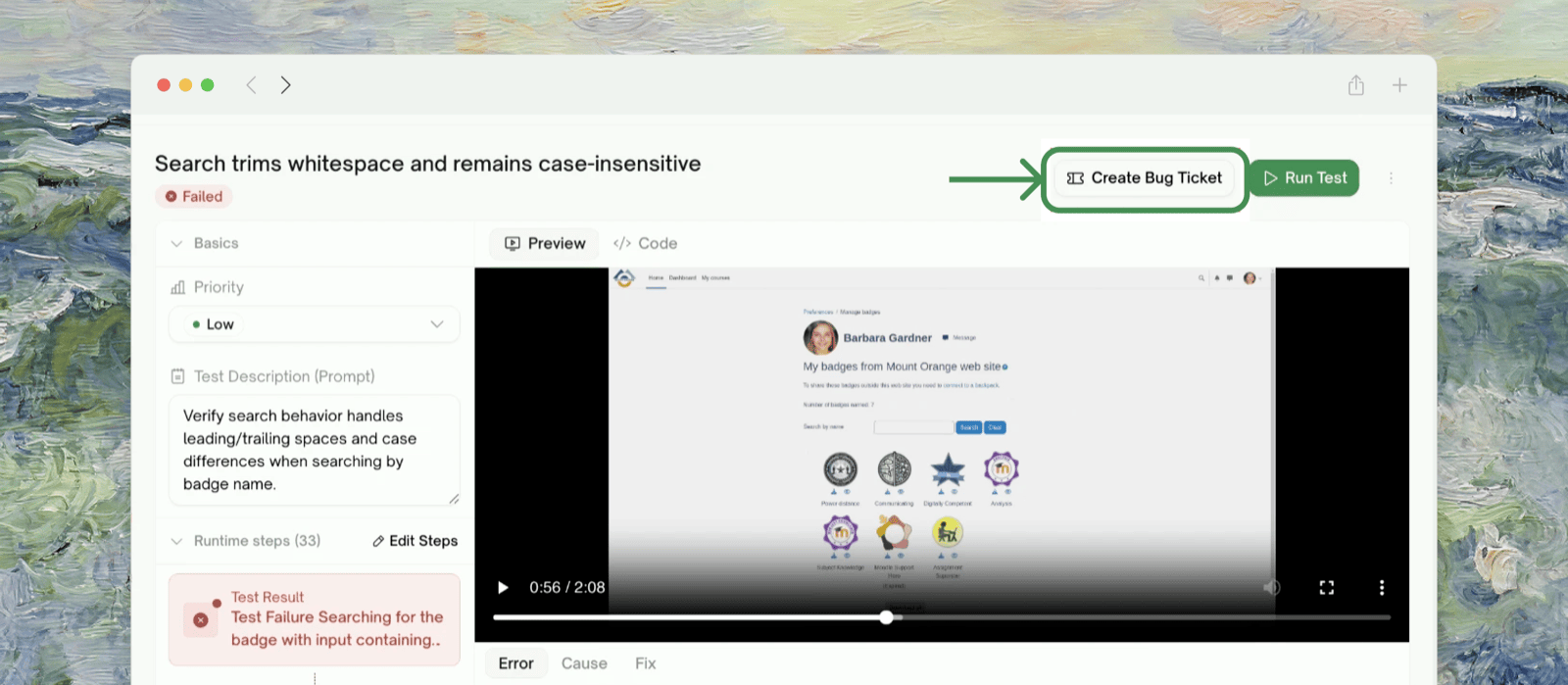
On a failed test's detail page, click Create Bug Ticket in the top-right. The button is available anywhere a failed run appears: the test case detail page, the execution detail page, and the test-cases list.
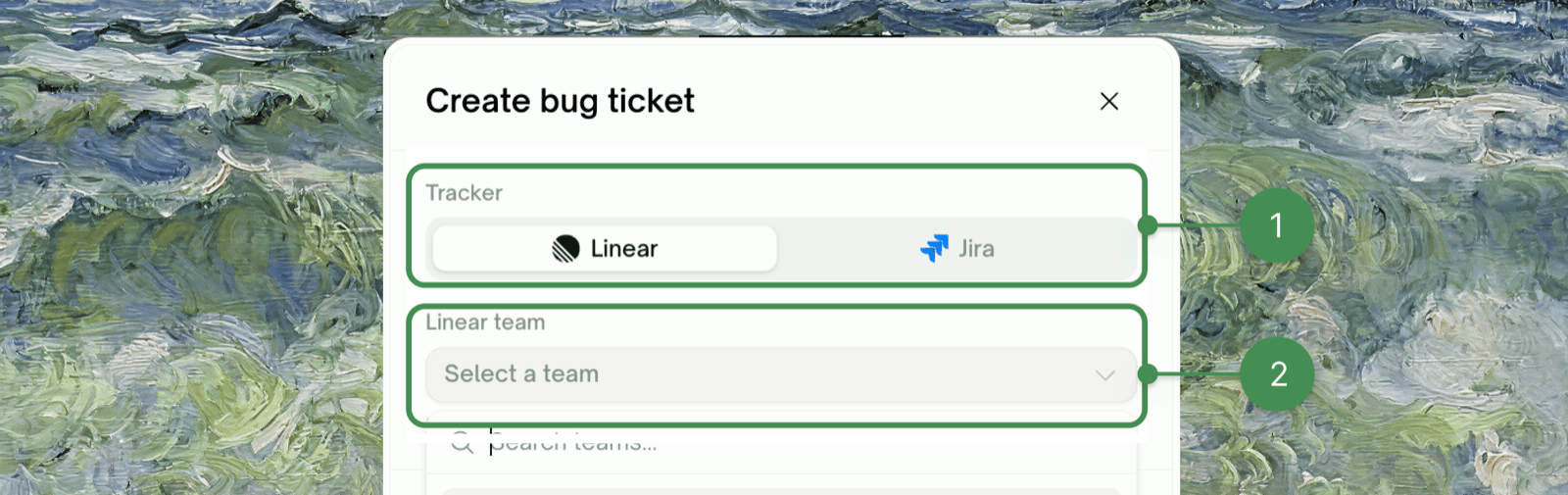
 In the **Create bug ticket** dialog, pick **Linear** or **Jira**, then select the **team** (Linear) or **project** (Jira) the issue should be created in.
 The confirm step shows exactly what will be filed: the test name, and that the ticket **includes the failure details and a link back to this run**. The destination you pick is saved for this project, so the next ticket skips the picker.
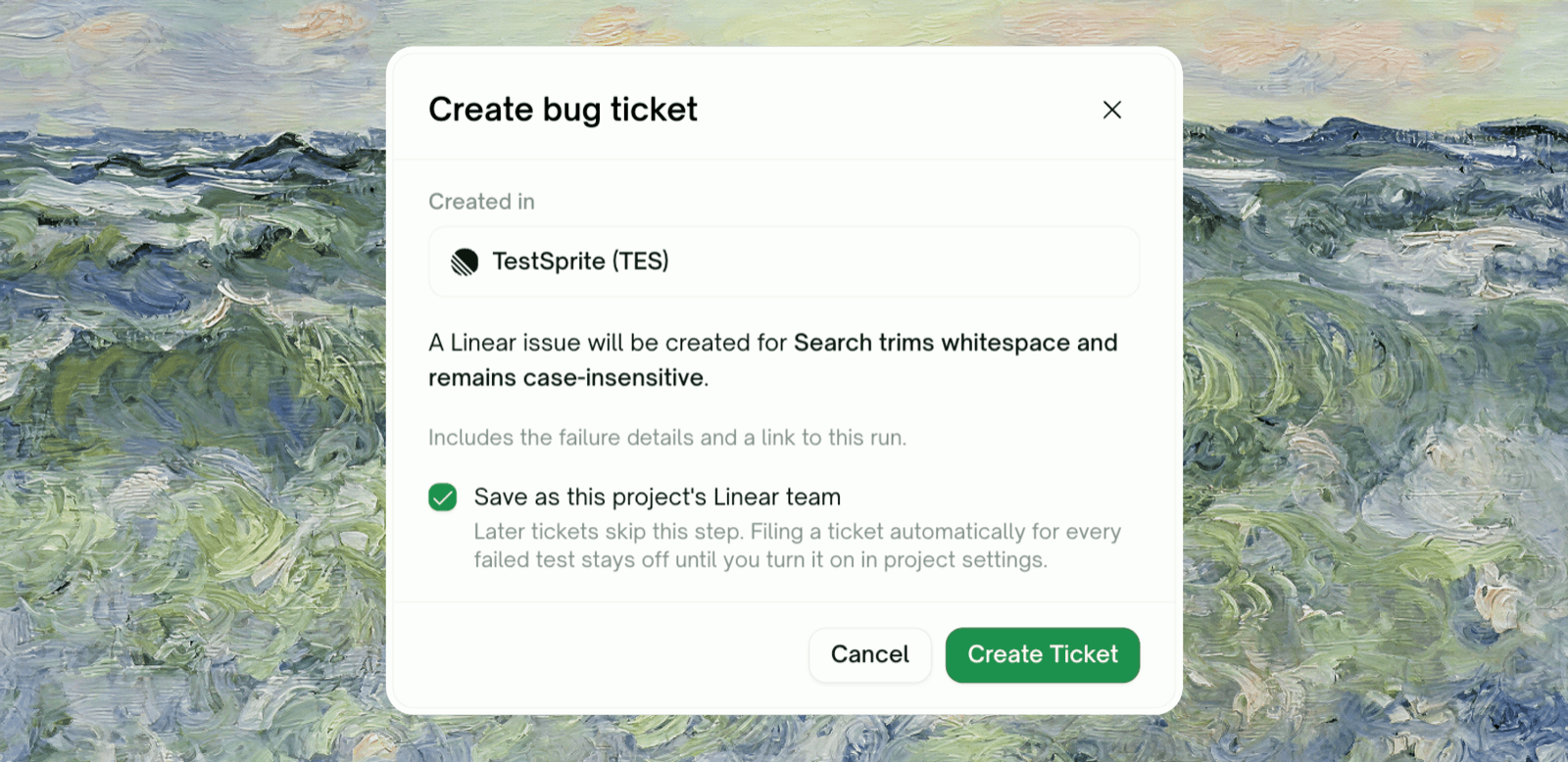 Saving the destination as the default does **not** turn on automatic filing — that stays off until you enable it in project settings (see below).
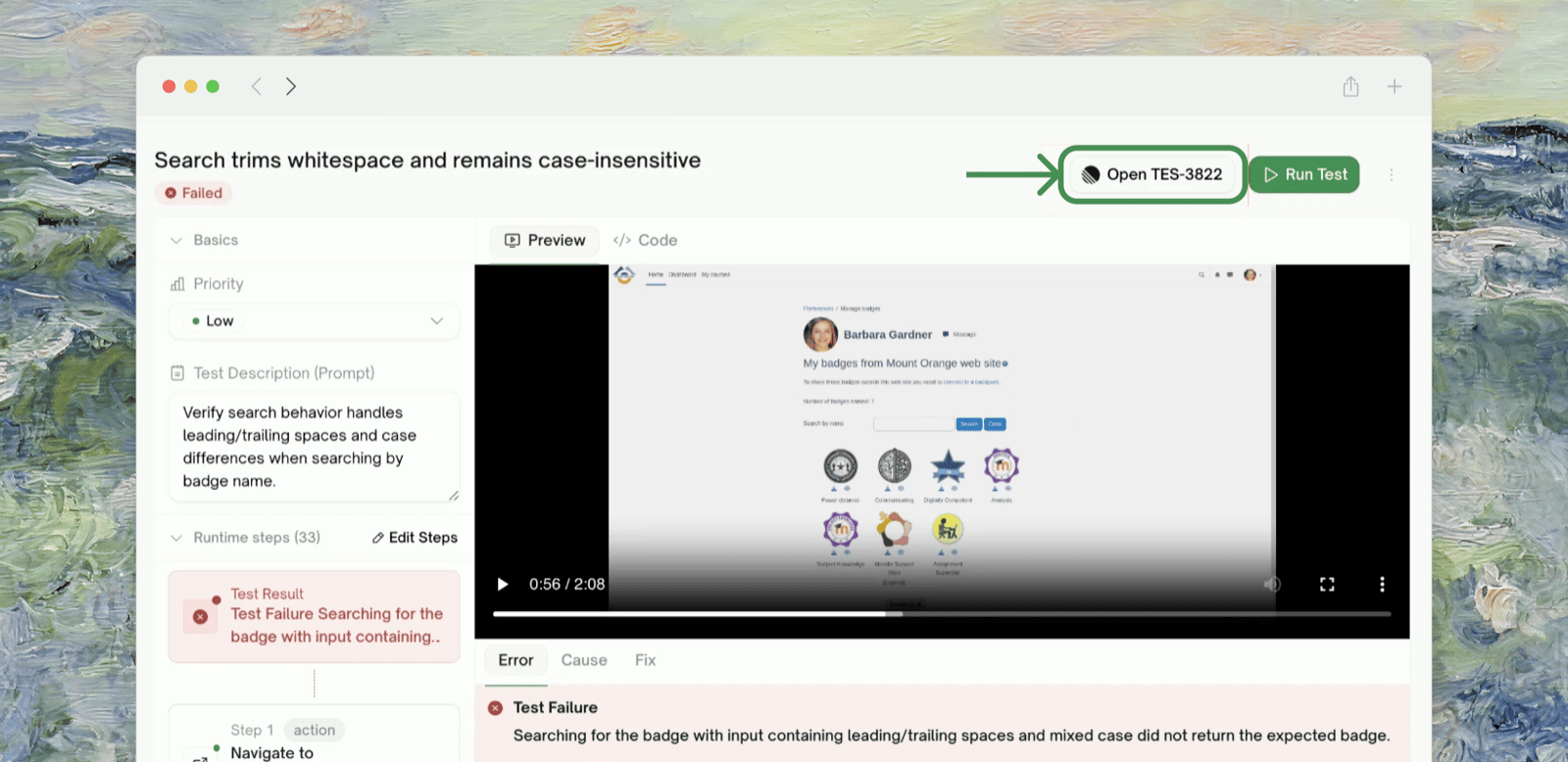
Click Create Ticket. TestSprite files the issue and the button changes to Open TES-1234 (or the Jira key) — a direct link to the ticket.
Saving the destination as the default does **not** turn on automatic filing — that stays off until you enable it in project settings (see below).
Click Create Ticket. TestSprite files the issue and the button changes to Open TES-1234 (or the Jira key) — a direct link to the ticket.
 To file for every failure in a run at once, turn on automatic filing (below). Failures that share a root cause are grouped onto one ticket rather than flooding your tracker (see [How Dedup Works](#how-dedup-works)).
Only **failed** or **blocked** tests can be ticketed — a passing test has nothing to file.
### What's in the Ticket
| Part | Contents |
| :- | :- |
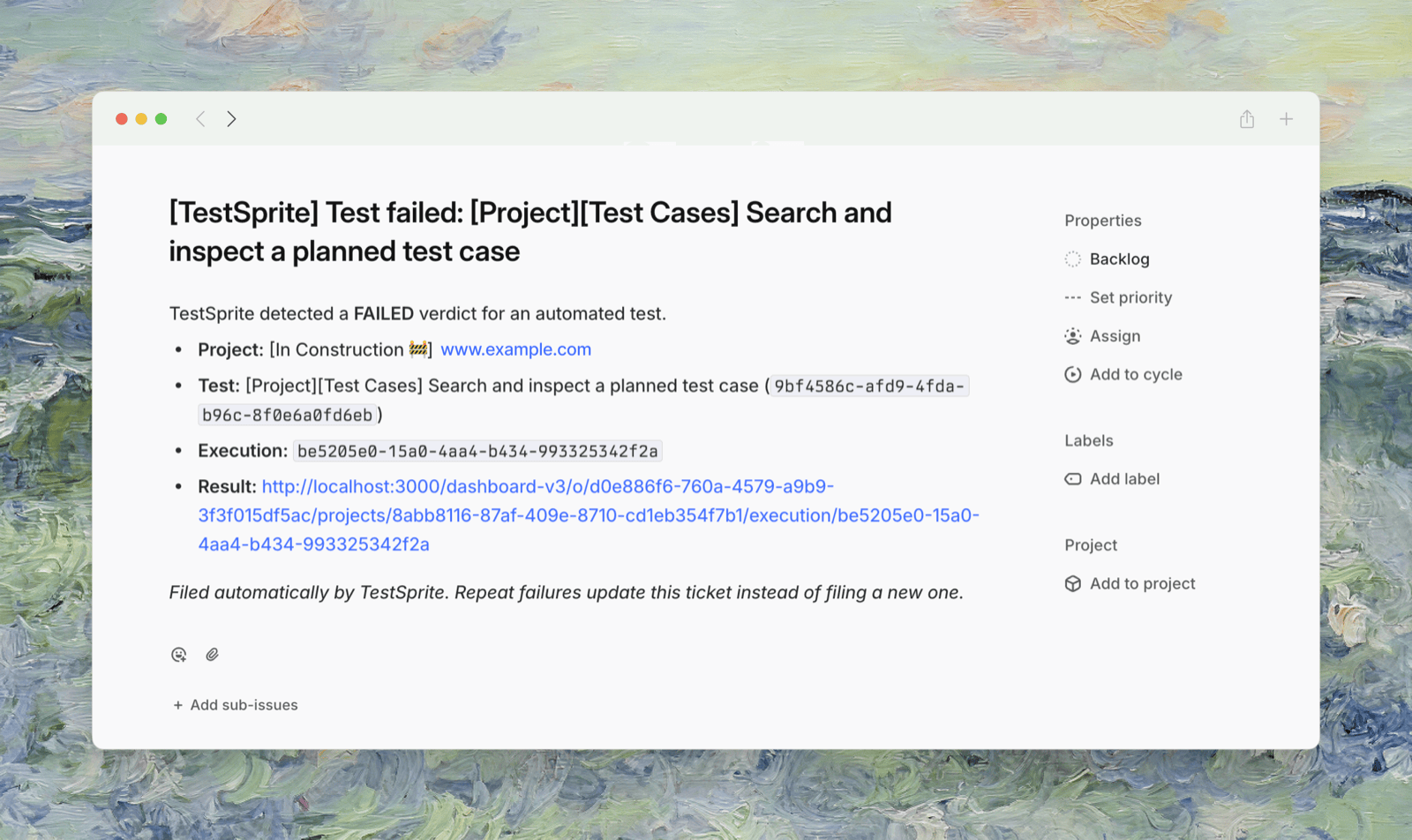
| Title | `[TestSprite] Test failed: ` (or `N tests failed: …` when several share a ticket) |
| Body | Project and test name, the execution id, and a **link back to the run** in TestSprite |
| Probable cause | The AI-diagnosed reason for the failure, when available |
| Error | The raw error text, in a code block |
| Regression note | If this test previously failed and recovered, a line linking the earlier ticket |
Secrets in the error and cause text are redacted before anything leaves TestSprite. Tickets currently link back to the run rather than attaching screenshots.
## Auto-File Tickets for Every Failure
Once a project's failures are stable enough that most are real bugs, let TestSprite file them without a click.
In the project, go to Project Settings → Notifications & Ticketing. Each connected tracker — Slack, Linear, Jira — has its own card.
To file for every failure in a run at once, turn on automatic filing (below). Failures that share a root cause are grouped onto one ticket rather than flooding your tracker (see [How Dedup Works](#how-dedup-works)).
Only **failed** or **blocked** tests can be ticketed — a passing test has nothing to file.
### What's in the Ticket
| Part | Contents |
| :- | :- |
| Title | `[TestSprite] Test failed: ` (or `N tests failed: …` when several share a ticket) |
| Body | Project and test name, the execution id, and a **link back to the run** in TestSprite |
| Probable cause | The AI-diagnosed reason for the failure, when available |
| Error | The raw error text, in a code block |
| Regression note | If this test previously failed and recovered, a line linking the earlier ticket |
Secrets in the error and cause text are redacted before anything leaves TestSprite. Tickets currently link back to the run rather than attaching screenshots.
## Auto-File Tickets for Every Failure
Once a project's failures are stable enough that most are real bugs, let TestSprite file them without a click.
In the project, go to Project Settings → Notifications & Ticketing. Each connected tracker — Slack, Linear, Jira — has its own card.
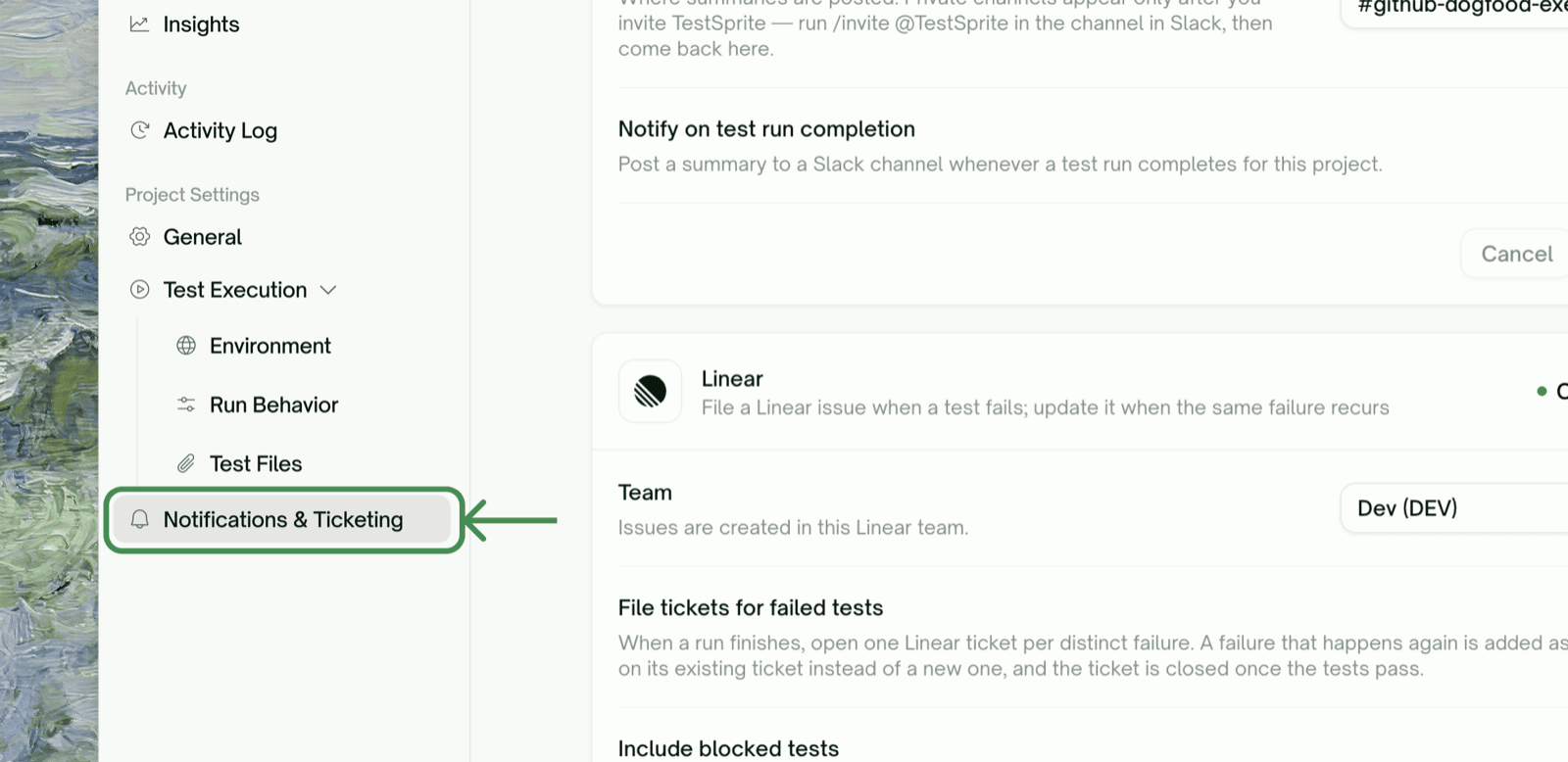 On the Linear or Jira card, choose the **Team** (Linear) or **Project** (Jira) issues should be created in.
Flip File tickets for failed tests on and click Save Changes. From now on, when a run finishes, TestSprite opens one ticket per distinct failure.
Two settings shape how much gets filed:
| Setting | Default | Effect |
| :- | :- | :- |
| Include blocked tests | Off | File tickets for blocked tests too, not only failed ones |
| Max new tickets per run | 20 | Cap on how many *new* tickets a single run can open (repeat failures still comment on existing tickets) |
**Before you enable auto-filing the first time, triage the project's failures manually once.** A project with a backlog of genuine failures will open a ticket for each distinct one on the next run — potentially dozens at once. Clear or cluster the known failures first, then turn the toggle on so it only files what's genuinely new.
This suits teams running TestSprite on a schedule or on every pull request, where failures should land in the tracker without anyone watching the dashboard. If you're still stabilizing a suite — lots of flaky or expected failures — stay on manual filing until the noise settles.
## How Dedup Works
TestSprite never files the same failure twice, using two layers:
* **One ticket per failing test.** A repeat failure of the same test updates its existing ticket with a "failed again" comment instead of opening a new one.
* **Same failure, one ticket across tests.** Failures that share a root cause (the same error signature) are grouped onto a single ticket — so a widespread outage doesn't spray your tracker with near-identical bugs. Grouping applies within a 7-day window, up to 25 tests per ticket.
Manual and automatic filing dedupe **against each other**: if you manually file into the same destination the project is configured to auto-file into, a later automatic run recognizes the existing ticket and comments on it rather than duplicating.
## When a Test Passes Again
When a previously-failing test passes on a later run, TestSprite posts a **recovery comment** on its ticket and stops updating it — closing the loop without you having to remember which tickets to revisit. If a ticket covered several tests, the comment notes how many are still failing; TestSprite keeps updating it until every test on it has recovered.
TestSprite posts the recovery comment and stops tracking the ticket. It does not transition or close the issue in Jira or Linear — your team's own workflow owns the final status change. A later failure opens a fresh ticket, linked back to the recovered one.
## Tips
Use Create Bug Ticket on individual failures while you're learning which failures are real. Once the noise settles, flip on auto-filing so you stop clicking.
Point ticketing at a dedicated Linear team or Jira project (a "TestSprite" or "QA triage" bucket) rather than your main backlog. It keeps automatically-filed tickets from crowding hand-written work, and you can move the real ones over after review.
Leave the cap at a sane number (the default is 20) so a bad deploy that breaks half the suite can't open a hundred tickets in one run. Repeat failures still land as comments on the tickets you already have.
You can enable Linear and Jira simultaneously — each files independently into its own destination with its own dedup ledger. Useful when engineering lives in one tracker and QA in the other.
## Where to Go Next
Post run results to a channel alongside ticketing
Scheduled runs are the main source of auto-filed tickets
Where the Create Bug Ticket button lives
Run tests automatically on pull requests
This documentation is built and hosted on [Mintlify](https://mintlify.com), a developer documentation platform.
On the Linear or Jira card, choose the **Team** (Linear) or **Project** (Jira) issues should be created in.
Flip File tickets for failed tests on and click Save Changes. From now on, when a run finishes, TestSprite opens one ticket per distinct failure.
Two settings shape how much gets filed:
| Setting | Default | Effect |
| :- | :- | :- |
| Include blocked tests | Off | File tickets for blocked tests too, not only failed ones |
| Max new tickets per run | 20 | Cap on how many *new* tickets a single run can open (repeat failures still comment on existing tickets) |
**Before you enable auto-filing the first time, triage the project's failures manually once.** A project with a backlog of genuine failures will open a ticket for each distinct one on the next run — potentially dozens at once. Clear or cluster the known failures first, then turn the toggle on so it only files what's genuinely new.
This suits teams running TestSprite on a schedule or on every pull request, where failures should land in the tracker without anyone watching the dashboard. If you're still stabilizing a suite — lots of flaky or expected failures — stay on manual filing until the noise settles.
## How Dedup Works
TestSprite never files the same failure twice, using two layers:
* **One ticket per failing test.** A repeat failure of the same test updates its existing ticket with a "failed again" comment instead of opening a new one.
* **Same failure, one ticket across tests.** Failures that share a root cause (the same error signature) are grouped onto a single ticket — so a widespread outage doesn't spray your tracker with near-identical bugs. Grouping applies within a 7-day window, up to 25 tests per ticket.
Manual and automatic filing dedupe **against each other**: if you manually file into the same destination the project is configured to auto-file into, a later automatic run recognizes the existing ticket and comments on it rather than duplicating.
## When a Test Passes Again
When a previously-failing test passes on a later run, TestSprite posts a **recovery comment** on its ticket and stops updating it — closing the loop without you having to remember which tickets to revisit. If a ticket covered several tests, the comment notes how many are still failing; TestSprite keeps updating it until every test on it has recovered.
TestSprite posts the recovery comment and stops tracking the ticket. It does not transition or close the issue in Jira or Linear — your team's own workflow owns the final status change. A later failure opens a fresh ticket, linked back to the recovered one.
## Tips
Use Create Bug Ticket on individual failures while you're learning which failures are real. Once the noise settles, flip on auto-filing so you stop clicking.
Point ticketing at a dedicated Linear team or Jira project (a "TestSprite" or "QA triage" bucket) rather than your main backlog. It keeps automatically-filed tickets from crowding hand-written work, and you can move the real ones over after review.
Leave the cap at a sane number (the default is 20) so a bad deploy that breaks half the suite can't open a hundred tickets in one run. Repeat failures still land as comments on the tickets you already have.
You can enable Linear and Jira simultaneously — each files independently into its own destination with its own dedup ledger. Useful when engineering lives in one tracker and QA in the other.
## Where to Go Next
Post run results to a channel alongside ticketing
Scheduled runs are the main source of auto-filed tickets
Where the Create Bug Ticket button lives
Run tests automatically on pull requests
This documentation is built and hosted on [Mintlify](https://mintlify.com), a developer documentation platform.