> ## Documentation Index
> Fetch the complete documentation index at: https://docs.testsprite.com/llms.txt
> Use this file to discover all available pages before exploring further.
# Comparing Runs
> How to spot what changed between two scheduled runs — Previous Executions table, per-run pass count, Changes column, and the triage workflows built on them.
 **Comparing Runs depends on schedule run history**, which means it's a Pro feature too — Free accounts have no schedule slots, so there's no run history to diff. See [Schedules](/web-portal/maintenance/monitoring) for the gating details.
## Why Comparing Runs Matters
Two runs of the same Test List rarely look identical. Even when nothing should have changed, you'll see:
* Flaky tests recover or break cleanly between runs
* Real regressions appear after a backend deploy
* UI changes break tests that were happy yesterday
* Edge cases flip on the rate-limited 1-in-100 path
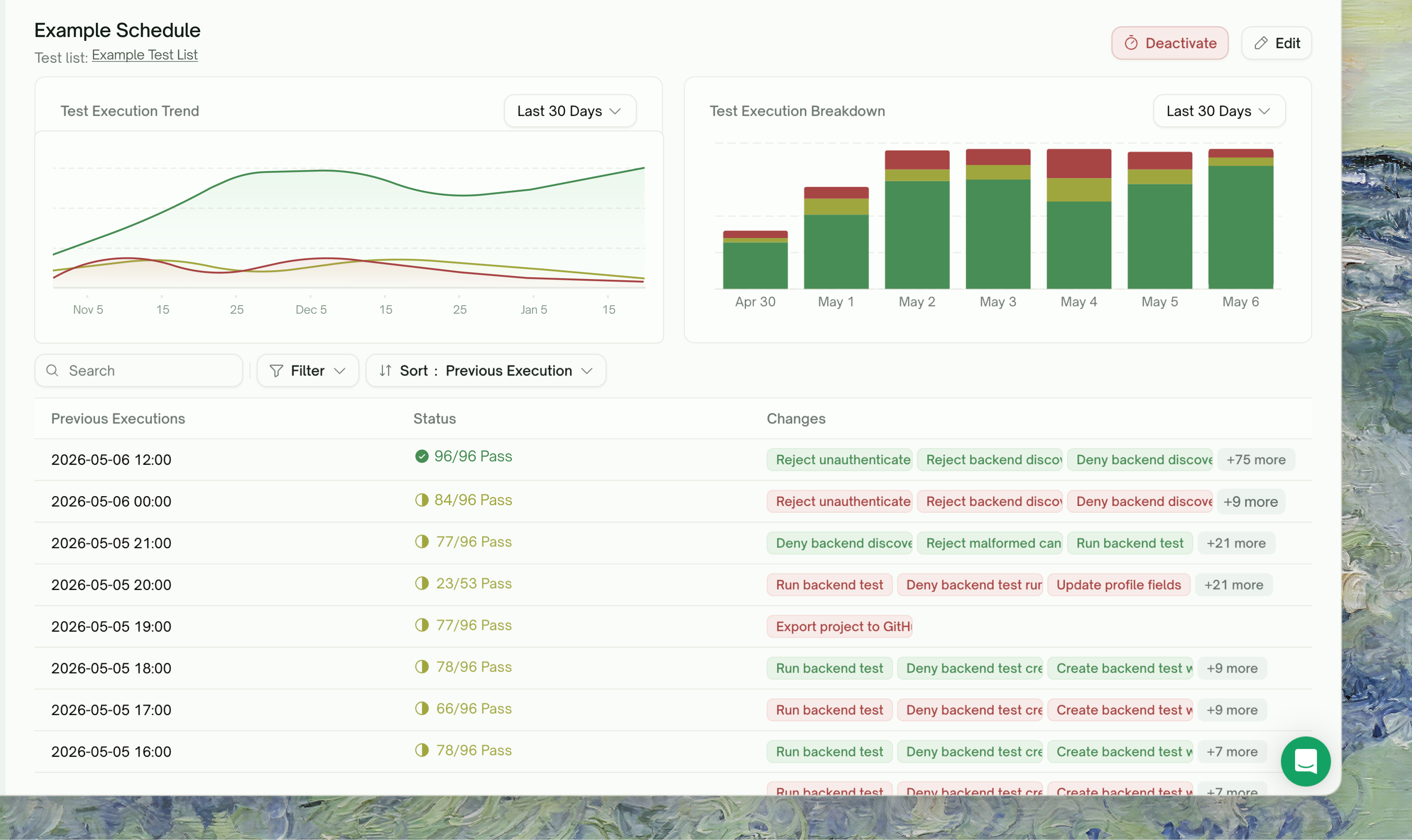
The Web Portal surfaces run-vs-run differences in the **schedule run-history table**. Each row is a past run; the columns give you a per-run rollup plus a diff against the immediate predecessor.
## The Schedule Run-History Table
Open a schedule from Testing → Monitoring. Each run is a row, sorted newest-first.
**Comparing Runs depends on schedule run history**, which means it's a Pro feature too — Free accounts have no schedule slots, so there's no run history to diff. See [Schedules](/web-portal/maintenance/monitoring) for the gating details.
## Why Comparing Runs Matters
Two runs of the same Test List rarely look identical. Even when nothing should have changed, you'll see:
* Flaky tests recover or break cleanly between runs
* Real regressions appear after a backend deploy
* UI changes break tests that were happy yesterday
* Edge cases flip on the rate-limited 1-in-100 path
The Web Portal surfaces run-vs-run differences in the **schedule run-history table**. Each row is a past run; the columns give you a per-run rollup plus a diff against the immediate predecessor.
## The Schedule Run-History Table
Open a schedule from Testing → Monitoring. Each run is a row, sorted newest-first.
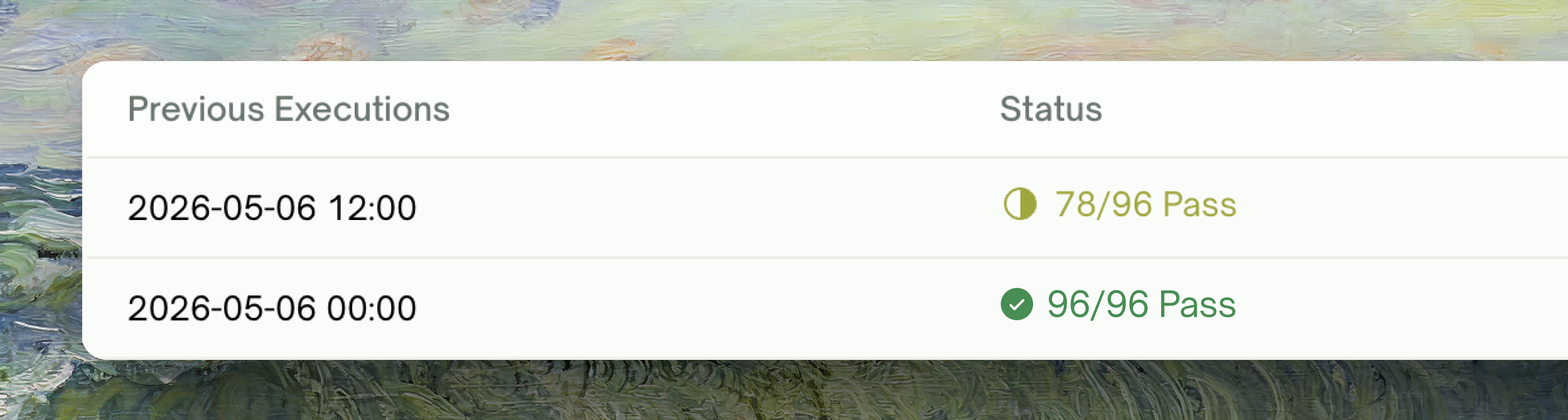 | Column | What it shows |
| :----------------------------- | :--------------------------------------------------------------------------------- |
| Previous Executions | Timestamp of the run |
| Status | `/ Pass` for completed runs, or **In Progress** while still running |
| Changes | Test-name chips for everything that flipped vs. the **immediate predecessor** run |
Click any non-running row to open that run's execution detail page, where the per-test outcomes live.
### The Changes column
| Column | What it shows |
| :----------------------------- | :--------------------------------------------------------------------------------- |
| Previous Executions | Timestamp of the run |
| Status | `/ Pass` for completed runs, or **In Progress** while still running |
| Changes | Test-name chips for everything that flipped vs. the **immediate predecessor** run |
Click any non-running row to open that run's execution detail page, where the per-test outcomes live.
### The Changes column
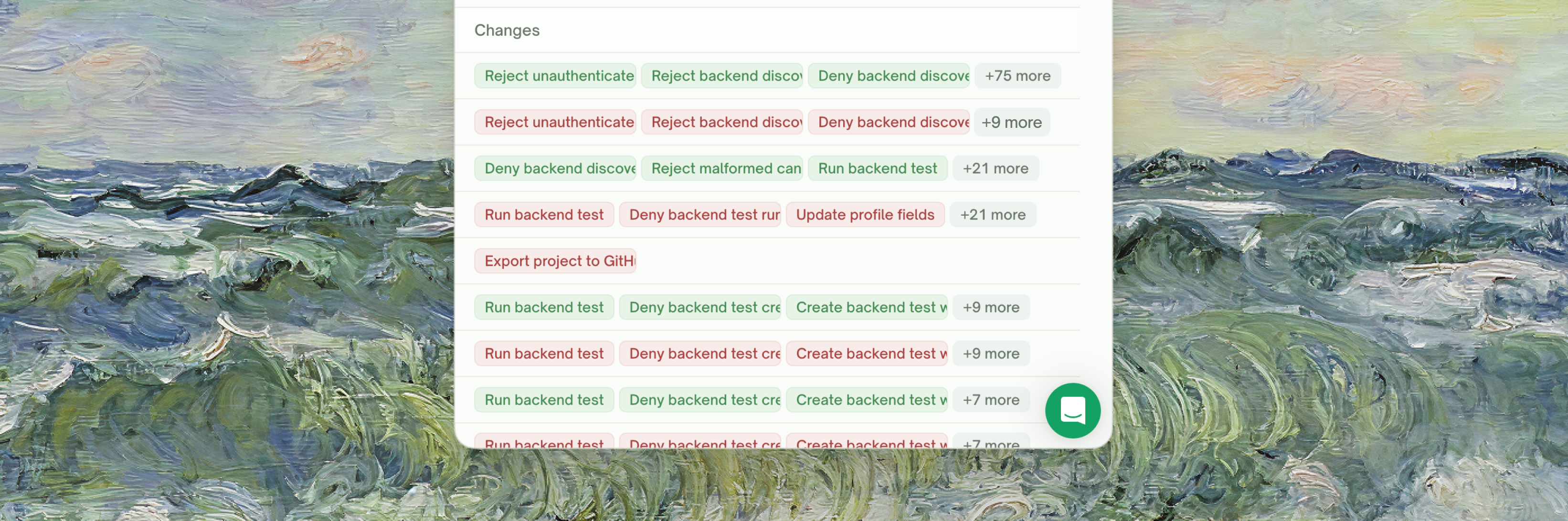 | Indicator | Meaning |
| :------------------------------------ | :----------------------------------------------------------------- |
| Newly failed red chip | A test that passed last time and failed (or was blocked) this time |
| Newly recovered green chip | A test that failed (or was blocked) last time and passed this time |
| — | No status changes between this run and the prior run |
Up to three test names show per row, with `+N more` for longer lists; hover the `+N more` badge for the full list.
#### What counts as a status change
| From | To | Reported as |
| :----------------- | :----------------- | :------------------------------------ |
| Passed | Failed | Newly failed |
| Passed | Blocked | Newly failed |
| Failed | Passed | Newly recovered |
| Blocked | Passed | Newly recovered |
| Failed | Blocked | (no chip — both still problem states) |
| Passed | Passed | (no chip) |
Tests that didn't run in both compared runs (added or removed from the Test List between them) don't appear in the Changes column.
## Triage Workflow
When the Changes column reports newly-failed tests:
Opens the execution detail page — every test in that run with its individual status, error trace, and per-step / request-response detail.
For UI tests: lands on the [Step-by-Step Walkthrough](/web-portal/core/ui/ui-step-by-step) — failed step highlighted, HTML snapshot for that moment, video recording, error / trace / fix tabs.
For API tests: the request/response panel shows the actual HTTP call, the captured response, and the assertion that fired.
Go back to the run-history table and click the predecessor row. The same per-test detail is there — open the same test on that run for an eyeball comparison.
* If the user-visible flow itself is broken → file a bug, fix the product
* If the test is too strict on something inconsequential (e.g. asserting on a timestamp that flaps) → [Refine the test](/web-portal/core/working-with-test/refining-tests)
* If the UI changed but the flow is fine → [Rerun with Auto-Heal](/web-portal/core/ui/auto-heal) (UI tests, Pro feature)
**Recovery sanity-check.** When a test goes from red to green, confirm the recovery is from your fix, not a flake. If you didn't ship a change in the relevant area, the recovery may be incidental — watch the next run; if the test goes red again, treat it as flaky and refine.
## Reading the Schedule at a Glance
A streak of `—` in the Changes column means your suite is stable. Recurring red chips on the same test = real regression. Random one-off red chips that recover next run = flake.
Stabilize flaky tests via natural-language refinement
## Edge Cases & Troubleshooting
Three possibilities:
* The test that failed this run wasn't in the previous run (added or removed). Tests that didn't run in both don't appear.
* The flips are between two non-conclusive states (Failed → Blocked or Blocked → Failed) which the chip rule deliberately doesn't surface — both are still failures.
* The previous run is still **In Progress**. Diff requires both runs to be Completed; otherwise the cell renders `—`.
The diff is computed lazily by fetching both runs' test outcomes. Skeleton bars show while the fetch is in flight; they resolve to chips (or `—`) within a few seconds.
Truly random flake. Refine the test in chat to relax the flapping assertion, or accept the test is checking real intermittent behavior in your product.
The Changes column diffs against the immediate predecessor. To compare arbitrary runs, open each run's execution detail in a separate tab and inspect the relevant tests directly.
## Where to Go Next
The schedules whose run history powers the Changes column
The home of per-test reports — where you drill in once Changes points at a test
Stabilize flaky tests via natural-language refinement
Absorb UI drift on rerun without changing the test
| Indicator | Meaning |
| :------------------------------------ | :----------------------------------------------------------------- |
| Newly failed red chip | A test that passed last time and failed (or was blocked) this time |
| Newly recovered green chip | A test that failed (or was blocked) last time and passed this time |
| — | No status changes between this run and the prior run |
Up to three test names show per row, with `+N more` for longer lists; hover the `+N more` badge for the full list.
#### What counts as a status change
| From | To | Reported as |
| :----------------- | :----------------- | :------------------------------------ |
| Passed | Failed | Newly failed |
| Passed | Blocked | Newly failed |
| Failed | Passed | Newly recovered |
| Blocked | Passed | Newly recovered |
| Failed | Blocked | (no chip — both still problem states) |
| Passed | Passed | (no chip) |
Tests that didn't run in both compared runs (added or removed from the Test List between them) don't appear in the Changes column.
## Triage Workflow
When the Changes column reports newly-failed tests:
Opens the execution detail page — every test in that run with its individual status, error trace, and per-step / request-response detail.
For UI tests: lands on the [Step-by-Step Walkthrough](/web-portal/core/ui/ui-step-by-step) — failed step highlighted, HTML snapshot for that moment, video recording, error / trace / fix tabs.
For API tests: the request/response panel shows the actual HTTP call, the captured response, and the assertion that fired.
Go back to the run-history table and click the predecessor row. The same per-test detail is there — open the same test on that run for an eyeball comparison.
* If the user-visible flow itself is broken → file a bug, fix the product
* If the test is too strict on something inconsequential (e.g. asserting on a timestamp that flaps) → [Refine the test](/web-portal/core/working-with-test/refining-tests)
* If the UI changed but the flow is fine → [Rerun with Auto-Heal](/web-portal/core/ui/auto-heal) (UI tests, Pro feature)
**Recovery sanity-check.** When a test goes from red to green, confirm the recovery is from your fix, not a flake. If you didn't ship a change in the relevant area, the recovery may be incidental — watch the next run; if the test goes red again, treat it as flaky and refine.
## Reading the Schedule at a Glance
A streak of `—` in the Changes column means your suite is stable. Recurring red chips on the same test = real regression. Random one-off red chips that recover next run = flake.
Stabilize flaky tests via natural-language refinement
## Edge Cases & Troubleshooting
Three possibilities:
* The test that failed this run wasn't in the previous run (added or removed). Tests that didn't run in both don't appear.
* The flips are between two non-conclusive states (Failed → Blocked or Blocked → Failed) which the chip rule deliberately doesn't surface — both are still failures.
* The previous run is still **In Progress**. Diff requires both runs to be Completed; otherwise the cell renders `—`.
The diff is computed lazily by fetching both runs' test outcomes. Skeleton bars show while the fetch is in flight; they resolve to chips (or `—`) within a few seconds.
Truly random flake. Refine the test in chat to relax the flapping assertion, or accept the test is checking real intermittent behavior in your product.
The Changes column diffs against the immediate predecessor. To compare arbitrary runs, open each run's execution detail in a separate tab and inspect the relevant tests directly.
## Where to Go Next
The schedules whose run history powers the Changes column
The home of per-test reports — where you drill in once Changes points at a test
Stabilize flaky tests via natural-language refinement
Absorb UI drift on rerun without changing the test