> ## Documentation Index
> Fetch the complete documentation index at: https://docs.testsprite.com/llms.txt
> Use this file to discover all available pages before exploring further.
# Watching a Run Live
> What you can see while a UI test run is executing — the live agent view, the results list view, real-time step snapshots.
 ## Runs Are Watchable, Not Just Reported
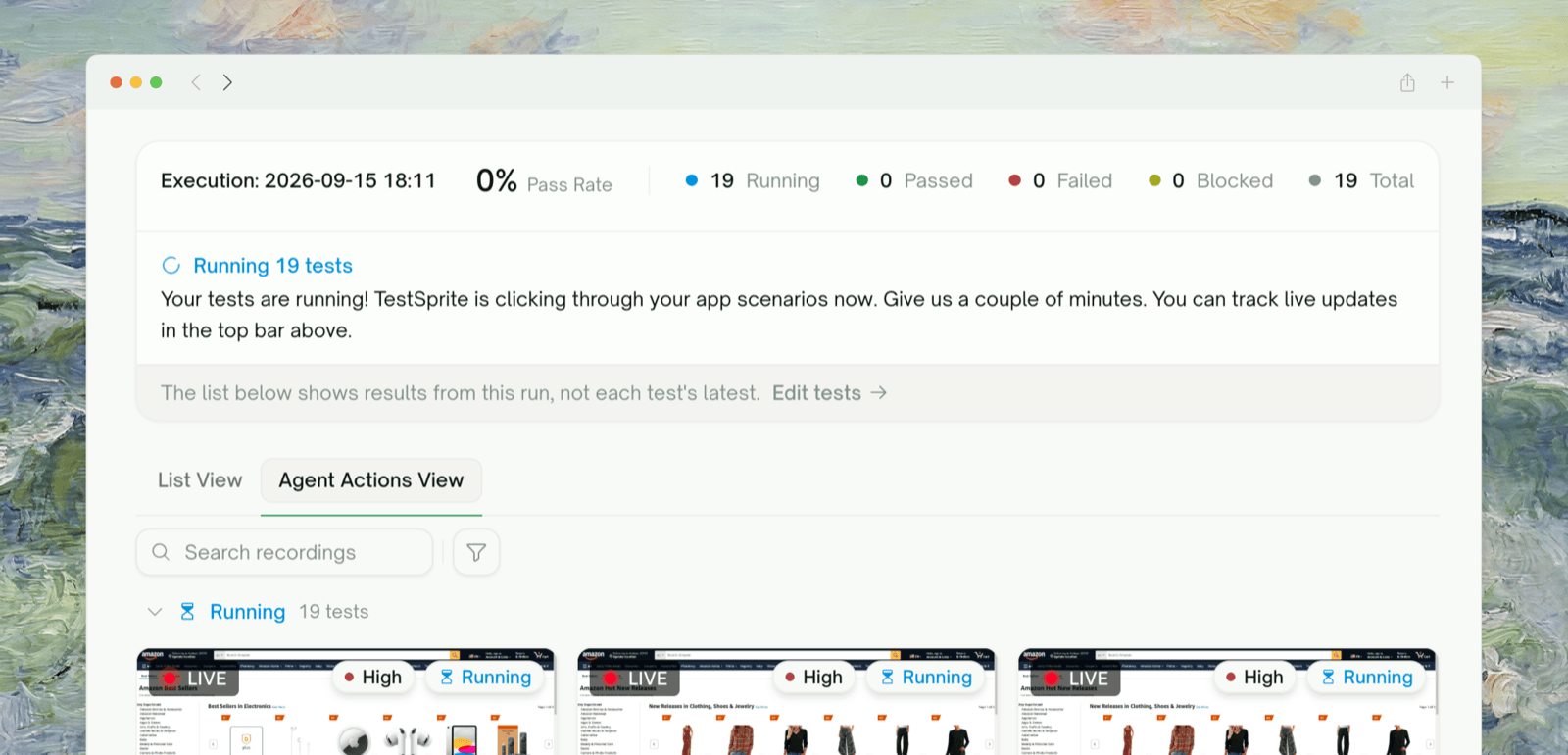
When you start a UI run, you don't have to wait for it to finish to see anything. TestSprite streams the run as it happens: each test shows up as a **live view of the agent driving your app**, the counts at the top tick up in real time, and you can open any test to watch its steps land one by one.
This page is about the **in-flight** experience — while tests are still running. For the finished-run summary, see [Test Report](/web-portal/results/test-report).
## The Run Report Header
At the top of the run page, a **Run Report** panel summarizes the run as it progresses. While tests are still going, it shows a **Running** outcome and a live count breakdown:
| Count | What it means |
| :- | :- |
| Pass Rate | Percentage passing so far (updates as tests resolve) |
| Running | Tests whose browser session is live right now |
| Queued | Tests accepted but not yet started (waiting their turn — common on paced runs) |
| Passed / Failed / Blocked | Resolved outcomes so far |
| Total | All tests in this run |
The numbers refresh automatically every couple of seconds — no need to reload.
**The report reflects *this run*, not each test's latest status.** A blue banner notes: *"The list below shows results from this run, not each test's latest."* If you re-ran a subset, the numbers here are scoped to the run you're watching.
## Two Ways to Watch: Agent Actions View vs. List View
The run page has two tabs. They show the *same run* two different ways, and each is better for a different question.
| | Agent Actions View | List View |
| :- | :- | :- |
| **Shows** | A tile per test — a **live view of the agent** in each running test, becoming a replayable video when it finishes | A status **table** of every test in the run, grouped by feature |
| **Best when** | *"Show me what the agent is doing right now"* — watch behavior unfold, spot a test going the wrong way | *"Where does the whole run stand?"* — scan status at scale, sort/filter, jump to a specific test |
| **Default for** | **Frontend (UI) runs** — the recordings are the primary artifact | Backend runs (and available on UI runs via the tab) |
Switch between them anytime with the tab bar — you're never locked into one. Both share the same live Run Report header.
### Agent Actions View (the live agent view)
## Runs Are Watchable, Not Just Reported
When you start a UI run, you don't have to wait for it to finish to see anything. TestSprite streams the run as it happens: each test shows up as a **live view of the agent driving your app**, the counts at the top tick up in real time, and you can open any test to watch its steps land one by one.
This page is about the **in-flight** experience — while tests are still running. For the finished-run summary, see [Test Report](/web-portal/results/test-report).
## The Run Report Header
At the top of the run page, a **Run Report** panel summarizes the run as it progresses. While tests are still going, it shows a **Running** outcome and a live count breakdown:
| Count | What it means |
| :- | :- |
| Pass Rate | Percentage passing so far (updates as tests resolve) |
| Running | Tests whose browser session is live right now |
| Queued | Tests accepted but not yet started (waiting their turn — common on paced runs) |
| Passed / Failed / Blocked | Resolved outcomes so far |
| Total | All tests in this run |
The numbers refresh automatically every couple of seconds — no need to reload.
**The report reflects *this run*, not each test's latest status.** A blue banner notes: *"The list below shows results from this run, not each test's latest."* If you re-ran a subset, the numbers here are scoped to the run you're watching.
## Two Ways to Watch: Agent Actions View vs. List View
The run page has two tabs. They show the *same run* two different ways, and each is better for a different question.
| | Agent Actions View | List View |
| :- | :- | :- |
| **Shows** | A tile per test — a **live view of the agent** in each running test, becoming a replayable video when it finishes | A status **table** of every test in the run, grouped by feature |
| **Best when** | *"Show me what the agent is doing right now"* — watch behavior unfold, spot a test going the wrong way | *"Where does the whole run stand?"* — scan status at scale, sort/filter, jump to a specific test |
| **Default for** | **Frontend (UI) runs** — the recordings are the primary artifact | Backend runs (and available on UI runs via the tab) |
Switch between them anytime with the tab bar — you're never locked into one. Both share the same live Run Report header.
### Agent Actions View (the live agent view)
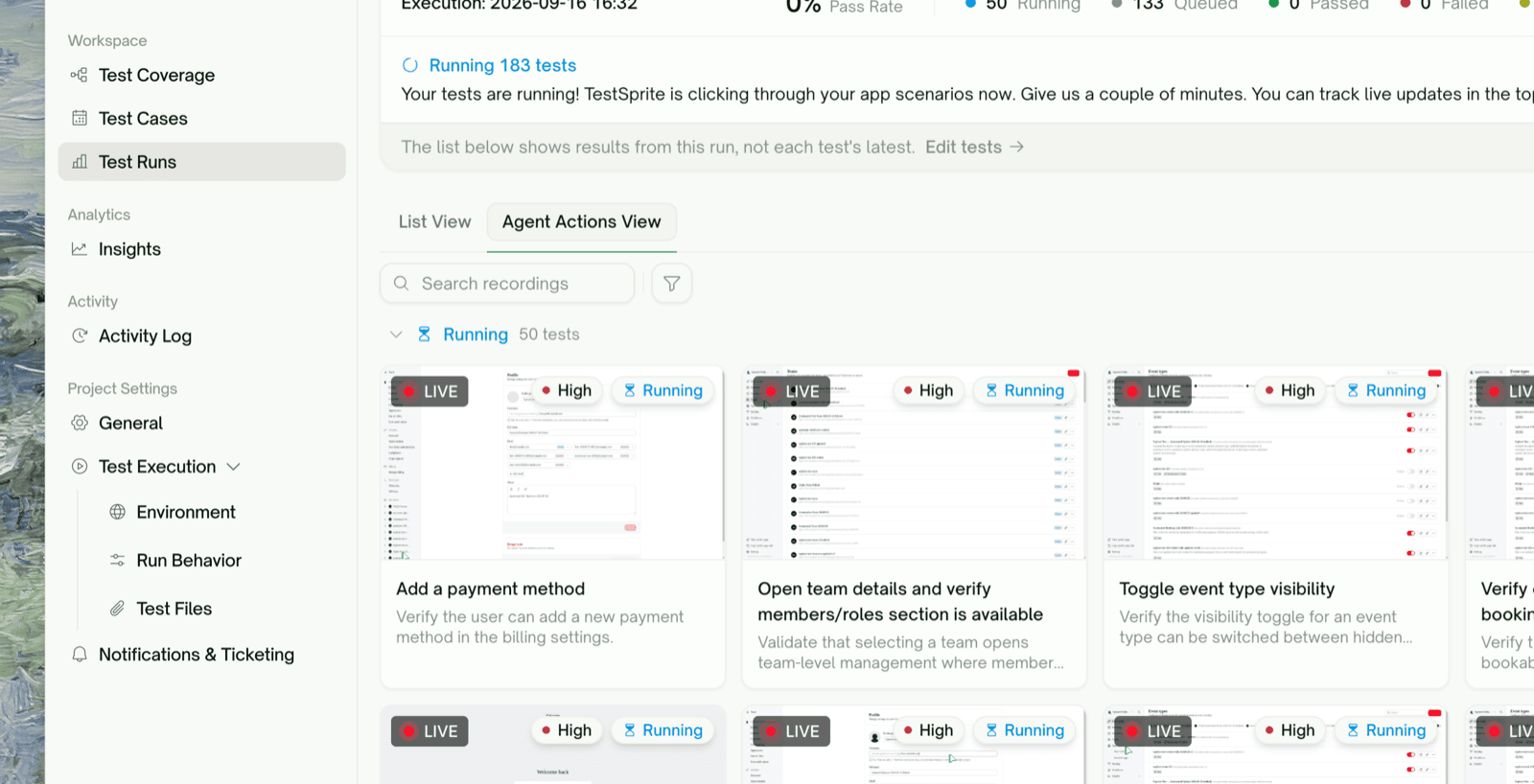 Tiles are grouped by status, with **Running first** (the most actionable), then Passed, Failed, Blocked. While a test is running its tile streams a **live view of the agent walking through your app**, marked with a red **LIVE** badge. When the test finishes, that same tile turns into the recorded video you can replay.
* **Running** tiles show the live stream (starting with *"Starting…"* until the first frame arrives).
* **Search recordings** and filter by status or priority to focus.
* Empty state while warming up: *"Recording agent runs — AI agents record every test run; tiles appear here as recordings land."*
**Queued tests don't appear as tiles yet.** A test that hasn't started has nothing to stream, so it joins the gallery the moment it begins running.
### List View (the results table)
Tiles are grouped by status, with **Running first** (the most actionable), then Passed, Failed, Blocked. While a test is running its tile streams a **live view of the agent walking through your app**, marked with a red **LIVE** badge. When the test finishes, that same tile turns into the recorded video you can replay.
* **Running** tiles show the live stream (starting with *"Starting…"* until the first frame arrives).
* **Search recordings** and filter by status or priority to focus.
* Empty state while warming up: *"Recording agent runs — AI agents record every test run; tiles appear here as recordings land."*
**Queued tests don't appear as tiles yet.** A test that hasn't started has nothing to stream, so it joins the gallery the moment it begins running.
### List View (the results table)
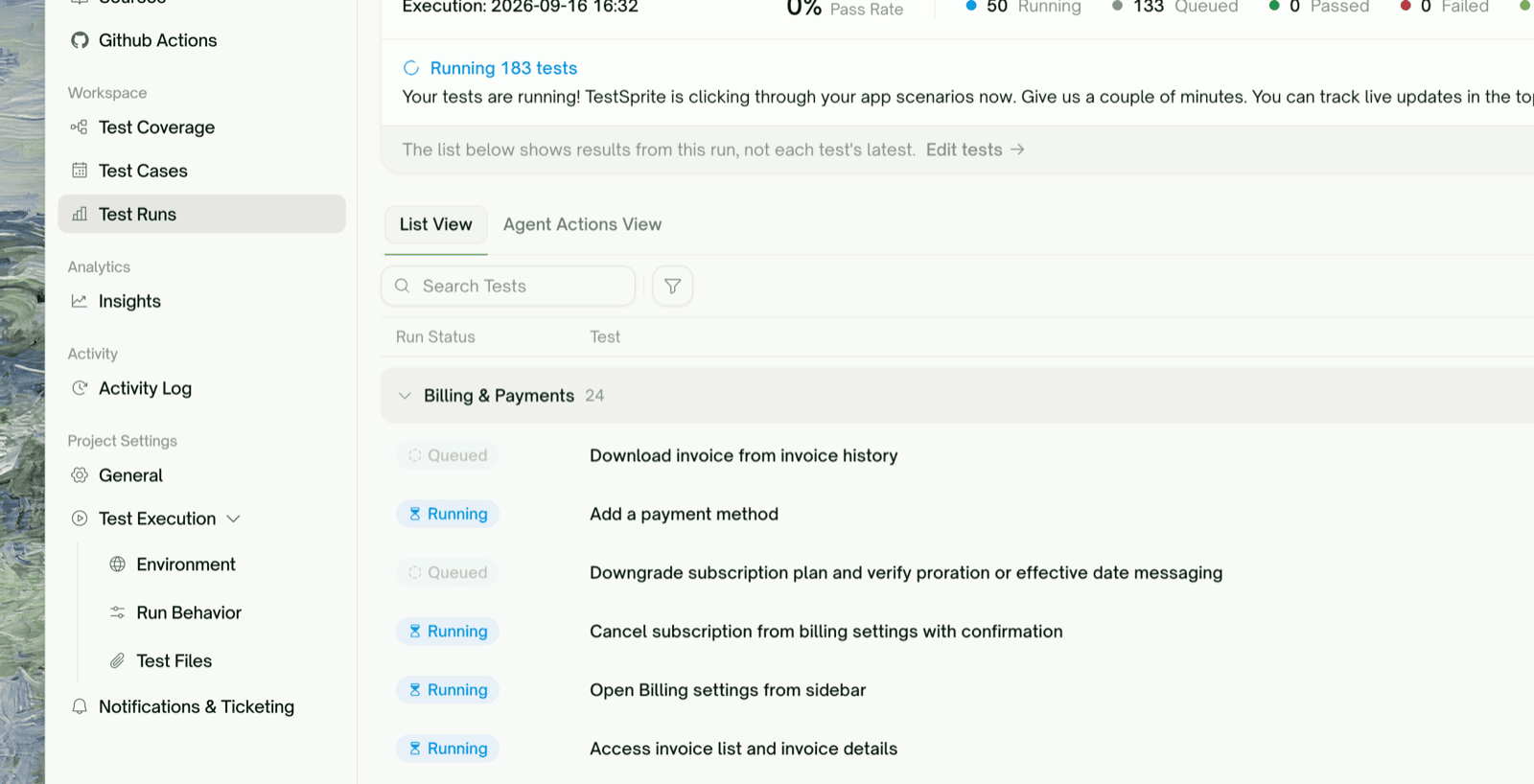 The **List View** tab is the run-scoped test table — every test grouped by feature, each row carrying a live **status chip** that flips from Queued → Running → Passed / Failed / Blocked as the run proceeds. Sort by **Run Status**, search by title, or filter to just the status you care about (e.g. show only **Running** or only **Failed**).
Click any row to open that test's detail (see [step snapshots](#reading-real-time-step-snapshots) below).
**Filter to Failed while the run is still going.** You don't have to wait for the whole suite — as soon as a test fails, it shows up under the Failed filter, so you can start triaging while the rest keep running.
## Reading Real-Time Step Snapshots
Open any test — a row in List View, or a tile in Agent Actions View — and you get a live, per-step view of what the agent is doing inside that one test.
The **List View** tab is the run-scoped test table — every test grouped by feature, each row carrying a live **status chip** that flips from Queued → Running → Passed / Failed / Blocked as the run proceeds. Sort by **Run Status**, search by title, or filter to just the status you care about (e.g. show only **Running** or only **Failed**).
Click any row to open that test's detail (see [step snapshots](#reading-real-time-step-snapshots) below).
**Filter to Failed while the run is still going.** You don't have to wait for the whole suite — as soon as a test fails, it shows up under the Failed filter, so you can start triaging while the rest keep running.
## Reading Real-Time Step Snapshots
Open any test — a row in List View, or a tile in Agent Actions View — and you get a live, per-step view of what the agent is doing inside that one test.
 ### The live step list
Inside the test detail, the **Execution Steps** section fills in as the agent acts:
| State | What you see |
| :- | :- |
| Just started | **"Collecting steps…"** — the run began but no step has landed yet |
| Running | Each action (`click`, `fill`, `navigate`…) and assertion (`visible`, `text`, `url`…) appears as it executes; the summary row reads **"Test running…"** with a spinner |
| Finished | The full step list, sliced at the first failed step if the test failed |
### The per-step snapshot
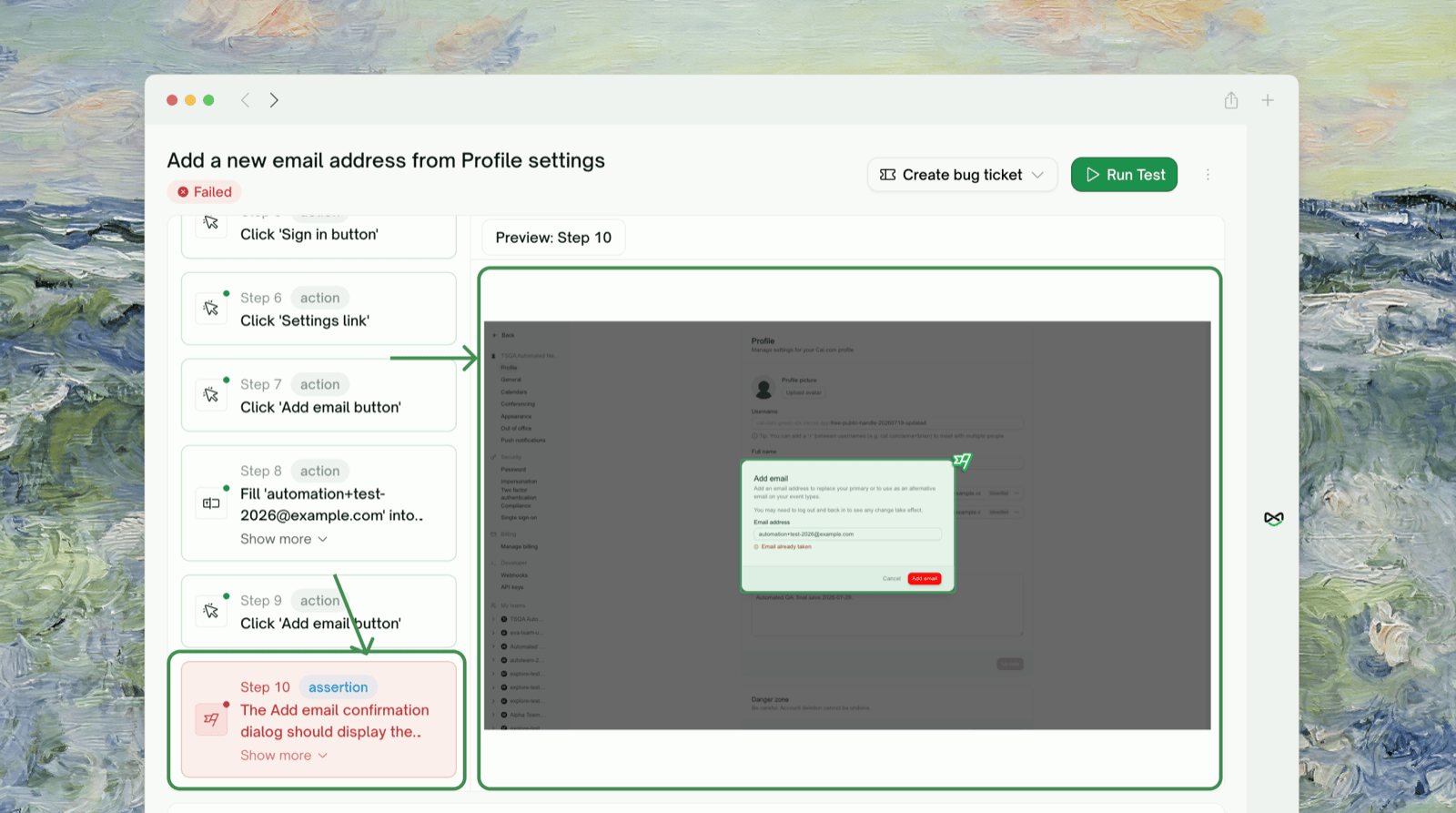
Click any step and the right pane shows an **HTML snapshot of the page at that moment** (header *"Preview: Step N"*) — the actual DOM the agent saw, not a screenshot. This is how you localize *where* a run started going wrong, step by step.
Alongside the steps, the **Preview** tab shows the same **live agent stream** for that test while it's running (placeholder: *"Test in progress. Results will appear here when it completes."*), so you get both the step-by-step trace and the live browser view in one place.
**Snapshots and steps update by polling, every couple of seconds.** There's a slight lag between what the agent does and what you see — this is normal. If a snapshot looks blank, the page hadn't settled when that frame was captured; the next step usually shows the stable state.
## How the Live View Works (and Its Limits)
A few things worth knowing so the behavior doesn't surprise you:
While a test runs, the preview is a **stop-motion stream of the agent's browser** — frames refreshed about once a second — not full-motion video. It's meant to show you *what* the agent is doing, not to be a perfect screen recording. The polished, seekable video is produced once the test finishes.
Counts, step lists, and snapshots refresh every 2–3 seconds. If something doesn't seem to update, give it a moment or refresh the page — the run is still progressing server-side; only the live view hiccupped.
**Running** = the browser session for that test is live (you'll see the LIVE badge and the frame stream). **Queued** = accepted but not started — nothing to watch until it begins. On paced runs, tests move from Queued to Running in batches.
You can't kick off another full run on top of an in-flight one. Wait for the current run to finish; the rerun buttons re-enable when the project is idle.
## Where to Go Next
The run summary once everything finishes
Replay a finished test action by action
The full recording gallery for a project
Re-execute a test or the whole project after you've triaged
This documentation is built and hosted on [Mintlify](https://mintlify.com), a developer documentation platform.
### The live step list
Inside the test detail, the **Execution Steps** section fills in as the agent acts:
| State | What you see |
| :- | :- |
| Just started | **"Collecting steps…"** — the run began but no step has landed yet |
| Running | Each action (`click`, `fill`, `navigate`…) and assertion (`visible`, `text`, `url`…) appears as it executes; the summary row reads **"Test running…"** with a spinner |
| Finished | The full step list, sliced at the first failed step if the test failed |
### The per-step snapshot
Click any step and the right pane shows an **HTML snapshot of the page at that moment** (header *"Preview: Step N"*) — the actual DOM the agent saw, not a screenshot. This is how you localize *where* a run started going wrong, step by step.
Alongside the steps, the **Preview** tab shows the same **live agent stream** for that test while it's running (placeholder: *"Test in progress. Results will appear here when it completes."*), so you get both the step-by-step trace and the live browser view in one place.
**Snapshots and steps update by polling, every couple of seconds.** There's a slight lag between what the agent does and what you see — this is normal. If a snapshot looks blank, the page hadn't settled when that frame was captured; the next step usually shows the stable state.
## How the Live View Works (and Its Limits)
A few things worth knowing so the behavior doesn't surprise you:
While a test runs, the preview is a **stop-motion stream of the agent's browser** — frames refreshed about once a second — not full-motion video. It's meant to show you *what* the agent is doing, not to be a perfect screen recording. The polished, seekable video is produced once the test finishes.
Counts, step lists, and snapshots refresh every 2–3 seconds. If something doesn't seem to update, give it a moment or refresh the page — the run is still progressing server-side; only the live view hiccupped.
**Running** = the browser session for that test is live (you'll see the LIVE badge and the frame stream). **Queued** = accepted but not started — nothing to watch until it begins. On paced runs, tests move from Queued to Running in batches.
You can't kick off another full run on top of an in-flight one. Wait for the current run to finish; the rerun buttons re-enable when the project is idle.
## Where to Go Next
The run summary once everything finishes
Replay a finished test action by action
The full recording gallery for a project
Re-execute a test or the whole project after you've triaged
This documentation is built and hosted on [Mintlify](https://mintlify.com), a developer documentation platform.