Documentation Index
Fetch the complete documentation index at: https://docs.testsprite.com/llms.txt
Use this file to discover all available pages before exploring further.
Overview
Every project (UI, API, or both) gets its own detail page at Dashboard → Tests → [your project] — the home base for its tests, runs, recordings, flows, credentials, and refinements. The visible tabs depend on project type: UI-only projects hide API tabs (Data Flow, Cleanup, Dynamic Variables, Integration Tests) and vice versa, with the core tabs shared.
Tabs at a Glance
| Tab | Project type | Purpose |
|---|---|---|
| Use Case Flow | UI, API | Visual map of features and the steps under each one, color-coded by test status |
| Data Flow | API | Every HTTP call grouped by endpoint with status, request, response |
| Site Exploration | UI | Per-feature recordings of TestSprite exploring your app |
| Endpoint Tests / Integration Tests | UI, API | The flat list of test cases for this project |
| Integration Tests (Workflows) | API | Multi-step chains assembled from related endpoints |
| Cleanup | API | Post-run teardown of resources tests created |
| Dynamic Variables | API | Values captured from one test and reused in another |
| Authentication | UI, API | Test credentials (token / key / login) used during runs |
| Agent Actions | UI | Video gallery of every agent-driven user journey |
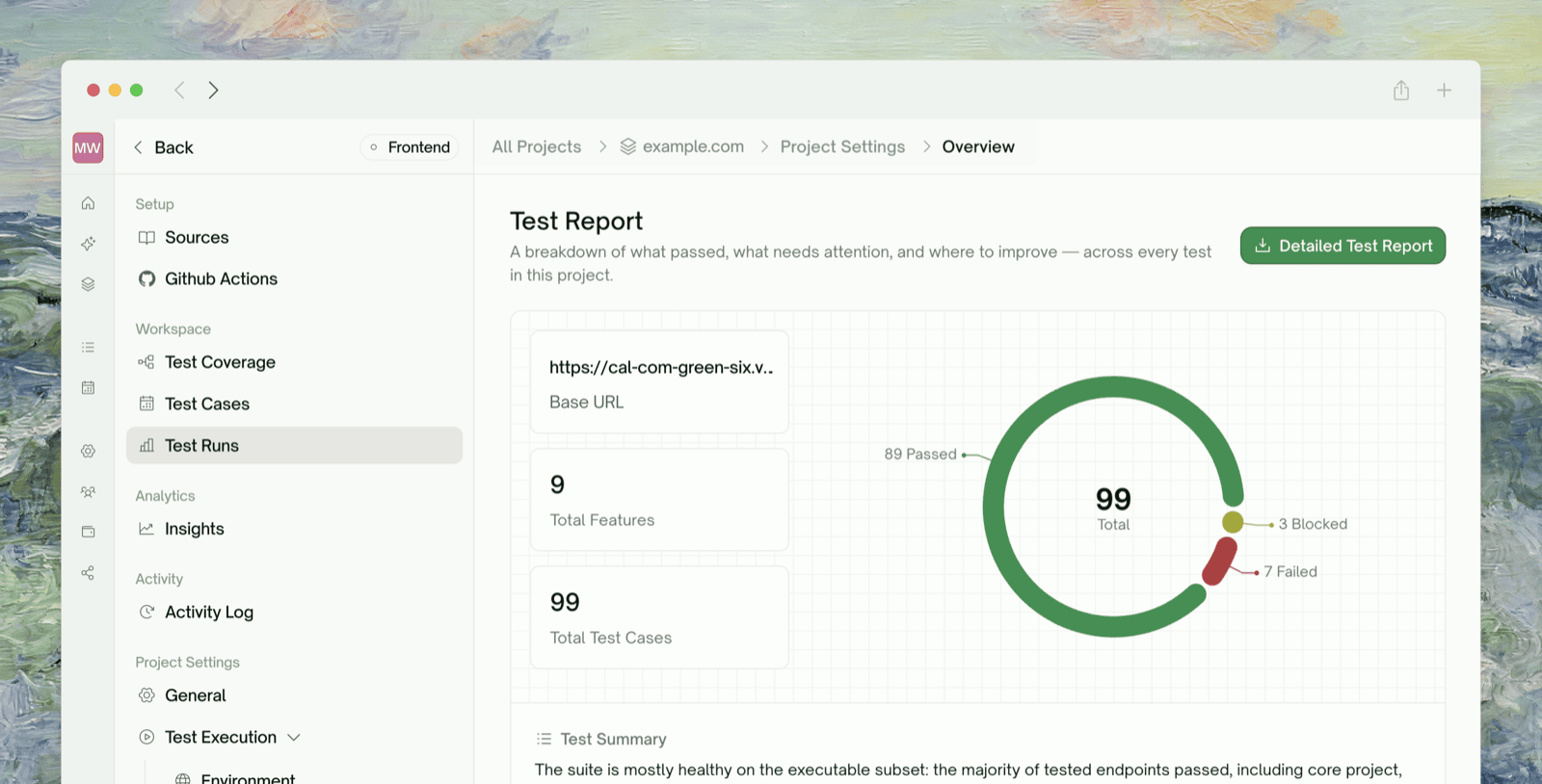
| Test Report | UI, API | Run-level summary with AI-authored analysis |
Use Case Flow

- What it is
- When you'll use it
An interactive map of your features. Each feature is a node; each user-flow step under a feature is a sub-node. After a run, every step is colored by status — passed, failed, partially passing, or not yet covered.UI projects render this from the features TestSprite identified during exploration. API projects render it from features extracted from your PRD or instructions.
Data Flow (API only)

- What it is
- When you'll use it
Every HTTP call TestSprite made during the last run, grouped by endpoint. Each card shows the method, URL, status code, request body, and response body. Tests that capture variables (“produces”) and tests that consume them (“uses”) are linked across cards.
Site Exploration (UI only)

- What it is
- When you'll use it
A gallery of feature-by-feature explorations of your app — one tile per feature. Each tile shows the recording from that exploration and a short AI-authored summary of what was discovered.The status pill on each tile tells you whether exploration is still Exploring, Done, Failed, or Idle. While exploration is in flight you’ll see the live stream; afterward, a persisted recording.
Feature Exploration
How exploration works during the wizard
Endpoint Tests / Integration Tests

- What it is
- When you'll use it
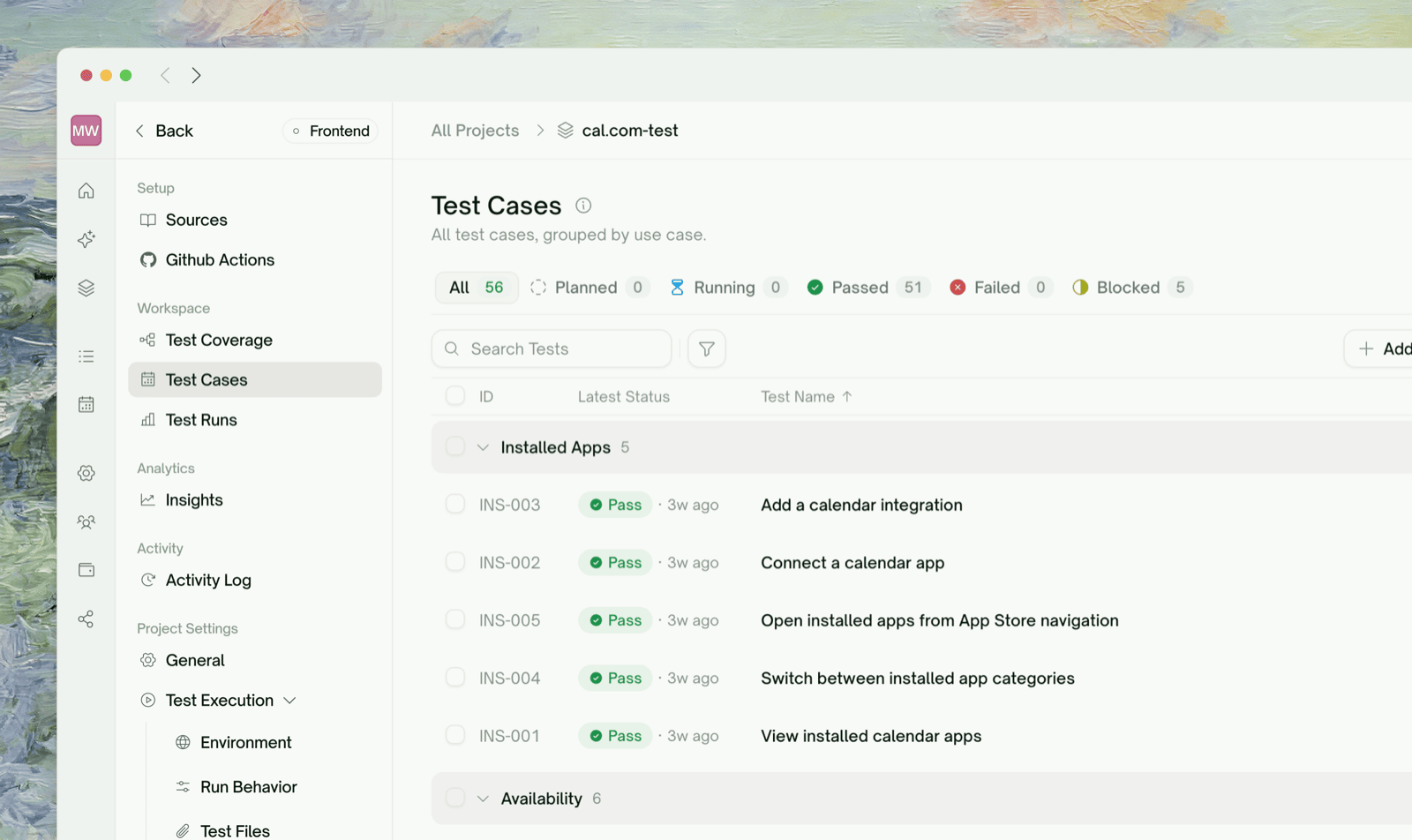
The flat list of every test case in this project. The label depends on type:
- UI projects call them Integration Tests — multi-step user journeys covering full flows
- API projects call them Endpoint Tests — typically per-endpoint checks
Integration Tests — Workflows (API only)

- What it is
- When you'll use it
Multi-step chains TestSprite identified across your tests when one endpoint’s response feeds another (e.g.
POST /orders produces an orderId that GET /orders/{id} then uses). Each row is a chain, executable as a single integration test.Cleanup (API only)

- What it is
- When you'll use it
A list of resources your tests created — records, files, sessions — with the status of each cleanup attempt. Resources marked Has cleanup were torn down successfully; Orphaned ones couldn’t be reached or had no clean teardown path.Cleanup runs automatically after every API run. You’ll see a “Running cleanup sweep” indicator briefly before the report finalizes.
Dynamic Variables (API only)

- What it is
- When you'll use it
The list of values one test captured and another test consumed, grouped by variable name. For each variable you’ll see the captured value(s) and which tests produce or use it.
Authentication

- What it is
- When you'll use it
The credentials TestSprite uses to call your APIs or sign into your app.For API projects: a per-API table with auth type (Bearer Token, API Key, Basic Token, None) and the masked secret value. APIs sharing the same auth type can be updated in bulk from a single row.For UI projects: a simpler form for the test account TestSprite uses during exploration (URL, username, password).All values are stored encrypted and shown masked — only the first 6 and last 4 characters of long secrets are visible.
Agent Actions (UI only)

- What it is
- When you'll use it
A video gallery of every UI test run. Each tile is the recording produced while TestSprite walked through one user journey. Click a tile to open the inline player.
Test Report

- What it is
- When you'll use it
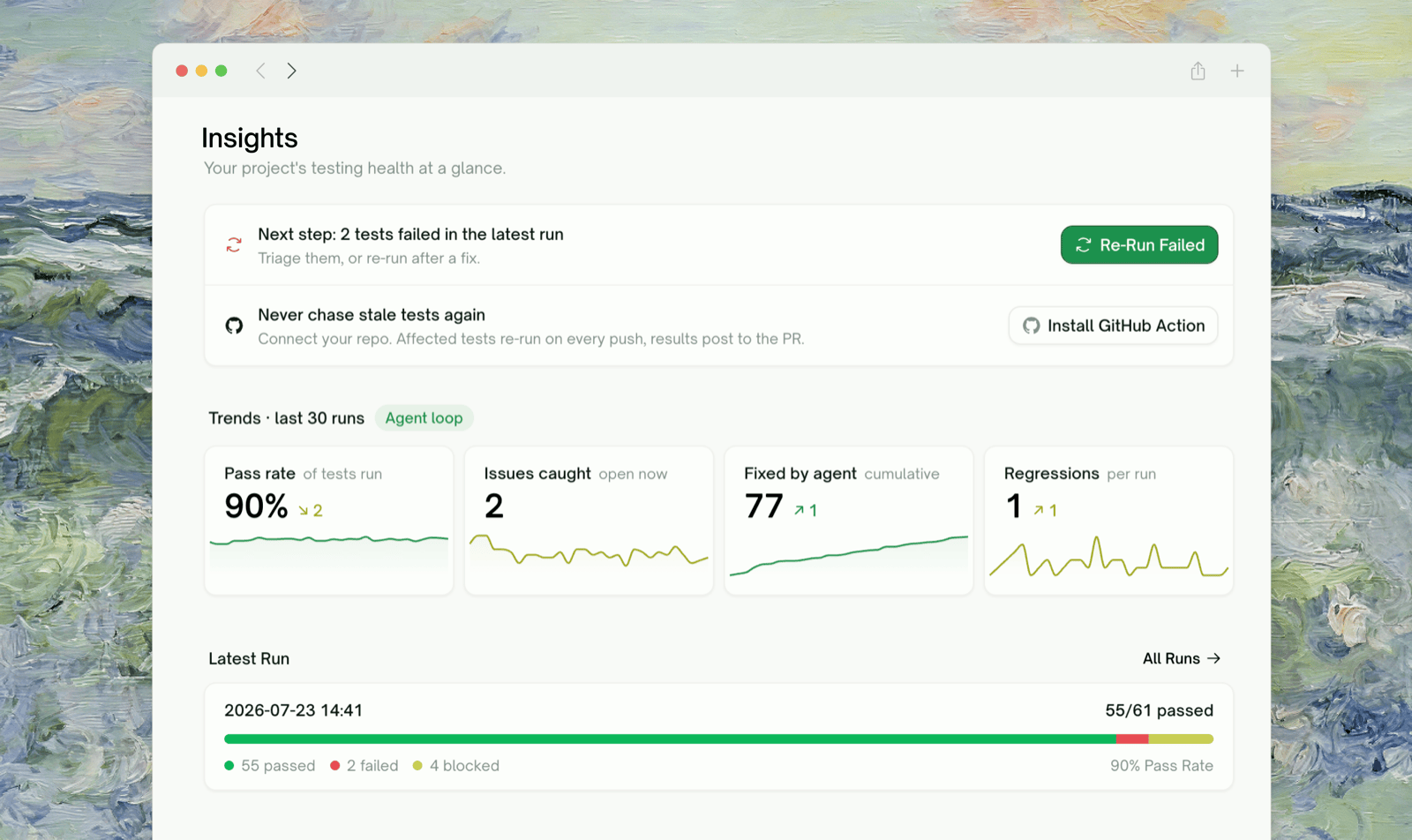
The run-level summary view: pass/fail counts, an AI-authored analysis of the run, highlighted failures with cause-and-fix suggestions, and quick links to the per-test reports.The nav badge on this tab shows two counts when relevant — red for Failed tests and amber for Blocked tests (setup or auth issues, distinct from a real product bug).
Refining Tests
How to iterate after reviewing the report
Inside a Test — Drill-Down View
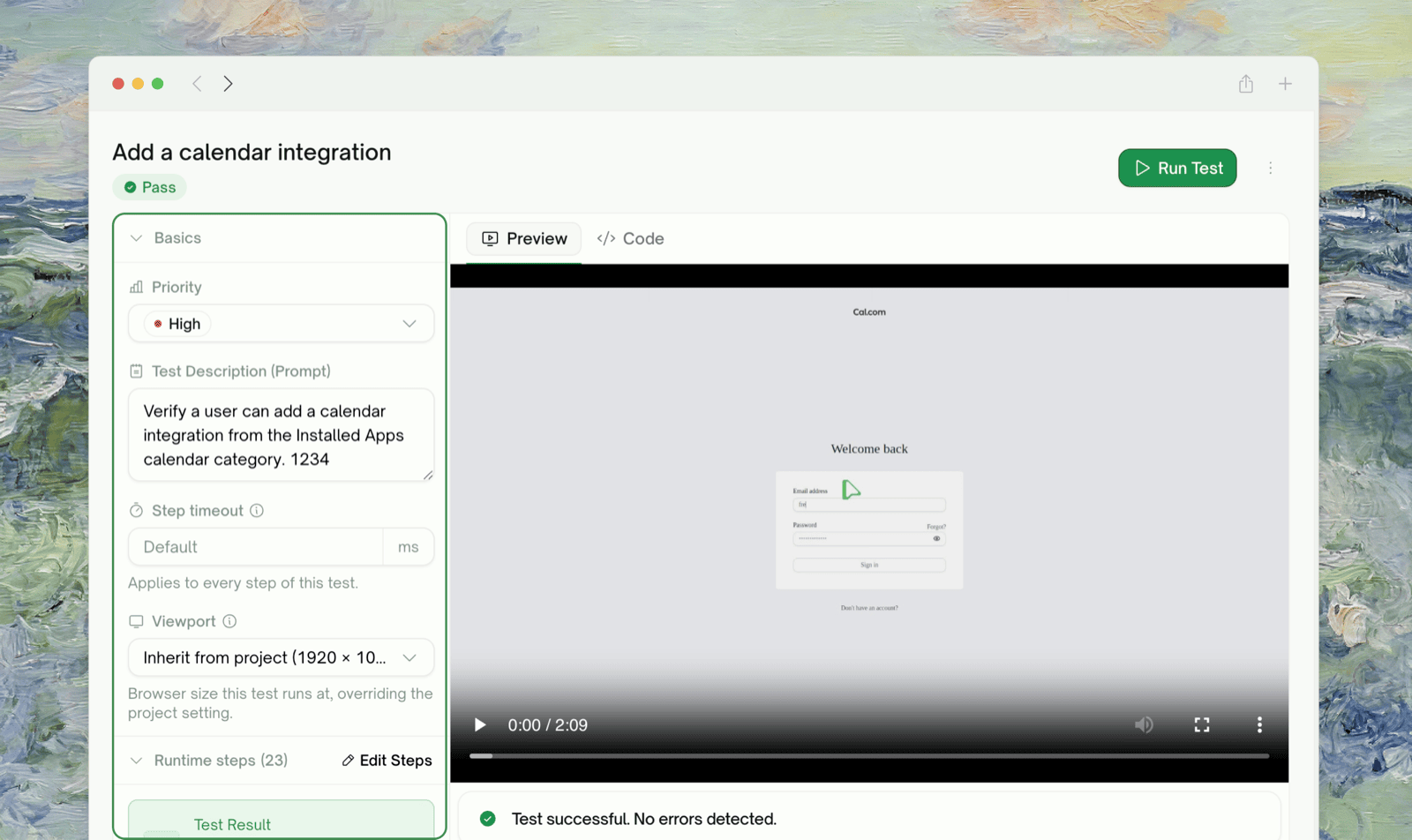
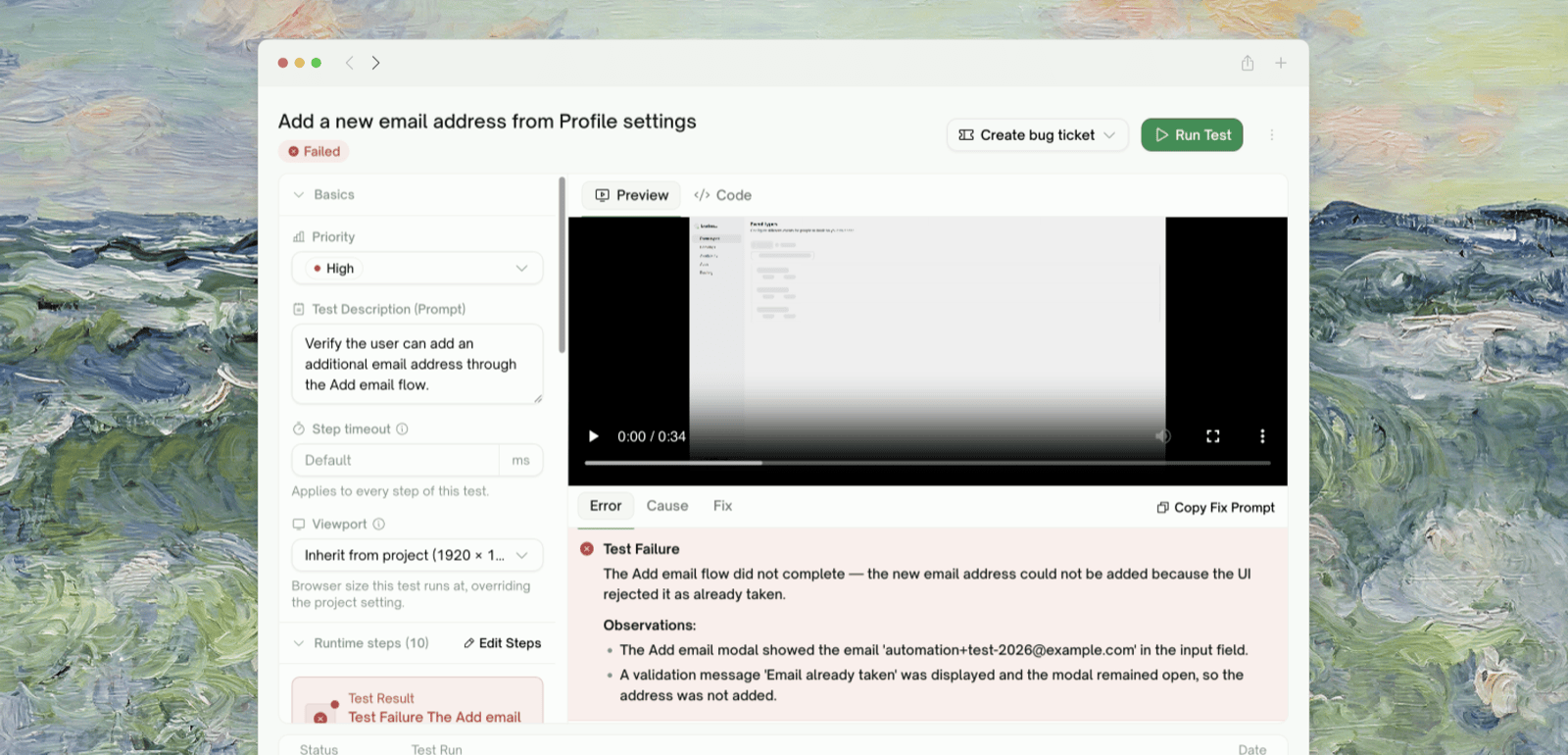
Clicking any row in the Endpoint Tests / Integration Tests list opens that test’s own detail page. The page is split into two panels:
| Tab | Content |
|---|---|
| Overview | Two collapsible sections: Basics (Priority, Description, the live-editable Test Description (Test Prompt) with a Regenerate action, and Terminal Output for API tests) and Steps (per-step playback for UI tests — see Step-by-Step Walkthrough) |
| Chat | The natural-language refinement panel — see Refining Tests |
- UI tests show two tabs: Preview (recorded video of the run) and Code (the generated Playwright source).
- API tests show the code editor directly (generated Python).
Cmd/Ctrl+S saves without running.
The toolbar at the top of the per-test page is intentionally minimal:
| Control | What it does |
|---|---|
| Add to Test List | Add this test to a Test List for grouping or scheduling — see Test Lists |
Step-by-Step Walkthrough
The rich per-step replay view for UI tests
Settings Actions
The bottom of the left nav has two project-level actions that show up when applicable:| Action | Description |
|---|---|
| Export to Github | Push the generated test code to a connected GitHub repository. Requires the GitHub App to be installed and a repo selected. |
| Delete Creation | Remove the entire project, including its tests, runs, recordings, and credentials. Asks for confirmation; not reversible. |
Where to Go Next
UI Testing
Create a UI project from scratch
API Testing
Create an API project from scratch
Refining Tests
Improve a test after reviewing it
Comparing Runs
Track what changed between runs