

Two Kinds of API Keys
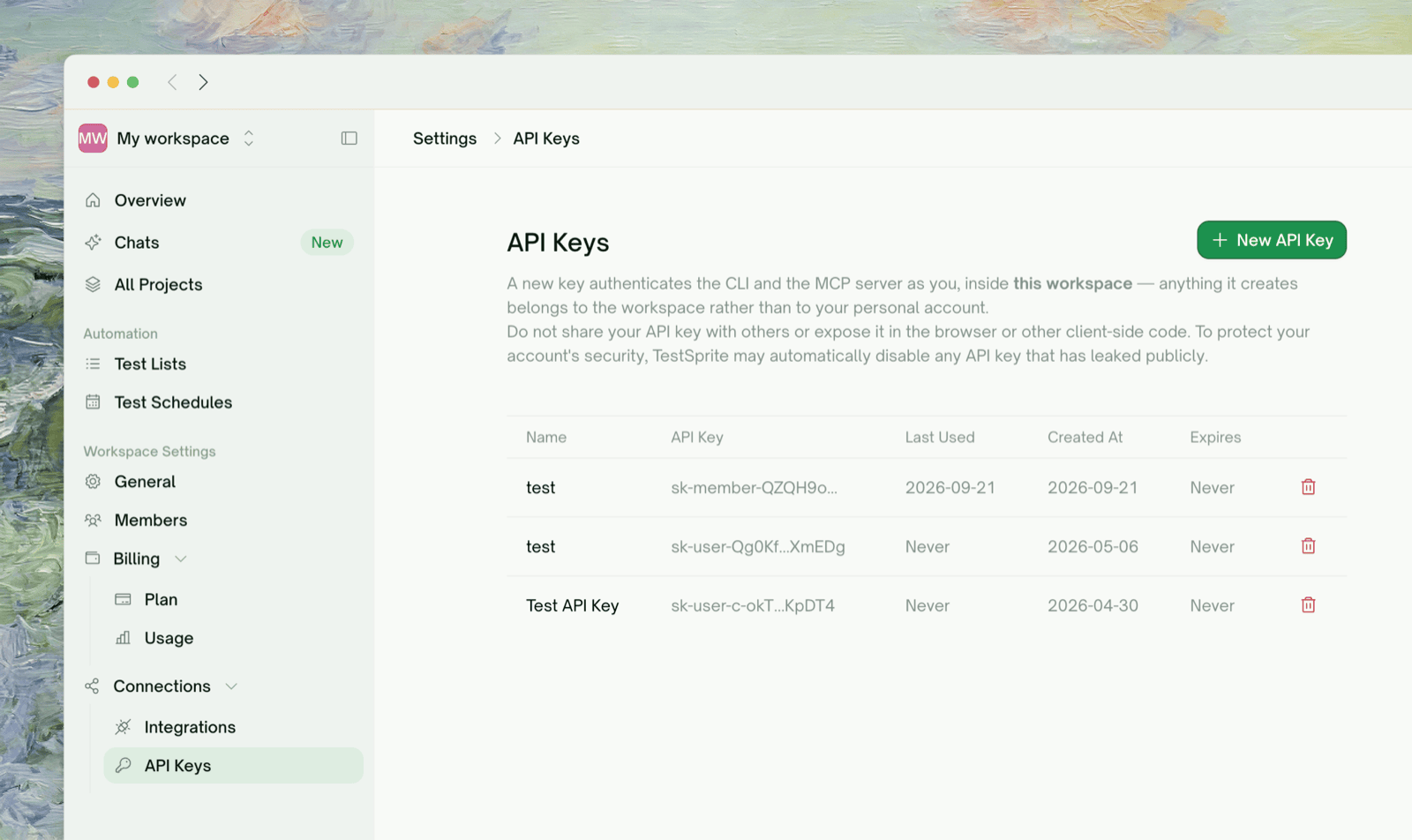
An API key authenticates the CLI and the MCP Server as you. Two kinds exist:
If you already have a personal key, it keeps working as before. The two active workspace keys let you rotate one while the other stays in use; going over a cap fails until you revoke a key, and revoking is immediate.
API keys are available to Members and above. A Viewer is read-only and can’t mint or hold keys in that workspace.
Creating a Key
Go to Workspace Settings > Connections > API Keys in the workspace that should own the key and click New API Key. The key is bound to that workspace, including your personal workspace if that’s the page you were on.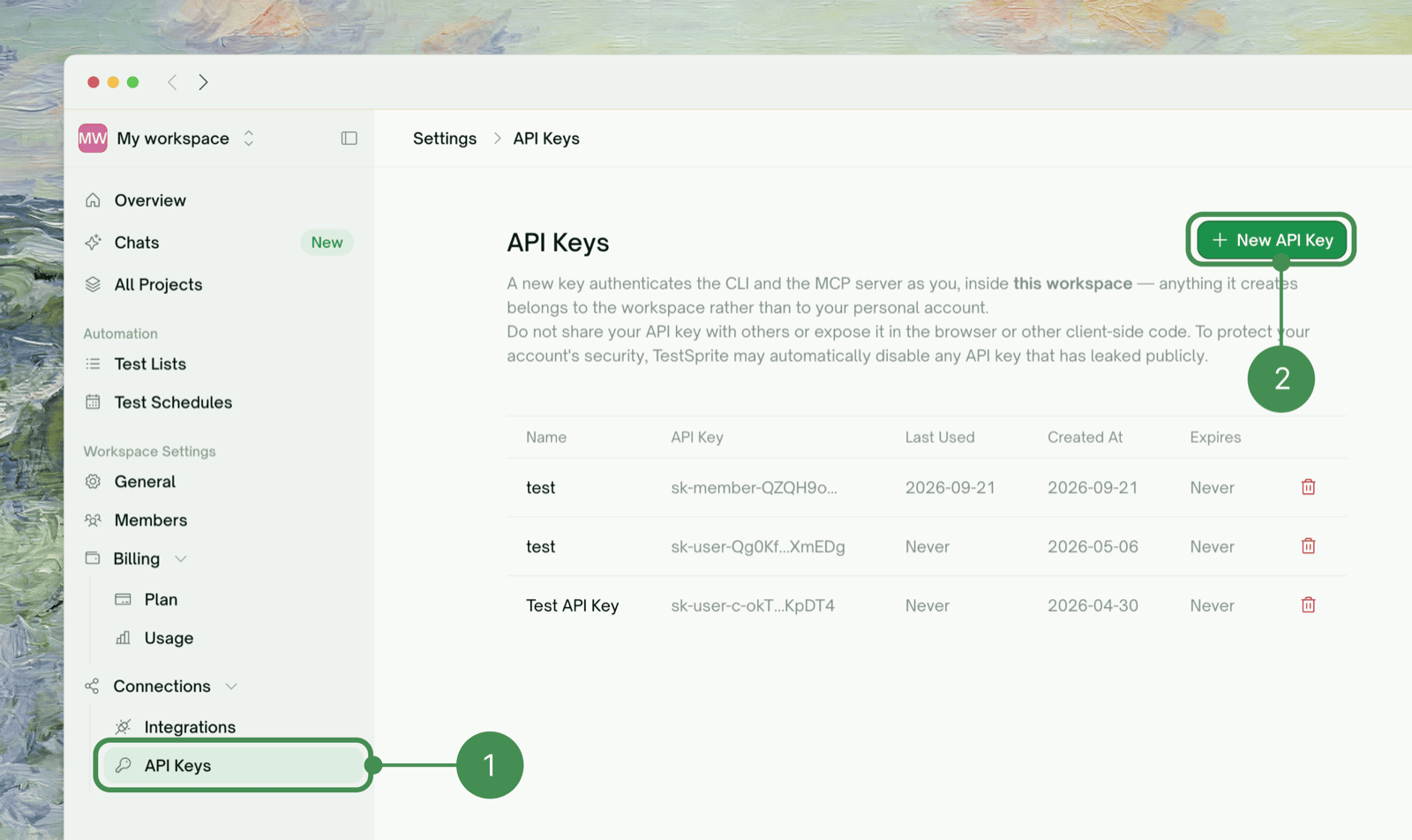

Managing API Keys
Revoke disables a key immediately; requests using it are rejected.
Viewing MCP Test Results
Projects created through the MCP Server in your IDE show up under All Projects > MCP.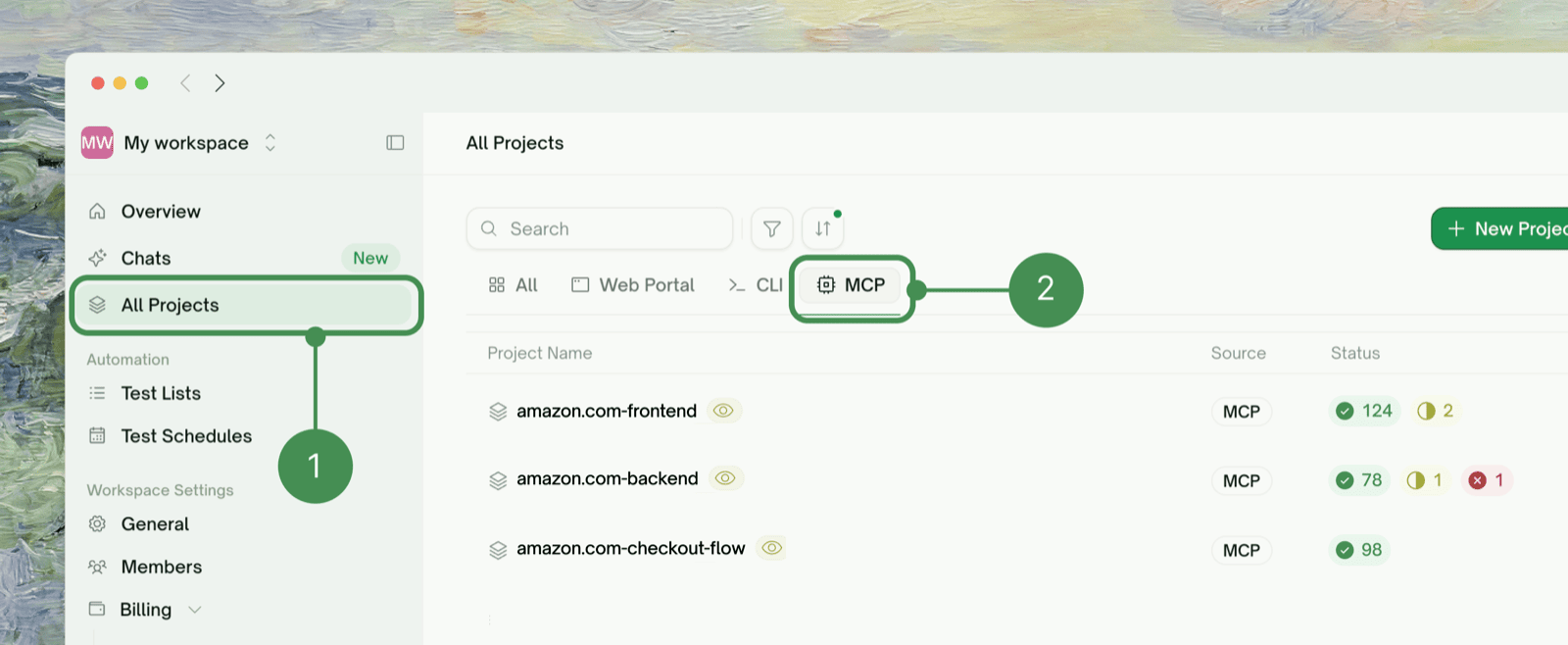
Test Reports
Click a project to see its execution logs, per-test results, errors, and performance metrics.
View Example Test Report
A full example report, with execution logs and performance metrics
Next Steps
Workspaces
What a workspace is and how personal vs. shared workspaces differ
CLI Quickstart
Use your key with the TestSprite CLI
MCP Server Installation
Use your key with the MCP Server
MCP Server Overview
The complete MCP Server guide