

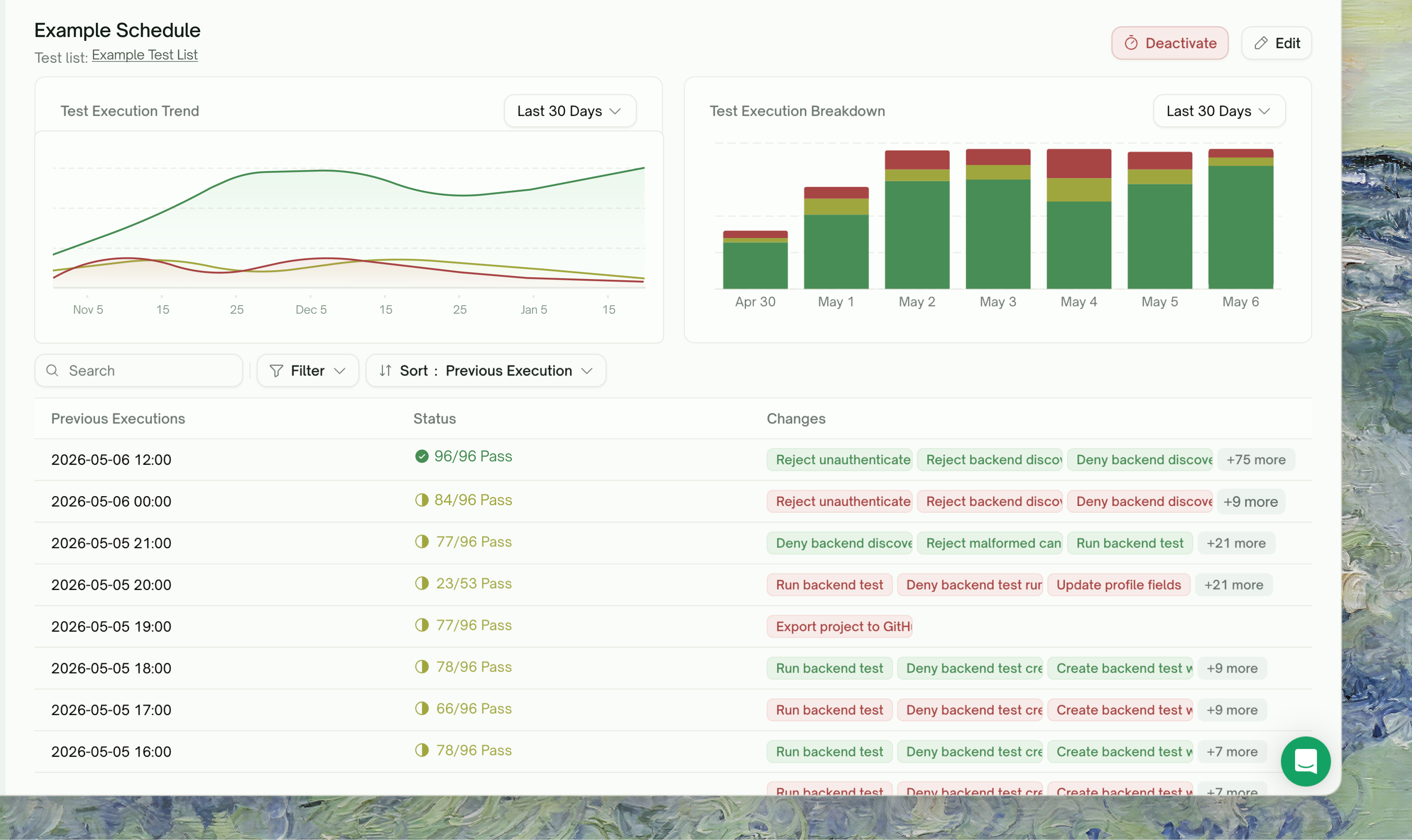
Comparing Runs depends on schedule run history, which means it’s a Pro feature too — Free accounts have no schedule slots, so there’s no run history to diff. See Schedules for the gating details.
Why Comparing Runs Matters
Two runs of the same Test List rarely look identical. Even when nothing should have changed, you’ll see:- Flaky tests recover or break cleanly between runs
- Real regressions appear after a backend deploy
- UI changes break tests that were happy yesterday
- Edge cases flip on the rate-limited 1-in-100 path
The Schedule Run-History Table
Open a schedule from Testing → Monitoring. Each run is a row, sorted newest-first.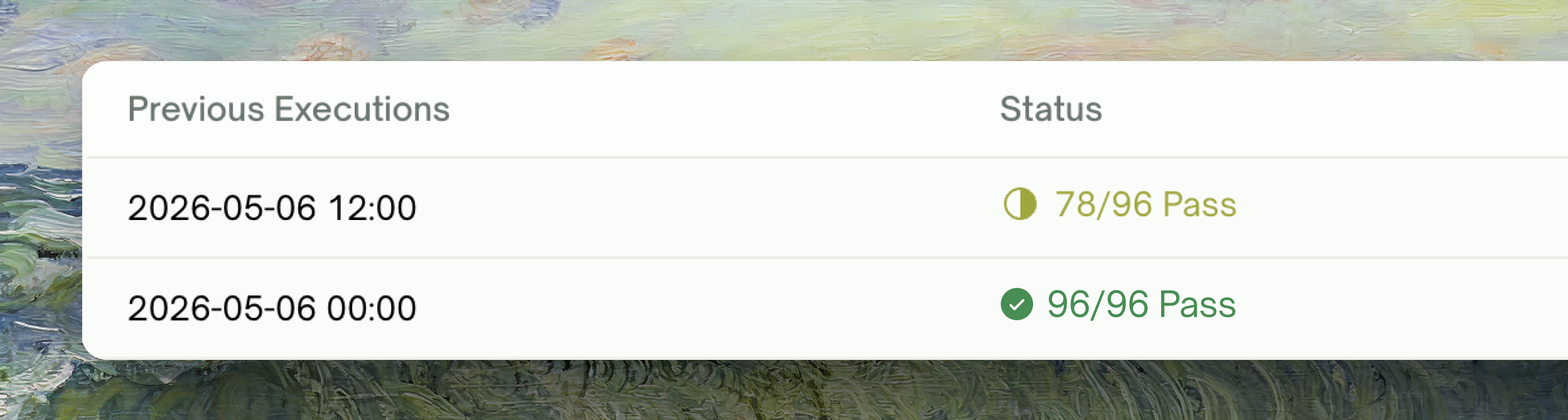
Click any non-running row to open that run’s execution detail page, where the per-test outcomes live.
The Changes column
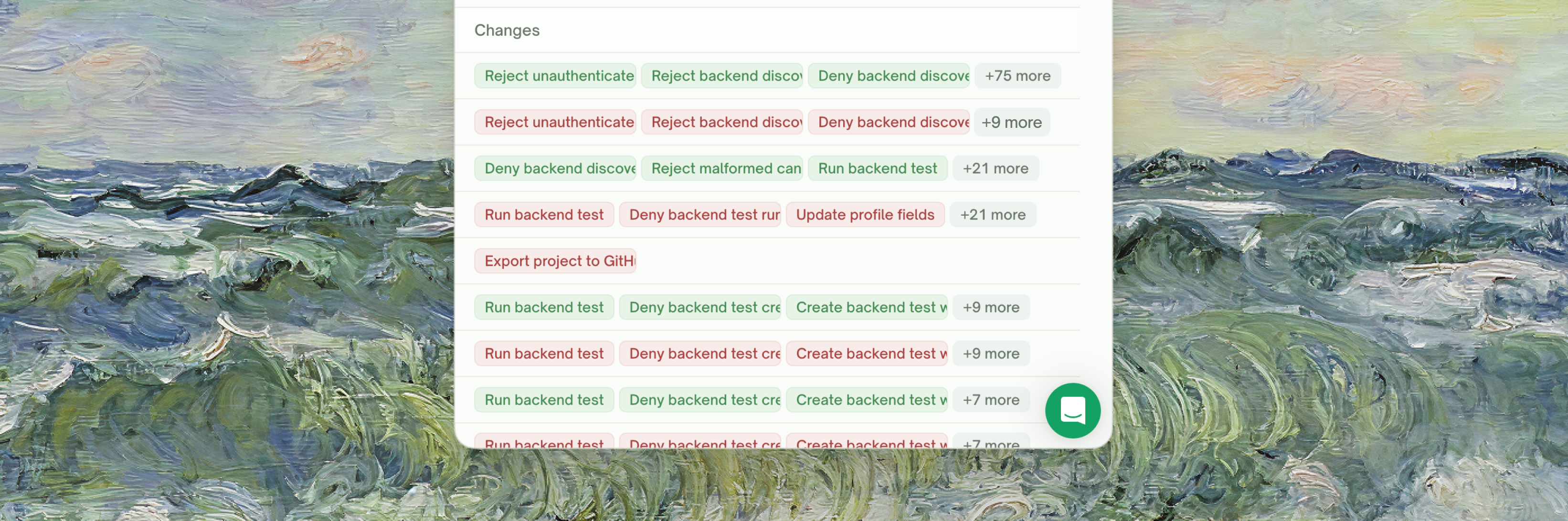
Up to three test names show per row, with
+N more for longer lists; hover the +N more badge for the full list.
What counts as a status change
Tests that didn’t run in both compared runs (added or removed from the Test List between them) don’t appear in the Changes column.
Triage Workflow
When the Changes column reports newly-failed tests:1
Click the latest run row
Opens the execution detail page — every test in that run with its individual status, error trace, and per-step / request-response detail.
2
Open a newly-failed test
For UI tests: lands on the Step-by-Step Walkthrough — failed step highlighted, HTML snapshot for that moment, video recording, error / trace / fix tabs.For API tests: the request/response panel shows the actual HTTP call, the captured response, and the assertion that fired.
3
(Optional) compare against the previous run
Go back to the run-history table and click the predecessor row. The same per-test detail is there — open the same test on that run for an eyeball comparison.
4
Decide: real regression or test brittleness?
- If the user-visible flow itself is broken → file a bug, fix the product
- If the test is too strict on something inconsequential (e.g. asserting on a timestamp that flaps) → Refine the test
- If the UI changed but the flow is fine → Rerun with Auto-Heal (UI tests, Pro feature)
Reading the Schedule at a Glance
A streak of— in the Changes column means your suite is stable. Recurring red chips on the same test = real regression. Random one-off red chips that recover next run = flake.
Refining Tests
Stabilize flaky tests via natural-language refinement
Edge Cases & Troubleshooting
The Changes column shows '—' for a run I expected to have new failures
The Changes column shows '—' for a run I expected to have new failures
Three possibilities:
- The test that failed this run wasn’t in the previous run (added or removed). Tests that didn’t run in both don’t appear.
- The flips are between two non-conclusive states (Failed → Blocked or Blocked → Failed) which the chip rule deliberately doesn’t surface — both are still failures.
- The previous run is still In Progress. Diff requires both runs to be Completed; otherwise the cell renders
—.
The Changes column is loading skeleton bars instead of chips
The Changes column is loading skeleton bars instead of chips
The diff is computed lazily by fetching both runs’ test outcomes. Skeleton bars show while the fetch is in flight; they resolve to chips (or
—) within a few seconds.A flaky test shows up in Changes column on every other run
A flaky test shows up in Changes column on every other run
Truly random flake. Refine the test in chat to relax the flapping assertion, or accept the test is checking real intermittent behavior in your product.
I want to compare two runs that aren't adjacent
I want to compare two runs that aren't adjacent
The Changes column diffs against the immediate predecessor. To compare arbitrary runs, open each run’s execution detail in a separate tab and inspect the relevant tests directly.
Where to Go Next
Schedule Monitoring
The schedules whose run history powers the Changes column
Test Detail
The home of per-test reports — where you drill in once Changes points at a test
Refining Tests
Stabilize flaky tests via natural-language refinement
Auto-Heal (Pro)
Absorb UI drift on rerun without changing the test