Documentation Index
Fetch the complete documentation index at: https://docs.testsprite.com/llms.txt
Use this file to discover all available pages before exploring further.

Overview
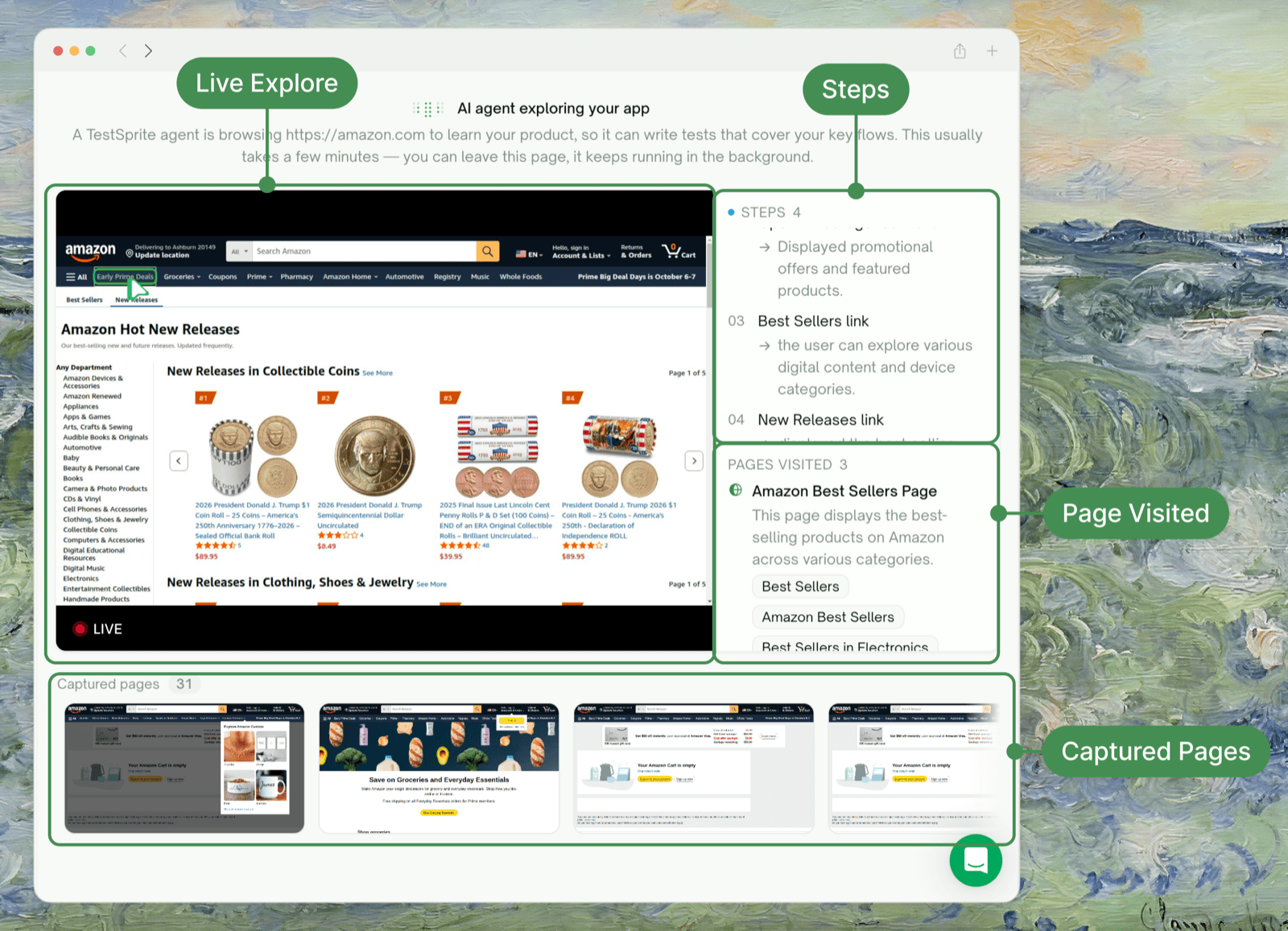
Before writing any UI tests, TestSprite visits your live application and explores it feature by feature — opening real pages, attempting common user flows, signing in if you provided a test account, and recording what it could and couldn’t reach. The test plan generated in the next step is grounded in how your app actually behaves, not just how it’s described in your PRD. This phase only runs for UI projects. Backend (API) tests skip exploration and go straight from configuration to plan generation.What Exploration Does for You
- What it is
- Why it matters
- When it runs
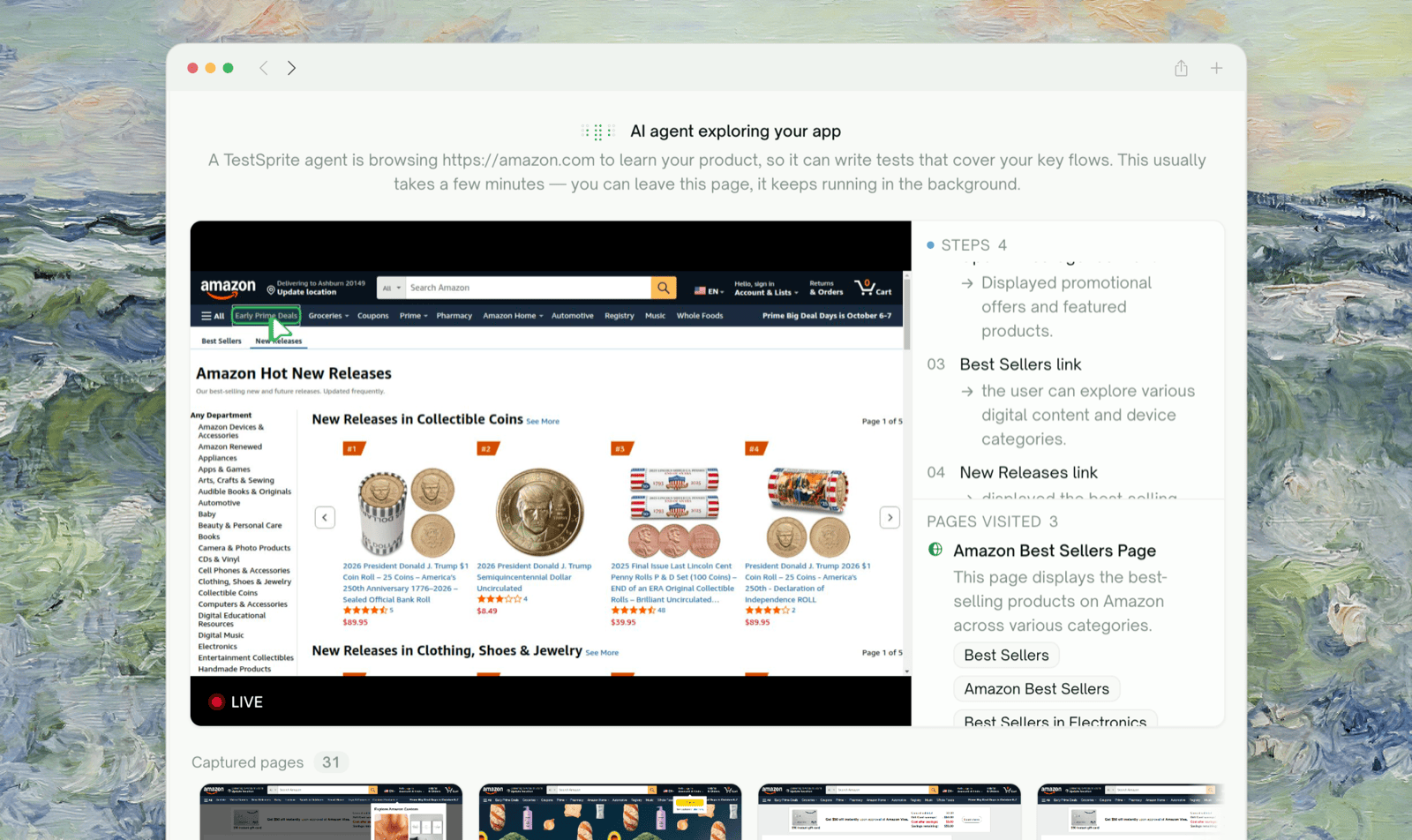
A short, watchable run where TestSprite acts like a first-time user of your app. It opens your starting URL, identifies a list of features (e.g. Sign Up, Dashboard, Checkout), and walks through each one — clicking buttons, filling forms, navigating between pages — while you watch.Each feature is explored independently and in parallel, so a long flow doesn’t block the rest.
What You’ll See During Exploration

| Element | What it shows |
|---|---|
| Progress counter | In the live-preview pane (e.g. “3/8 features”) — ticks up as each feature settles |
| Feature list | Which feature is queued, in progress, or complete |
| Live browser preview | Streams TestSprite navigating your app in real time — click any feature in the list to switch the preview to that feature’s session |
| Use Case Flow | Button (header, top-right) that opens an interactive map of how features connect; nodes light up as exploration completes |
Reviewing the Results
When exploration finishes (or you choose to stop), TestSprite shows a summary panel with one row per feature. Each row carries an outcome status:
| Status | What it means | What to do |
|---|---|---|
| Explored successfully | TestSprite walked the main user flows for this feature end-to-end and captured everything plan generation needs. | Nothing required — this feature’s tests will be grounded in real observations. |
| Explored N of M use cases | Some flows were reached but others were cut short (e.g. blocked by a paywall, plan gate, unsupported screen, or a step that timed out). | Optional: click the row to see which flows were reached. Retry if you want full coverage; otherwise, partial observations are still used. |
| Could not be explored | TestSprite wasn’t able to reach this feature at all (most often: a login issue, a feature that lives behind a feature flag, or the feature wasn’t reachable from the starting URL). | Either reconfigure (often a credential or URL fix) and retry, or continue — TestSprite will fall back to your PRD/description for this feature’s plan. |
- The flows attempted — what TestSprite tried to do for this feature
- The pages visited — URLs reached during the walk
- A short outcome summary — a plain-English explanation of how the run went, including why anything was cut short
Adjusting Before Plan Generation
You’re not stuck with whatever the first run produced. Three options before you continue:Retry specific features
Click Retry exploration in the footer to open a multi-select picker. Features that didn’t fully explore are pre-checked — uncheck any you don’t want to re-run, or include successful ones if you want to re-explore them against fresh credentials.Each retried feature counts against your exploration quota (see Free-plan limits).

Reconfigure URL or credentials
If exploration was blocked because TestSprite couldn’t sign in or reached a different URL than expected, click Reconfigure in the footer. The Update credentials dialog opens — edit the starting URL, username, or password inline (empty fields keep the current value), then click Save credentials.
Reconfiguring does not re-run exploration on its own. It saves the new credentials and returns you to the summary so you choose which features to retry. That way one bad password doesn’t burn your whole quota — fix the credential, then retry only the features that need it.

What Happens If Exploration Times Out
Long-running exploration sessions have a built-in cap so the wizard doesn’t sit forever. If the cap is hit:- Partial results are kept. Anything already captured for any feature — even features whose run hadn’t finished — is preserved and shown in the summary.
- Cut-short features get an “Explored N of M use cases” status if they captured something useful, or “Could not be explored” if they captured nothing.
- You can retry just the affected features. No need to start over.
Free-Plan Limit
Free accounts can explore up to 10 features total, lifetime — across all projects. A banner on the exploration step shows your remaining quota. Each feature you retry counts against this limit, so prefer Reconfigure → retry only the broken features over re-running everything.When you hit the cap, TestSprite shows an upgrade prompt. Upgrade to Starter for unlimited exploration.
Tips for a Good First Run
Provide a test account when possible
If your app requires sign-in, share a test account in the configuration step. Both username and password are optional, but providing them dramatically expands what TestSprite can reach — without credentials, exploration is limited to whatever’s accessible without login.
Start from your real entry URL
Use the URL a real user would land on (e.g. your marketing homepage or app dashboard). Avoid deep links into specific tools — TestSprite uses the starting URL to discover the rest.
Use the extra-context field for hints
The optional context field is a good place for things like “Skip the help center”, “Focus on the checkout flow”, or “The dashboard route is
/app/v2/home”. TestSprite uses these to guide both exploration and plan generation.Don't worry about partial results
Don't worry about partial results
Plans generated from a mix of fully and partially explored features still come out solid — partial observations are real signal. The fallback path for couldn’t-be-explored features is also well-trodden; you’ll get a usable plan regardless.
Returning to Exploration Later
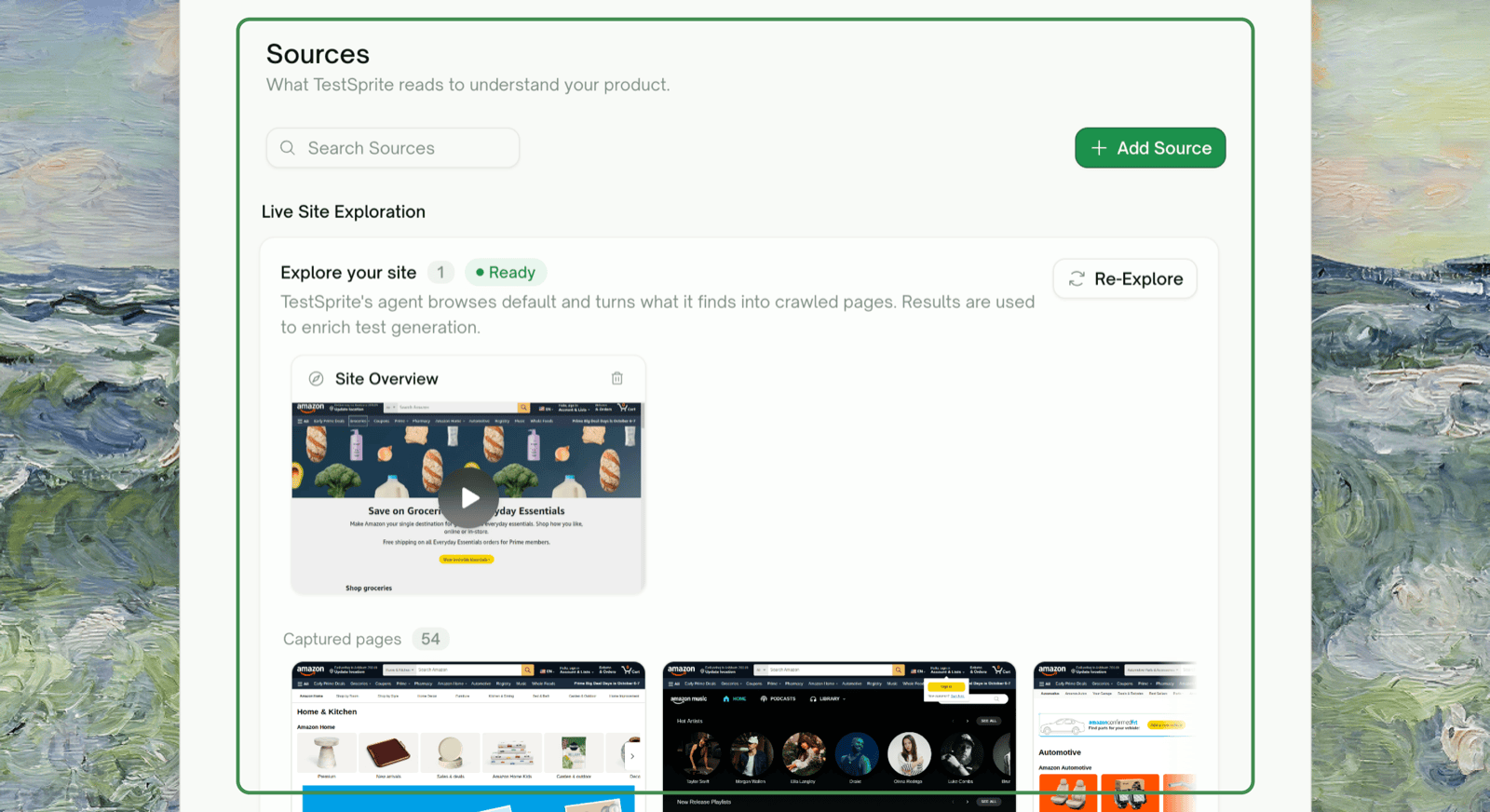
Once a UI project has run, you can revisit the exploration view from the test detail page’s left nav under Site Exploration. It shows one video tile per feature TestSprite explored, with the recorded session and a summary of what was discovered. Click any tile to open the full per-feature report.
Site Exploration tab
Browsing exploration recordings after the wizard completes
Where to Go Next
UI Testing
The full UI testing flow, with exploration as one step
Test Detail
What you can do after the test runs
Refining Tests
Iterate after the first run
Billing and Plans
Plan tiers and quota details