

What Rerun Does
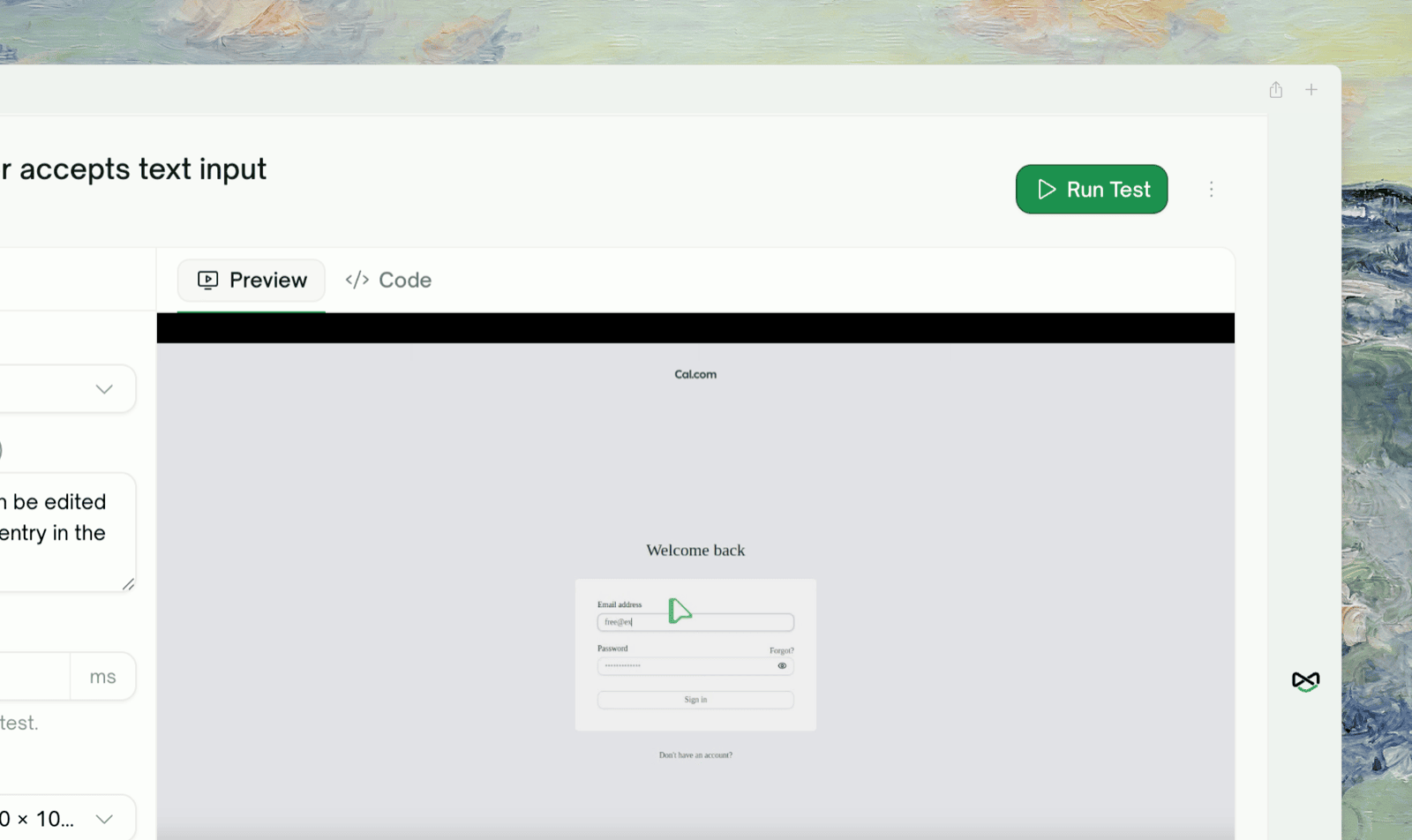
Rerun re-executes a UI test against your live app from its saved script: same actions, same assertions, replayed from scratch. You can rerun one test, the whole project, or on a schedule; Auto-Heal recovers tests when the page changed but the flow is fine. When the test itself needs to change first, use Edit Steps & Rerun.Quick Start
1
Open the test you want to rerun
From your project’s Test Cases list in the sidebar, click into the test.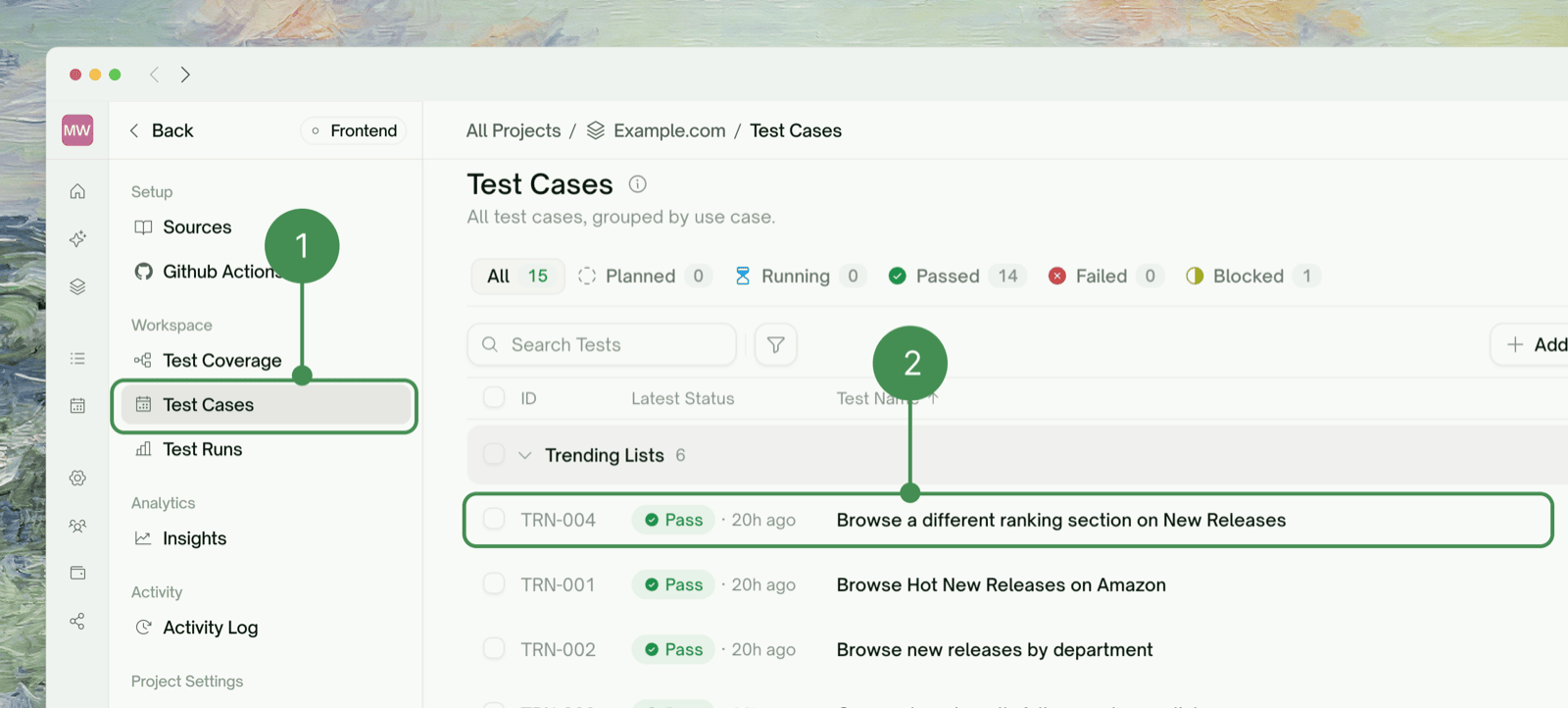
2
Click Run test
The button in the test’s header reads Run test, or Save & Run when there are unsaved edits. Replay starts immediately.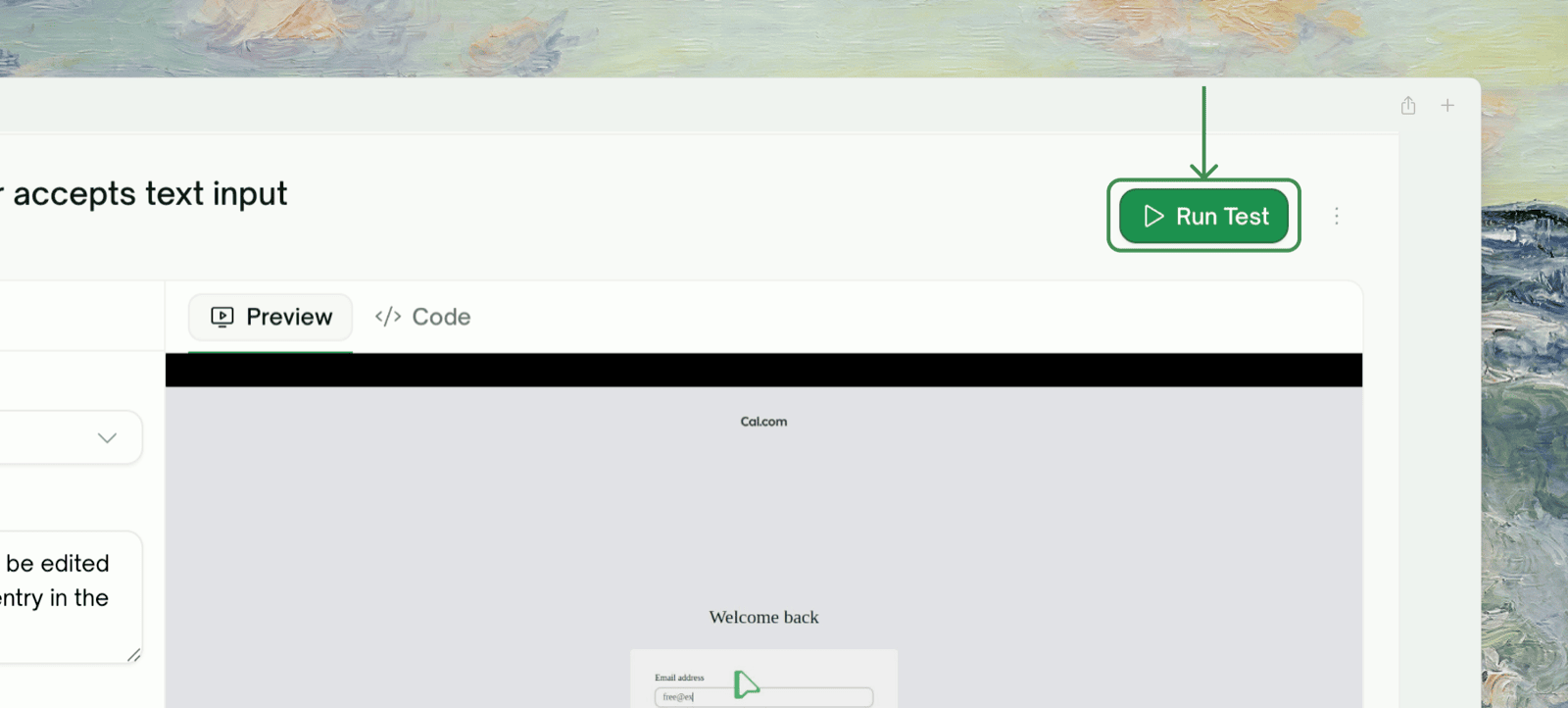
3
Watch live or come back later
The test detail page updates in real time; you can leave and check the result later.
Three Rerun Surfaces
Single Test Rerun
Run test (or Save & Run) on a test’s detail page, as in the Quick Start above.Rerun All (Batch)
Run all on the project’s Test Cases toolbar queues every test in the project, useful after a refactor, dependency upgrade, or design pass.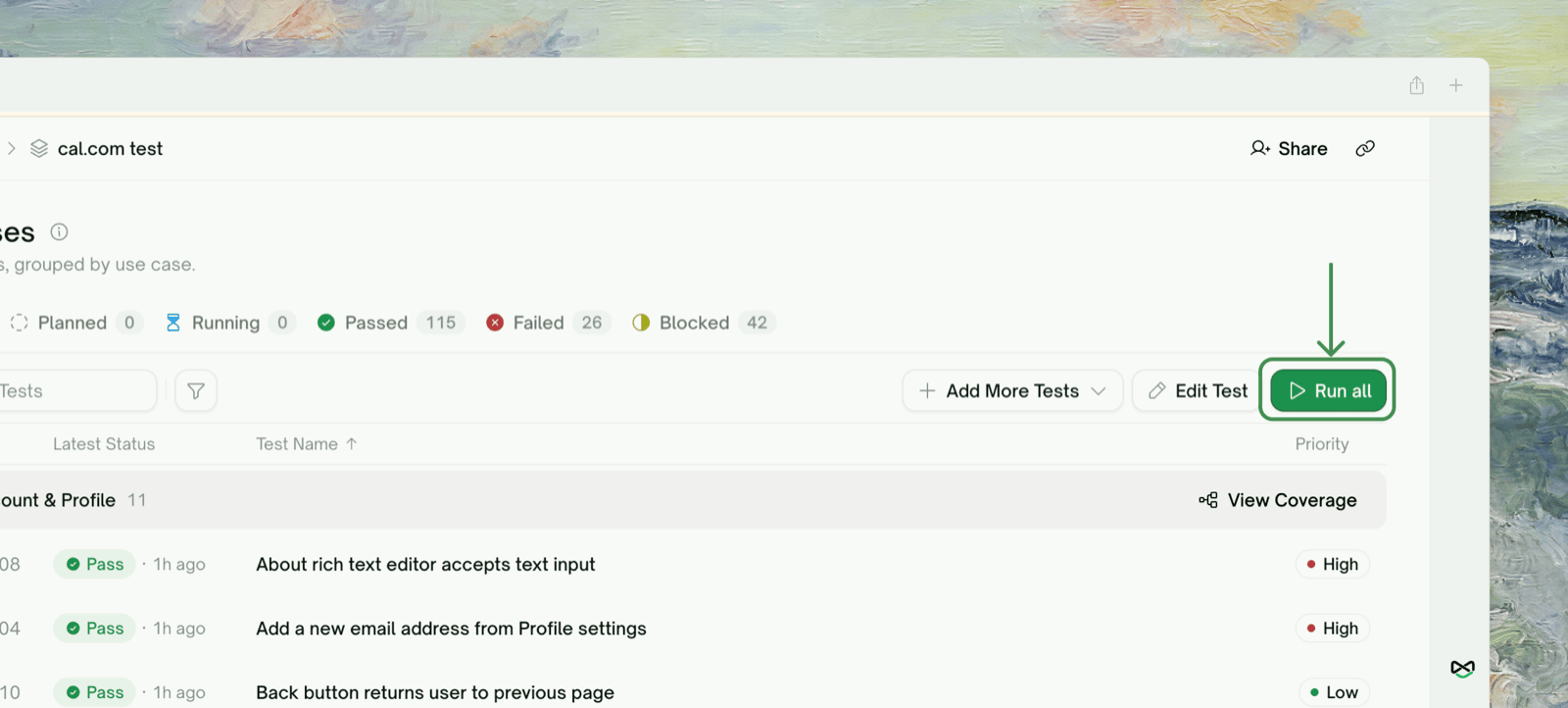
Scheduled Reruns
Schedules re-run your tests on a cadence (Hourly, Daily, Weekly, Monthly). See Test Schedules.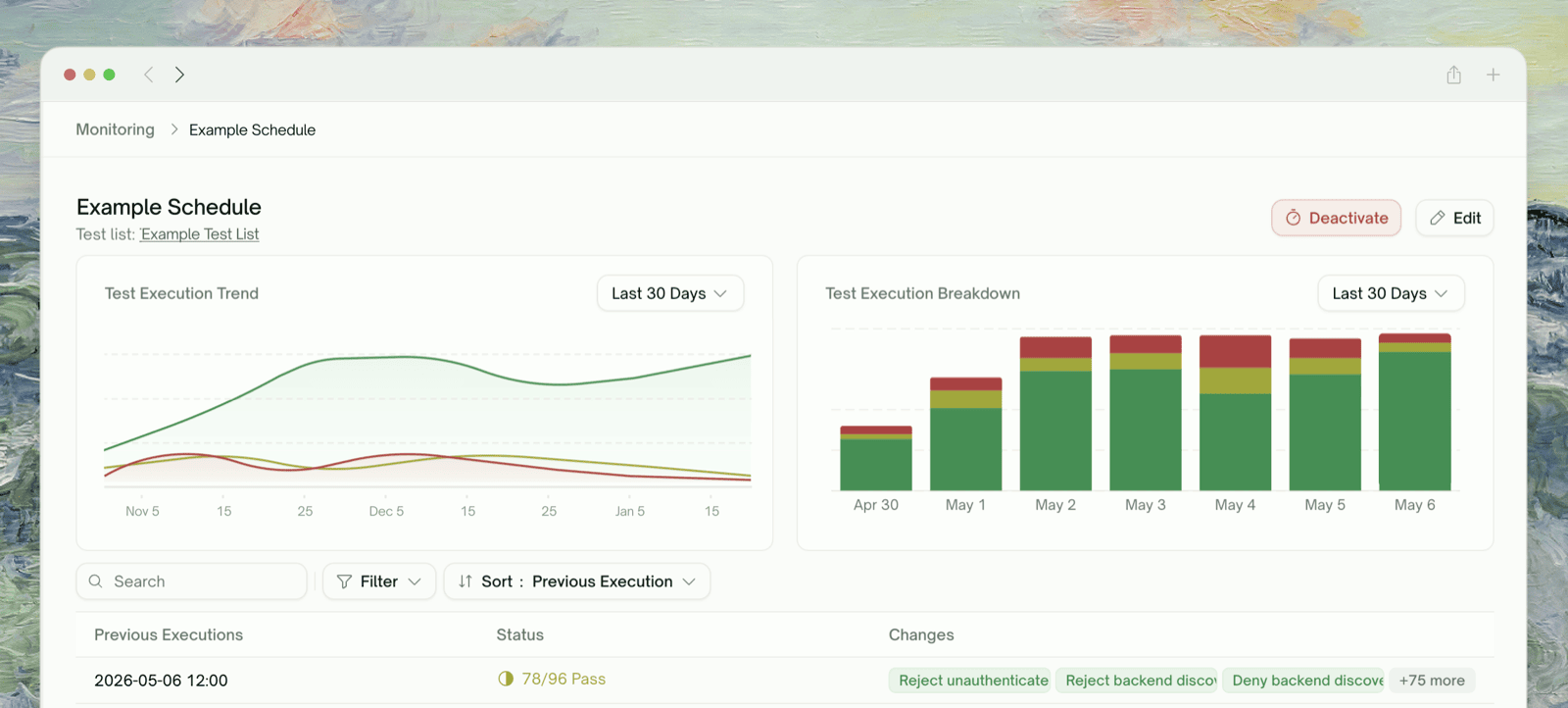
Edit Steps & Rerun
When a test fails because the test is wrong (a step references a button that moved, or the flow gained a confirmation screen), fix the steps instead of rerunning the same script. Steps on a run’s page are read-only history; edit on the test case, which the run page links to.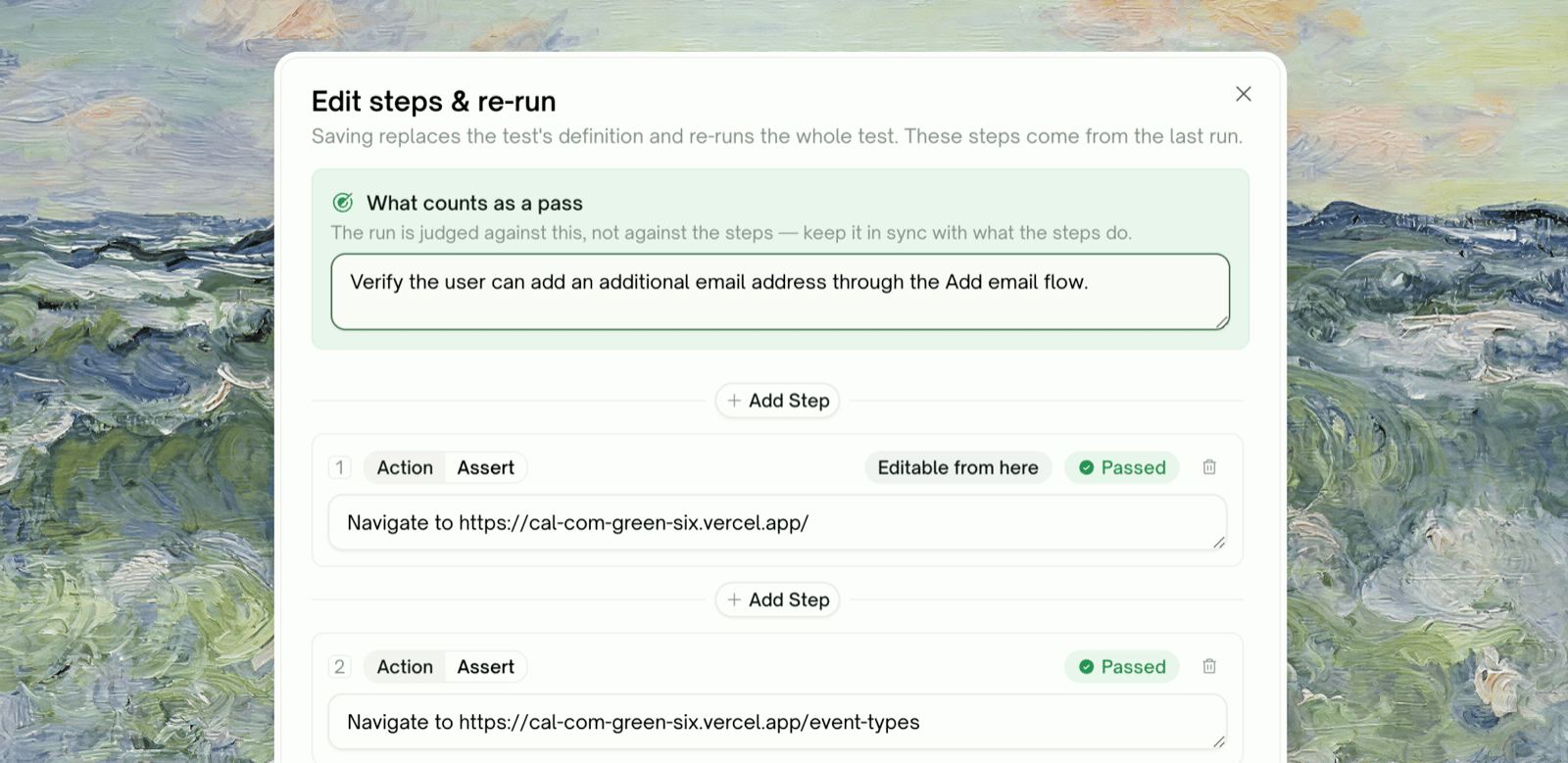
1
Open the editor
On a test case’s detail page, click Edit Steps beside the Runtime steps section, or hover a step and click its pencil icon (Edit steps & re-run from here) to start editing from that step.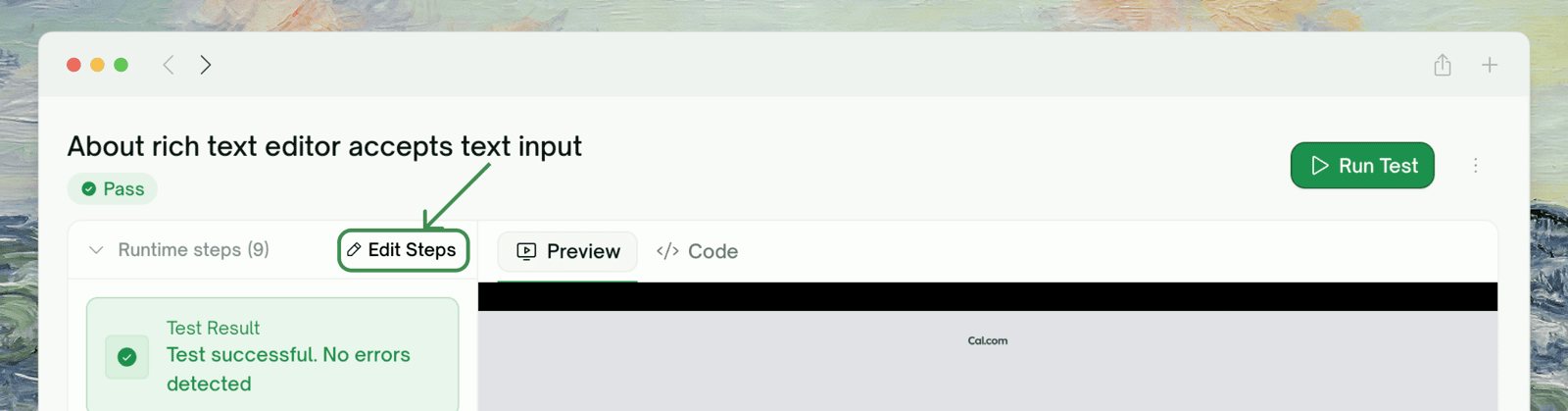
2
Rewrite from the pivot
If you started from a specific step, everything before it is locked. From that step on, change a step’s text, toggle it between Action and Assert, insert steps with Add step, or delete steps.
3
Keep the pass criterion in sync
The run is judged against the What counts as a pass field at the top, not the steps. If your edits change what the test proves, update it too, or the run can do exactly what you asked and still fail.
4
Save & Re-Run
Click Save & Re-Run. The edited steps become the test’s new definition (a new version appears in the version history), and the whole test runs immediately.
Locked ≠ skipped. Every run starts from a fresh browser session, so locked steps still run exactly as written; they’re only protected from editing.
Edit-and-Rerun vs. Plain Rerun
Edit Steps & Rerun is available for standalone UI test cases. It’s not available for API tests, integration chains, read-only views (viewer role, historical versions), or while a run is in flight.
Edge Cases & Troubleshooting
Rerun started but the page didn't update
Rerun started but the page didn't update
If you don’t see progress within a few seconds, refresh. The rerun is still happening; this is just a live-update hiccup.
I want to keep my unsaved edits but rerun the saved version
I want to keep my unsaved edits but rerun the saved version
Save & Run always saves first. To rerun the saved version, discard your edits (
Cmd/Ctrl+Z or revert the editor), then click Run test. The warning dot on a dirty editor tells you you’d be running a different script than what’s saved.Run all is greyed out
Run all is greyed out
Either the project has no tests yet (still in plan generation), or another project-level operation, such as an active run, is in flight. The button re-enables when the project is idle.
Where to Go Next
Step-by-Step Replay
See exactly what happened on each step of a run
Test Schedules
Set up nightly schedules to catch drift early
Insights
Regressions and quality trends across runs