

Doing API testing instead? See the API Quickstart for the backend-flavored walkthrough.
Step 1: Configure & Create Your Project
From All Projects, click New Project. The form has three steps: name the project, set Test Type to Frontend UI, enter your app’s URL, configure sign-in, and optionally attach sources. Click Create project to save.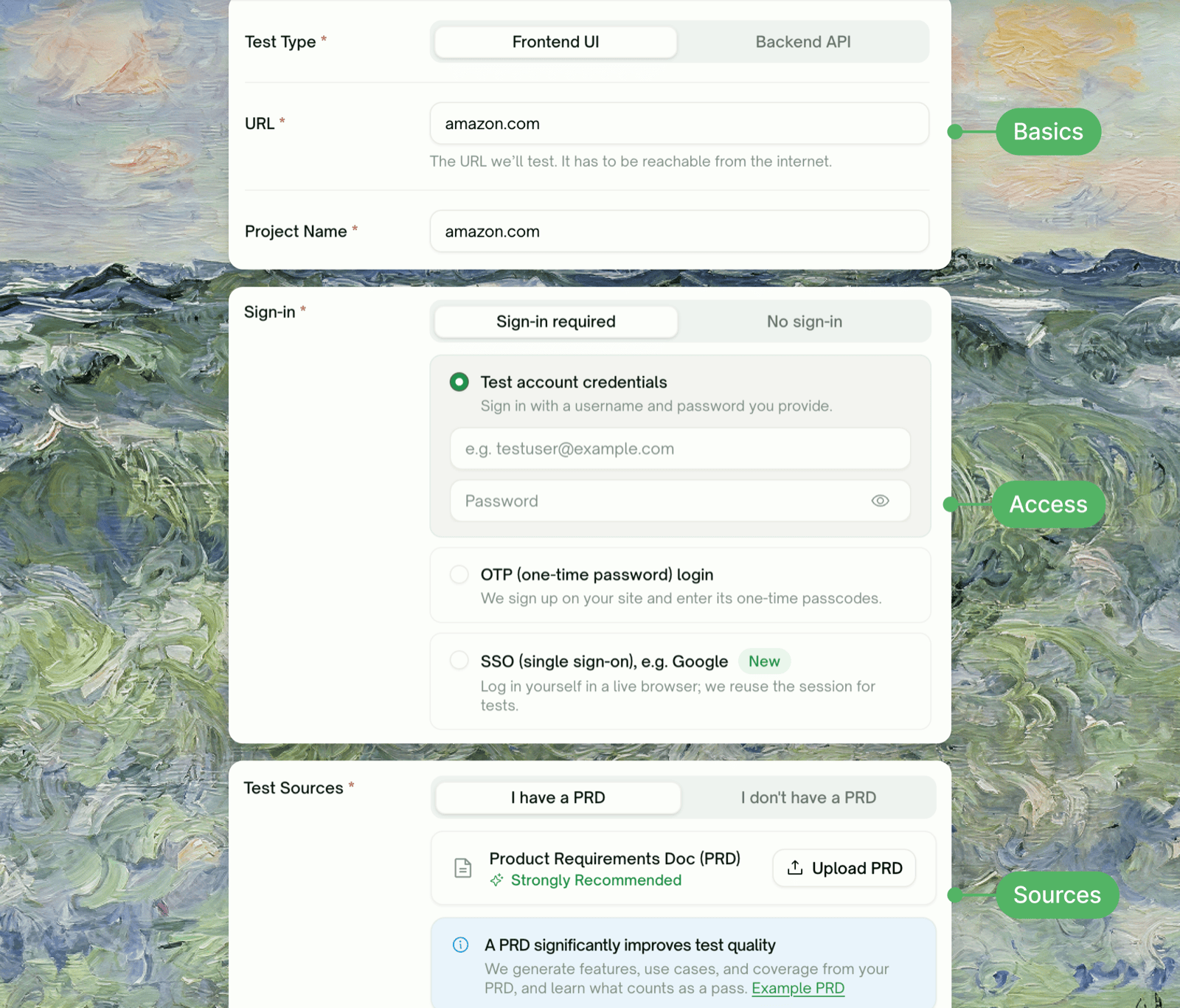
The OTP Login choice is locked in at project creation — it can’t be changed after the project is created.
Step 2: Exploration & Use-Case Extraction
After you create the project, TestSprite reads your sources and its testing agents explore your live app. The project sidebar tracks the first run; stages that haven’t started yet are marked Not Started.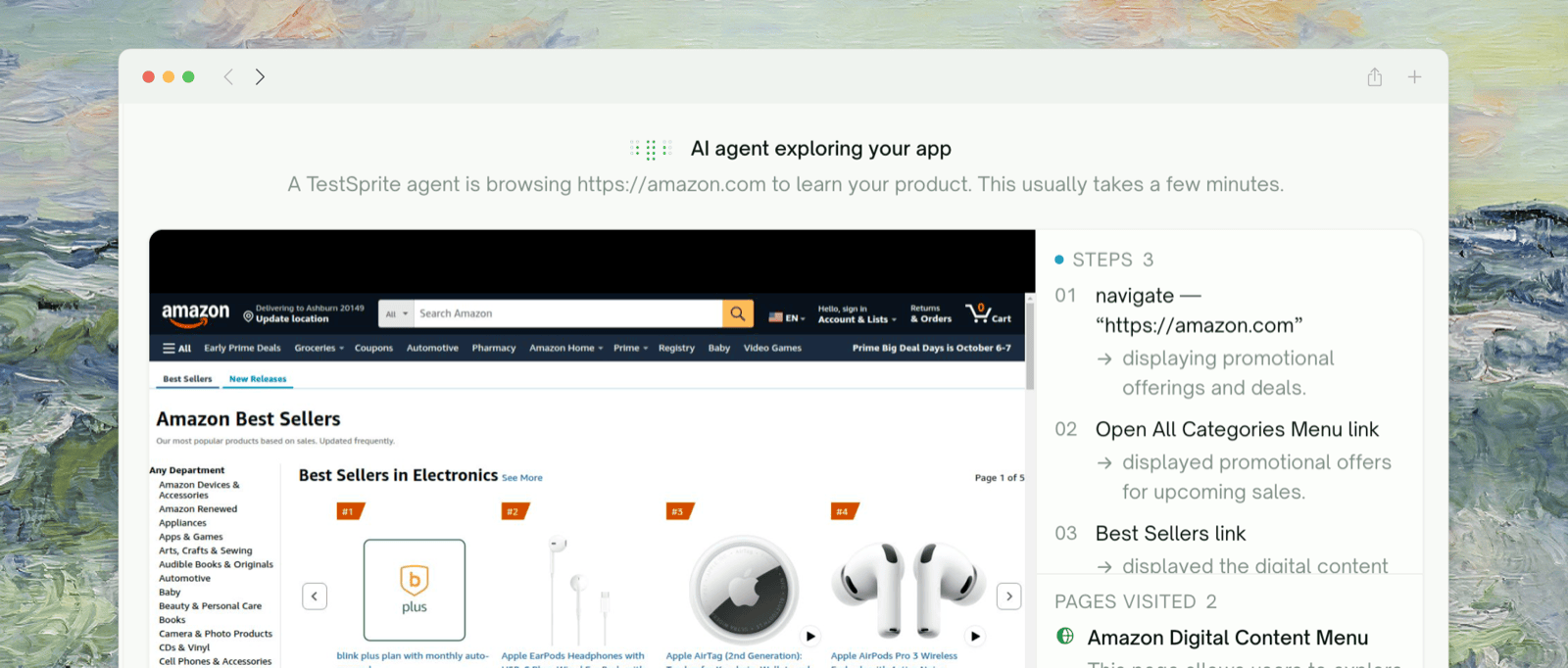
Step 3: Check the Test Coverage Map
The Test Coverage map shows your use cases and how their tests are doing. Check it against how you think about the product: edit use cases here (tests are edited later, in Test Cases), or click Regenerate From Sources if the map misread your product.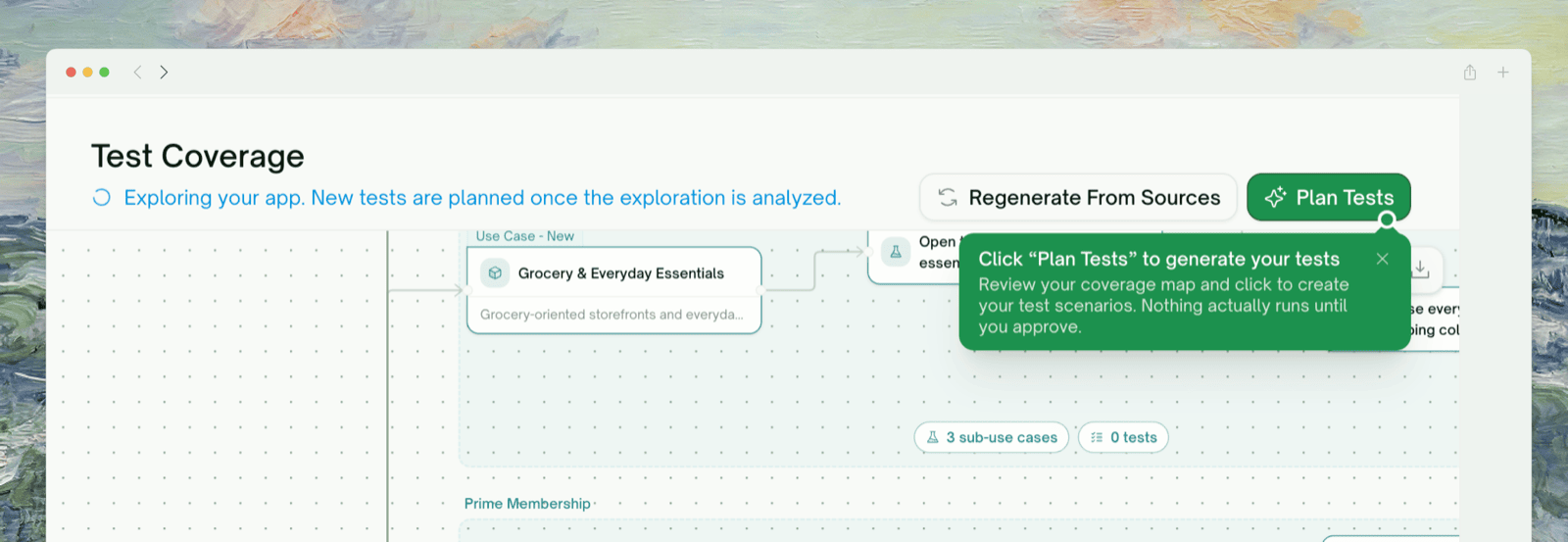
Step 4: Plan Tests
Choose which features to plan tests for (Select All is usually right on a first run), then click Plan Tests. You can plan more later from the map.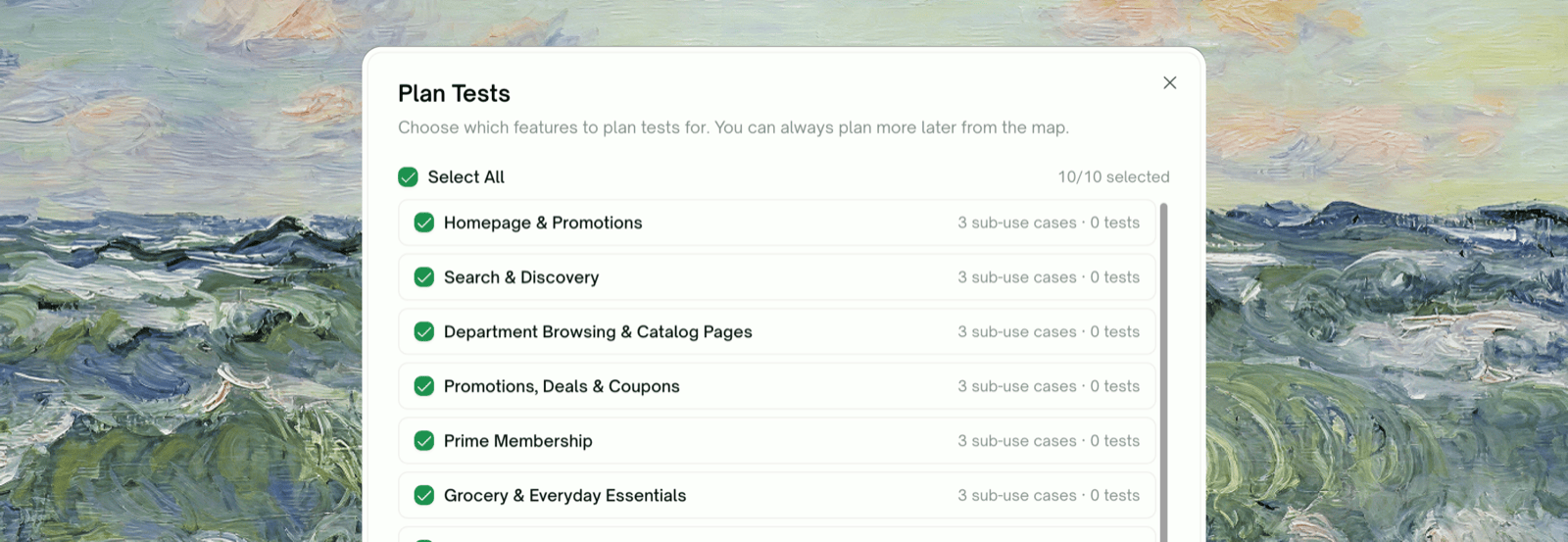
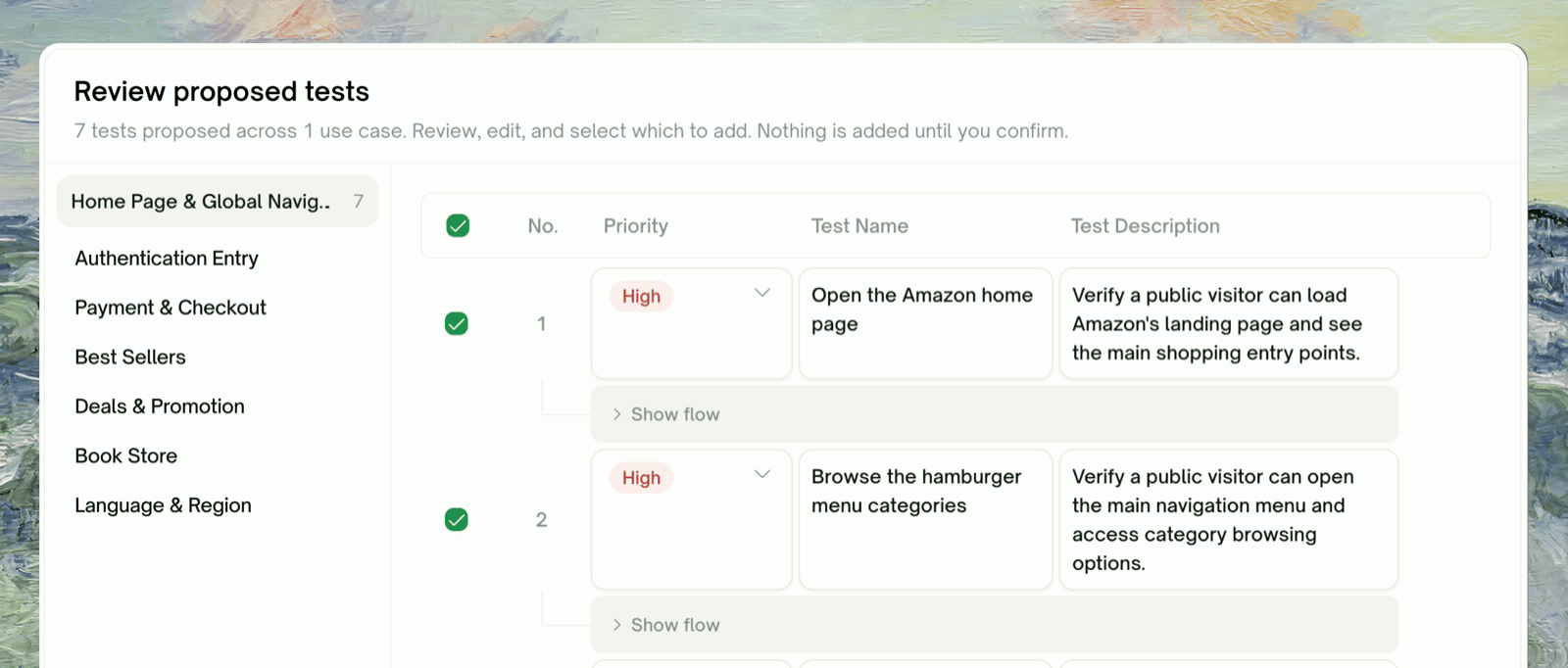
Step 5: Generate & Run
Confirming the plan starts the run: the testing agent writes each test’s code in a browser and runs it. The Test Runs page tracks it live, with the pass rate, Running / Passed / Failed / Blocked counts, and a per-test list. Switch to Agent Actions View to watch the recordings.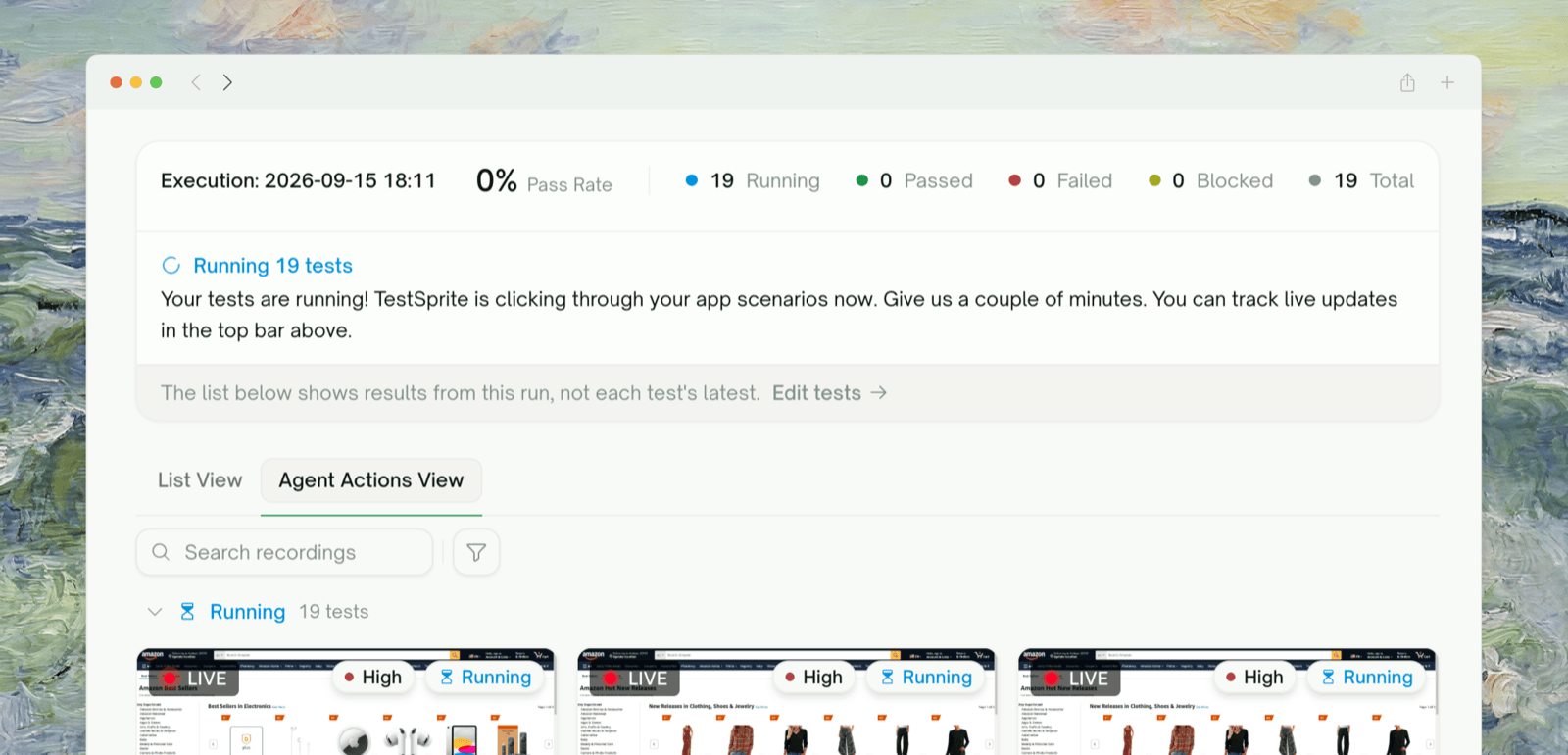
Step 6: Replay Step-by-Step
Click any test row to open its detail page. The right pane plays the recorded video of the run; the Steps panel in the left column lists every action with a clickable HTML snapshot per step.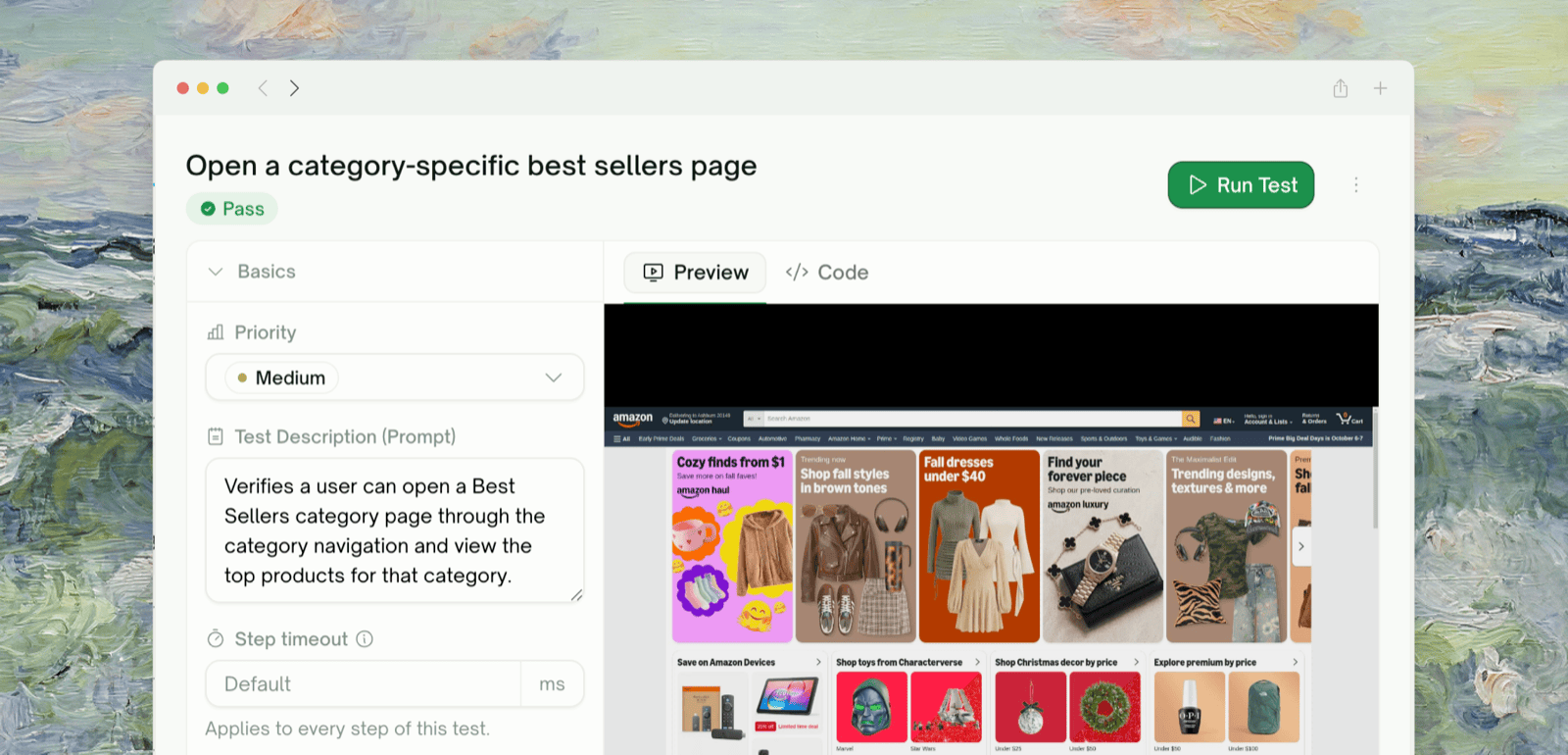
Step-by-Step Replay
Deeper tour of the per-step replay view
Step 7: Refine and Rerun
To change a test, describe the fix in Chats; TestSprite tweaks the assertions or regenerates the test. To re-execute, click Run Test on the test’s detail page, or use Edit Steps & Rerun to rewrite steps and rerun in one go. Auto-Heal absorbs UI changes that don’t break the flow.Managing Test Cases
Every refinement path in detail
Auto-Heal
Recover UI tests when the page changed but the flow is fine
The Final Report
When the run finishes, click View Report to open the Test Report: pass / fail / blocked counts, failures with cause-and-fix suggestions, and links into each test. This is what you share with the team.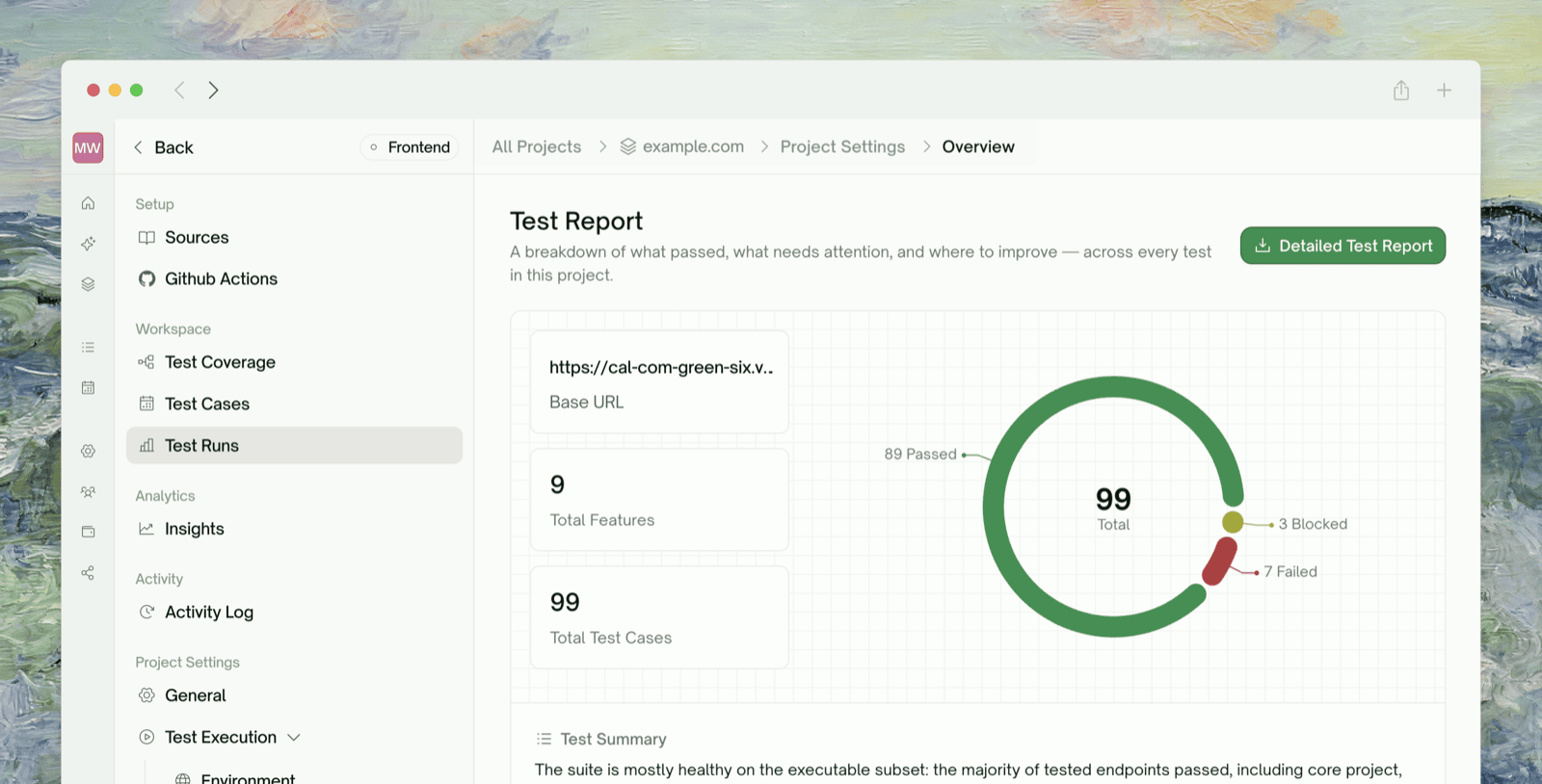
Where to Go Next
Feature Exploration
Deep dive on the exploration phase
Plan Generation & Editing
The mechanics of plan review
Agent Actions
Project-level video gallery of every recording
Test Schedules
Run on a cadence to catch regressions