

What Plan Generation Does
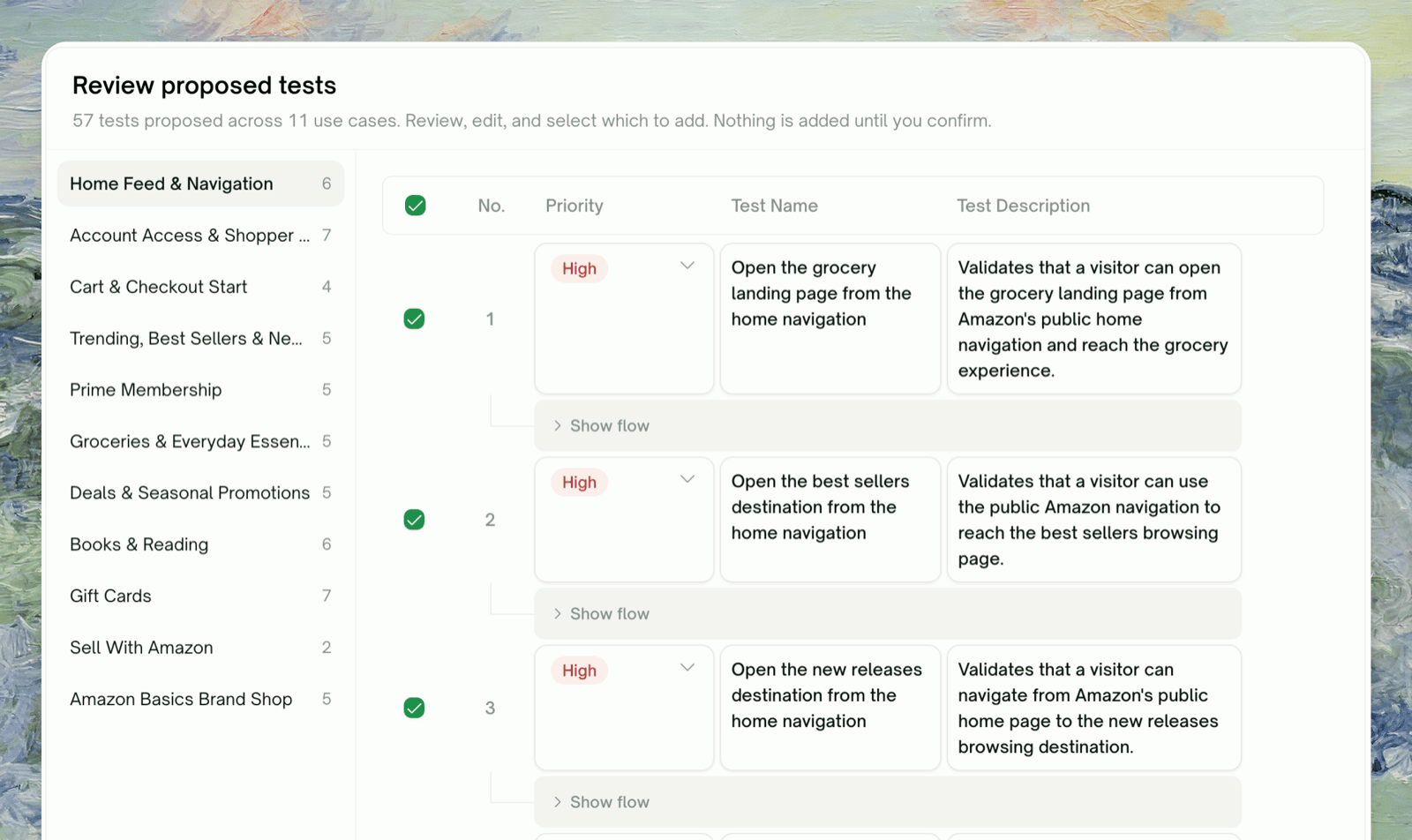
TestSprite’s testing agent takes what Feature Exploration observed in your app and plans test cases for each feature. The plan is what you review and edit before any test code is written.Nothing runs during plan generation. No browser actions are issued.
What Goes Into the Plan
Features exploration couldn’t reach get spec-based cases instead.
The Plan Structure
Each plan row is one test case with a title, description, and priority, plus a step list (Actions such as clicks, fills, and navigations, and Assertions to verify) revealed with the Show flow toggle.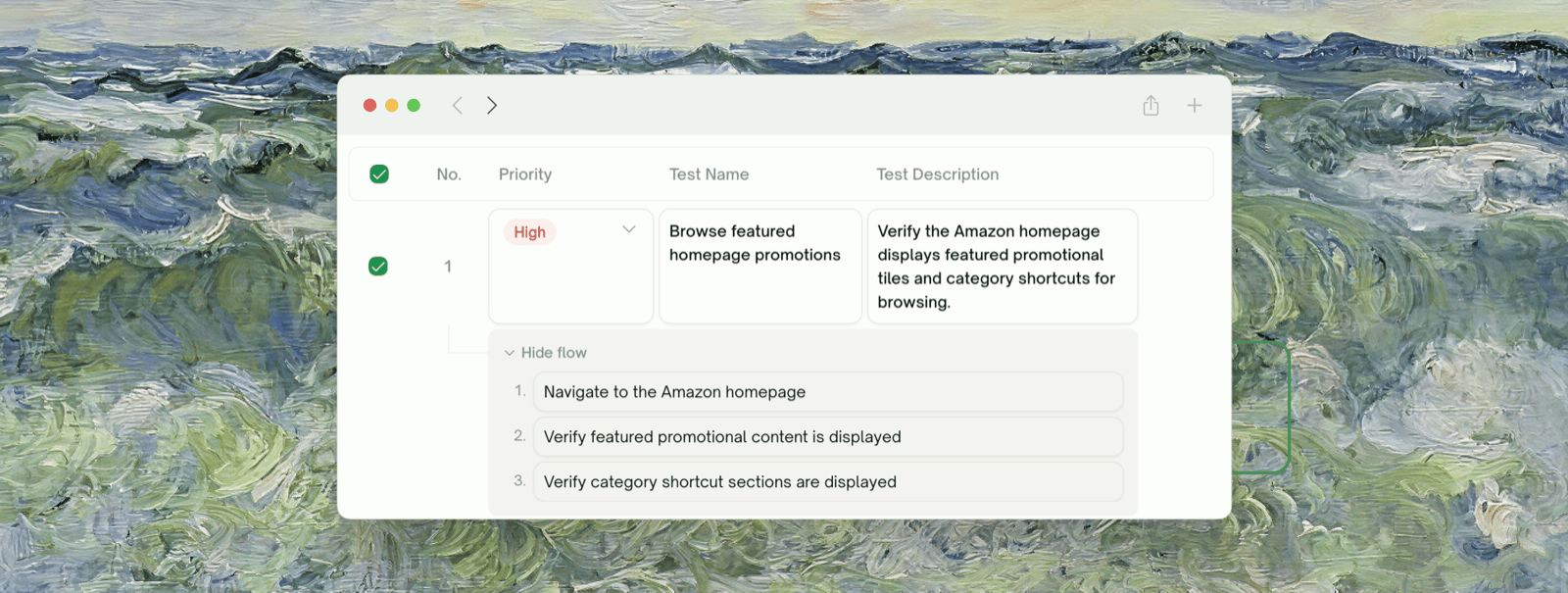
Reviewing the Plan
The plan view lists cases grouped by use case. Each row shows checkbox · No. · priority · title · description.1
Read the description, then Show flow if you need detail
The description is what drives generation. Click Show flow to see the Action / Assertion list; you can edit a step’s text right there.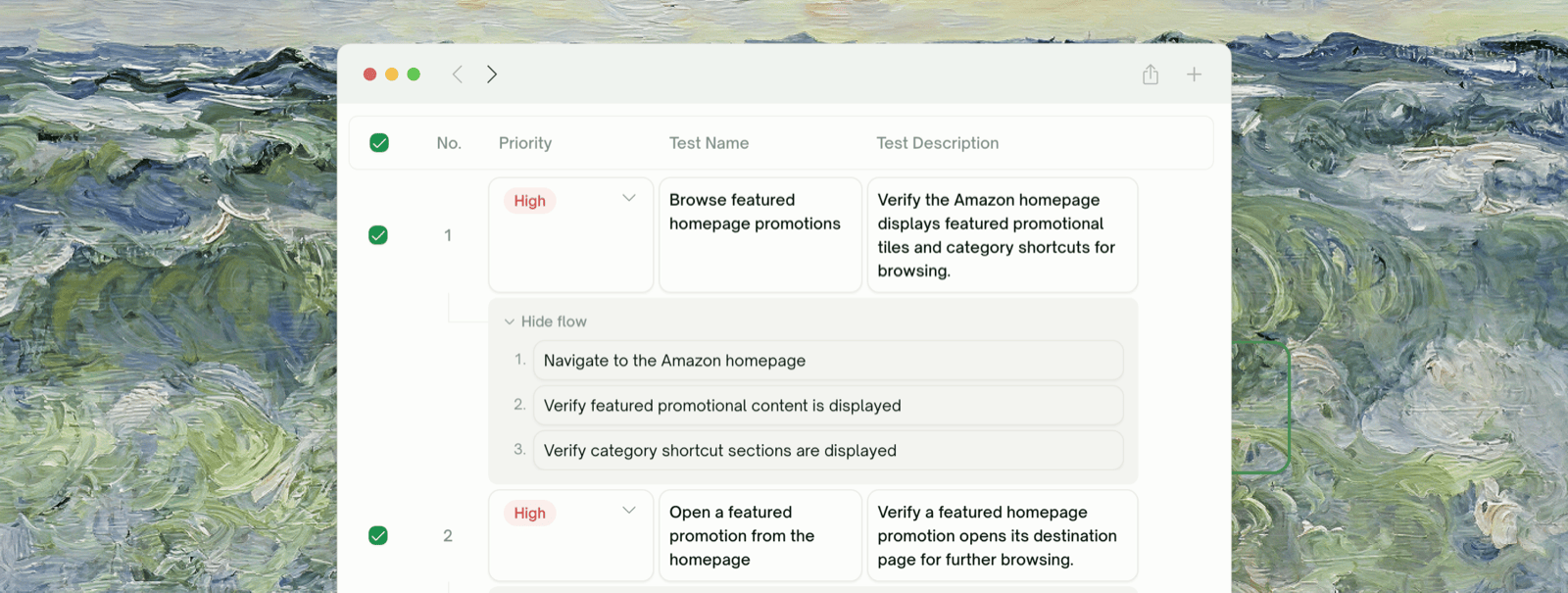
2
Untick anything you don't want
Each row’s checkbox toggles one case; the header checkbox is Select All.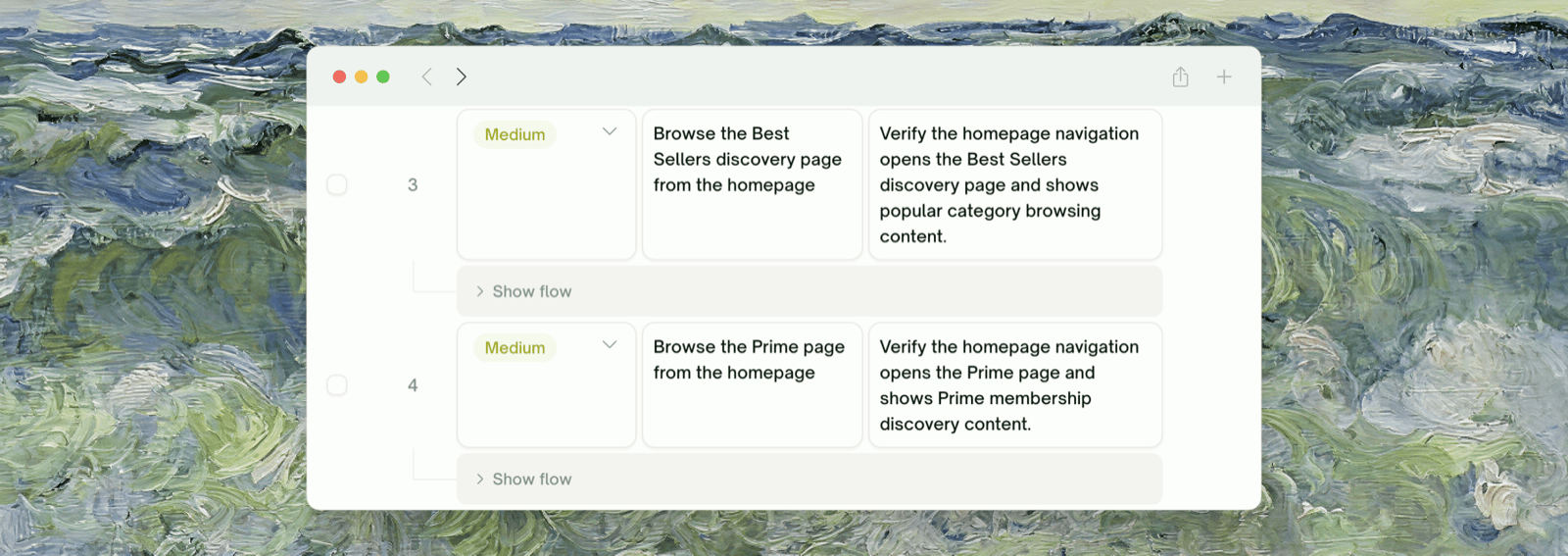
3
Edit titles and descriptions
Test Name and Test Description are plain text inputs, and your edits feed straight into generation.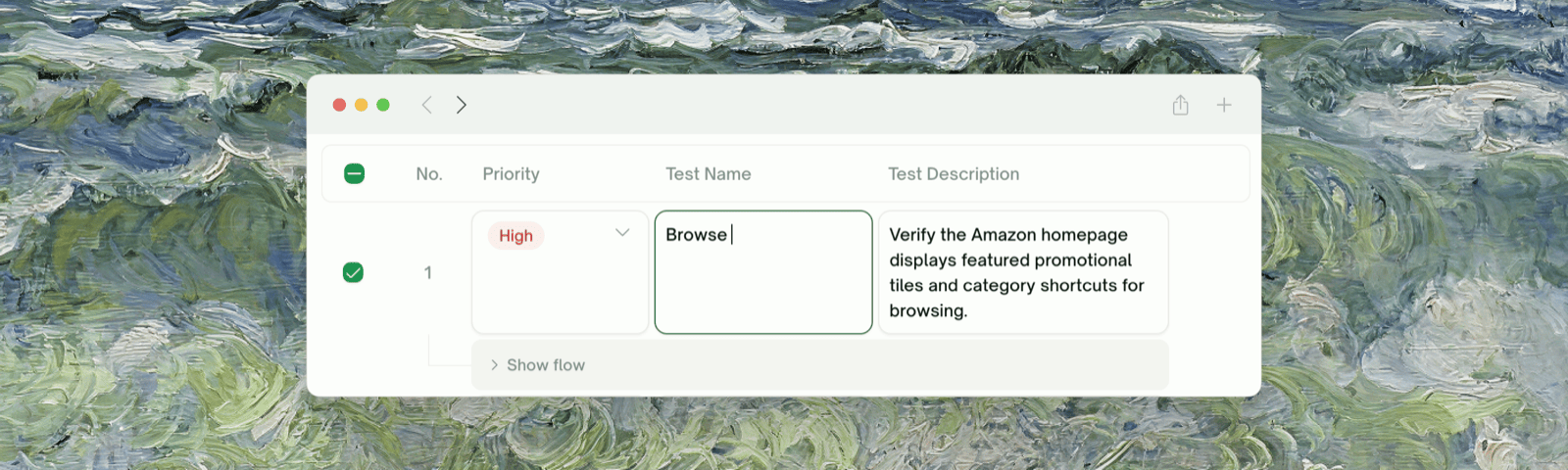
4
Adjust priority if you want a case run first
Each row has a Priority dropdown (default Medium). Higher-priority cases run earlier.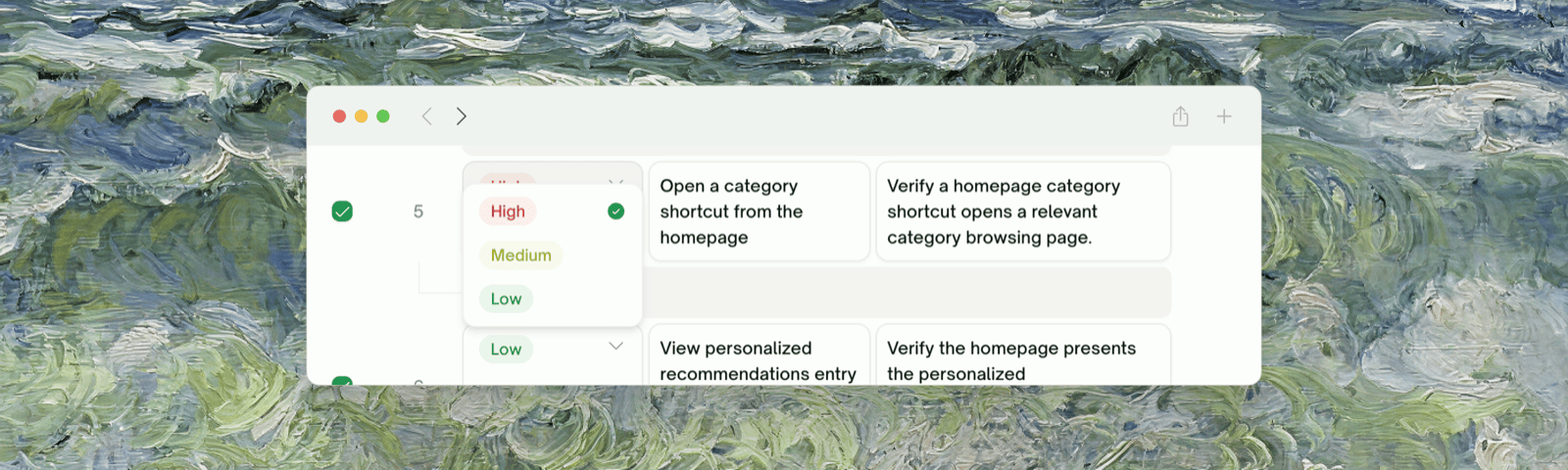
5
Add a custom case
Click + More Test Case at the bottom of the list (suffixed with the use case’s name) and fill in the new row. It’s generated with the rest.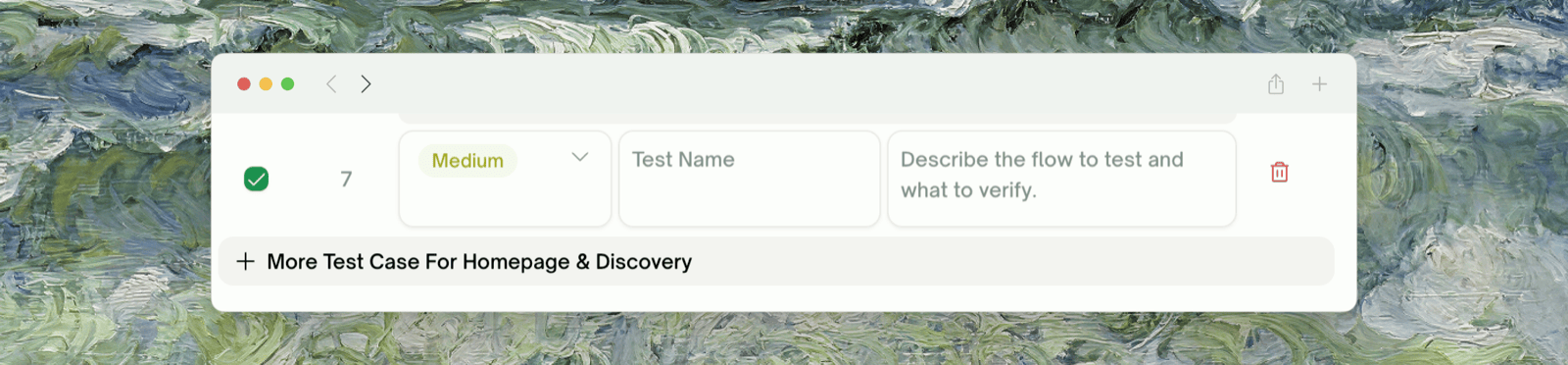
Adding and Refining in Natural Language
Ask in Chats to add a case or change several at once. TestSprite works out which feature the request applies to and updates the plan; you can review or undo before clicking Run all.What “Run all” Triggers
Clicking Run all adds the cases and starts the first run, which generates and runs each test. The plan is frozen at click time; later edits require a re-generation.UI Test Generation & Execution
Each plan case becomes a runnable Python + Playwright test
Spec-Based Cases (Fallback for Unexplored Features)
When exploration couldn’t reach a feature (paywall, login failure, transient error), the plan for it is derived from your description and extra context instead of a real walk. These cases are best-effort:- Selectors or button labels may be wrong, since there’s no observed flow to ground them
- They may miss flows you have, since only what you described is in the plan
- They still run: selectors are resolved against the live DOM at run time
When the Plan Looks Wrong
An obvious feature has zero test cases
An obvious feature has zero test cases
Exploration probably didn’t reach it (check exploration on the Sources page). Re-run exploration with a clearer test account or extra context, or add cases via chat.
Tests are too generic and don't reflect our domain
Tests are too generic and don't reflect our domain
Add domain-specific extra context, e.g. “Our checkout has an ‘Express’ lane for returning customers; make sure tests cover it”. Future runs incorporate it.
The plan ignored something I uploaded as a PRD
The plan ignored something I uploaded as a PRD
The PRD shapes the plan but doesn’t override exploration. If exploration didn’t walk the feature your PRD describes, the case is spec-based and may lack specific selectors. Refine after generation.
Where to Go Next
Test Generation & Execution (UI)
Turn the plan into runnable Playwright code
Step-by-Step Replay
What you’ll see during execution
Managing Test Cases
Natural-language adjustments after generation