Documentation Index

Fetch the complete documentation index at: https://docs.testsprite.com/llms.txt

Use this file to discover all available pages before exploring further.

By the end of this guide you’ll have an API project that’s been discovered, planned, generated as Python tests, and executed against your live API, with full request/response capture for every call. No code on your side.
Doing UI testing instead? See the UI Quickstart for the frontend-flavored walkthrough.

Step 1: Project Setup & PRD Upload

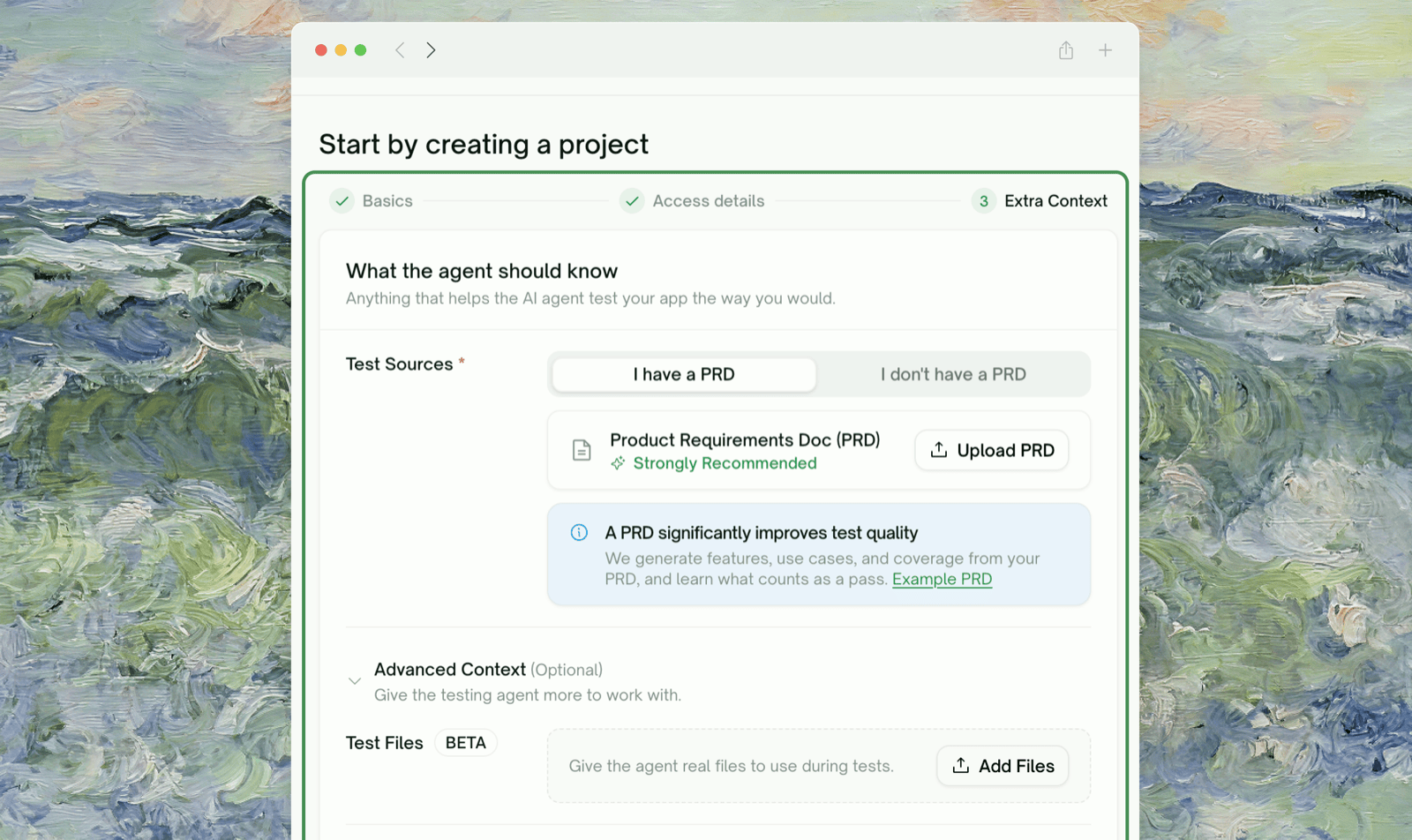
From the dashboard, click Create Tests. The first screen asks for two things only: a project name and your PRD (or any product-spec document — markdown, PDF, plain text all work).
Project setup screen — name + PRD upload
PRDs aren’t only for UI. They let plan generation scope tests to the intent of each endpoint, not just the shape from your OpenAPI spec — the difference between “covers POST /orders” and “covers the actual order-placement scenarios your product supports”. Skip the PRD upload for a quick demo; for real coverage, upload one.

Step 2: Feature & Use-Case Extraction

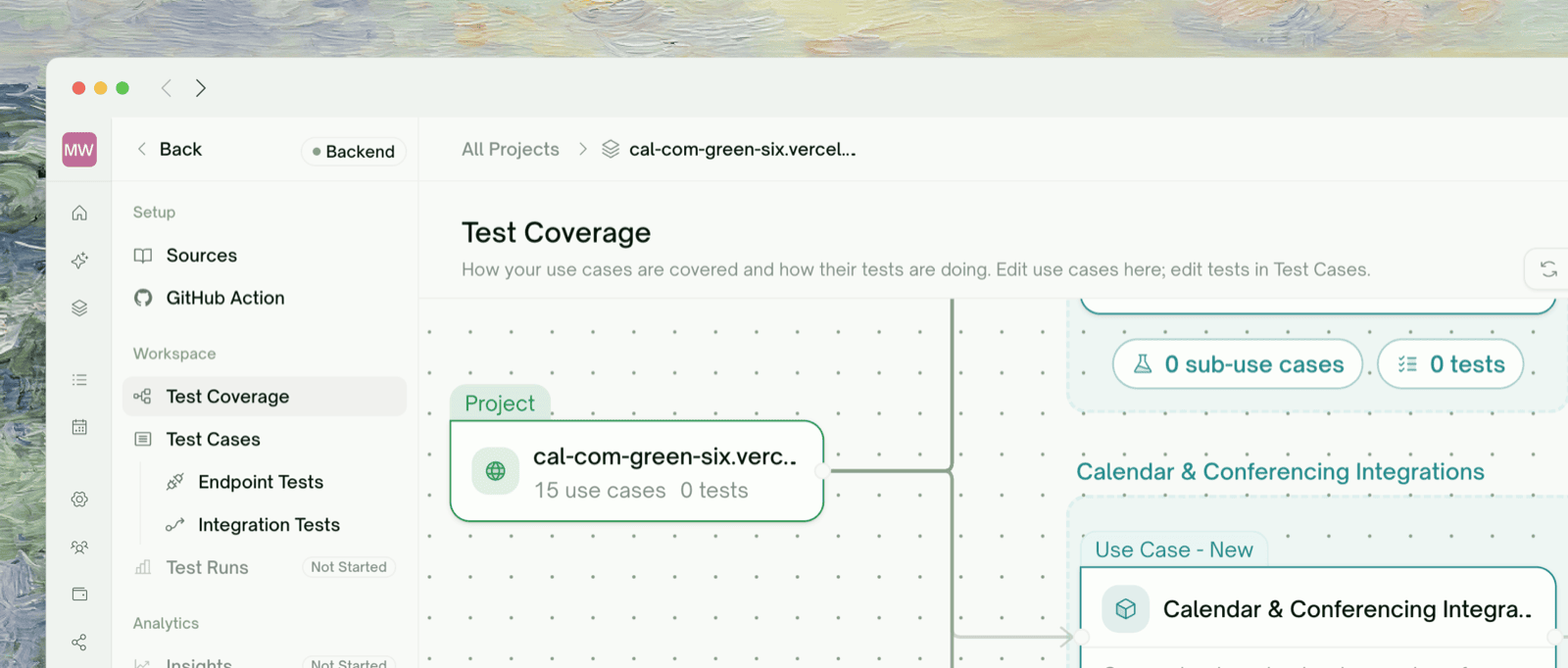
If you uploaded a PRD, TestSprite analyzes it and shows the Use Cases & Features screen with a flow graph of every feature it identified and the use cases under each.
Use Cases & Features flow graph extracted from PRD
This feature map is what grounds plan generation downstream — test cases get scoped to the use cases here. Click Re-extract to redo the analysis on the same PRD (e.g. after editing the file). Otherwise continue.
If you skipped the PRD upload, this step is bypassed and the wizard goes straight to configuration.

Step 3: Choose Test Type and Configure

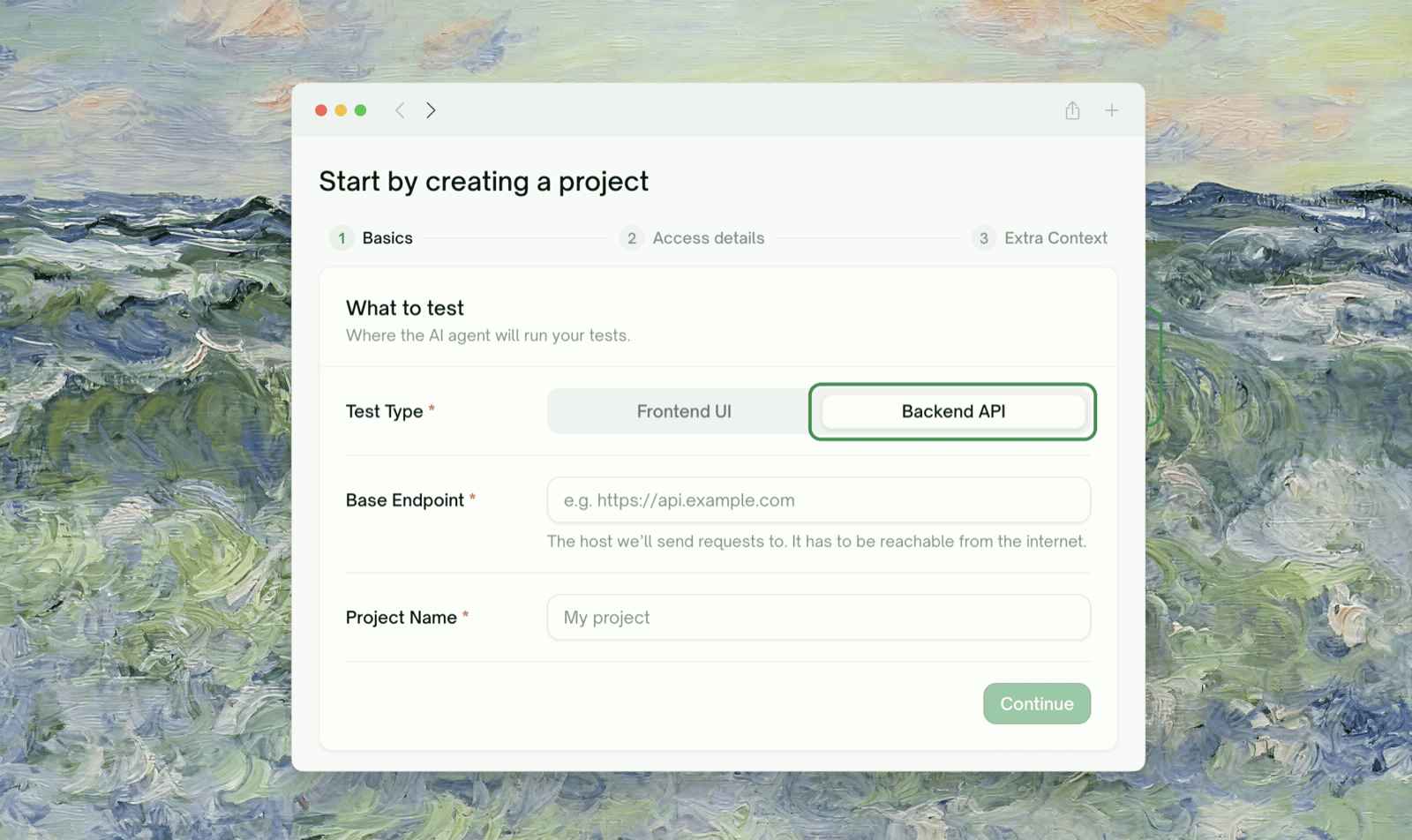
Pick the test type tab — Backend (APIs) for this API walkthrough — then provide your base URL, API documentation, auth type, and any extra testing instructions.
API configuration form with Backend (APIs) tab selected
FieldWhat to provide
Base URLThe base URL TestSprite will hit
API DocumentationOpenAPI / Swagger / Postman collections, or any free-form docs
Authentication TypeBasic, Bearer, API-key, or None — applied per API family
Extra testing instructionsFree-form hints — e.g. “skip /admin”, “focus on the checkout flow”
The richer the input, the better the plan. Even a half-finished OpenAPI plus a paragraph of context outperforms a perfect spec with no hints.
Click Parse with AI at the bottom to start discovery. TestSprite reads your docs and confirms endpoint shapes against the live URL.

Step 4: Review Discovered Endpoints

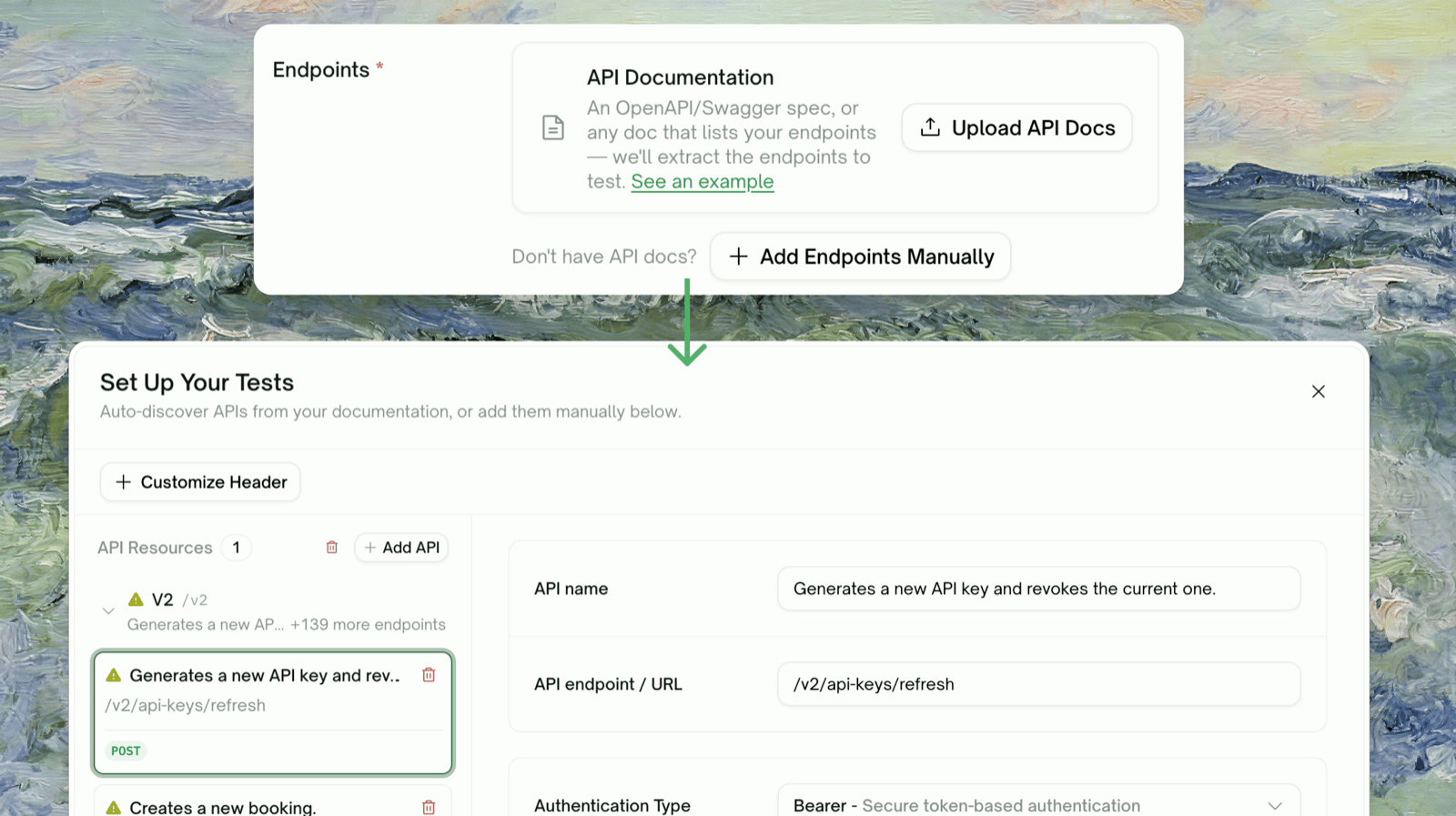
Once discovery completes, you’ll see your endpoints grouped by resource family in an expandable table.
Discovered endpoint list
For each row you can:
  • Remove an endpoint — Click the × at the end of the row. Useful for internal-only endpoints, deprecated paths, or anything outside your test scope.
  • Adjust the method or path — Click the row to edit if the inferred path template is wrong.
  • Set the auth type per family — Use the Authentication Type dropdown. Choices: Basic, Bearer, API-key, None.
If discovery missed an endpoint, click Add Manually at the bottom of the page (or use the inline link under the upload card) to add it by hand. When you’re satisfied, continue to plan generation.

Step 5: Review and Adjust the Plan

TestSprite drafts a comprehensive plan organized by category — typically functional / happy path, authorization & auth, error handling & edge cases, and (where relevant) boundary / load and security probes. Categories are picked based on what each endpoint does.
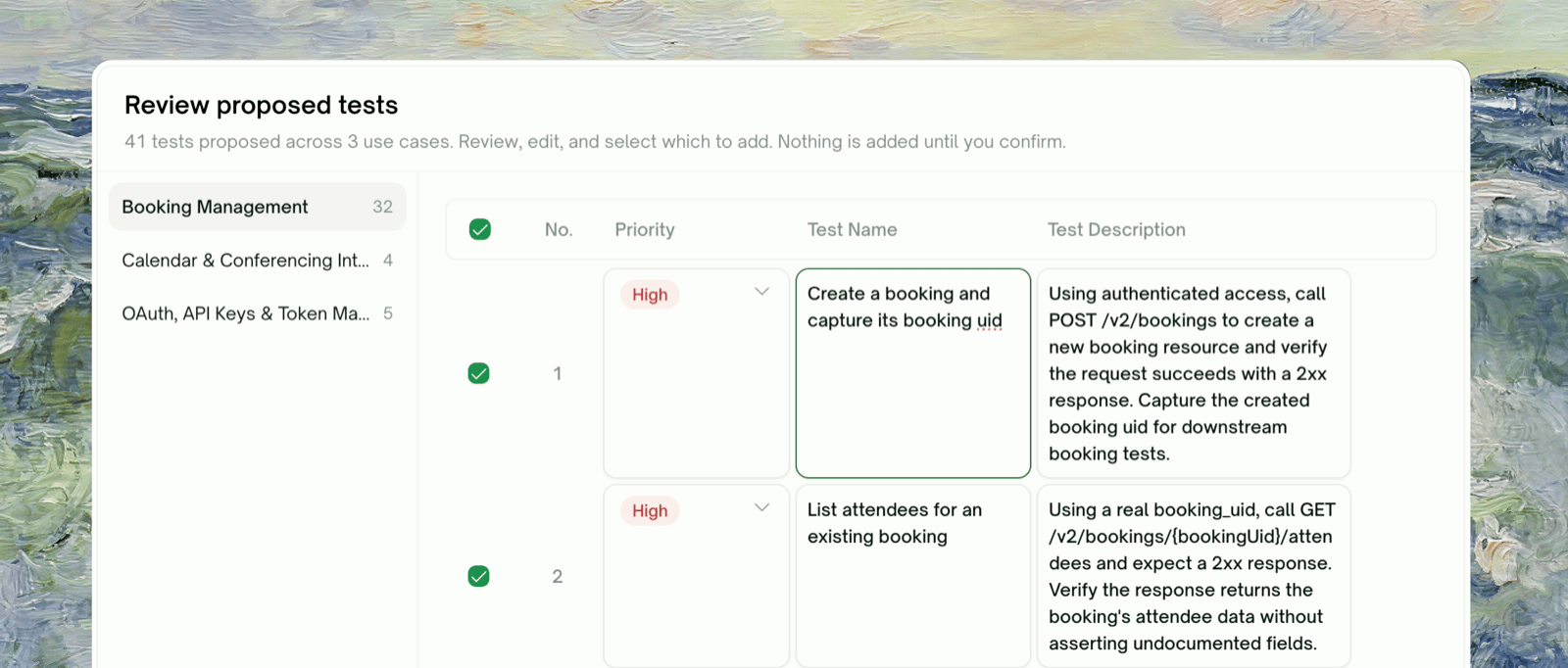
API plan review
Untick any tests that don’t apply, tweak titles or descriptions in natural language, and click Generate Tests.
Don’t be precious about pruning. Selecting all is usually right on a first run — you get full coverage. If a category produces too many tests for your liking, untick the ones you find low-value rather than disabling the whole category. The high-leverage tests in any category tend to be 60% of what’s there.

Step 6: Watch Tests Generate and Run

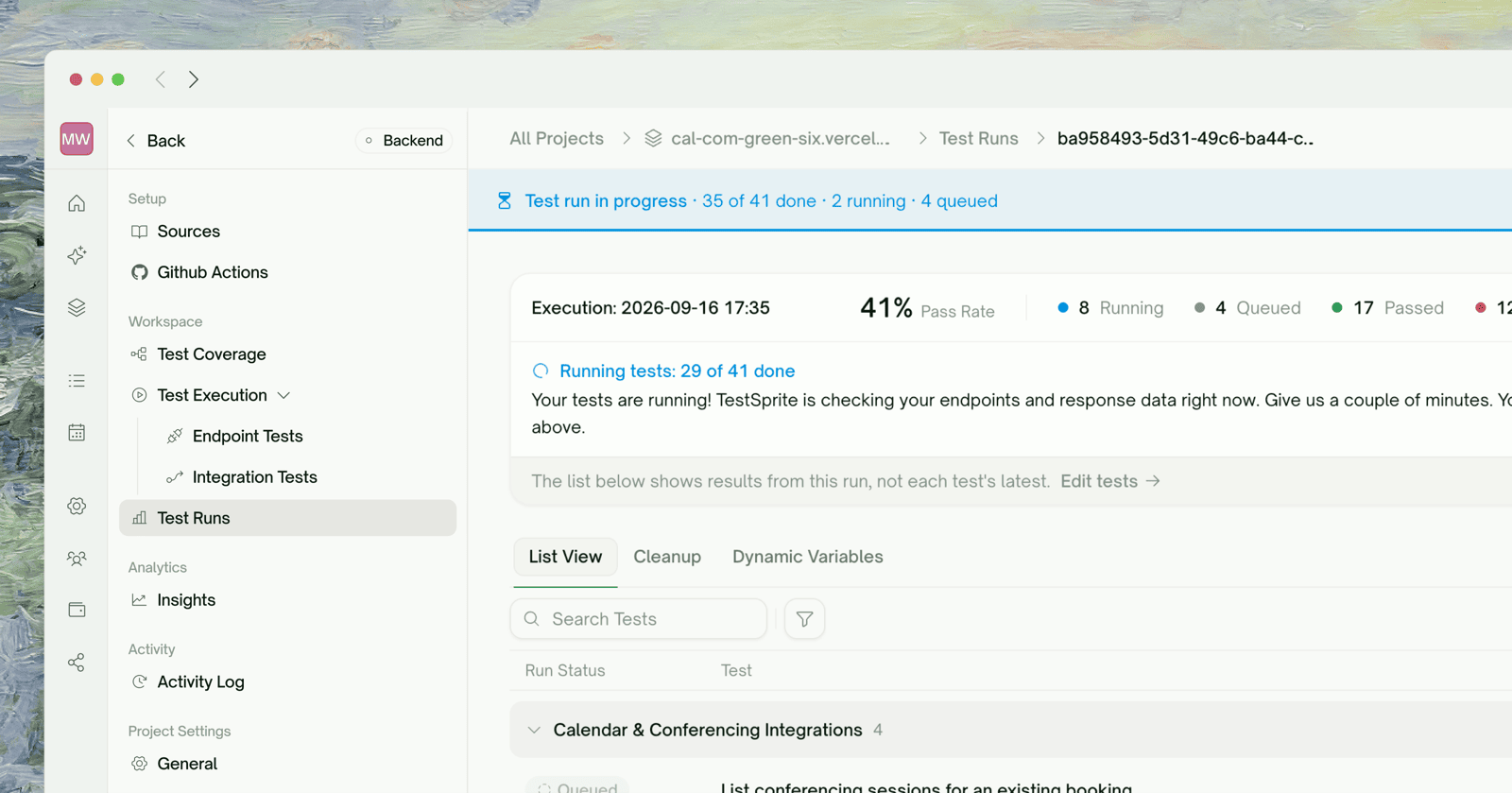
TestSprite generates a Python test per plan row, verifies each one before it lands in your suite, and executes them against your API. Tests stream into the project view as they finish.
API tests executing
Each row surfaces one of: Pending, Running, Pass, Failed, Blocked. For multi-step workflows, TestSprite identifies which tests depend on each other and runs the chain in the right order — see Dependency Chains.

Step 7: Review and Refine

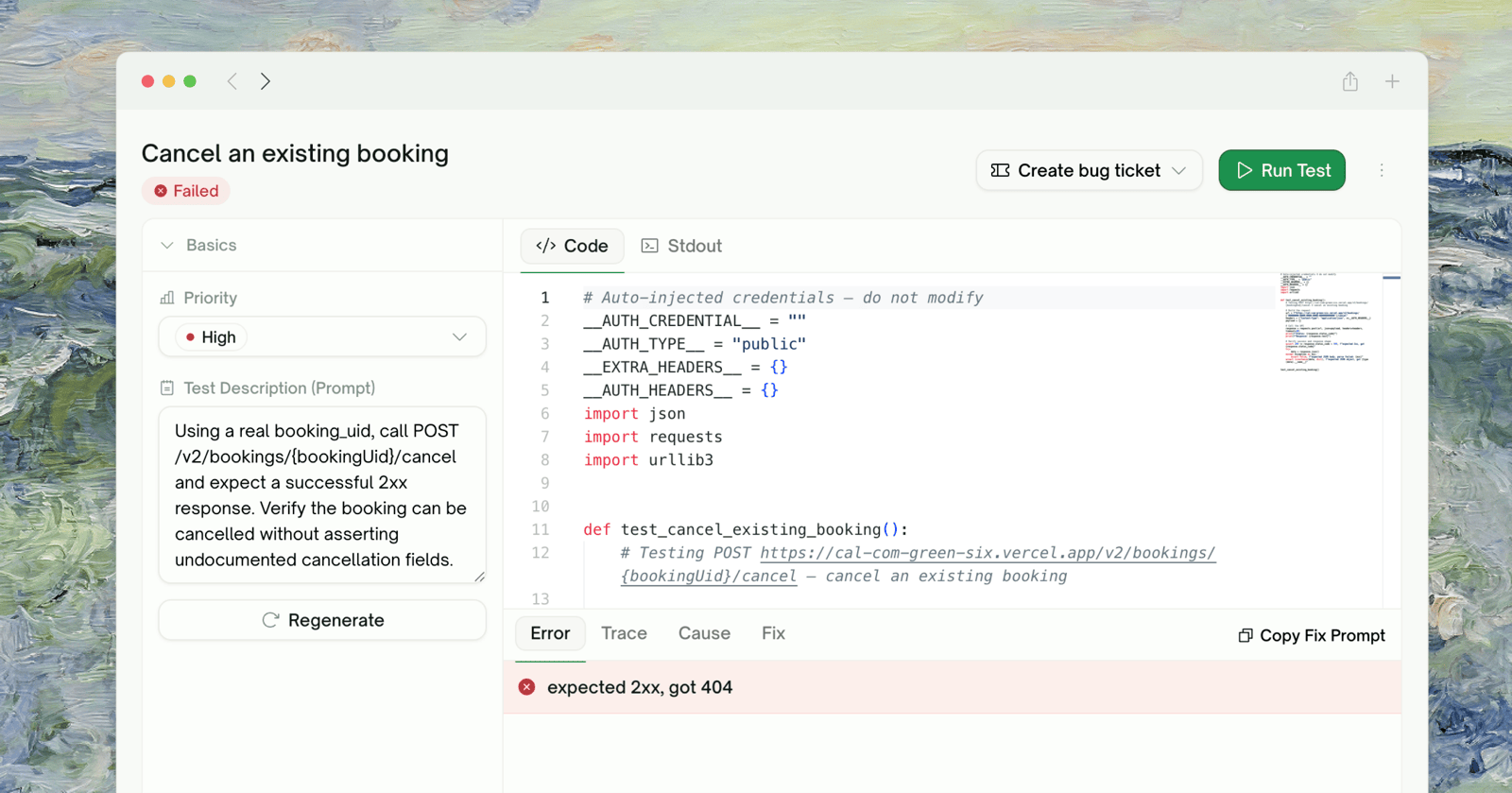
Click any test row to open its detail page. You get the request panel (exact HTTP call we made), response panel (what your API returned), error trace (where the assertion failed), and an AI cause-and-fix suggestion for failures.
API test detail page
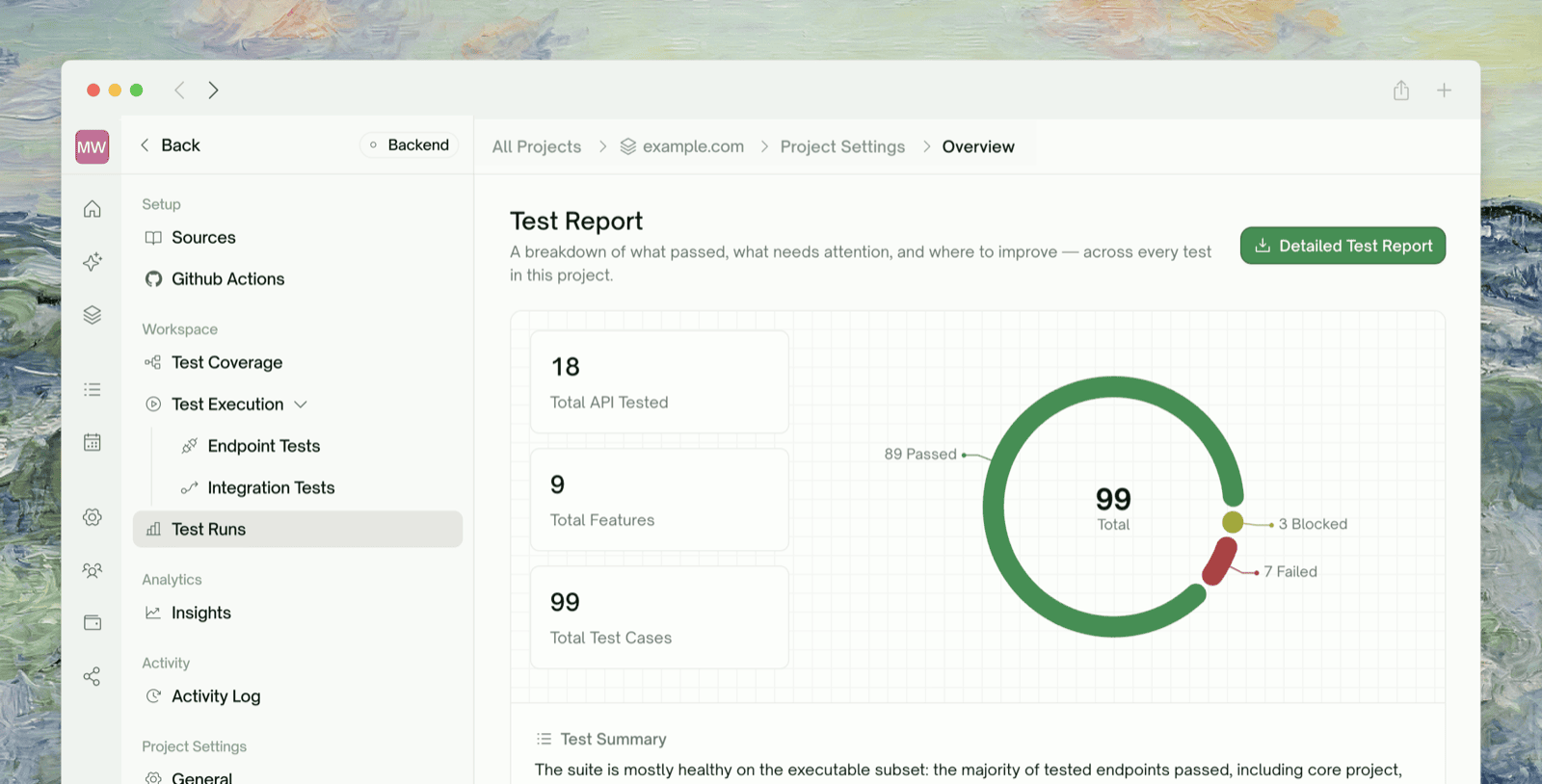
To iterate, use the Chat tab — describe what to fix in natural language. TestSprite either tweaks the assertions or regenerates the test. The run-level Test Report rolls up pass / fail / blocked counts with cause-and-fix highlights — share that link with the team.
Test Report summary view

Step 8: Cleanup Runs Automatically

After the run finishes, TestSprite removes the records your tests created (users, orders, sessions) so subsequent runs start fresh. The Cleanup tab shows what got deleted.

Auto Cleanup

How records created during a run get removed afterward

Step 9: Rerun and Schedule

To re-execute, use Rerun on a single test or Rerun all on the project toolbar. The Skip dependencies toggle in the rerun dialog lets you re-execute one test in isolation against cached upstream values — fast iteration when you’ve just refined an assertion.

Rerun

Single test, batch, scheduled — and when to skip dependencies

Auto-Auth (Pro)

Auto-refresh login tokens before every run

Where to Go Next

API Discovery

Deep dive on the discovery phase

Plan Generation & Editing

The mechanics of plan review

Integration Tests

Multi-step workflows that chain endpoints

Schedule Monitoring

Run on a cadence to catch regressions