


What Auto-Auth Does
Backend APIs usually sit behind tokens that expire: an OAuthBearer, an AWS Cognito access token, a session cookie. When one expires, every test in the run fails until someone pastes a fresh value.
With Auto-Auth you configure the environment’s login flow once, and TestSprite obtains a fresh token before every test run. One config per environment: it covers every backend test that runs against that environment, with no per-endpoint auth to manage.
When to Use This
- Your API uses bearer tokens, session cookies, or OAuth refresh flows that expire (most modern APIs)
- You want scheduled runs to keep working unattended, instead of breaking when last week’s token expires
sk_live_…), you don’t need Auto-Auth. Use Static Credentials instead.
Prerequisites
- A plan that includes Auto-Auth. On plans without it, you see a paywall card with an Upgrade CTA where the configuration would normally appear.
- A backend project with at least one API under test
- Login credentials your API accepts: username/password, OAuth client credentials + refresh token, or an AWS Cognito refresh token
Quick Start
1
Open your environment
Go to Project Settings → Test Execution → Environment and click the environment your tests run against. The Auto-refresh login card is in the Edit Environment dialog.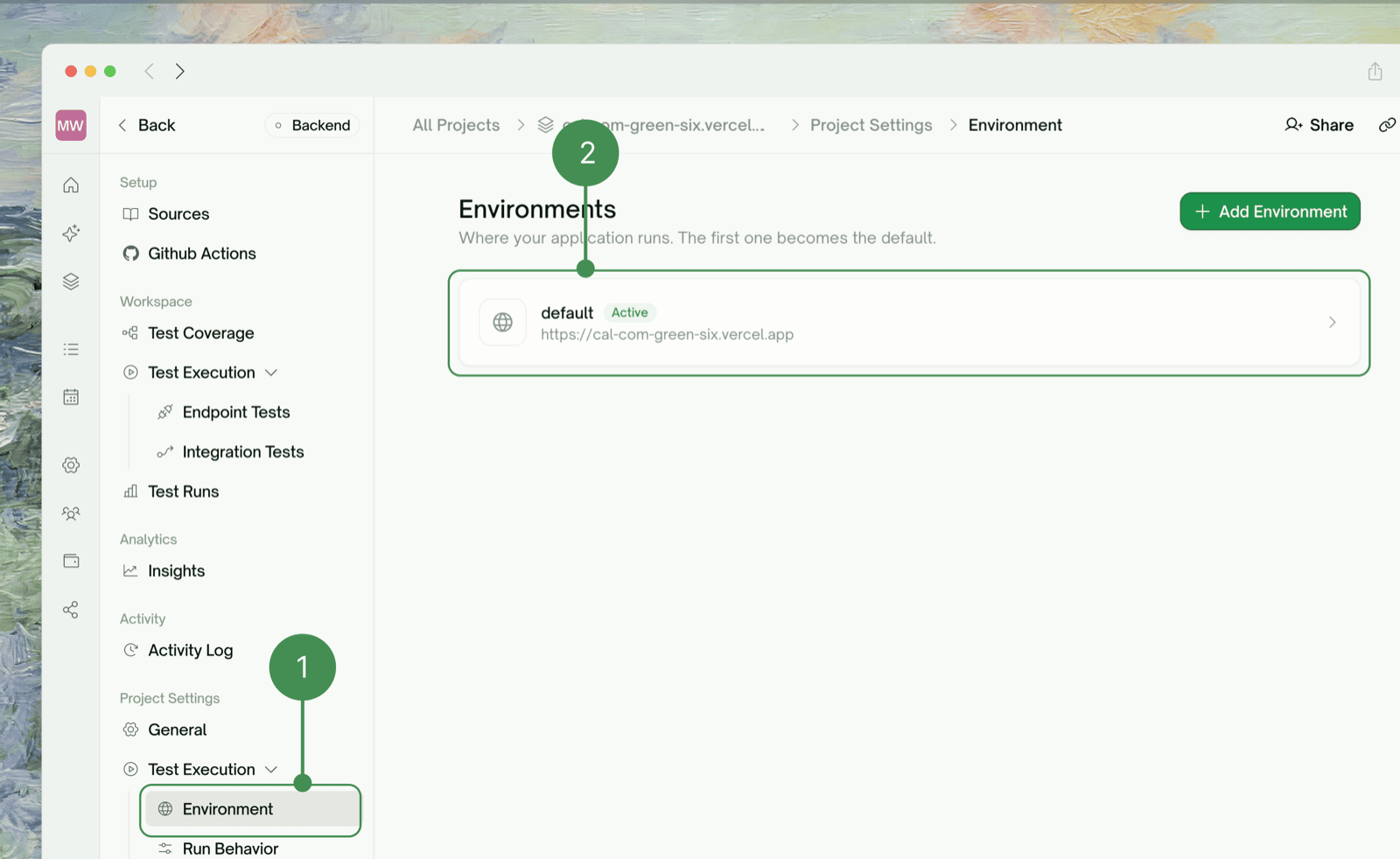
2
Click Configure
Pick your login method: AWS Cognito, OAuth Refresh, or Username / Password.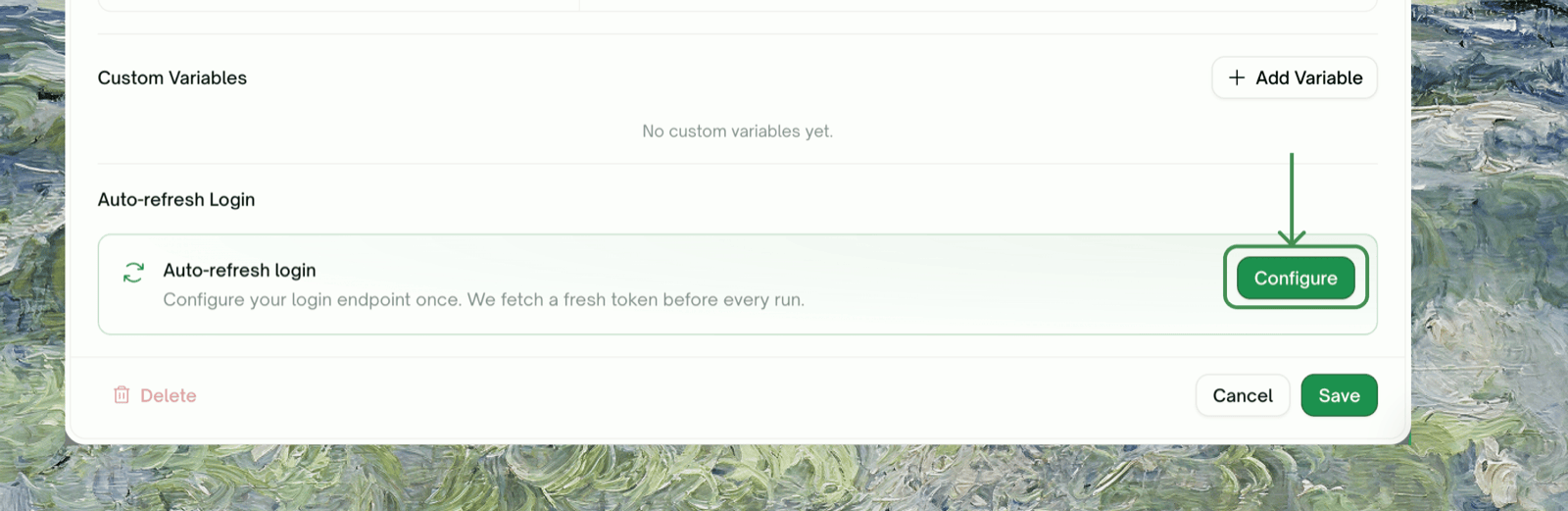
3
Fill in the fields and Test Login
The form depends on the method. Click Test Login to check your config before saving: the result panel shows the masked token, or a structured error you can fix without a full test run.
4
Save
Saving runs one final verification. If it passes, the toggle turns on and the card shows Verified · Xm ago; your next run uses a fresh token. If it fails, the config is saved with the toggle off and an error to fix.
Choosing a Method

AWS Cognito

How to obtain a refresh token
1
Open your app's sign-in page in a browser
Sign in as the test user account you want TestSprite to use.
2
Open DevTools → Application → Local Storage / Cookies
Cognito Amplify stores the tokens under keys like
CognitoIdentityServiceProvider.<clientId>.<username>.refreshToken. The value is the refresh token string.3
Copy the refresh token into the Auto-Auth form
Paste it into the Refresh Token field and Test Login.
Some apps keep tokens in cookies or in memory only. If you can’t find it, ask your auth team for a refresh token issued for a test account (a long opaque string).
30-day expiry warning
AWS Cognito refresh tokens expire 30 days from issue by default (configurable per app client in AWS). As yours nears expiry, the Auto-refresh login card shows a yellow warning:OAuth Refresh (Beta)

Where to get a refresh token
Each provider differs. The most common path:- Register an “OAuth app” in your provider’s console (Google Cloud Console, Auth0 Dashboard, Okta Admin)
- Set the redirect URI to something local like
http://localhost:1234/callback - Use the provider’s playground or a small script to walk through the authorization-code flow once and capture the refresh token
Username / Password

Body template examples
{{username}} and {{password}} are filled in with your stored credentials. Shape the body however your API needs:
Token Injection
The Inject As field at the bottom of the modal controls how the token is attached to your test requests.
Custom Header and Cookie add a field for the header name (e.g.
X-Auth-Token) or cookie name (e.g. session). Start with Bearer; switch only if Test Login succeeds but real test runs return 401.
Test Login: Verify Before You Rely
Test Login runs one end-to-end refresh with the values currently in the form (not the saved ones) and shows what came back. The card keeps showing the saved state until you click Save.
Health States on the Auto-refresh Card
Day-2 Operations
Edit a saved config
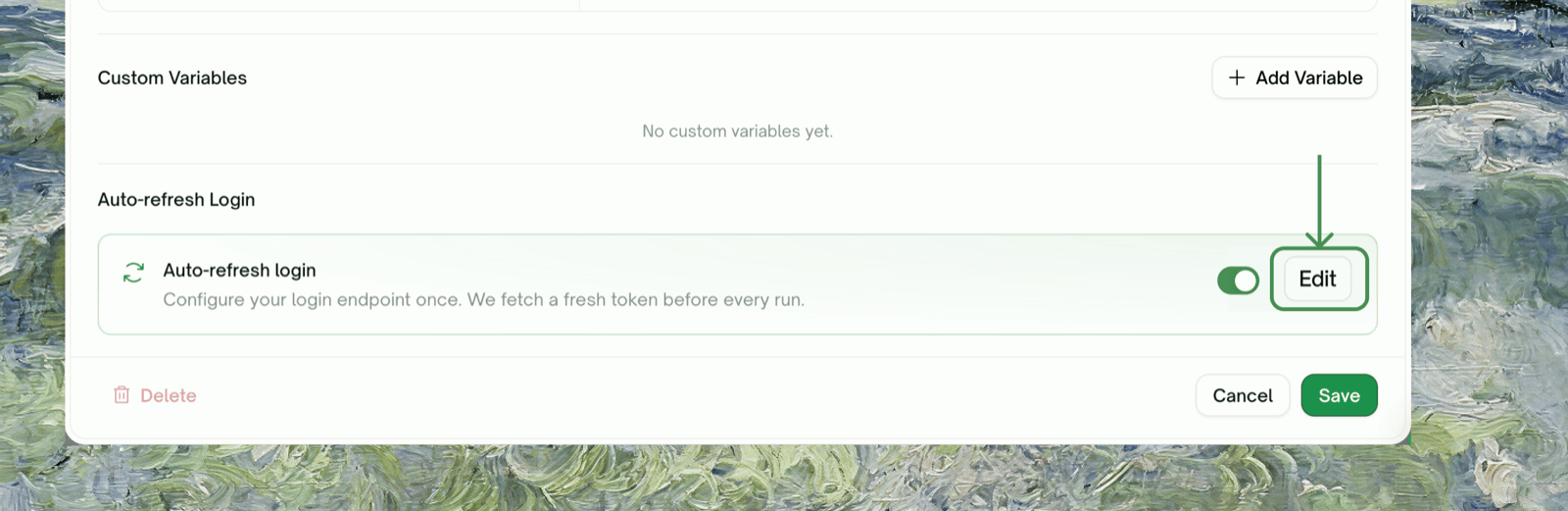
Click Edit on the card. Non-secret fields are pre-filled. Secret fields (password, client secret, refresh token) show•••••••• and are kept if you leave them blank; type a new value to overwrite.
Temporarily disable
Flip the toggle off. The config stays saved, and new runs fall back to your Static Credentials (if any). When you flip it back on, TestSprite verifies the config still works.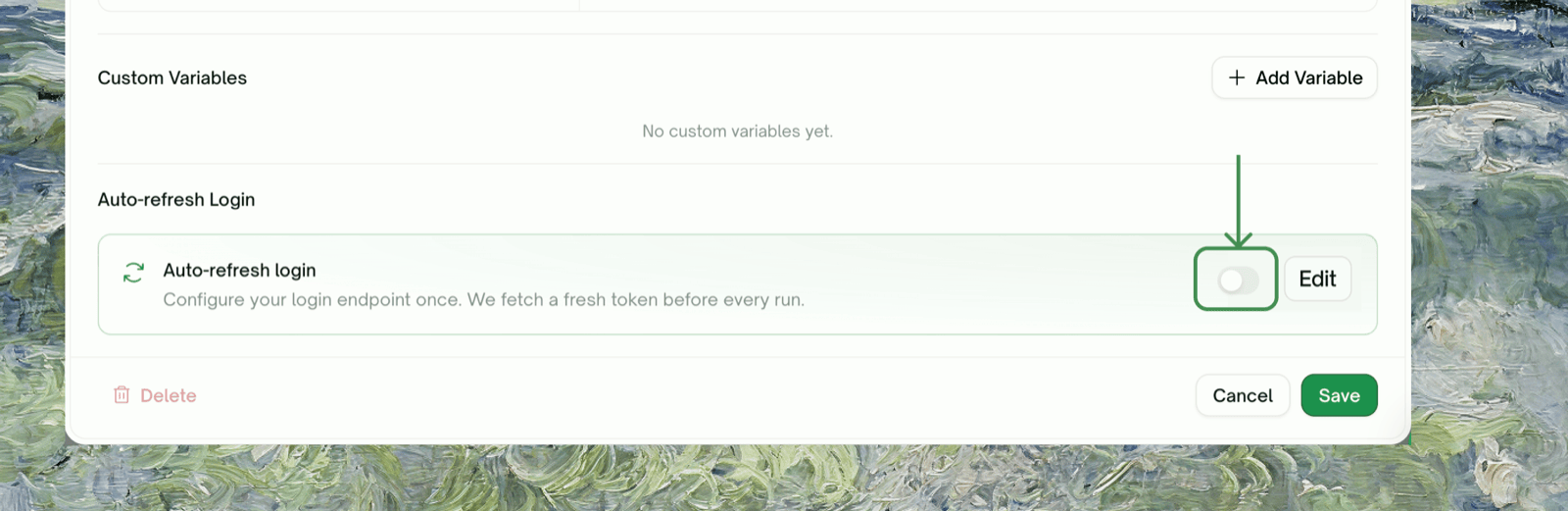
Delete a config
Use Edit → clear all fields → Save. Or contact support if you want a hard delete.Security
- Encrypted at rest: secrets (password, client secret, refresh token) are stored encrypted.
- Never echoed back to the browser: saved secrets render as
••••••••placeholders. Leaving the field blank keeps the stored value. - Server-side only: Test Login and the actual token refresh both run on the server. Your secrets never traverse the browser-to-API path.
- No credential logging: full request bodies are not logged.
If You Can’t Use Auto-Auth: Static Credentials
If none of the three methods fits your API (say, a long-lived API key that never expires, or an auth flow that needs a hardware token), paste credentials manually instead.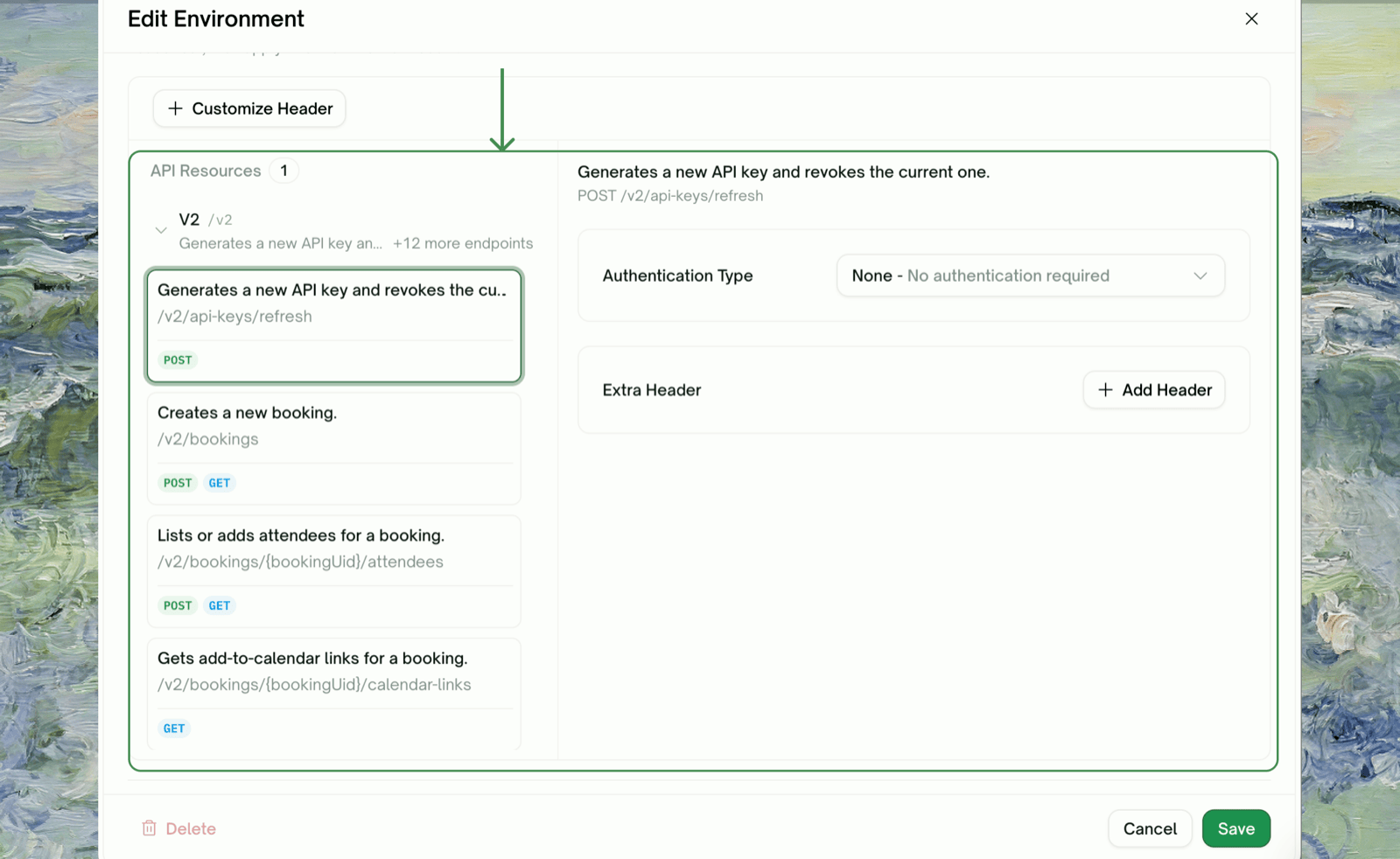
- Paste a token, API key, or session string per endpoint, with its Authentication Type
- Apply the same value to multiple APIs at once: create a credential set, click Apply, and pick the APIs (or Select all)
- Rotate (overwrite) a value without removing the test cases that use it
Troubleshooting
Test Login fails with HTTP 401/403 but my credentials are correct
Test Login fails with HTTP 401/403 but my credentials are correct
In order of likelihood:
- The refresh token expired or was revoked. Cognito caps it at 30 days; OAuth providers revoke on password change, app uninstall, or admin action. Capture a fresh one.
- Client ID / secret mismatch. Check you copied them from the right OAuth app; dev and prod usually have different client IDs.
- The account is disabled or locked. Sign in to your app as the test user in a browser; fix that first if it fails.
Test Login fails and no token was found
Test Login fails and no token was found
The provider returned a 200, but Token path didn’t match. The default
$.access_token works for Cognito, Auth0, Okta, Google, and most standards-compliant providers. For {"data":{"jwt":"…"}} use $.data.jwt; for {"token":"…"} use $.token. The response body in the result panel shows the real shape.Test Login succeeds but real test runs return 401
Test Login succeeds but real test runs return 401
The token is fetched but delivered where your API doesn’t look for it. Try Inject As → Bearer, then Custom Header with the header name from your API docs (e.g.
X-Auth-Token), then Cookie. The cookie name field takes just the name (e.g. session), not Cookie: session=….The toggle flipped back off after I enabled it, and the card now says 'Failing'
The toggle flipped back off after I enabled it, and the card now says 'Failing'
The save-time verification failed, so the toggle was turned back off. Open Edit, read the error below the dialog title, fix it, Test Login, then Save again.
My API uses a custom token header AND requires a custom Content-Type
My API uses a custom token header AND requires a custom Content-Type
They don’t conflict. Inject As controls how the fetched token is attached to your test requests; Content Type (Username/Password method) is only for the login call.
What if my CI/CD rotates the test user's password regularly?
What if my CI/CD rotates the test user's password regularly?
With Username/Password, each rotation breaks Auto-Auth until you update the password. OAuth and Cognito refresh tokens generally survive password rotation (until revoked), so switching to one of those removes the churn.
Where to Go Next
API Discovery
How TestSprite finds your endpoints from your API docs
Integration Tests
Multi-step chained tests with dynamic variables
Rerun
Re-run a chain or a single test