

How It Works
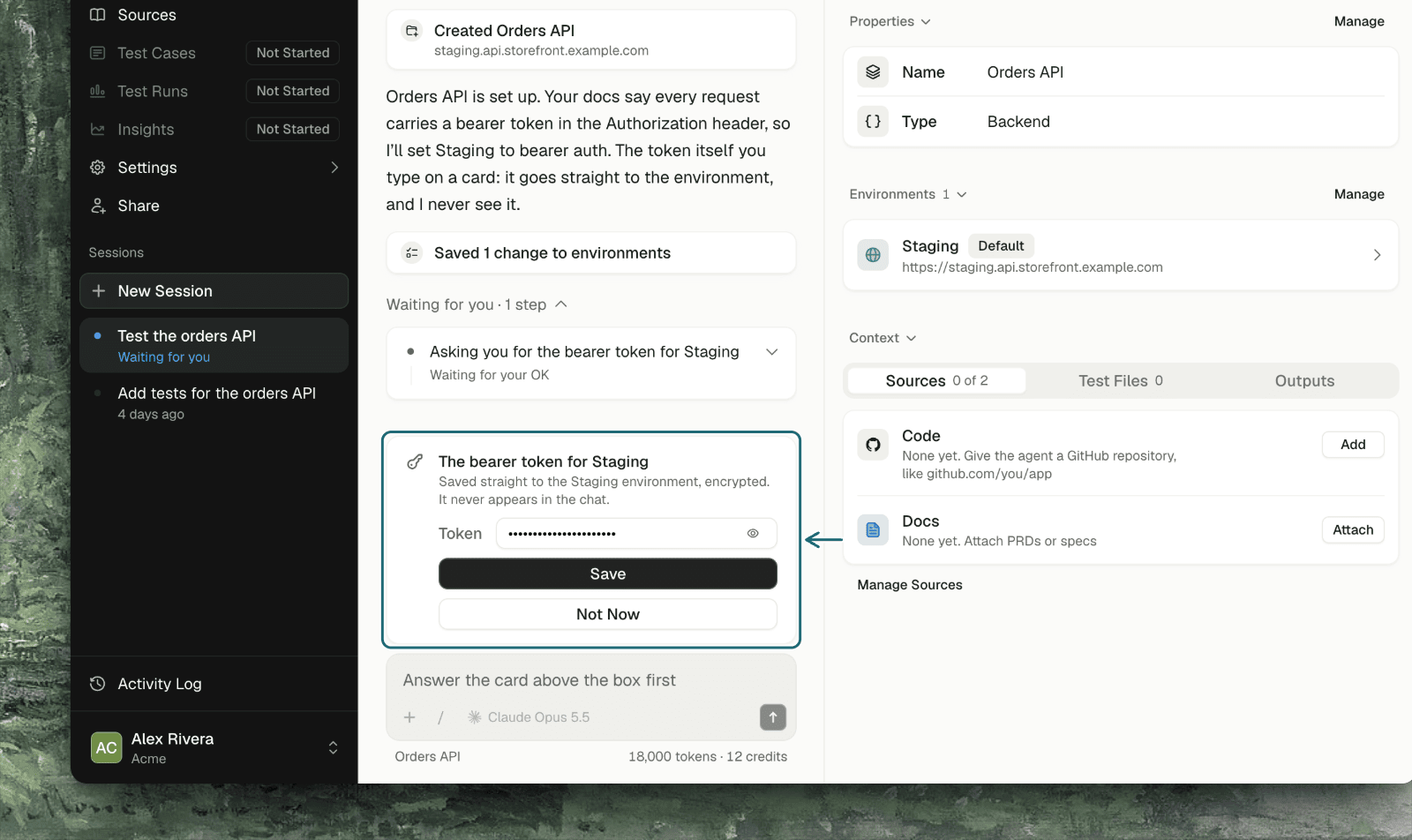
For an API project, an environment is your API’s base address plus how to authenticate against it. The agent sets that up with you in the chat:1
Tell the agent how your API authenticates
Say it in plain words (“Bearer token in the Authorization header”, “POST /auth/login with email and password, the token is at data.access_token”), or attach your API docs and let it read them.
2
Confirm the environment
The agent writes the environment with everything except the secrets. A card asks: Save N changes to environments? Click Save.
3
Type each secret on its card
For every secret the environment needs, a card named for it appears with a password field. Type the value and click Save.
4
The agent checks it
For a sign-in flow, saving the secret tries the sign-in once, and the agent hears whether it worked. It then calls your API with the credential in place.
Secrets Never Go Through the Chat
A secret typed on a card is saved straight to the environment, encrypted. It never appears in the chat, and the agent never sees it: it learns only whether the secret was saved and, for a sign-in, whether signing in works now.Supported Auth Types
For Login, Refresh token and AWS Cognito, the agent also sets where the fresh token goes on each request: as a bearer token, in a named header, or in a named cookie. These three are Auto-Auth flows, so TestSprite fetches a fresh token before every run, and they follow Auto-Auth’s plan availability.
Headers
An environment can also carry headers sent with every request, such asx-org-id. The agent sets ordinary header values itself. A header whose name looks like a secret (a token, key, secret, auth, session, password, signature or cookie) is treated as one: its value is collected on a card and shows only as set or unset afterwards.
When a Credential Is Wrong or Expires
- If a call comes back
401or403, the agent checks the auth setup and, when the secret is the problem, asks for it again with a new card. - If a sign-in flow fails, the environment records the error, and the agent reads it to work out what to fix.
- You can also change a credential yourself: open the environment from the Setup tab, or go to Settings → Environment. See Environments.
More Than One Environment
Each environment has its own base address and its own auth. The agent works on the project’s default environment unless you name another, and a run’s card shows the environment it will use and lets you pick a different one.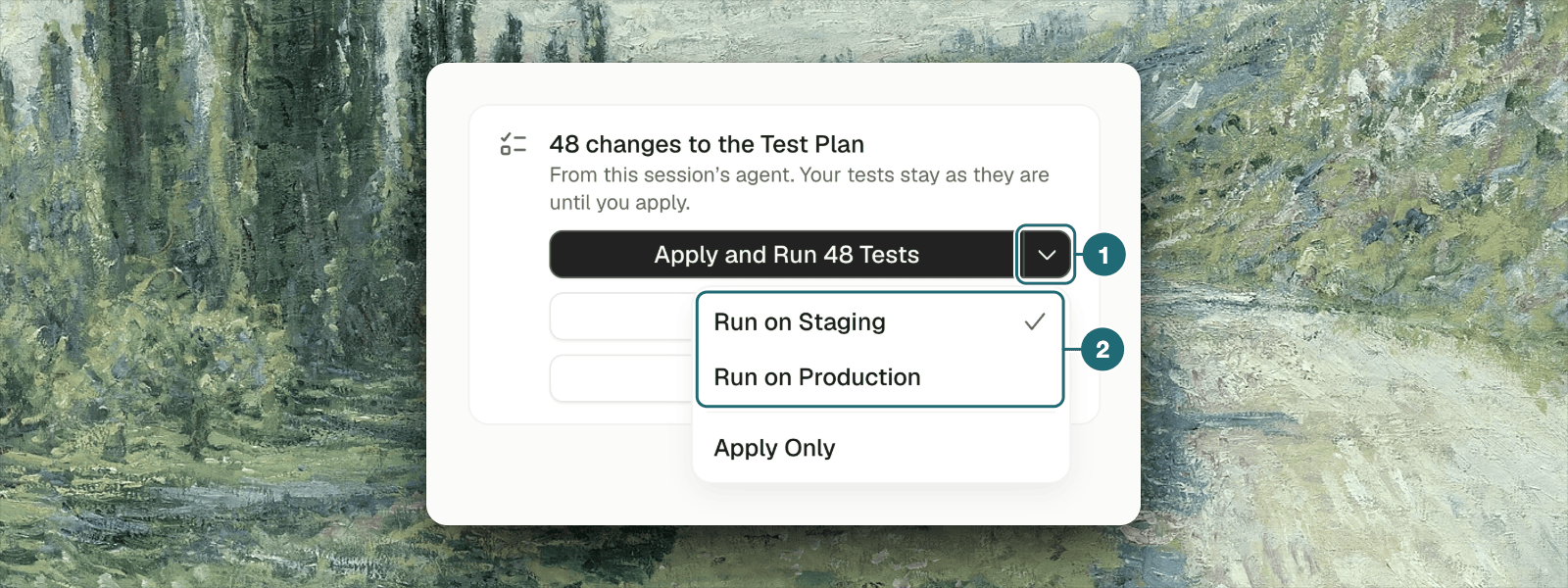
Troubleshooting
No secret card appeared
No secret card appeared
Secrets are asked for after the environment is saved. Confirm the Save N changes to environments? card first; only one card waits at a time.
I saved the token but calls still return 401
I saved the token but calls still return 401
Check the auth type matches how your API reads the credential (a bearer token sent as an API key won’t work), then ask the agent to ask for the secret again.
The login flow can't find the token
The login flow can't find the token
The token’s path in the response is probably wrong. Tell the agent where it is (“the token is at
data.session.jwt”) and it updates the environment.My API needs request signing or mutual TLS
My API needs request signing or mutual TLS
These aren’t auth types the agent can set up. Tell the agent what your API requires; it will say what it can and can’t cover.
Where to Go Next
API Calls
How the agent uses the credential to learn and test your API
Auto-Auth
Keep tokens fresh on every run
Environments
Addresses, credentials and headers per environment
Setup (UI)
The web-app equivalent: test accounts and saved sign-ins