

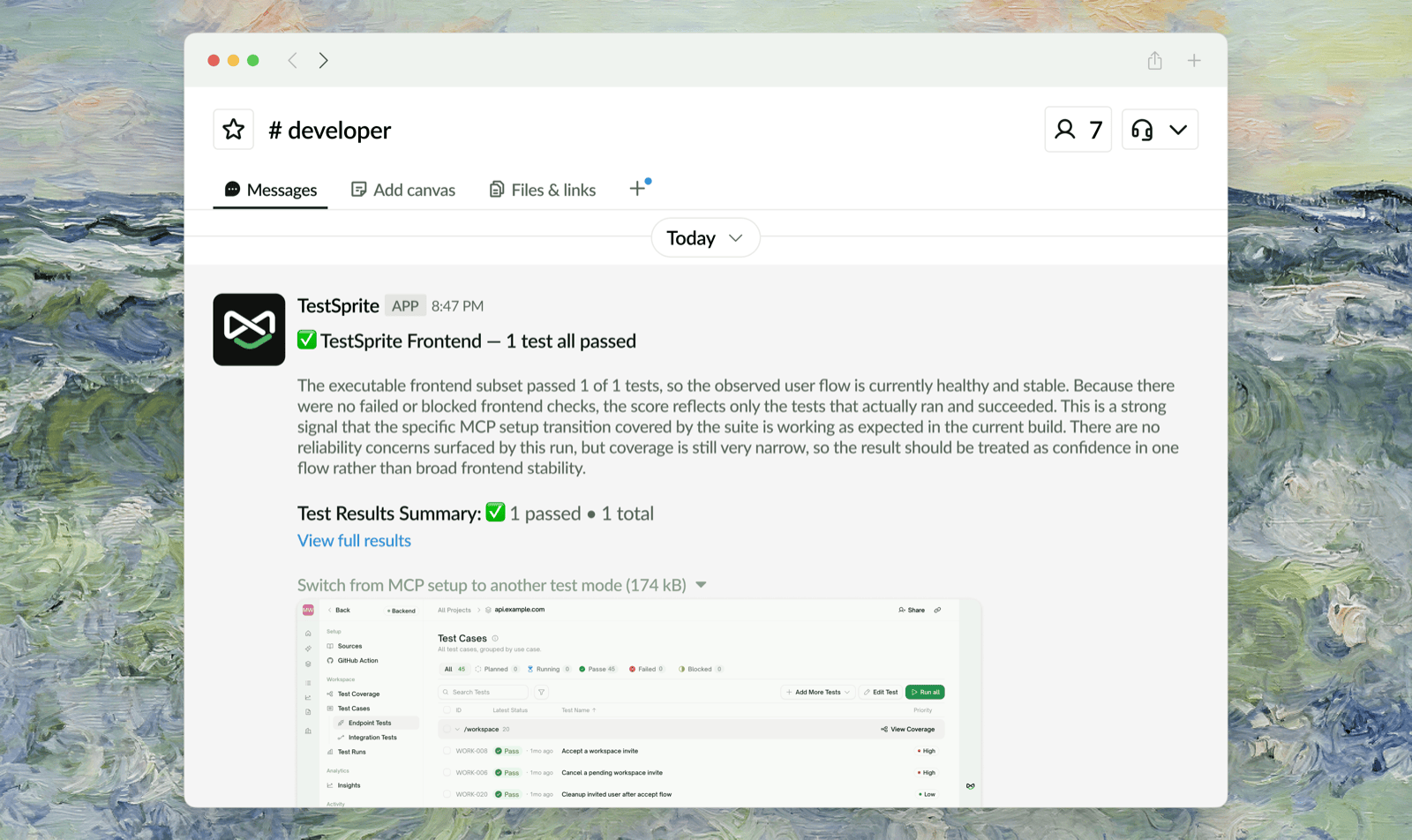
- Connect Slack once per workspace — links your TestSprite workspace to a Slack workspace (workspace Owner/Admin only).
- Pick a channel per project — each project chooses its own channel and switches notifications on or off independently.
Slack notifications are available on every plan. Connecting and disconnecting Slack requires the workspace Owner or Admin role.
Step 1 — Connect Slack (once per workspace)
1
Open Integrations
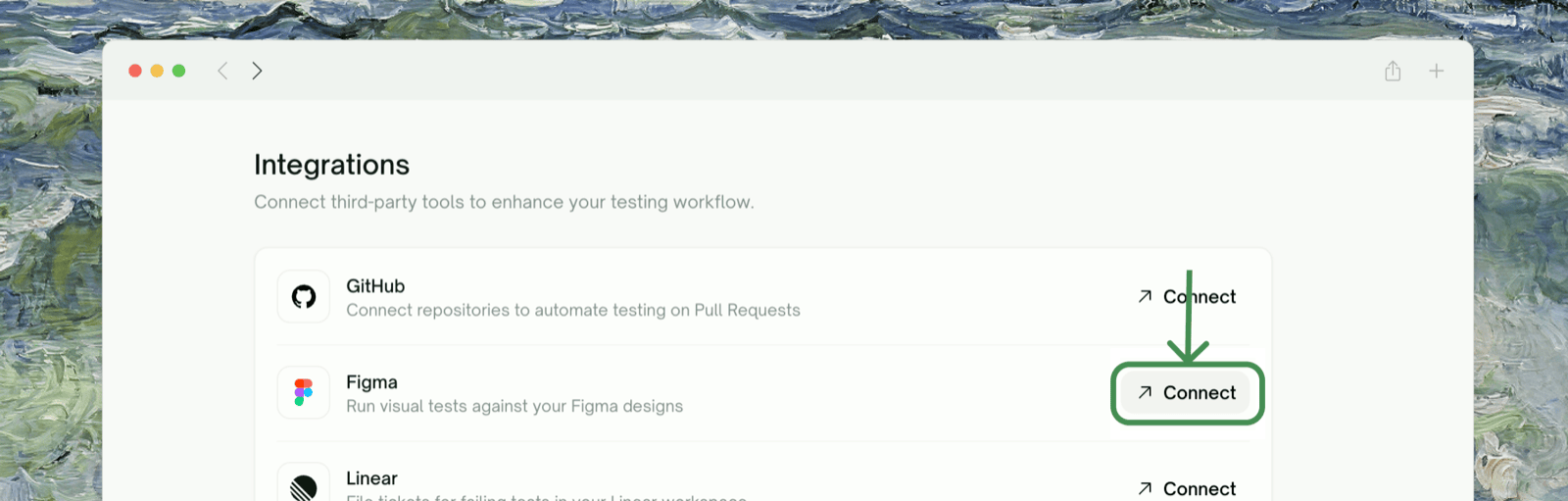
In your workspace settings, go to Workspace Settings → Connections → Integrations and click the Slack row, then Connect With Slack.
2
Authorize TestSprite
A Slack authorization window opens. Approve the requested permissions, which only let TestSprite list channels and post messages:
3
Done — the workspace is linked
Back in TestSprite, the Slack page shows Connected Workspace with your Slack team’s name. One Slack workspace is linked per TestSprite workspace; every project in it can now pick a channel.
Step 2 — Choose a Channel for Each Project
1
Open the project's notification settings
In the project’s sidebar, go to Project Settings → Notifications & Ticketing. The Slack card shows the connected workspace.
2
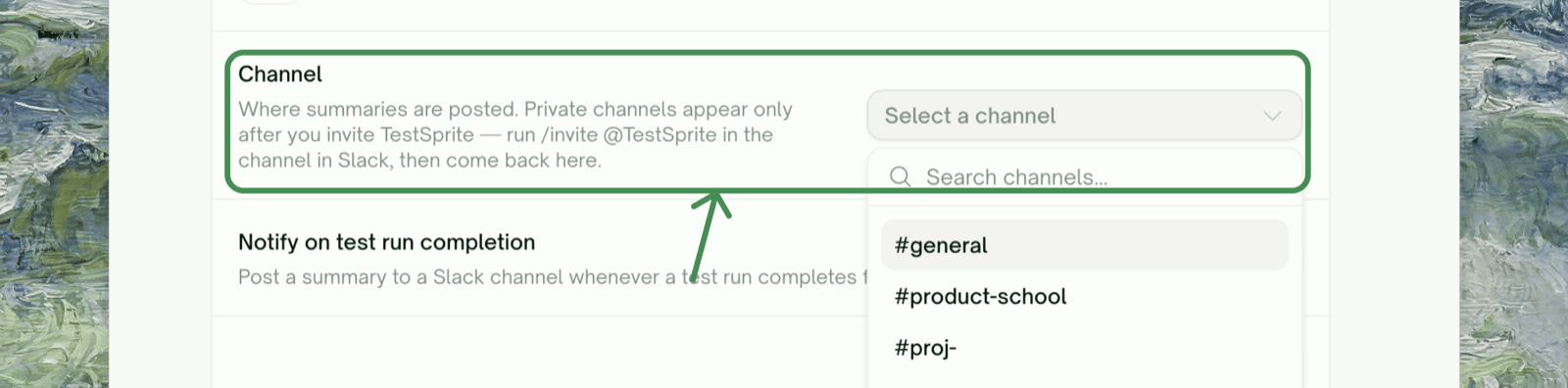
Pick a channel
Under Channel, select where summaries should be posted. Public channels appear as
#channel-name; private channels show a lock icon.3
Turn on notifications and save
Enable Notify on test run completion and click Save changes. From now on, every completed run of this project posts a summary to that channel.
Public vs. Private Channels
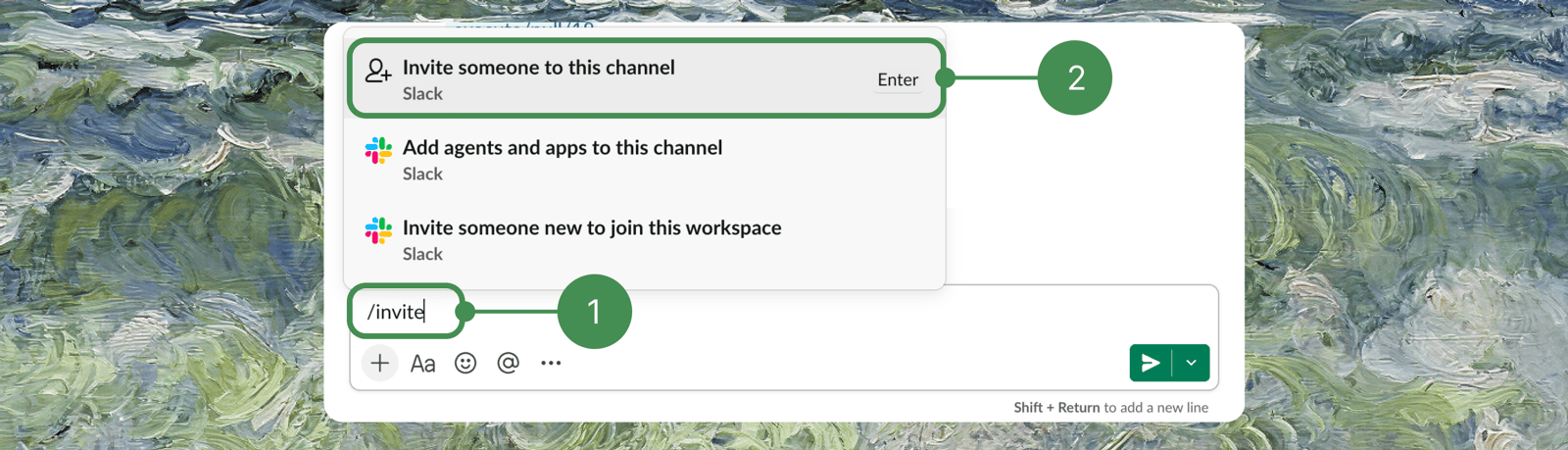
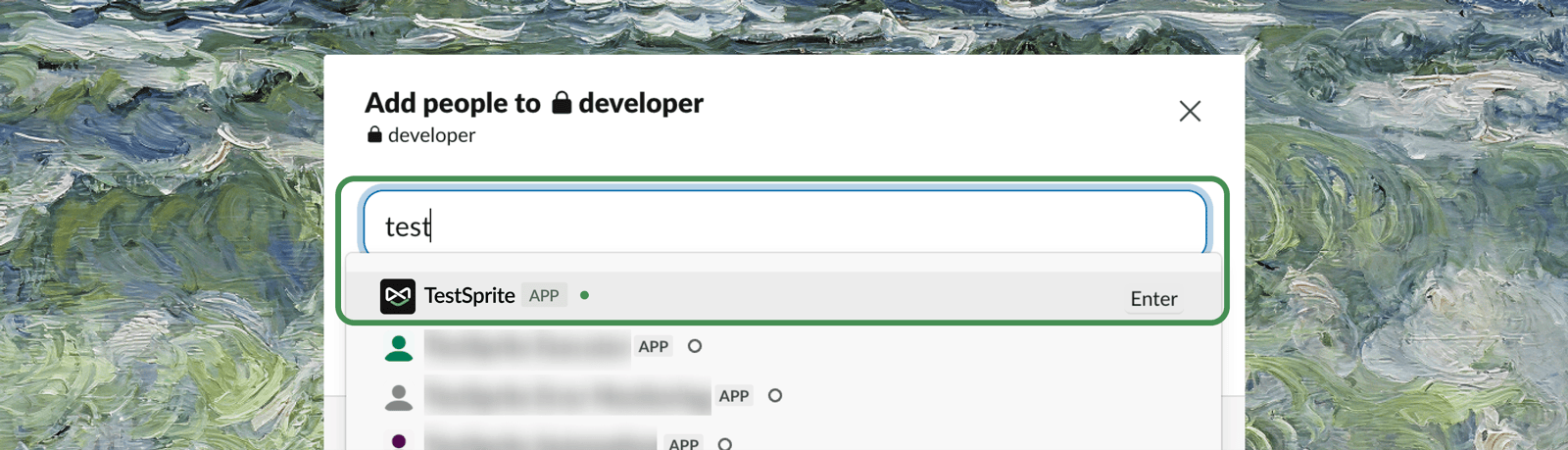
Public channels work immediately. Private channels need one extra step: the TestSprite bot can’t see a private channel until it’s invited. In the private channel, type/invite and choose Invite someone to this channel:
What You’ll Receive
A summary is posted once per completed test run — whether the run was started manually, by a schedule, by a GitHub event, or from the CLI. There is currently no “failures only” filter; if the project’s toggle is on, every run reports.What’s in a Notification Card
Change Channel, Disable, or Disconnect
- Change a project’s channel or turn its notifications off: back in the project’s Project Settings → Notifications & Ticketing, pick a different channel or flip Notify on test run completion off, then Save changes.
- Disconnect Slack from the whole workspace: go to Workspace Settings → Connections → Integrations → Slack and click Disconnect (Owner/Admin only). All projects stop posting immediately.
Disconnecting keeps each project’s channel choice. If you reconnect the same Slack workspace later, projects resume posting to their previously selected channels.
Troubleshooting
My private channel doesn't show up in the channel list
My private channel doesn't show up in the channel list
The bot hasn’t been invited yet. In Slack, open the channel and run
/invite @TestSprite, then return to the TestSprite tab — the list refreshes when the tab regains focus.Notifications stopped arriving
Notifications stopped arriving
Check three things in order: the project’s Notify on test run completion toggle is still on; the workspace’s Slack connection still shows Connected under Workspace Settings → Connections → Integrations; and, for a private channel, the
@TestSprite bot is still a member (a bot removed from the channel fails silently).I can't click Connect With Slack
I can't click Connect With Slack
Connecting requires the workspace Owner or Admin role. Members don’t see Integrations at all.
Where to Go Next
Ticketing
Turn failed tests into tickets automatically
Test Schedules
Set up scheduled runs that report to Slack