

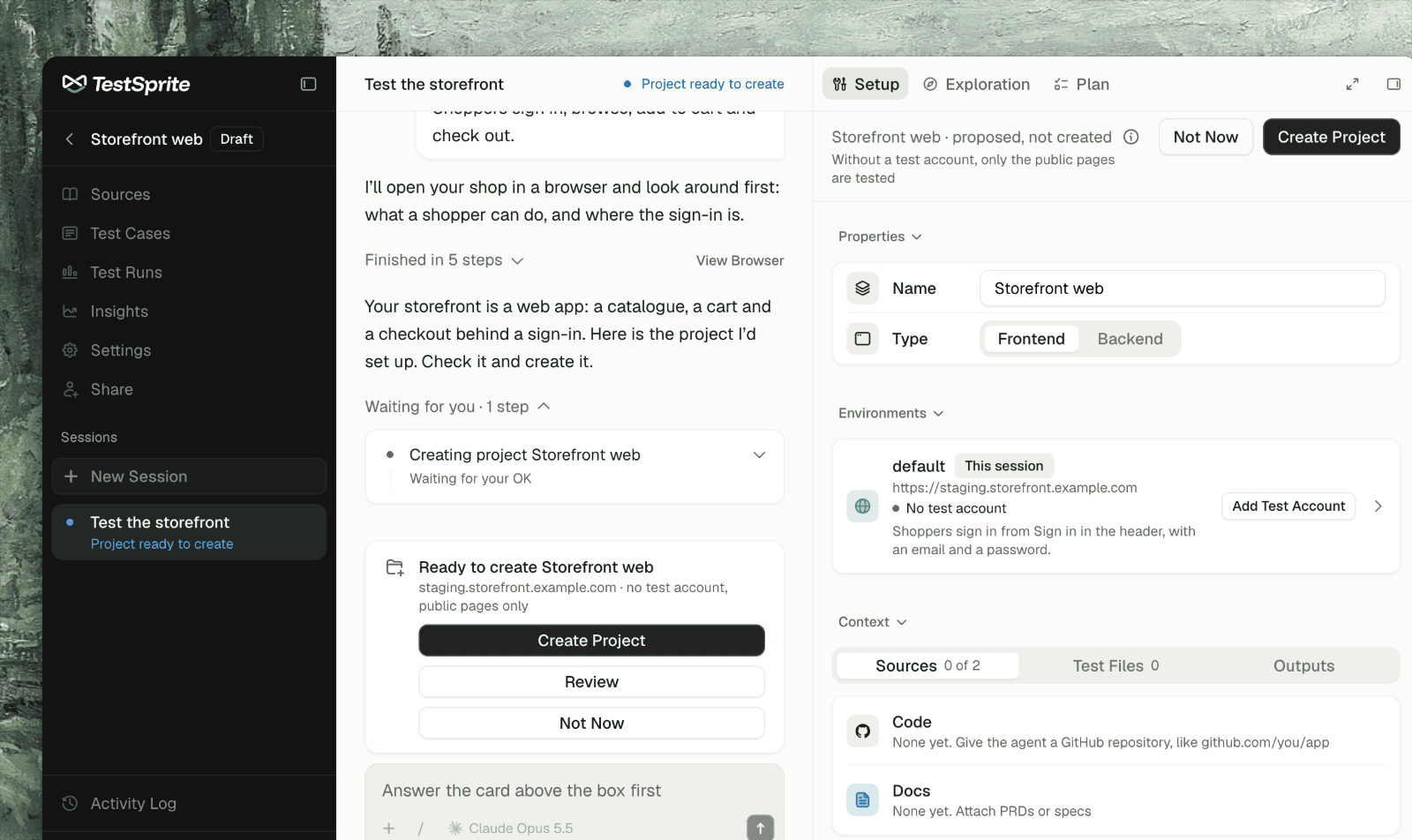
What the Setup Tab Is
A project starts as a conversation. You tell the agent which app to test, it asks for what only you know, and it proposes a project. The Setup tab, beside the chat, shows that proposal: what the agent works from, and what it knows. Nothing is created until you create it. While the project is a proposal it is a Draft: it shows in Recent Projects and All Projects with a Draft badge, and the Setup tab reads ” · proposed, not created”.Starting a Project
1
Open New Project
Click New Project in the sidebar. The page asks “What should we test?”
2
Point the agent at your app
Paste your app’s address in the chat box, or say what to test. Use the + menu to add Documents (PRDs, specs, notes; up to 50 MB each), a GitHub Repository, a Jira or Linear Issue, or a Test Account.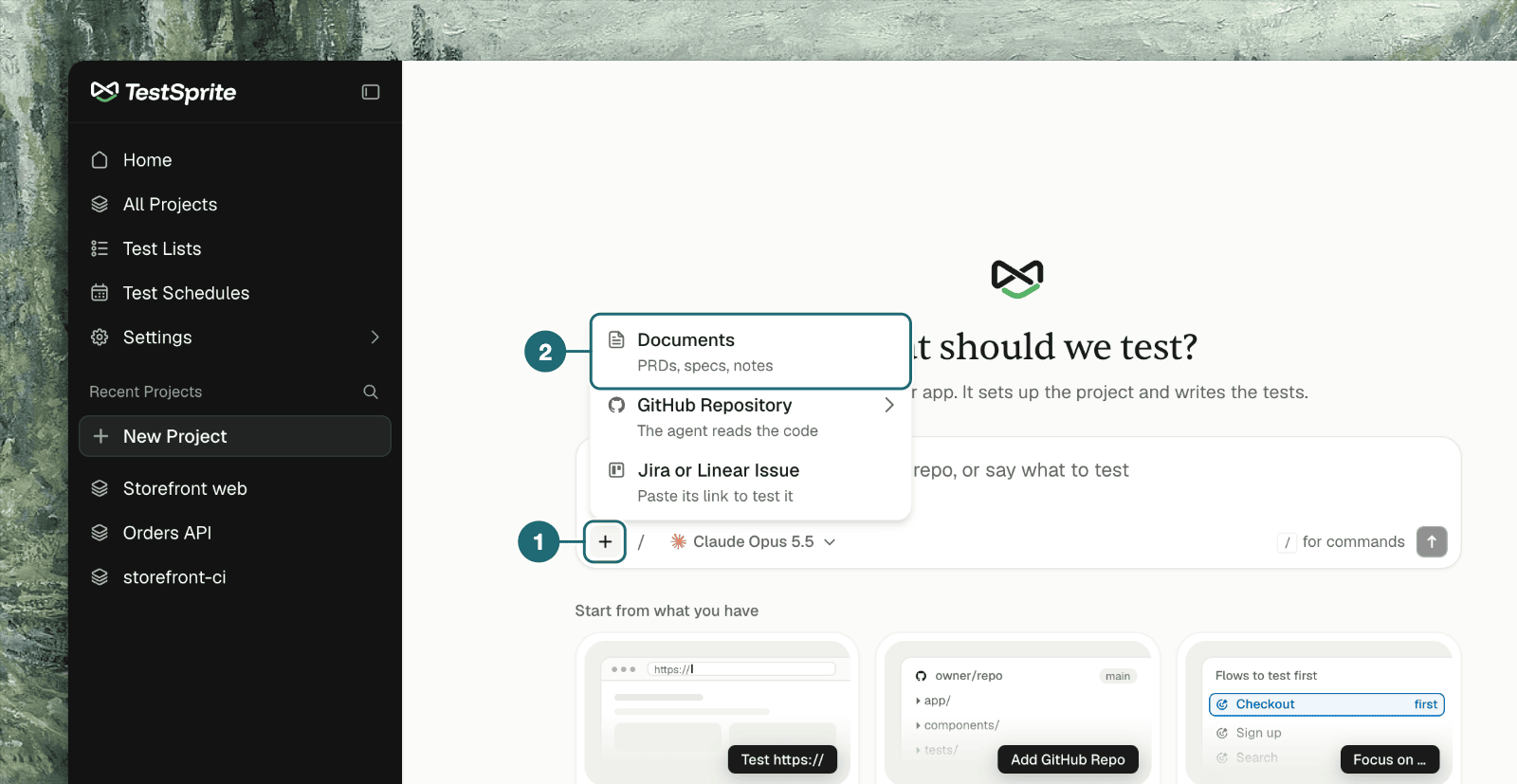
3
Answer the agent's questions
Before it explores, the agent asks once for what it can’t find out on its own: the URL and whether it is production, how to sign in, what material you have, and what to cover first.
4
Review and create
A card above the chat box reads Ready to create . Click Review to check it on the Setup tab, Create Project to create it, or Not Now to keep talking.
The repository and issue-tracker items in the + menu appear only when integrations are available to your workspace.
What’s on the Tab
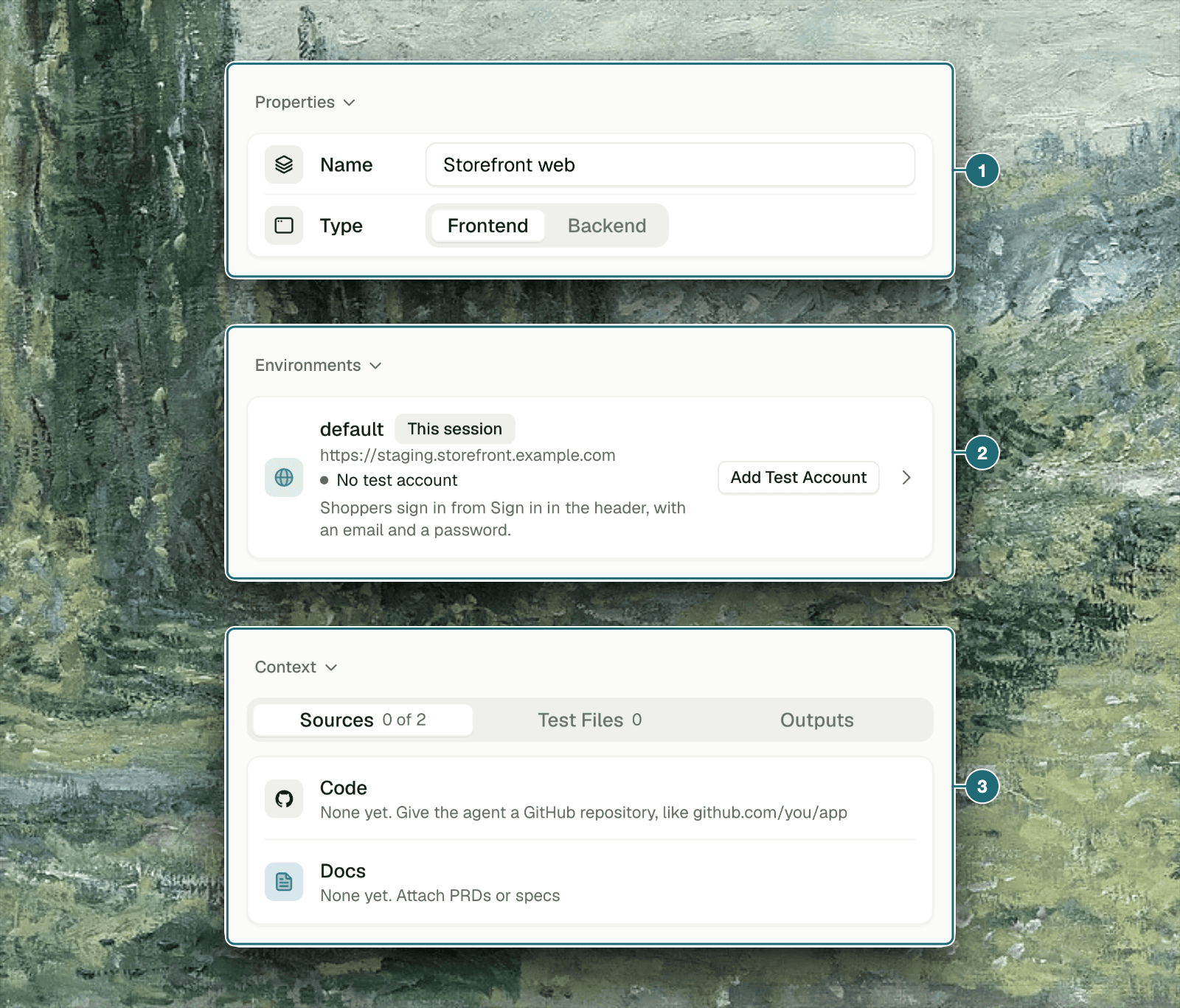
How the Agent Signs In
Without a way to sign in, the agent can only explore and test what a signed-out visitor sees, so it never guesses: it asks. Each environment signs in one way, and the agent’s browser and every test run on that environment sign in the same way.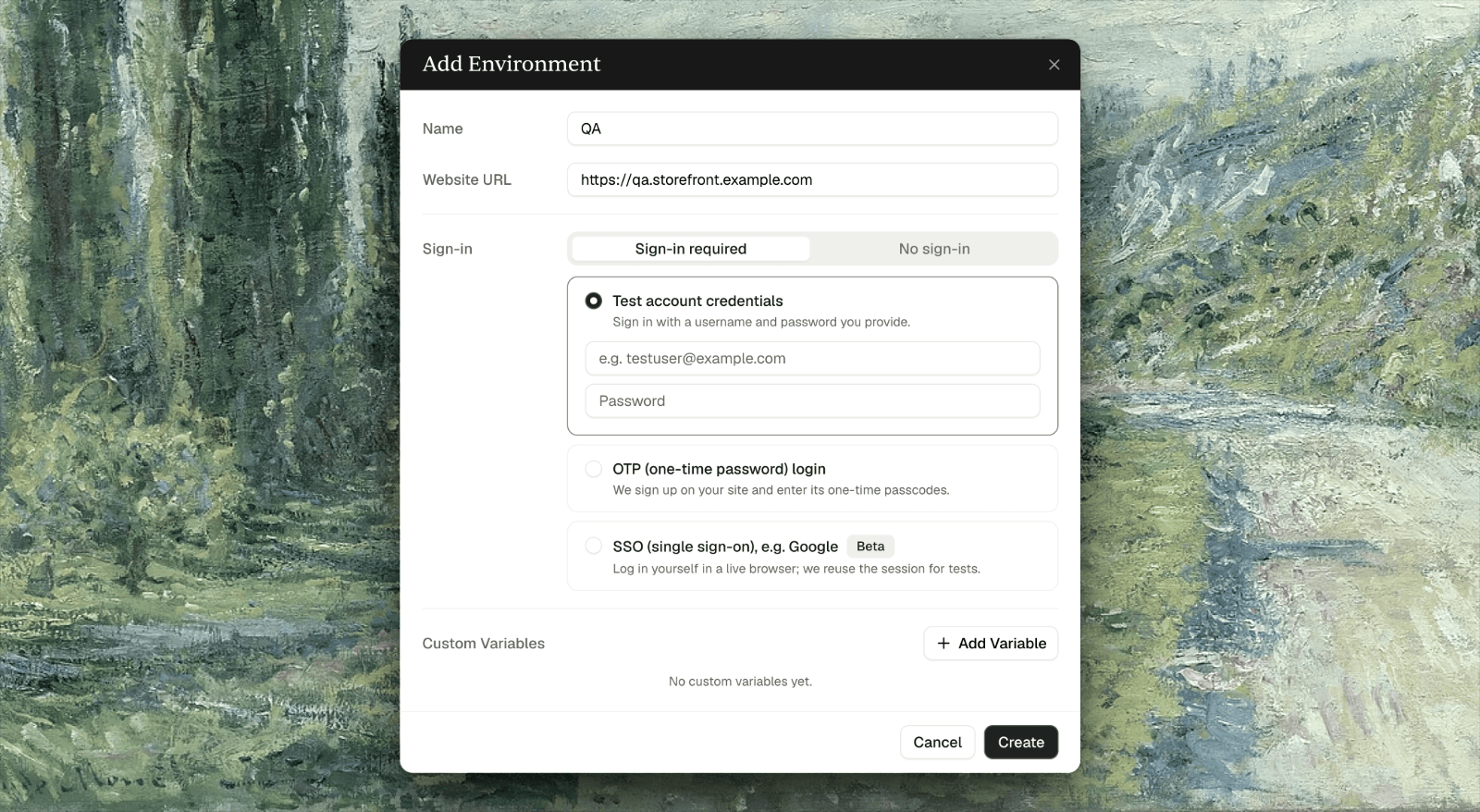
Giving the agent a test account
Add the account with + → Test Account in the chat box, or Add Test Account under Environments on the Setup tab. Don’t type a password into a message. If you do, a card stops it before it is sent: “This looks like a password. Use the test account for it, and only a test login.” Choose Test Account to enter it properly.
When the agent makes its own account
If the environment has no sign-in and you gave none, the agent can register a TestSprite-managed account: a TestSprite email address and a generated password. It then saves that account as the environment’s sign-in, so the next session signs in with it instead of making another. A managed account can’t use Google, GitHub or other single sign-on.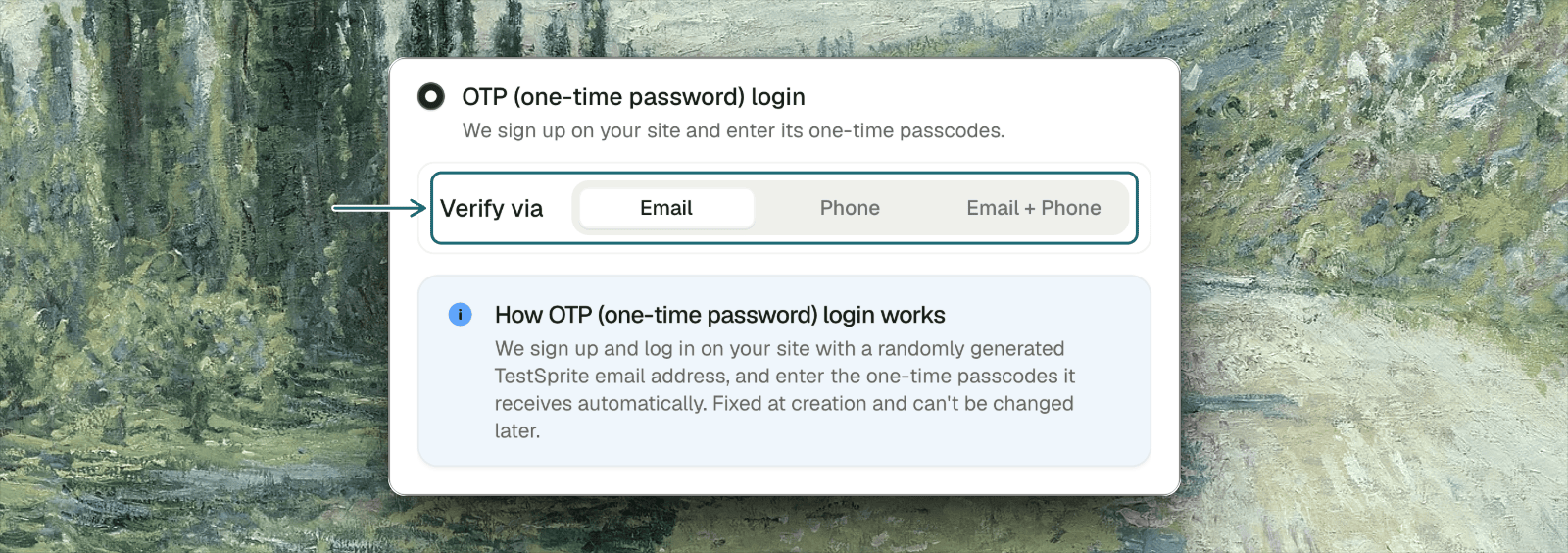
Saved sign-ins (manual login)
For Google and other single sign-on, or any sign-in only you can finish, you sign in yourself and the agent saves it: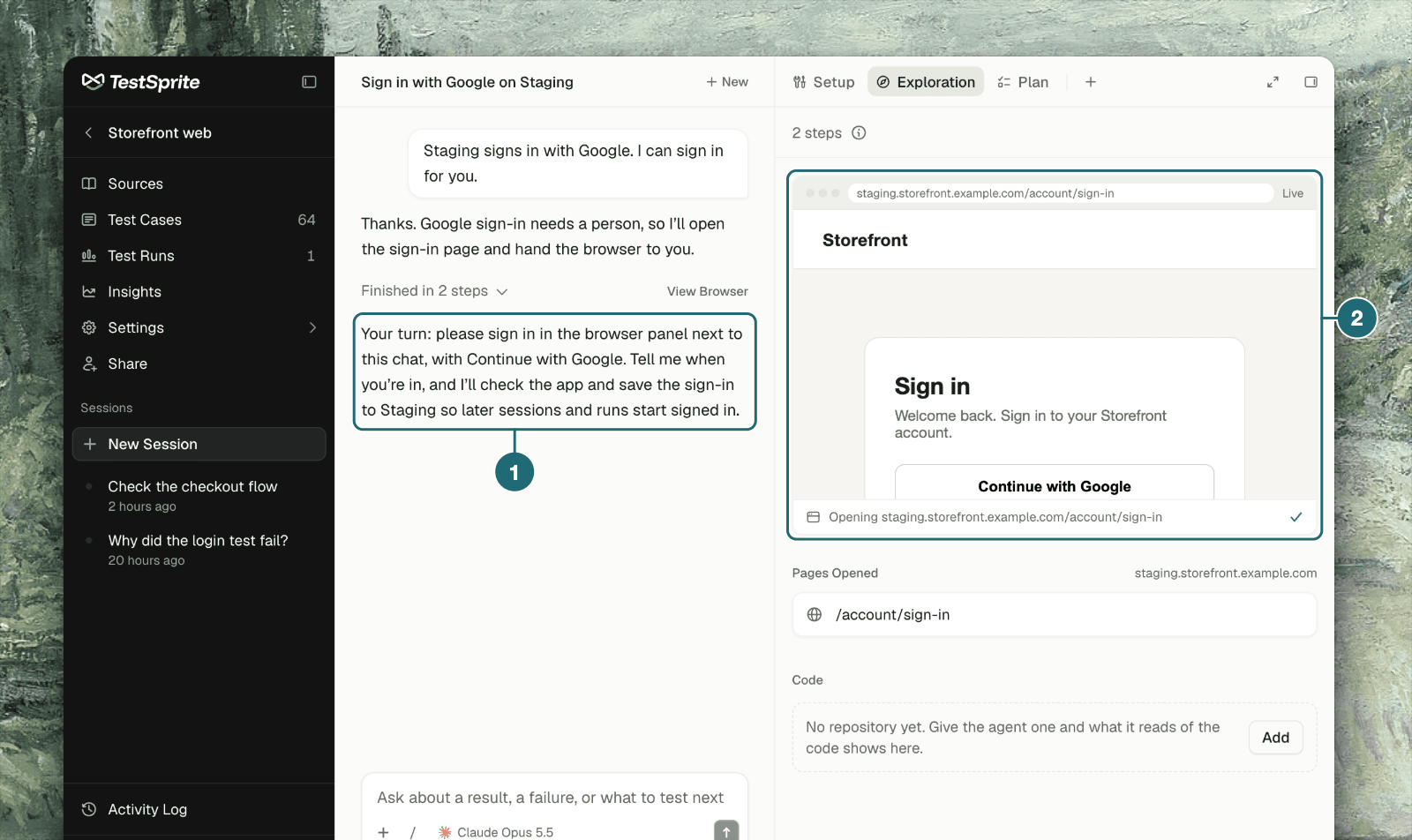
1
Tell the agent you'll sign in yourself
For example: “I can sign in for you, it needs Google login.” The agent opens your app’s sign-in page in its browser and hands over: “Your turn: please sign in in the browser panel next to this chat.”
2
Sign in in the browser panel
The live browser on the Exploration tab takes your clicks and typing. Sign in there as you normally would.
3
Tell the agent you're in
Send a message such as “I’m logged in, can you check?” The agent confirms it can see your signed-in app.
4
Let it save the sign-in
The agent saves the signed-in session to the environment while the browser is still open; confirm the card if it asks. The chat then shows Saved 1 change to environments.
Sign in soon after the agent asks. Each browser lasts about 15 minutes. If it times out before you finish, the agent opens a new one and you sign in again.
Environments
A project can have several environments (staging and production, an admin and a member account). The agent works on the project’s default environment unless you name another, and says which one it used. When a run is ready to start, its card shows the environment and lets you pick another.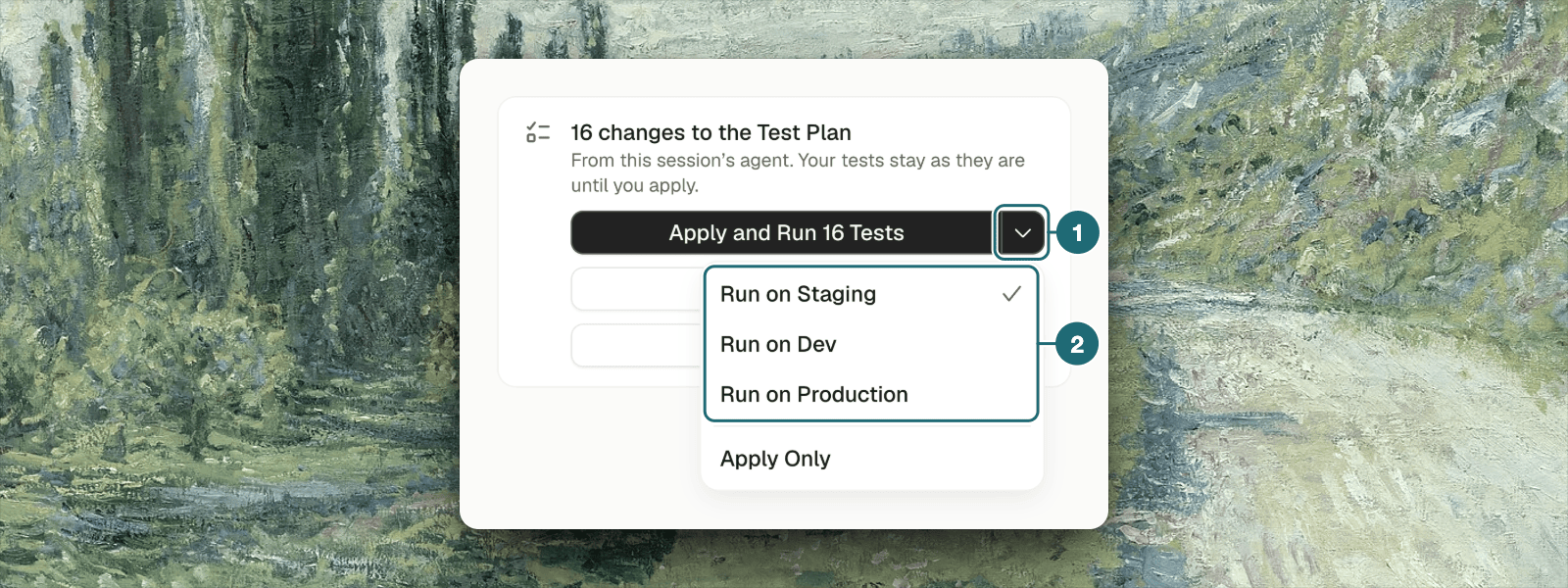
Local addresses can’t be reached. The agent’s browser runs in the cloud, so
localhost and private addresses don’t work. Use a public staging address, or set up the CLI to test a local app.Who Can Do What
Asking the agent needs edit access to the project. Viewers can browse projects and results, but can’t create a project, message the agent, or confirm its cards.Troubleshooting
The agent tested my app signed out
The agent tested my app signed out
The environment has no sign-in. Add a test account (+ → Test Account), or tell the agent how users sign in and let it set the environment up.
My login sends a one-time code
My login sends a one-time code
Tell the agent. It signs in with a TestSprite-managed account and reads the code from that account’s inbox. If the code goes somewhere only you can read, such as your phone, the agent asks you for it.
My app signs in with Google or another SSO
My app signs in with Google or another SSO
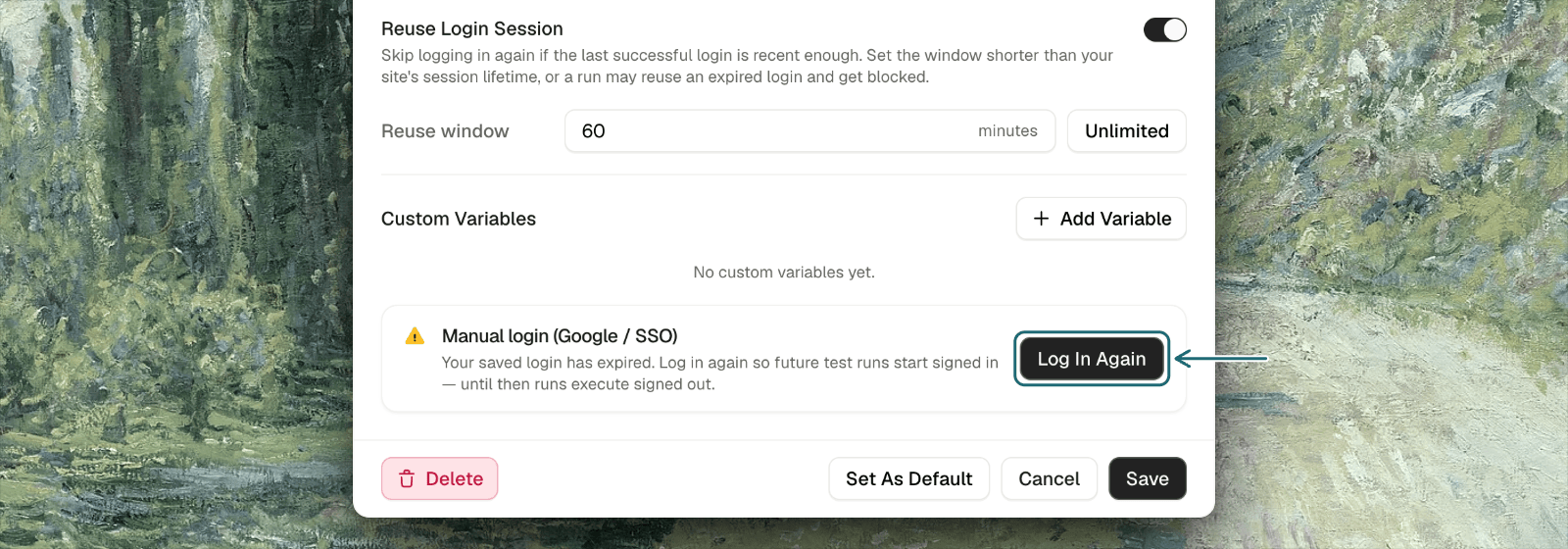
A stored username and password can’t drive these, and a TestSprite-managed account can’t use them. Use a saved sign-in: sign in once yourself in the browser panel, tell the agent, and sessions and runs reuse it until it expires.
The agent is waiting and I can't send a message
The agent is waiting and I can't send a message
A card above the chat box is waiting for your decision. Only one waits at a time; answer it, and the chat box opens again.
I changed my mind about the proposed project
I changed my mind about the proposed project
Click Not Now and tell the agent what to change, or edit the name, type, address and test account yourself on the Setup tab before you create it.
Where to Go Next
Exploration & Notes
Watch the agent walk your app, and read what it learned
Proposed Test Cases
Review the plan the agent proposes, then apply and run it
Environments
Addresses, accounts and variables for every environment
Credentials Setup (API)
The API equivalent: tokens, keys and sign-in flows