

How a Plan Comes About
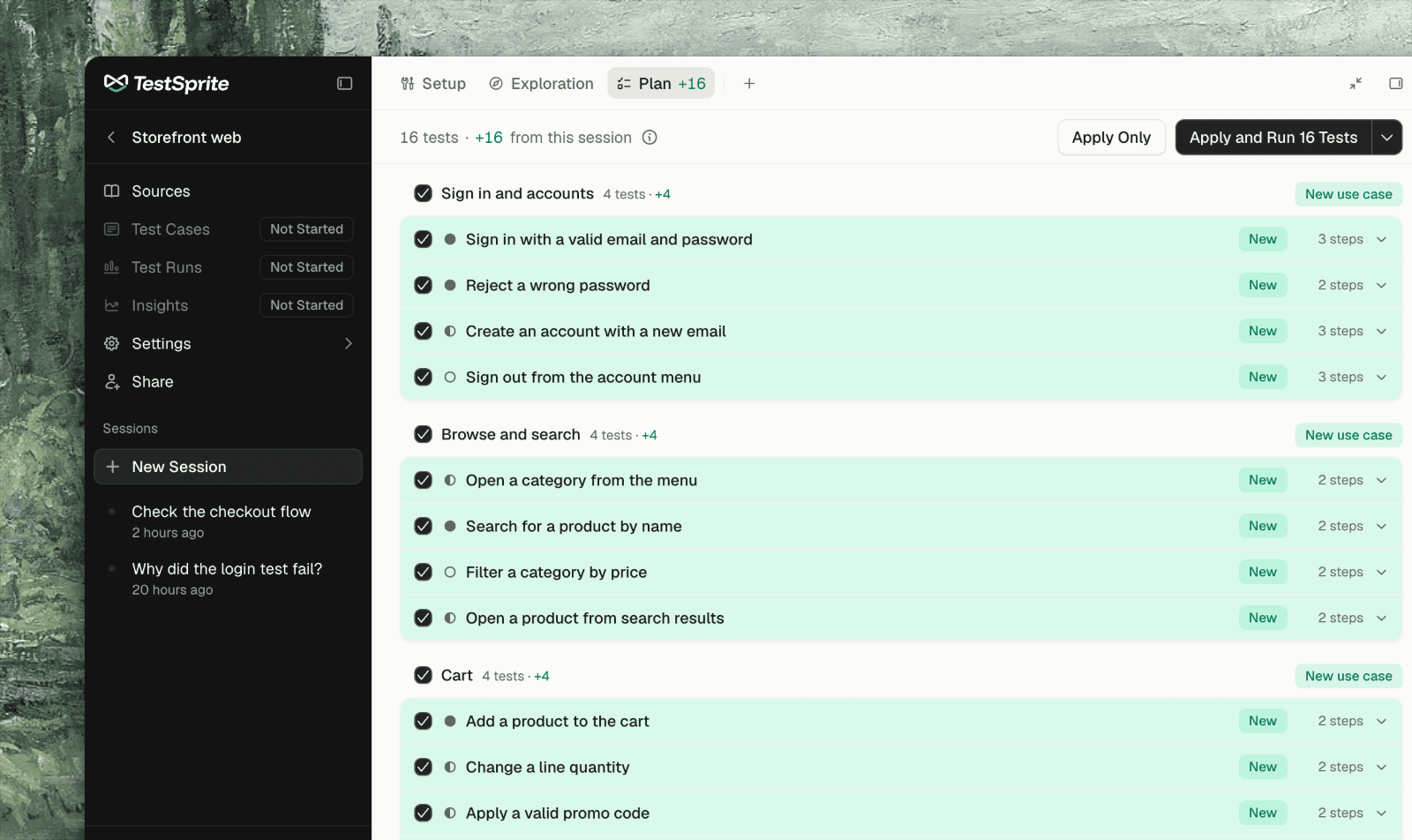
After the agent has explored your app, it writes a test plan: test cases grouped by use case, each with a title, steps, and a priority set by how much a failure would hurt your customers. A first plan covers each area with the flows that matter there and leaves the long tail for later. The plan arrives as a proposal. The Plan tab, beside the chat, shows the project’s test plan, and changes the agent proposes show there first. Nothing changes on TestSprite until you apply it. You can ask for a plan at any time:- Type /plan in the chat box, with notes if you like (“/plan the billing settings page”).
- Click Plan the Tests on an empty Plan tab.
- Click Add Tests with AI on Test Cases. The request goes to the agent, and the tests come back as a proposal here.
The Proposal Card
When a proposal is ready, a card appears above the chat box: N changes to the Test Plan. “From this session’s agent. Your tests stay as they are until you apply.”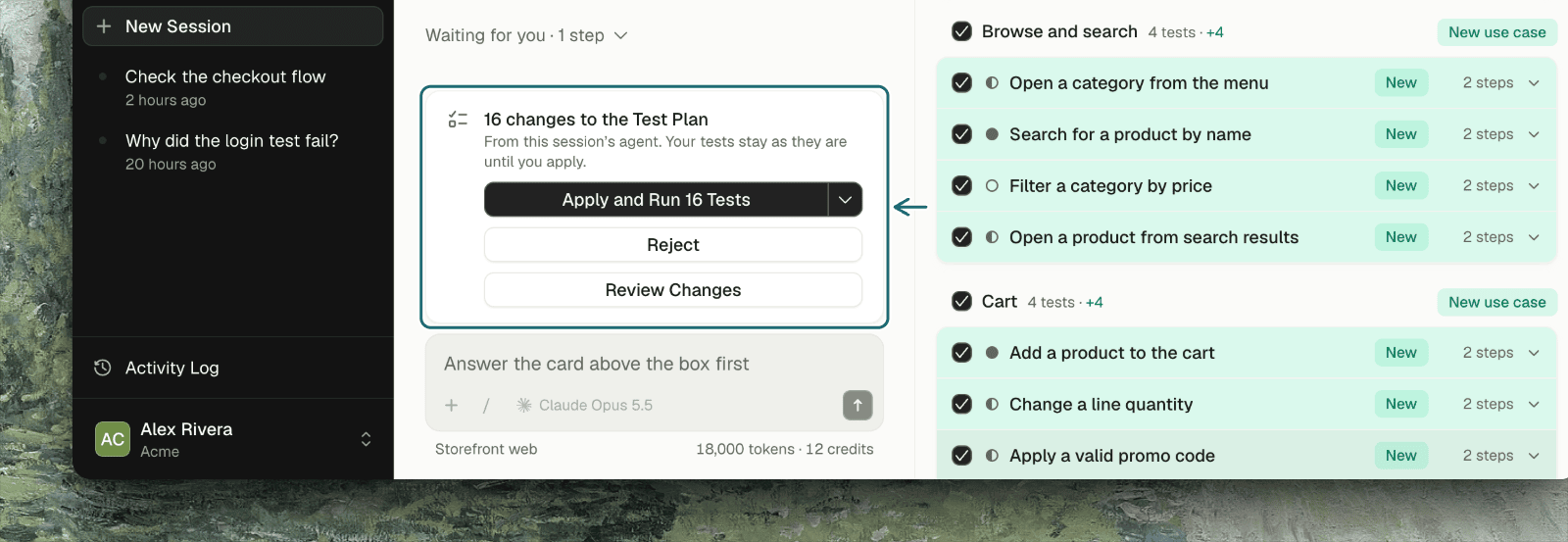
With its message, the agent says what it left for later and which expectations it is unsure of. Read that before you apply: an expectation the agent took from what the app does today is a guess until you confirm it.
Reviewing the Changes
The Plan tab shows the whole plan by use case, with the proposal’s changes marked where they are. The counts in the header read like a diff: + new, ~ changed, − removed.1
Open a changed test
Each test that changes carries a badge and opens to show what changes: its use case, priority, and steps. Tests the proposal leaves alone sit folded under Unchanged.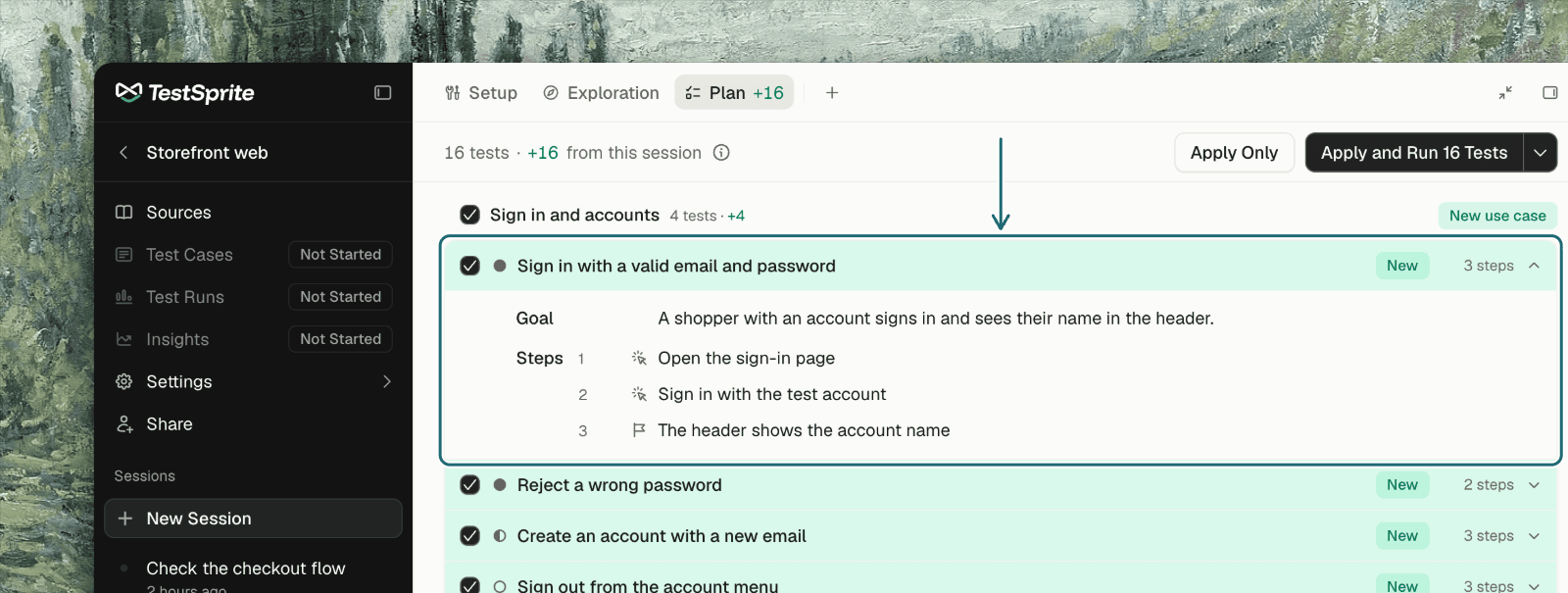
2
Untick what you don't want
Every change has a tick. Untick one and it is marked Left out: it isn’t applied, and the rest still are.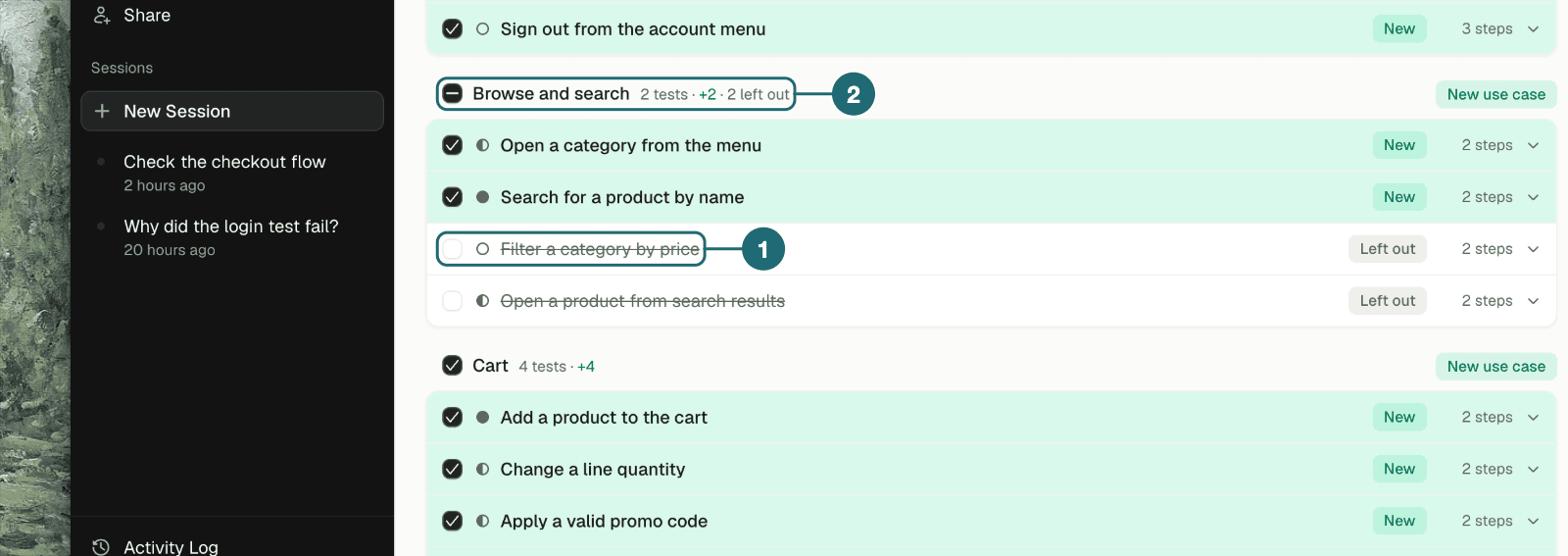
3
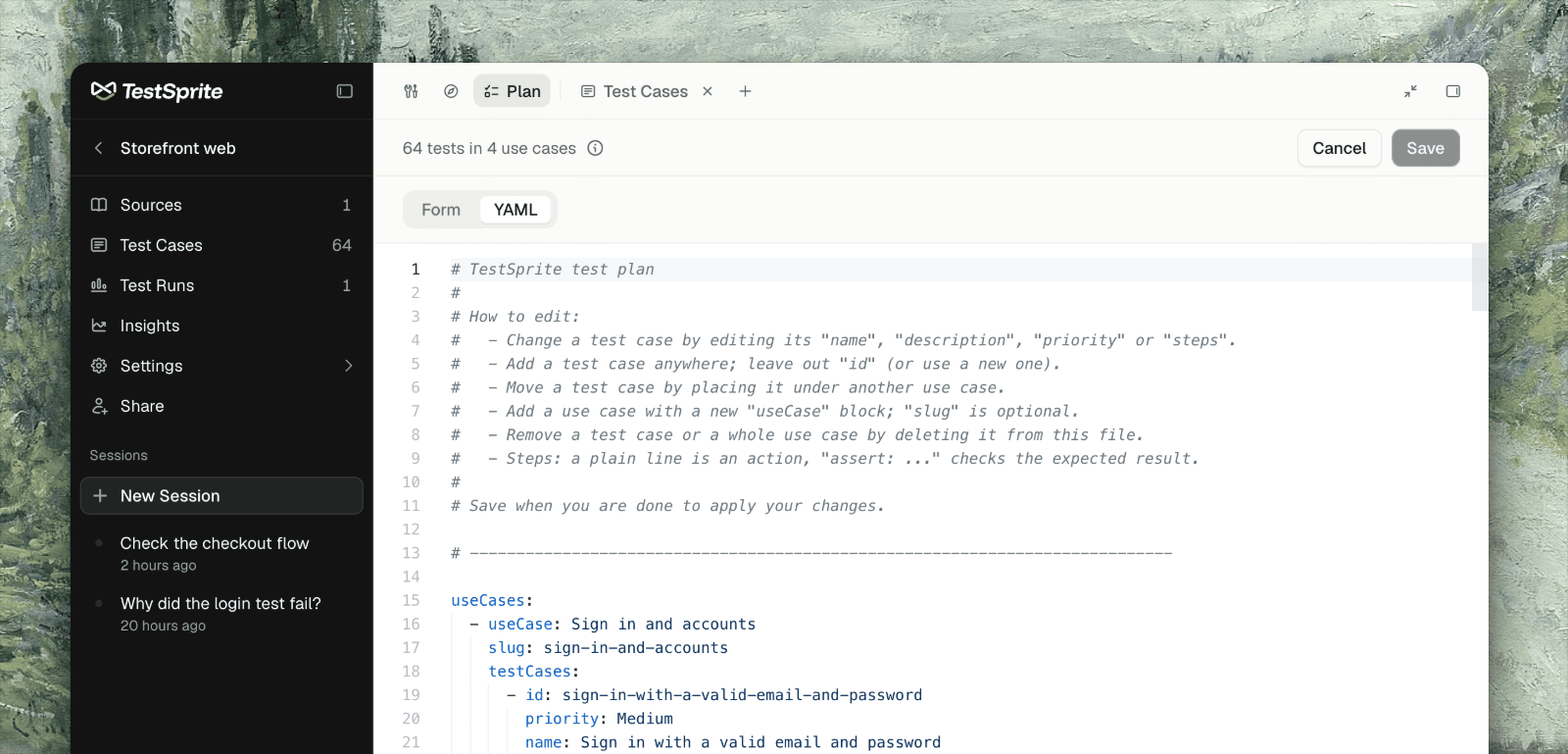
Edit before you apply
Click Edit Test Plan to change titles, steps, priorities or use cases yourself. The editor has a Form tab and a YAML tab. Your edits stay yours until you save them.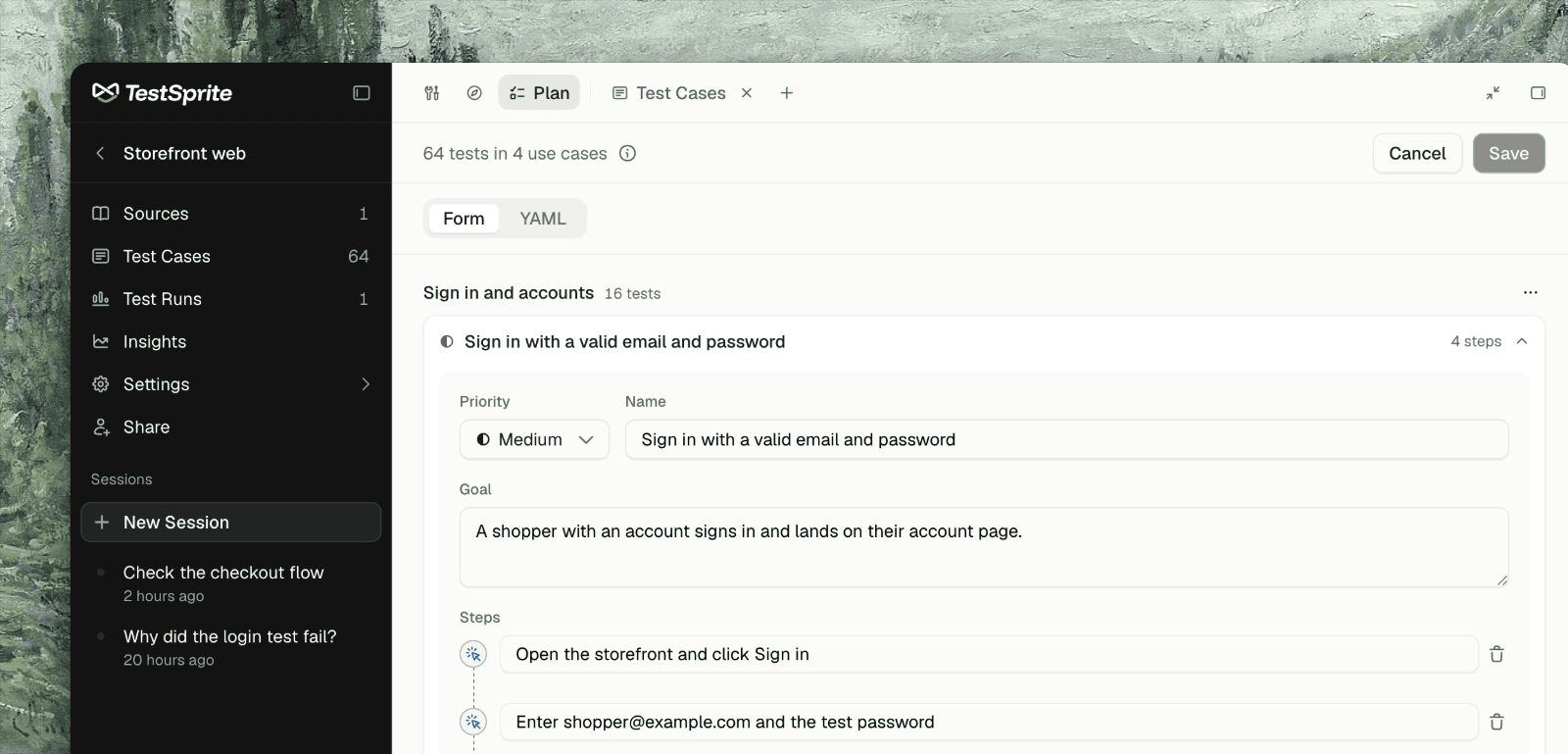
4
Apply
Apply and Run saves the plan and starts the run; Apply only saves.
Running the Tests
A run always waits for you. If you applied without running, or ask the agent to run something later, a card reads Ready to run N tests, lists them, and names the environment. Each test spends credits as it runs.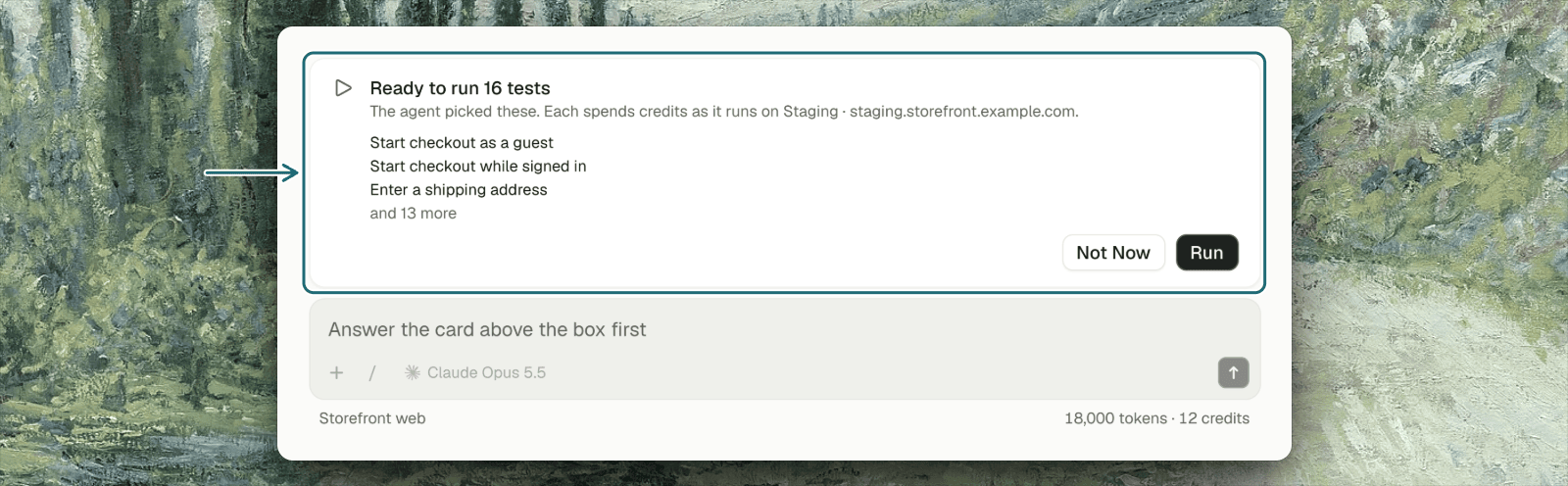
- If the project has more than one environment, pick the one to run on from the card.
- Click Run to start, or Not Now to hold off.
Changing the Plan Later
The agent never changes what a test expects just to make it pass. If it can’t tell whether your app or the test is wrong, it asks.
What a Good Test Case Looks Like
The agent writes each case so it can run alone:- It creates what it needs and deletes it at the end.
- It doesn’t rely on another case having run.
- On production, it avoids steps that could save real data.
Troubleshooting
The Plan tab says 'The plan comes after setup'
The Plan tab says 'The plan comes after setup'
The project isn’t created yet, or the agent hasn’t explored it. Finish Setup, then click Setup Is Done, Plan the Tests.
An obvious feature has no test cases
An obvious feature has no test cases
The agent may not have reached it. Check the Exploration tab, tell the agent where the feature lives, and ask it to plan tests for it.
A test asserts on something that isn't there
A test asserts on something that isn't there
Tell the agent what the app really shows (“the button is labelled Save, not Submit”). It fixes the test and says what it changed.
The tests are too generic for our product
The tests are too generic for our product
Attach a PRD or spec, or tell the agent your rules (“orders move pending → confirmed → shipped”). It records them in the notes under what counts as correct, and plans against them.
I applied a plan and want to undo it
I applied a plan and want to undo it
Applying saves the test cases to the project. Ask the agent to remove or revert the ones you don’t want, or delete them on Test Cases.
Where to Go Next
Test Generation & Execution (UI)
What happens when the tests run
Step-by-Step Replay
What you’ll see for each test in a run
Managing Test Cases
Editing and organizing cases after they exist