

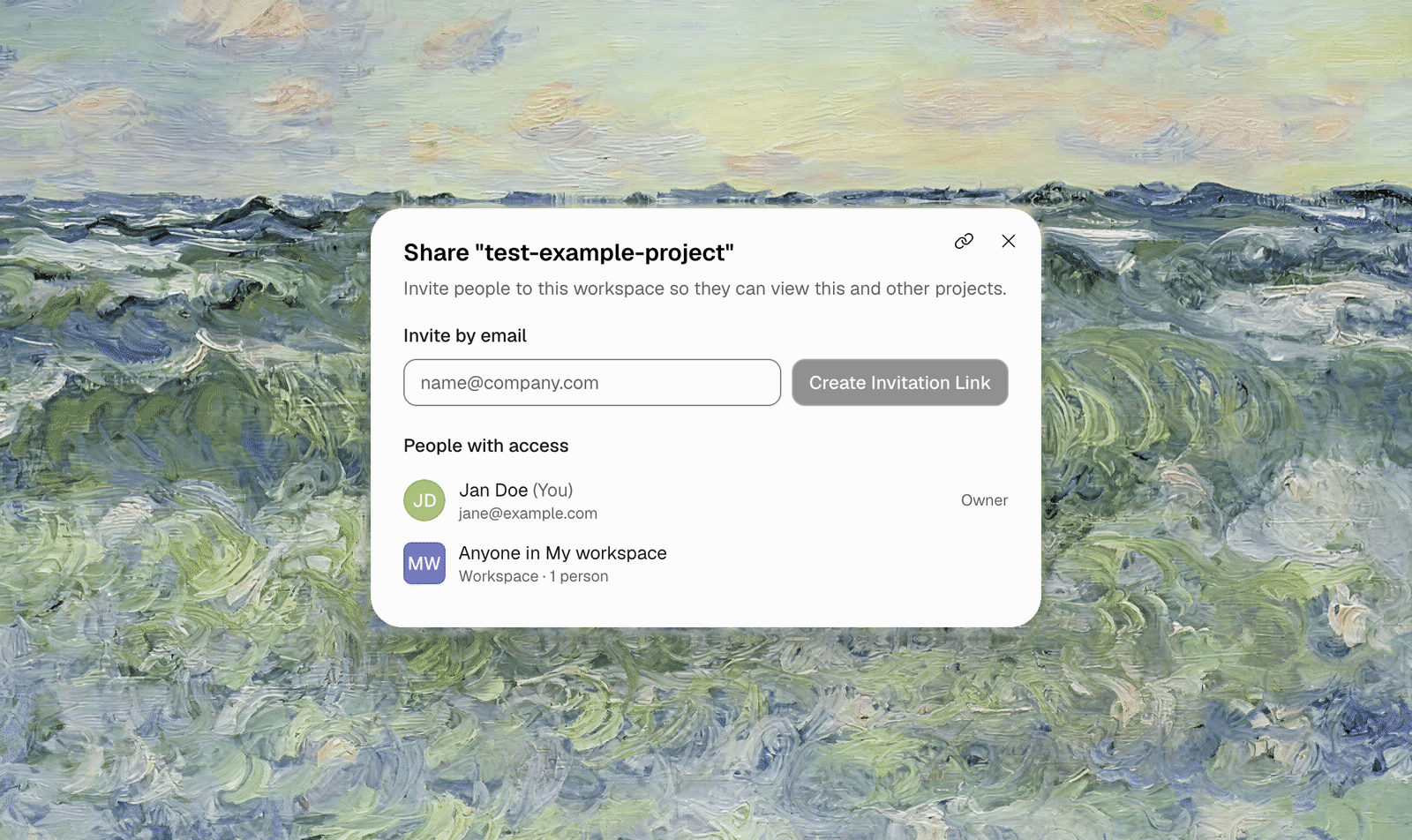
How Sharing Works in TestSprite
TestSprite grants access at the workspace level: there are no per-project permissions. “Sharing a project” means adding someone to the project’s workspace, so they can open this project, and every other project in that workspace, according to their role. If a project shouldn’t be visible to the person you’re inviting, keep it in a different workspace. The Share button does this in one step: it creates an invitation link for the person, which you send them yourself, and hands you a link to the project so they land in the right place.Sharing from the Portal
The Share action lives in two places:- On the project’s detail page, in the header actions.
- On All Projects, in each project row’s menu.
1
Open the Share dialog
The dialog shows who can already open this project: you, and “Anyone in [workspace]” with the member count.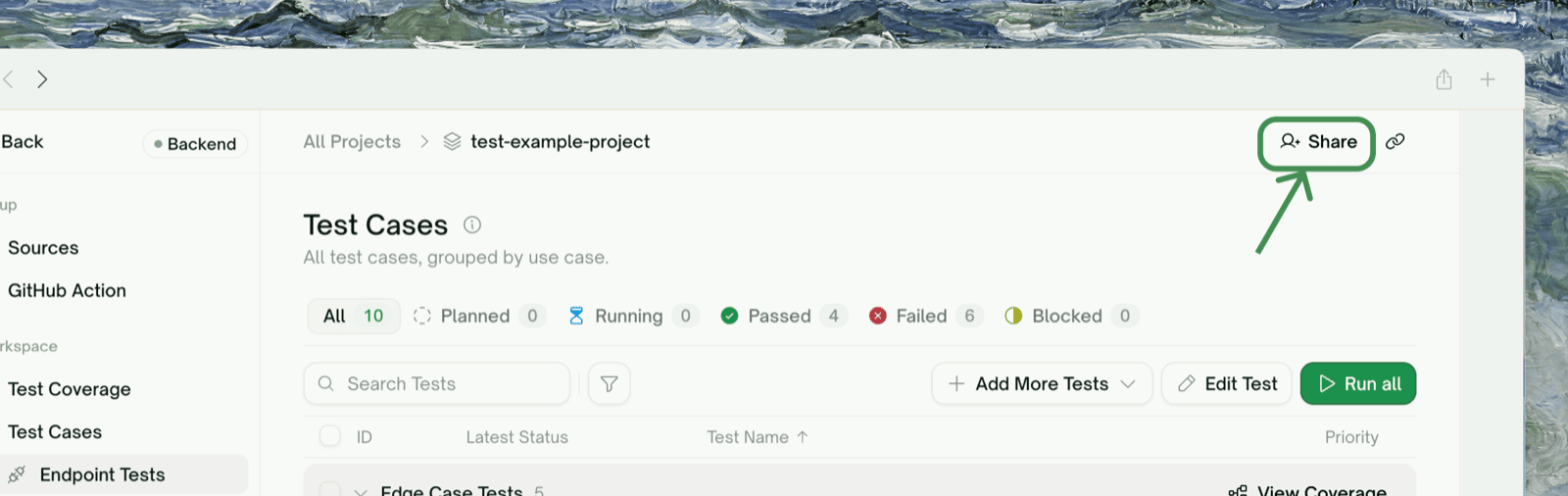
2
Invite by email and pick a role
Enter the person’s email and choose a role: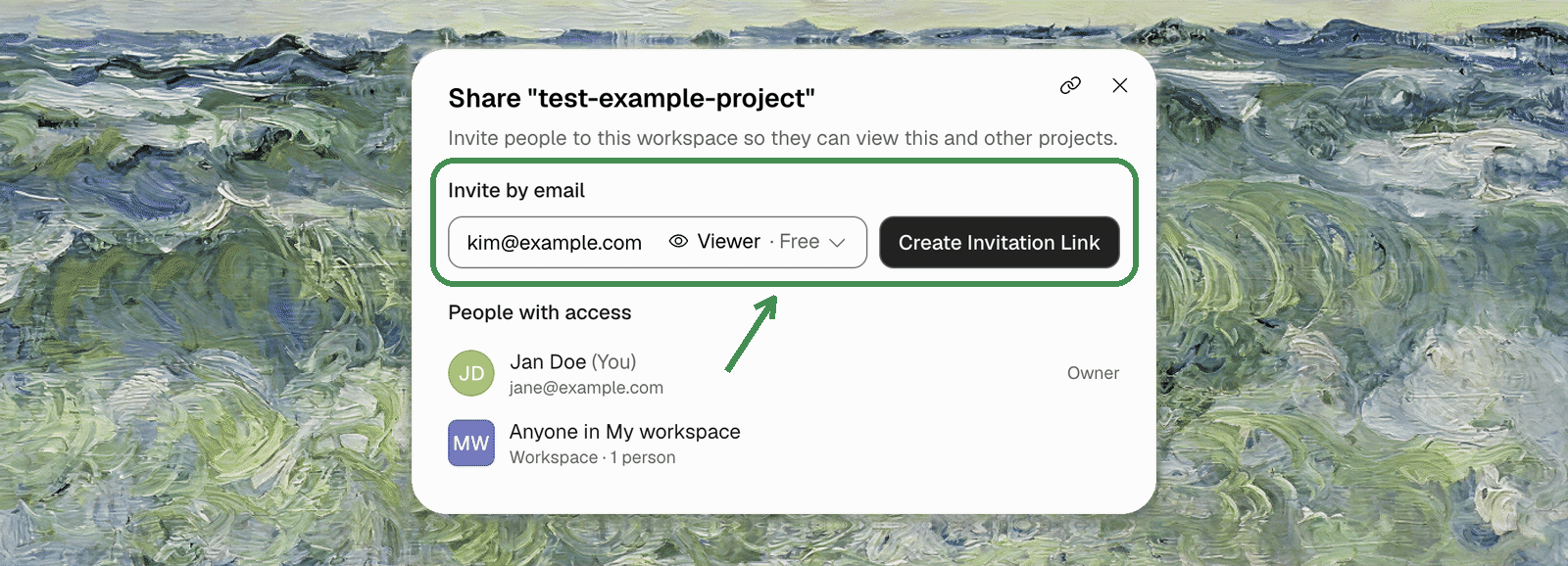
- Viewer — read-only, free on every plan. Right for a PM, manager, or client who needs to see plans, reports, and recordings.
- Member / Admin: full working access; takes a paid seat, so the workspace needs Starter or higher. In a Free workspace these two are greyed out with Starter and up.
3
Copy the project link
Use Copy link to grab the project’s URL and send it alongside — once they’ve accepted, the link takes them straight to this project.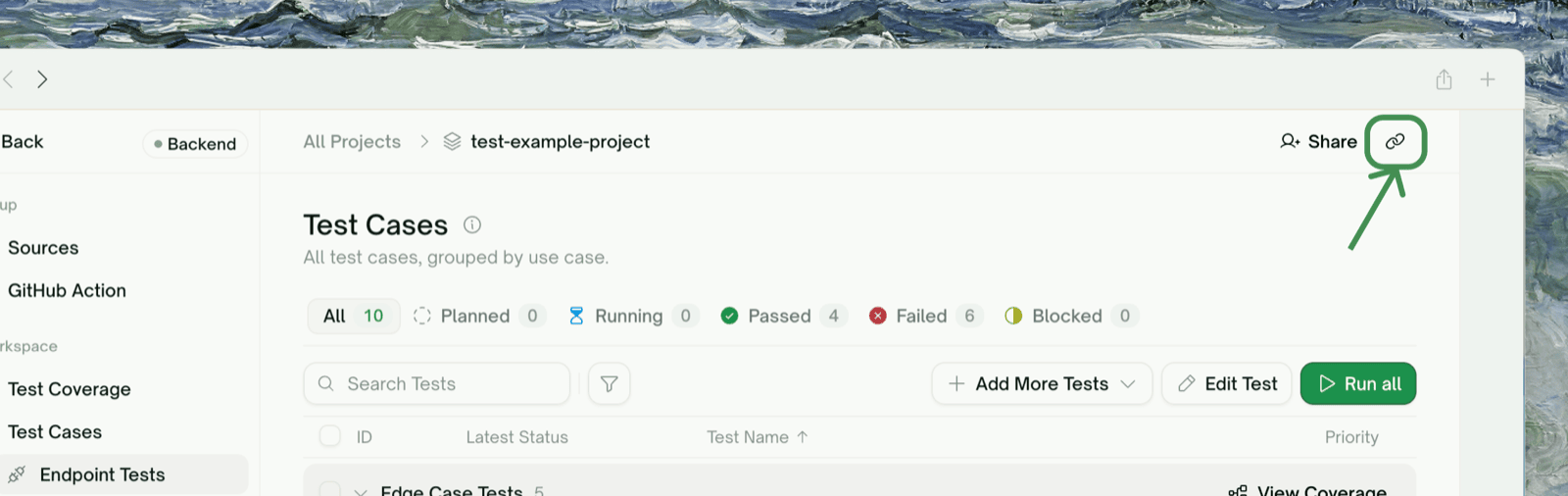
Sharing from a Free workspace
You can share from a Free workspace too — as Viewer invitations only, which are free and need no subscription. Your default workspace starts on Free, so this is what you’ll see until it’s upgraded. If the person needs to work on the tests rather than just see them, they need a Member or Admin seat, and those need a paid plan: the Owner upgrades the workspace from Settings → Plan, or you create a new workspace on a paid plan and start the work there.What the Person Can See and Do
What an invitee can do is exactly their workspace role — see the full matrix in Members & Roles. The short version:Revoking Access
Sharing is revoked the same way it was granted: through workspace membership, in Workspace Settings → Members: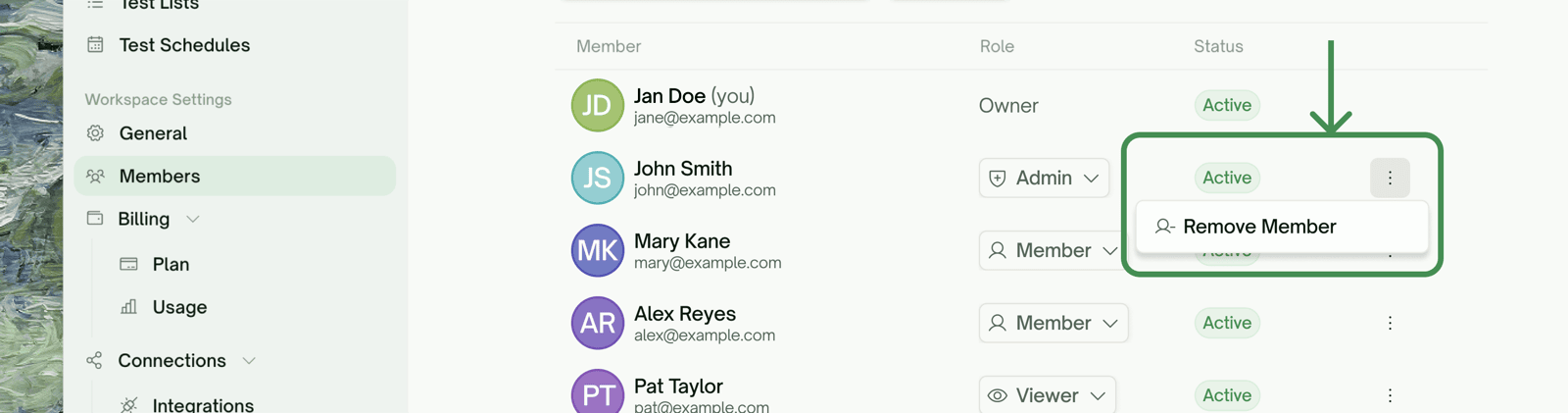
- Remove the person from the workspace (Admins and the Owner can). They immediately lose access to every project in it.
- Revoke a pending invitation if they haven’t accepted yet — the link stops working.
- Downgrade them to Viewer if they should keep seeing results but stop changing things — this also frees their paid seat.
Share vs. Add a Member — Which One?
They’re the same mechanism; the difference is intent and starting point:Where to Go Next
Members & Roles
The full permission matrix and invitation flow
Workspaces
Free vs. paid workspaces and switching