

Watching a Run
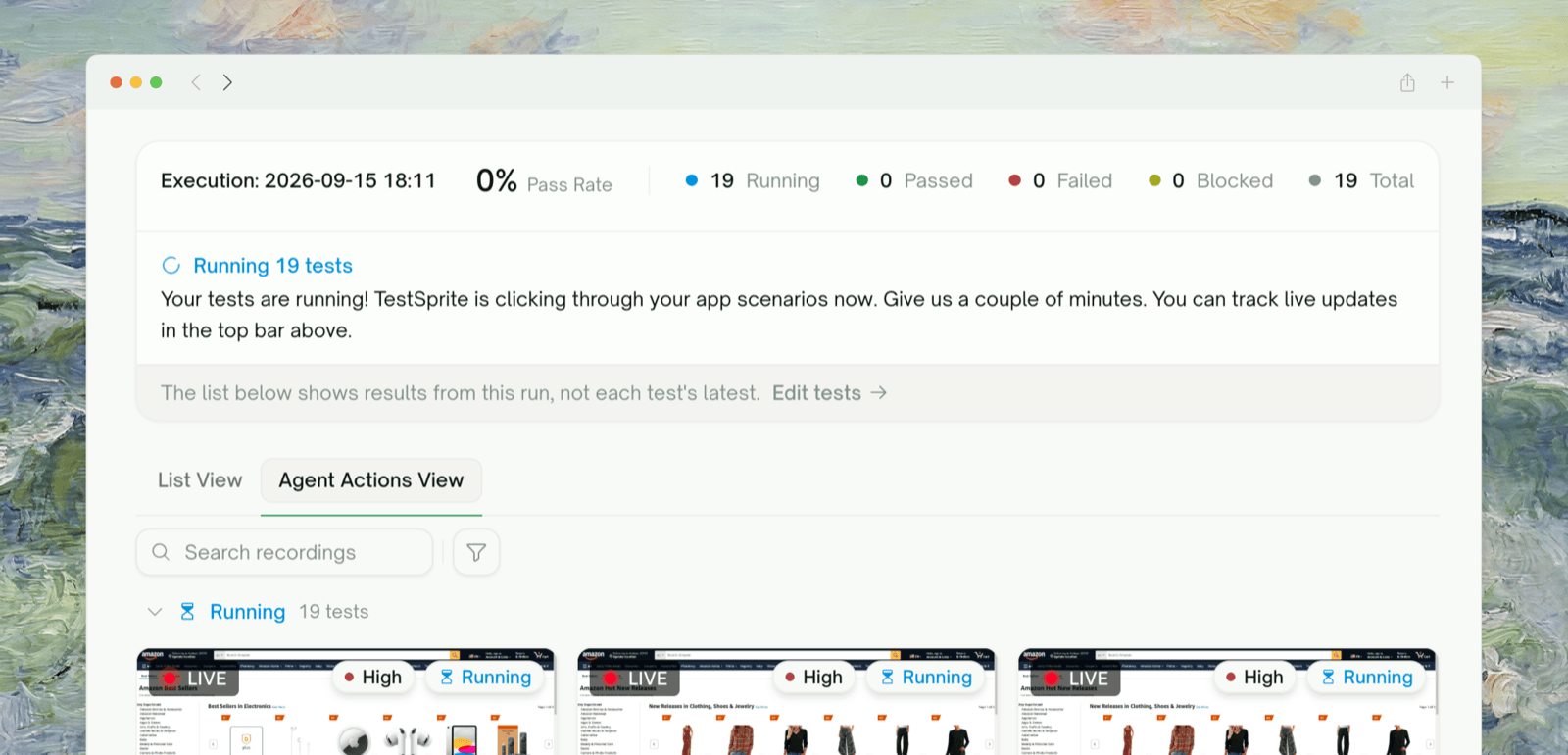
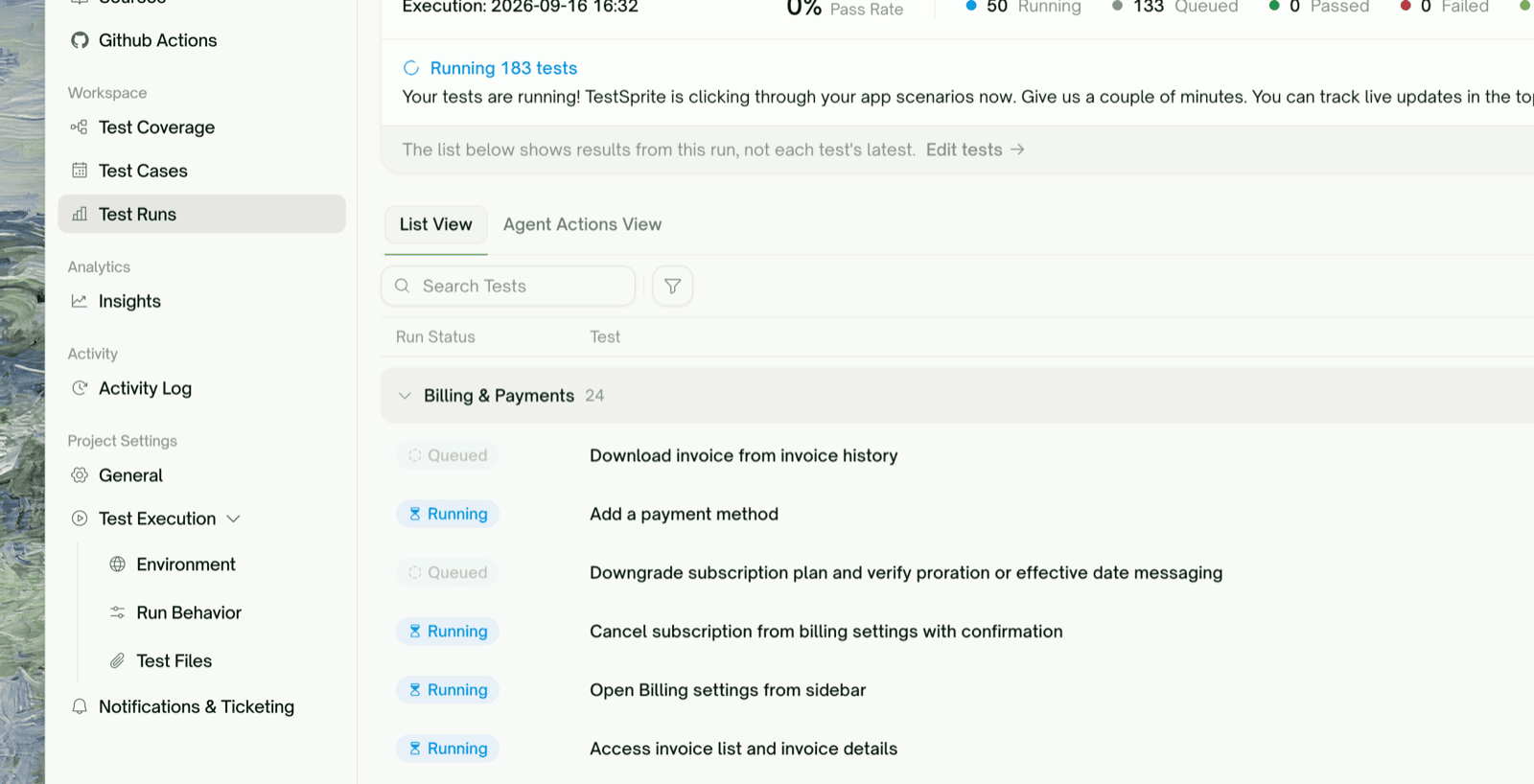
You don’t have to wait for a run to finish. The Run Report header at the top of the run page shows the pass rate and live counts (Running, Queued, Passed, Failed, Blocked, Total), refreshed every couple of seconds. The page shows results from this run, not each test’s latest status. The run page has two tabs showing the same run two ways:- Agent Actions View
- List View
The default for UI runs. A tile per test streams the agent driving your app (marked LIVE) and becomes a replayable recording when the test finishes. Queued tests join the gallery as soon as they start. See Agent Actions.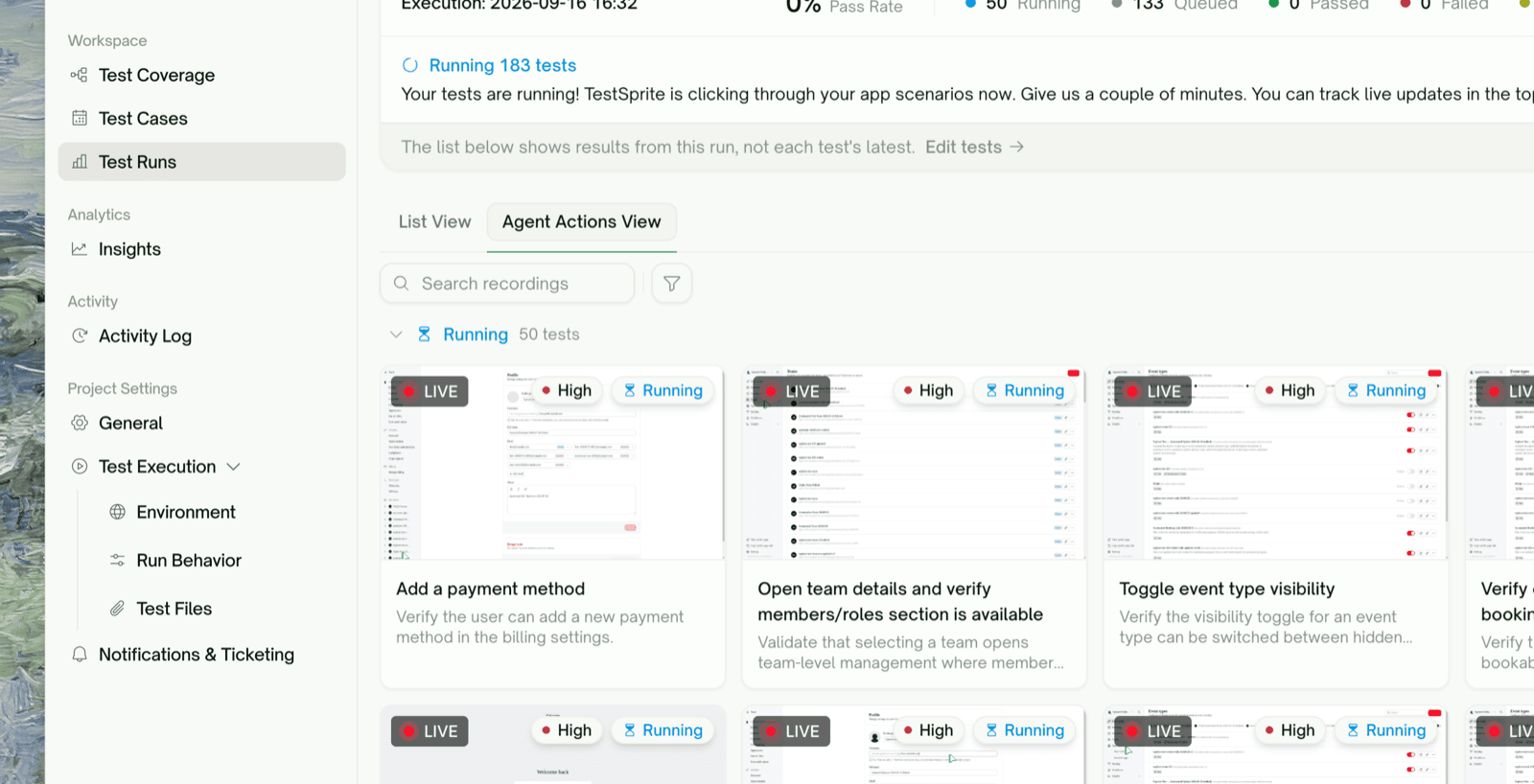
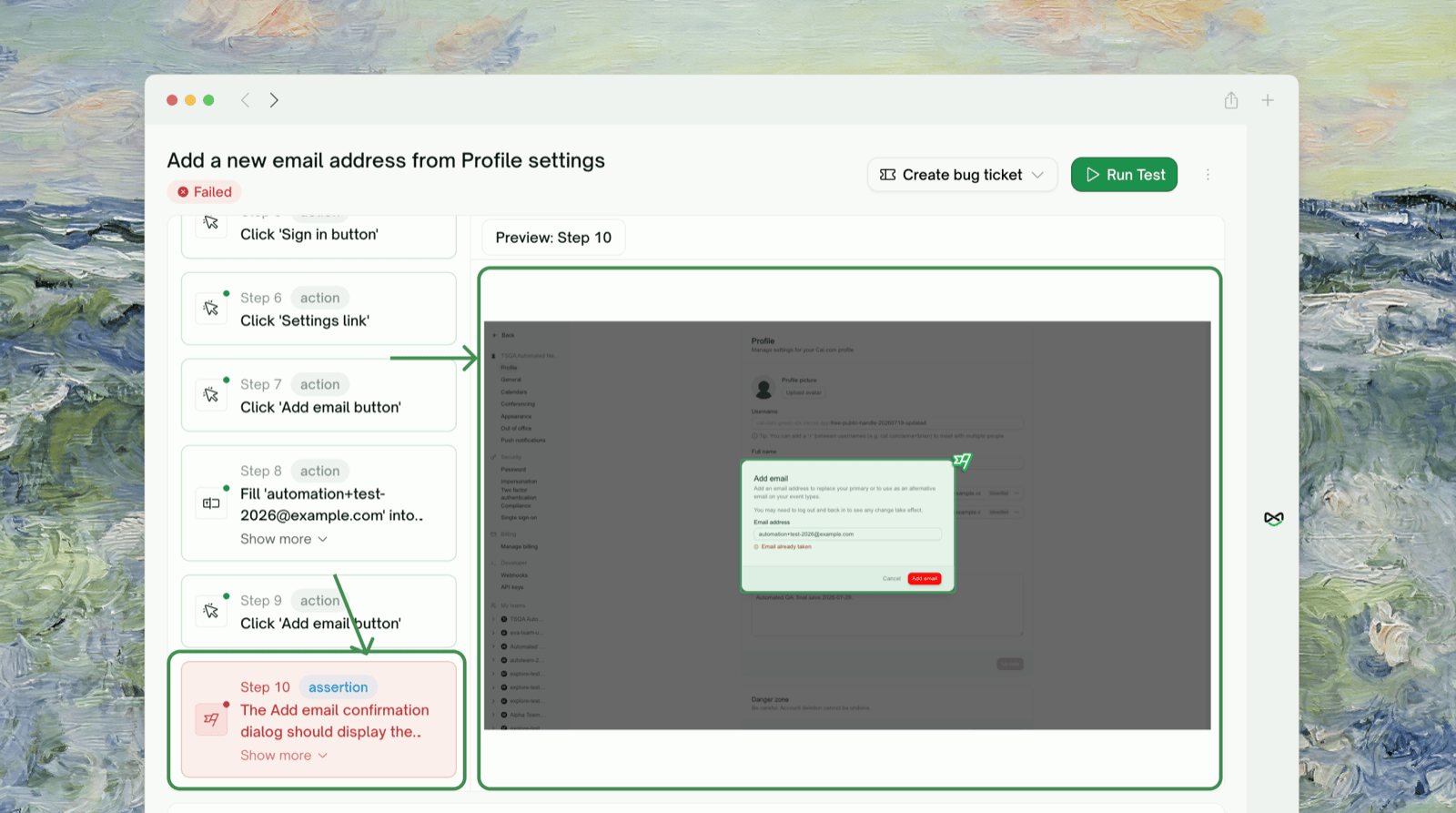
- The live preview is a frame stream refreshed about once a second. The seekable video is produced when the test finishes.
- Counts, steps, and snapshots refresh every 2 to 3 seconds. A blank snapshot usually means the page hadn’t settled yet; the next step shows the stable state.
- Re-run all and Re-run failed stay disabled until the current run finishes.
Reading the Report
Click View Report on a run’s page to open that run’s report. It comes from an AI analysis pass that runs automatically when the run finishes; until it’s done, the page shows “Analyzing your results”.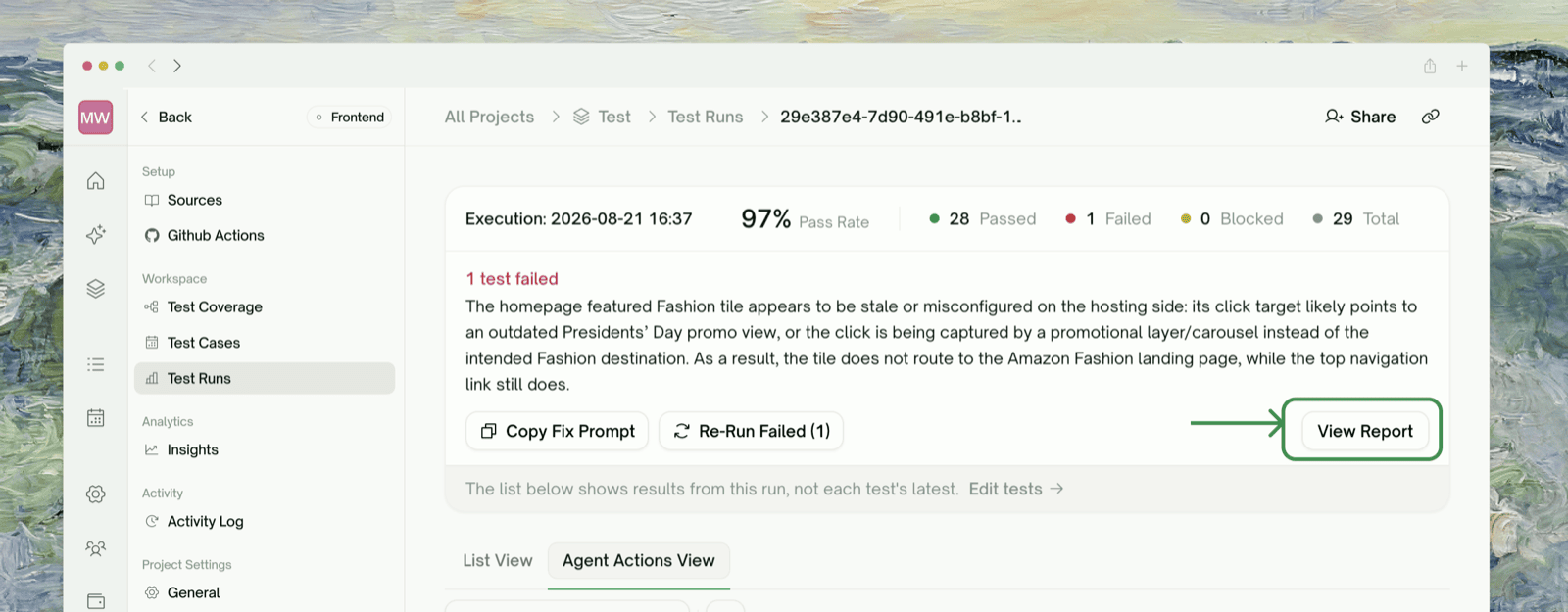
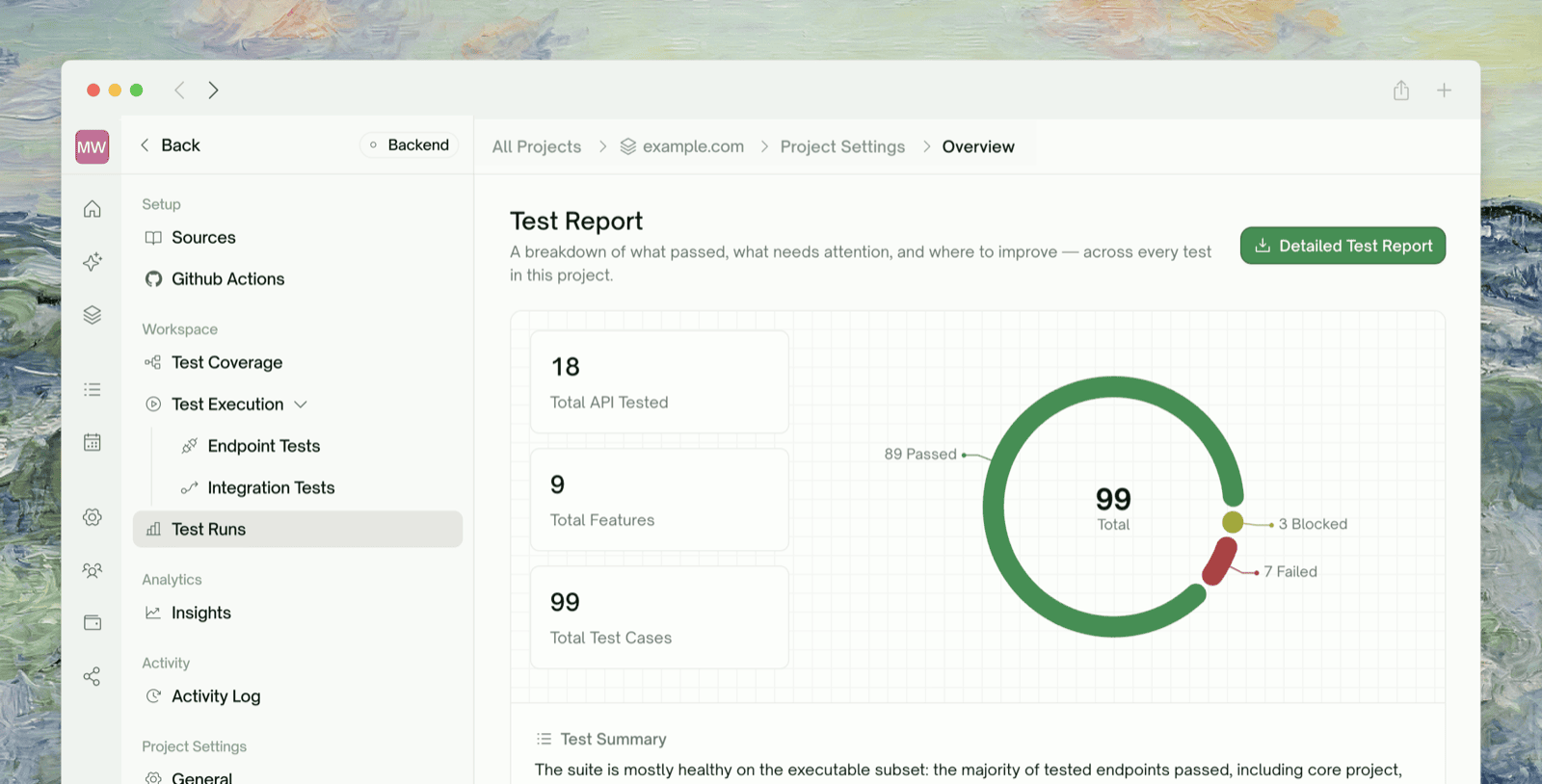
The report covers outcomes and coverage, not timing; for when a run happened, use the Test Runs history.
The AI Fix Prompt
The Fix prompt for your coding agent card lists every concrete problem the run found and what to change. Click Copy prompt and paste it into Claude Code, Cursor, or any agent pointed at your repo. When there’s nothing actionable, the card is empty.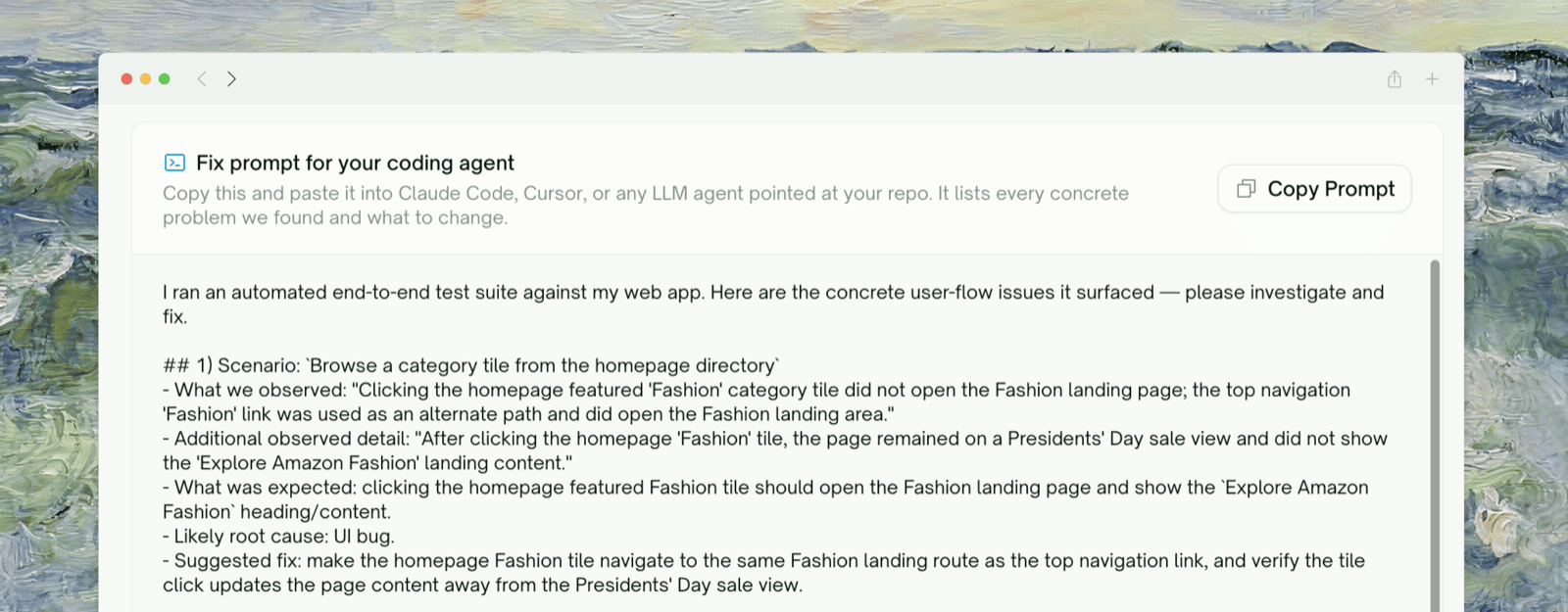
Downloading the PDF
The PDF is a fuller, print-ready version of the same run, with a cover, a table of contents, coverage tables, and per-failure detail including source code. Your browser produces it through its print dialog (nothing is stored on the server), so you can regenerate it any time.1
Click Detailed Test Report
On the report page, click Detailed Test Report. A new tab opens and assembles the full report.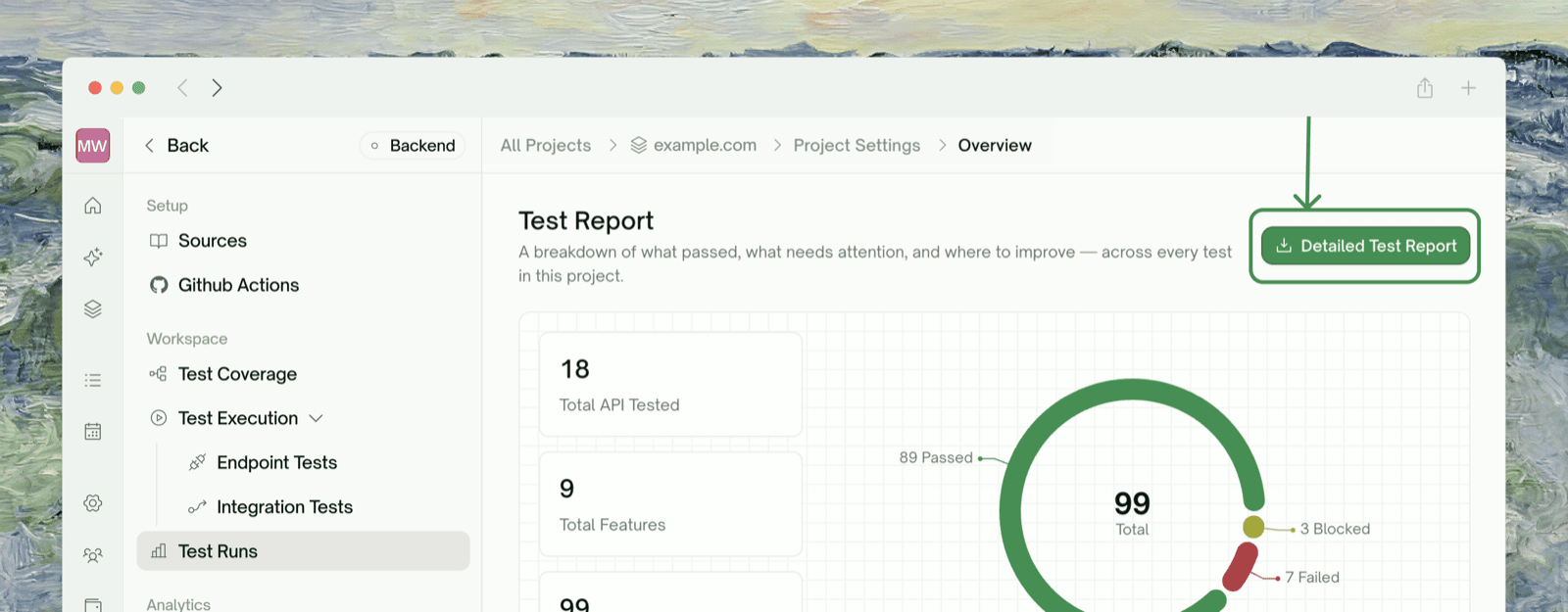
2
Let it finish generating
Wait for the Generating spinner to settle before printing.
3
Print to PDF with the right settings
In the print dialog, choose Save as PDF and use these settings so the report renders correctly:
Reports have no fixed expiry; they re-render from the run whenever you open them. Embedded screenshot links expire after about a week, so download the PDF if you need a permanent copy with images.
Where to Go Next
Insights
Issues to fix and quality trends across runs
Edit & Rerun
Re-run a test or the whole project after you’ve triaged