

The Four Roles
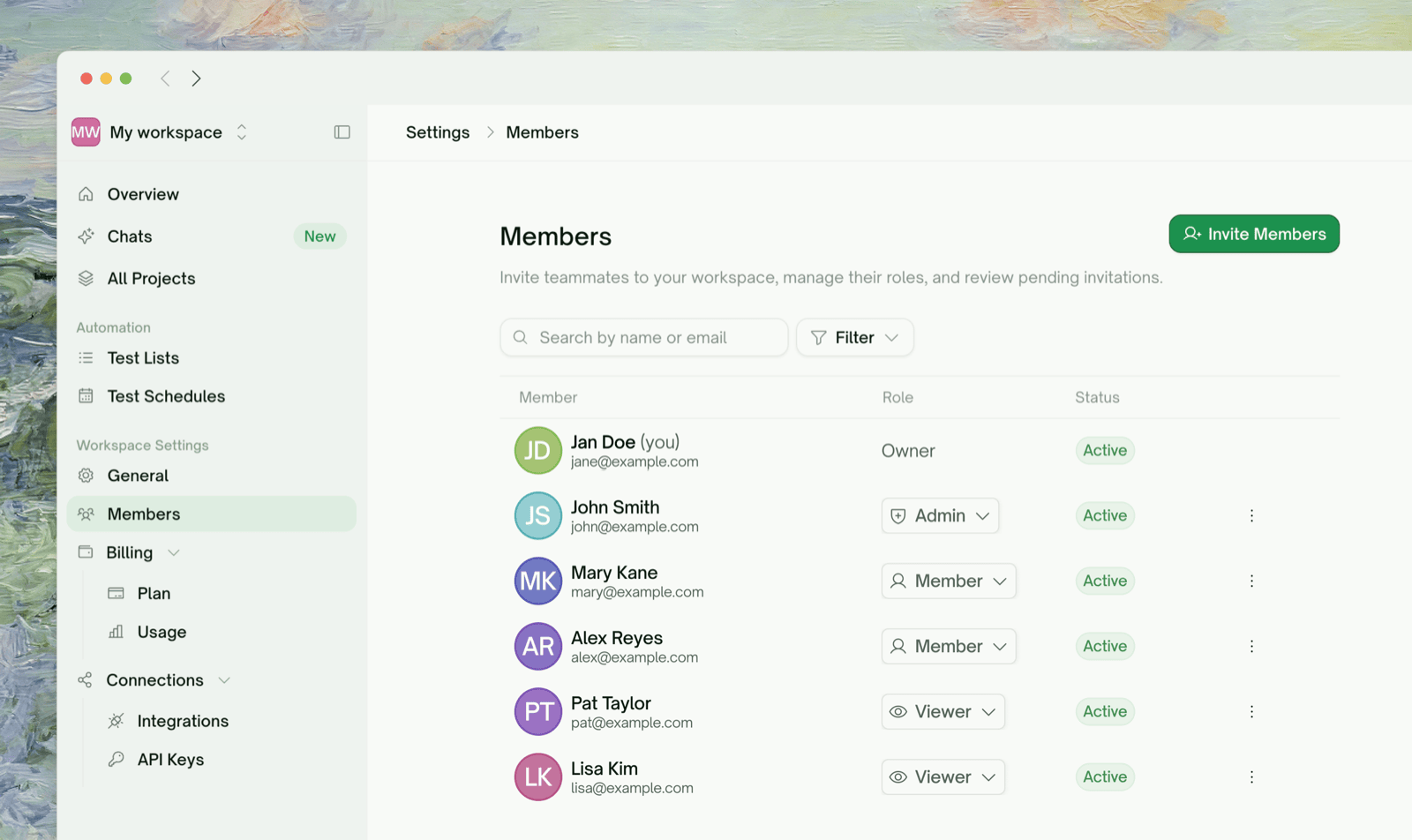
Seats follow the plan, not the role. On a paid plan, the Owner, Admins, and Members each hold a paid seat, billed to the Owner; the subscription starts with the Owner’s seat, and each invitation adds one. Viewers are free on every plan. A Free workspace has no paid seats at all: it is the Owner plus Viewers, which is why Member and Admin need Starter or higher.
Permission matrix
A Viewer who opens a create or edit page sees a Read-only access notice instead, and the API Keys and Billing entries are hidden from them. Viewers are the right way to loop in a PM, a manager, or a client who needs to see results but shouldn’t touch tests.
Inviting Someone
Invitations live in Workspace Settings → Members, or use the Invite members shortcut in the workspace switcher. Both are for Admins and the Owner.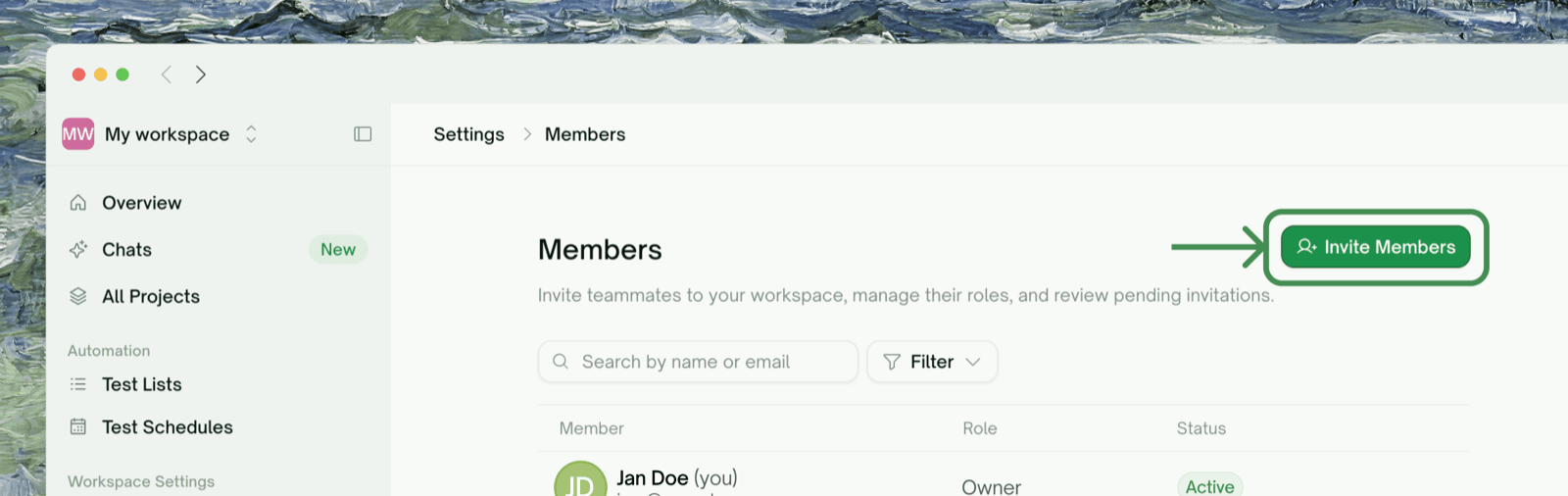
1
Enter their email and pick a role
An invitation is for one email address at a time. The role picker appears once you’ve typed an address — Member is the sensible default for a teammate who’ll work on tests; pick Viewer for someone who only needs to see results. In a Free workspace only Viewer can be picked; Member and Admin are greyed out with Starter and up.
2
Confirm the seat (paid roles only)
Admin and Member invitations take a paid seat. If the workspace already has an unused seat this cycle, the invitation is created right away. Otherwise a Confirm changes summary shows the prorated amount, Continue to Payment takes you to Stripe, and the invitation appears under pending invitations as soon as the payment goes through. Viewer invitations skip this step entirely: viewer seats are free.
3
Send them the link
TestSprite doesn’t email invitations. Clicking Create Invitation Link opens an Invitation link ready dialog with the link; copy it and send it yourself, in Slack, a DM, or your own email. After a Stripe payment there is no dialog: copy the link from the invitation’s pending row in the roster (Copy invitation link), which works any time.The link is bound to the invited email address: the recipient must sign in with that exact email to accept, then click Join workspace. Links expire after 7 days; the roster shows the time left on each pending invitation. If a link expires or is lost, use New invitation link on that row — the old one stops working.
What if they're already in the workspace?
What if they're already in the workspace?
The dialog refuses the address with “already a member of this workspace” or “already has a pending invitation”. To change an existing member’s role, use the roster instead; for someone who hasn’t accepted yet, copy the link again from their pending row, or issue a fresh one with New invitation link.
Can I invite someone as Owner?
Can I invite someone as Owner?
No. Ownership can’t be assigned by invitation or role change. The current Owner can transfer it to an Admin or Member from that person’s row menu in the roster (Transfer ownership); you type their email to confirm and become an Admin yourself. The default workspace, the one created at signup, can’t be transferred.
Is there a limit on Viewers?
Is there a limit on Viewers?
Yes, per plan: 10 on Free, 25 on Starter, 50 on Standard, 100 on Pro, unlimited on Enterprise. Pending Viewer invitations count toward it. Past the cap, inviting fails with “Viewer limit reached” until you revoke an invitation, remove a Viewer, or upgrade.
Why are Member and Admin greyed out?
Why are Member and Admin greyed out?
The workspace is on the Free plan, which supports Viewers only — read-only guests are free and need no subscription. Member and Admin seats need Starter or higher: the Owner can upgrade from Settings → Plan, or create a new workspace on a paid plan.
Changing a Member’s Role
Admins and the Owner can change any member’s role from the Role dropdown in Workspace Settings → Members, except the Owner’s, which is fixed. In a Free workspace there is nothing to change: everyone besides the Owner is a Viewer, and promoting someone needs a paid plan.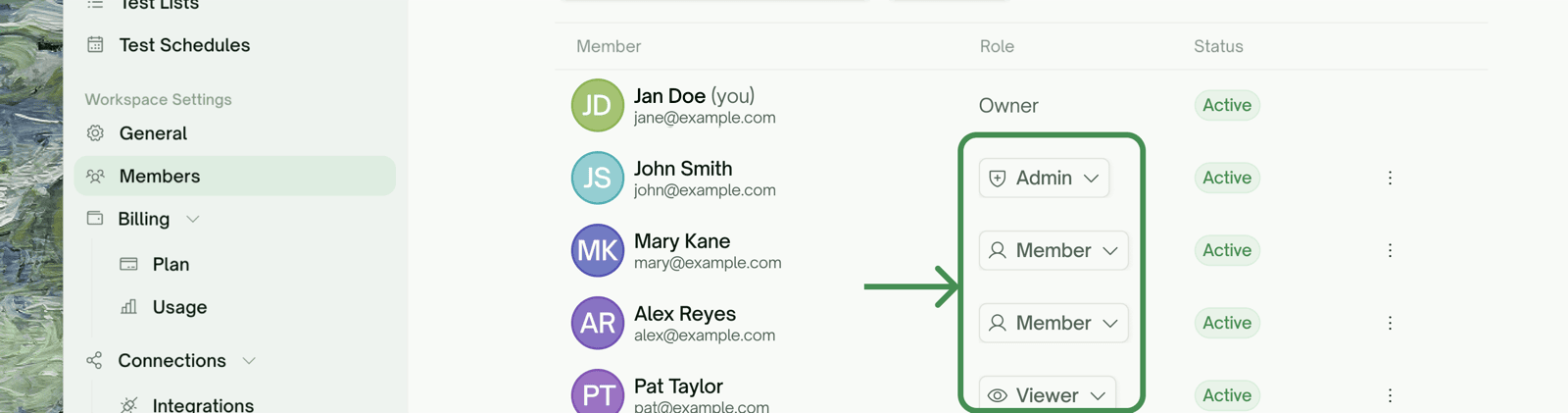
- Member/Admin → Viewer frees their paid seat after you confirm. The freed seat stays usable until the end of the current billing cycle.
- Viewer → Member/Admin needs a paid seat first. If an empty paid seat exists it’s used automatically; otherwise you pay for one on Stripe, and the role changes once that’s done.
Removing a Member — and Leaving
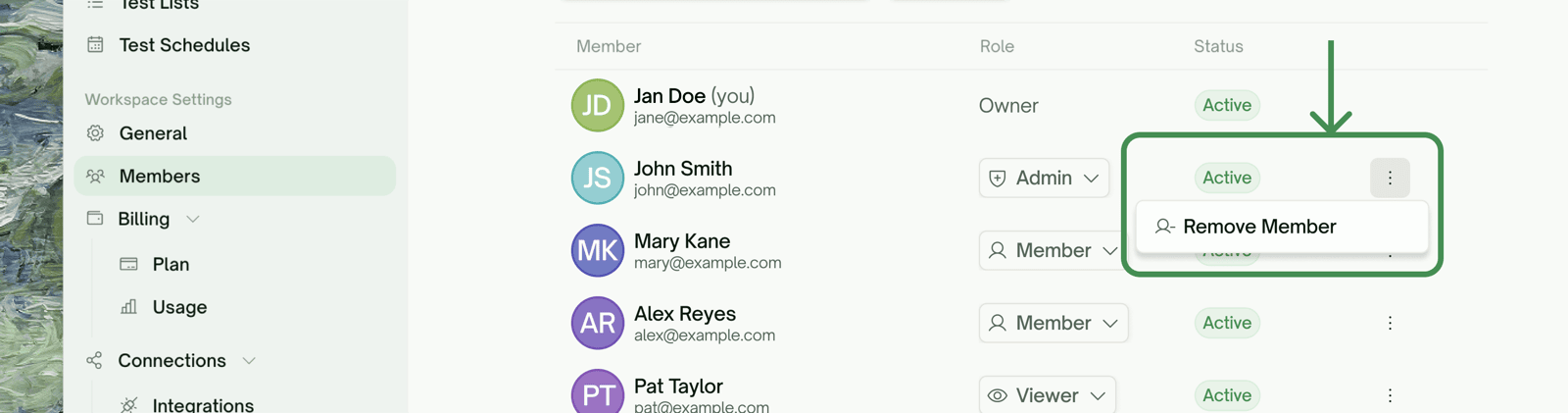
- Admins and the Owner can remove anyone except the Owner, from the roster’s row menu. Removal takes effect immediately: the person loses access, and any API keys they minted in this workspace stop working. A paid seat stays paid through the current cycle and stops billing from the next one.
- Anyone except the Owner can leave — use Leave Workspace on your own row, whatever your role. Afterwards, pick another workspace from the switcher; your default workspace is always there.
- The Owner can’t leave or be removed. To step away, the Owner transfers ownership first (becoming an Admin), or deletes the workspace.
Where to Go Next
Workspaces
Free vs. paid workspaces, switching, and deletion
Sharing a Project
The fast path for showing one project to someone new
API Keys
Keys are bound to your membership in a workspace