

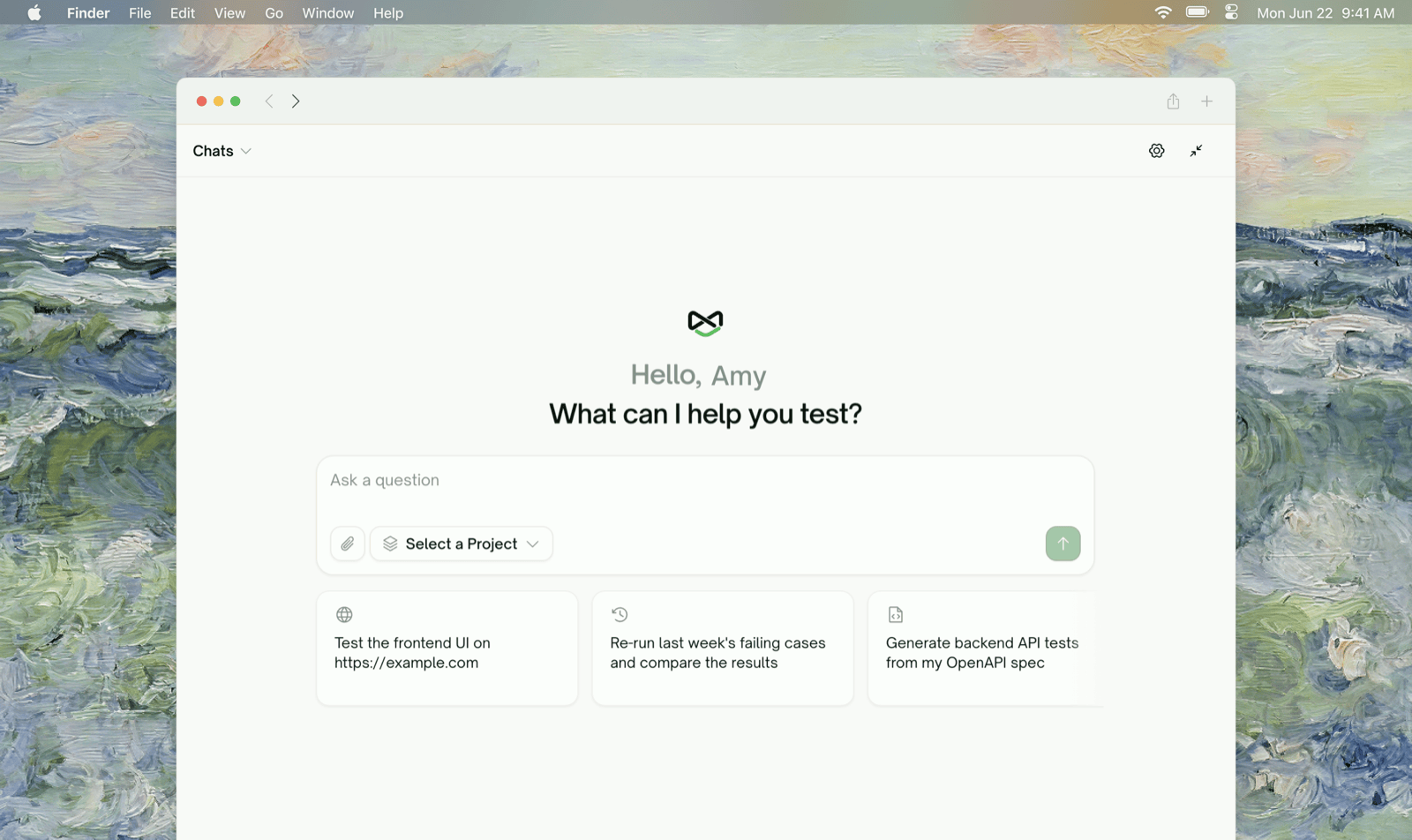
What it can do
Three prompts you can paste right now:
The vocabulary
The chat uses the same terms as the rest of the portal:- Sources — everything you feed a project: documents, code, designs, tickets, crawled pages.
- Use cases — the feature map (“Features” and the “Use cases” under each) that coverage is organized around.
- Test coverage — the live set of test cases and their current status.
- Test run — one execution. A run is frozen history; a test case’s status reflects its latest run.
Project focus
A conversation is focused on one project at a time. Open the chat from a project page and that project is the focus; ask it to switch (“let’s work on the Amazon project”) and a divider row like “Switched focus to Amazon.” marks the change. The chat re-reads the focused project every turn, so changes you make outside the conversation show up in its next answer. The project selector in the composer always shows the current focus; click it to search and switch: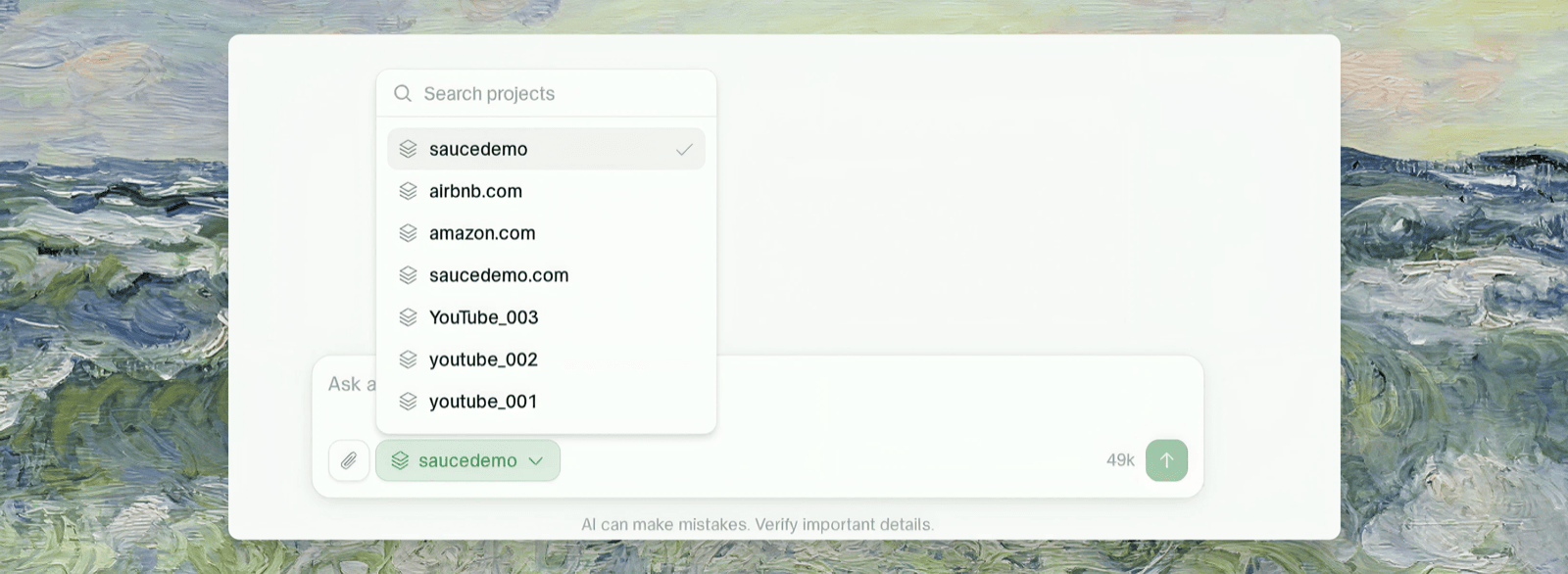
Conversations
- Every conversation belongs to the workspace it was started in.
- Titles are generated from your first message; rename or delete a conversation from the conversation list.
- You can attach images and files to a message. An attachment is read on the turn you send it — quote the relevant part in a later message if you need to come back to it.
Where to Go Next
Approving Actions
How proposal cards work — approve, reject, or just answer by typing
Testing Lifecycle
The concept map the chat’s workflow follows
Key Terms
The core vocabulary